Best Keyboards for Working From Home
The Logitech MX Keys S is the best keyboard for most remote workers thanks to its premium typing feel and multi-device support — but the Keychron K2 Pro delivers a superior mechanical experience at a lower price if you don't mind a bit more sound.
Our #1 Pick
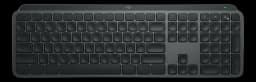
Logitech MX Keys S
The best all-day WFH keyboard: low-profile scissor keys, smart backlight, and one-tap switching across three devices, with a 4.5-star record over 3,400+ owners.
- Scissor switches are near-inaudible on video calls — the laptop-keyboard feel, elevated
- Auto-backlighting adjusts to ambient light with smart proximity sensor
- Multi-device pairing: Bluetooth to 3 devices + Logi Bolt USB dongle
Price checked Sep 12, 2026 — verify the live price on Amazon.
Also Great
Mechanical option: Keychron K2 Pro ($90) — Hot-swap wireless mechanical — the tactile upgrade for those who type a lot
Ergonomic: Logitech Wave Keys ($69.99) — Gentle wrist-friendly curve, full-size, USB receiver — solid ergonomic pick under $70
Buy on Amazon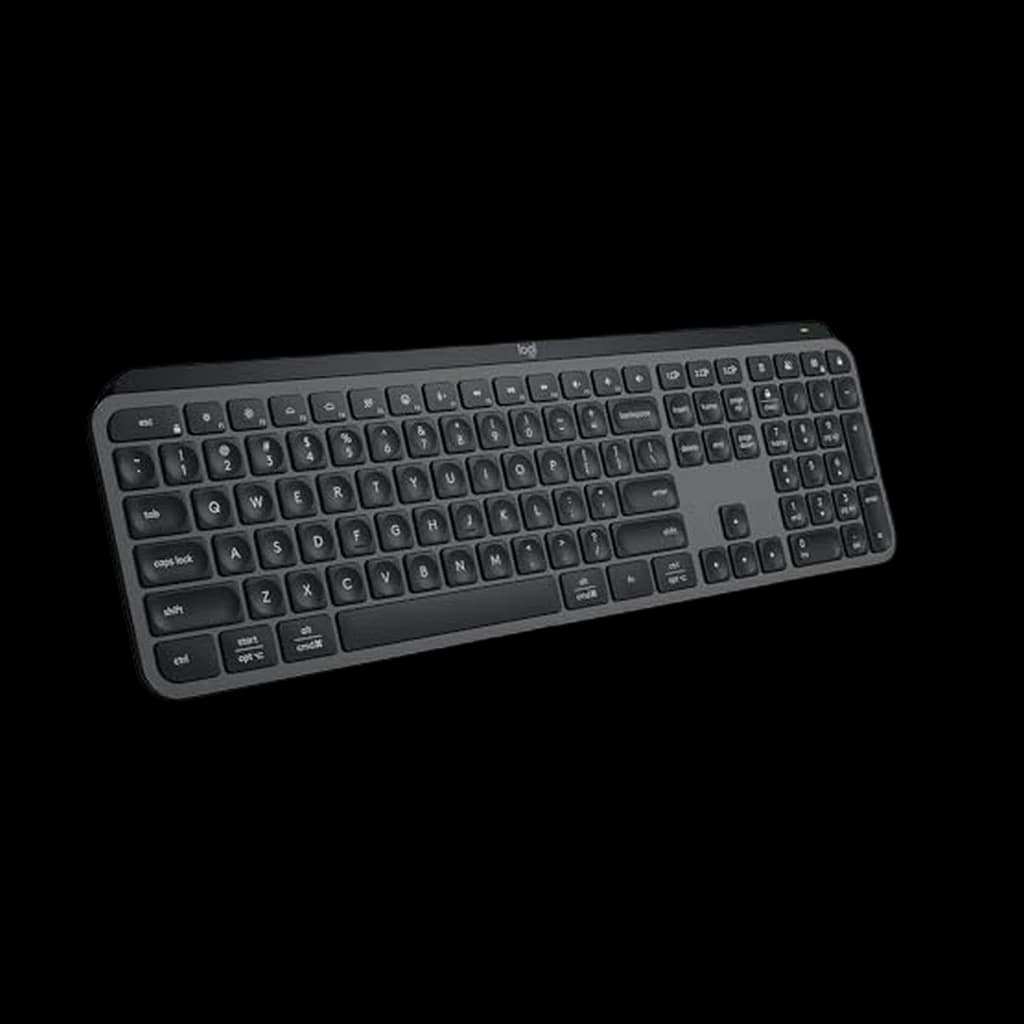 #1 4.5 | 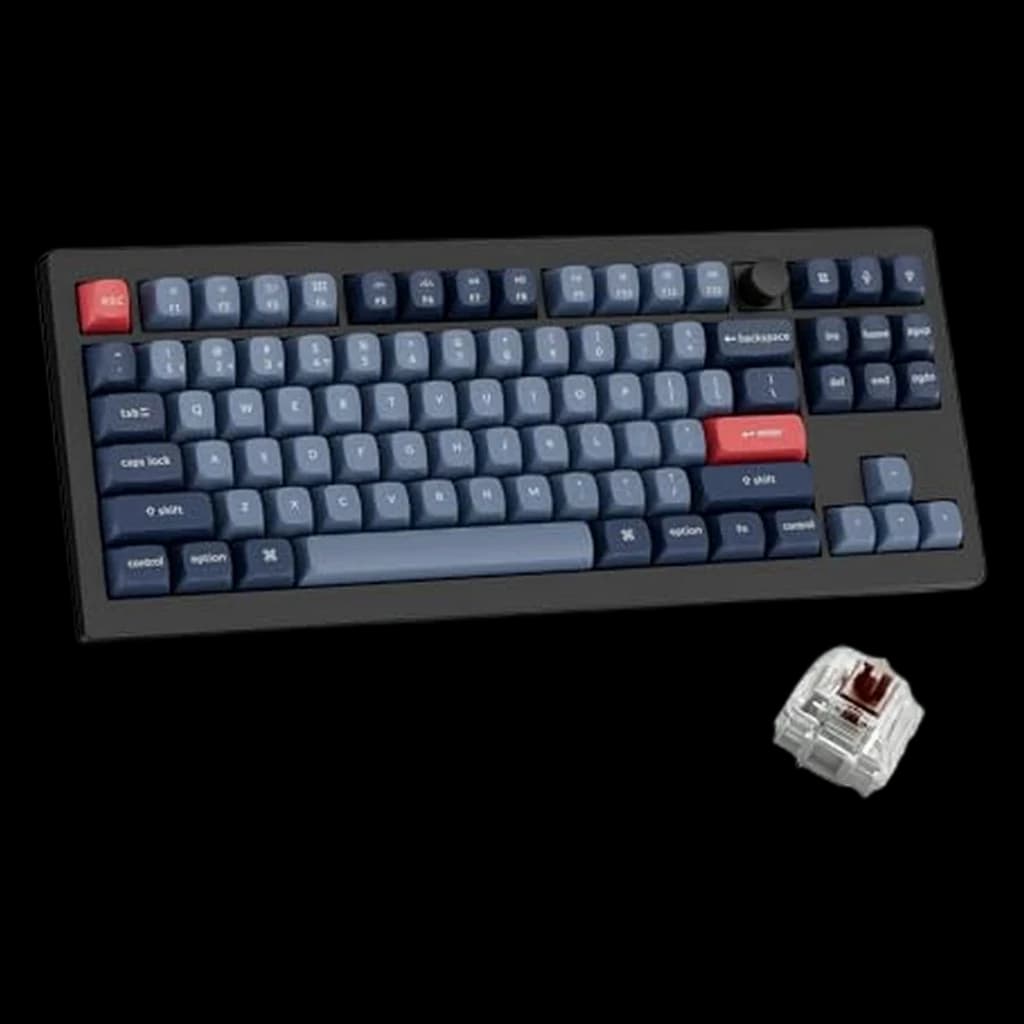 #2 3.8 | 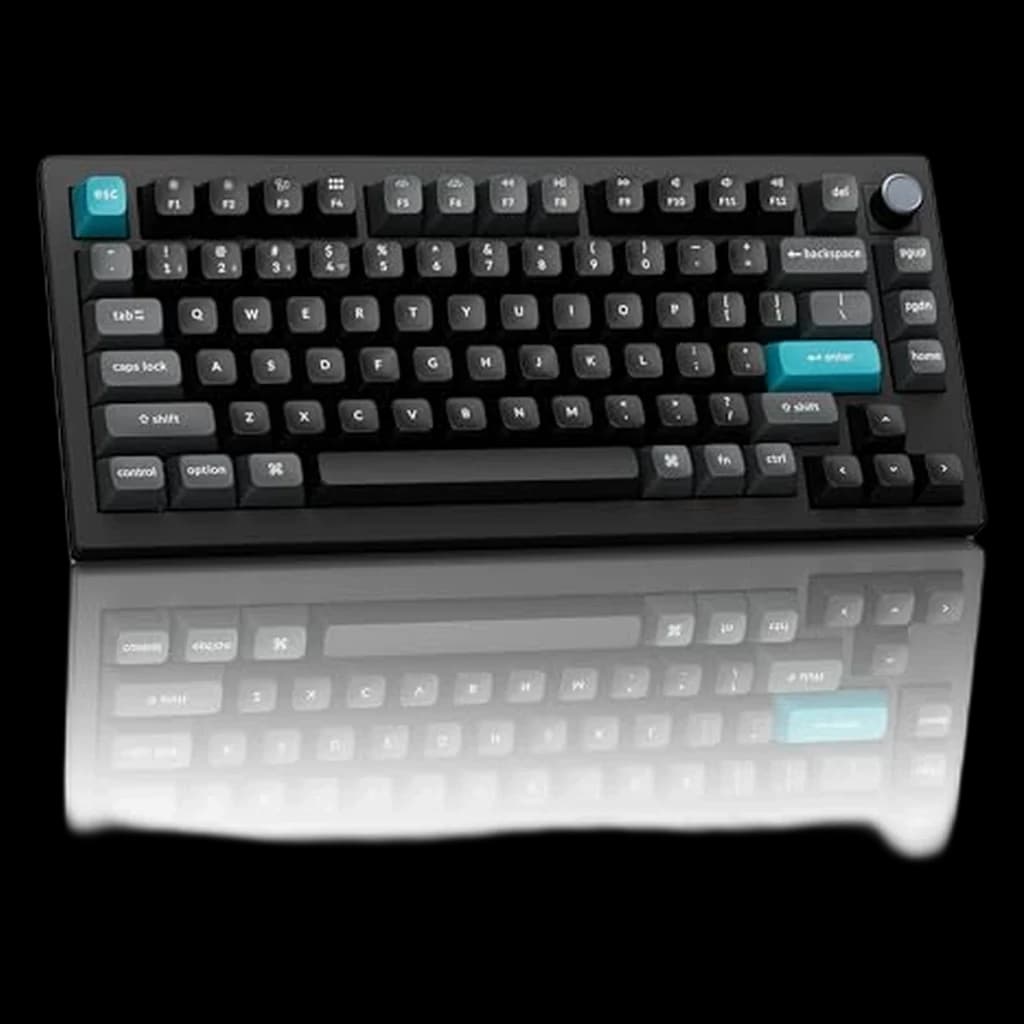 #3 4.4 | 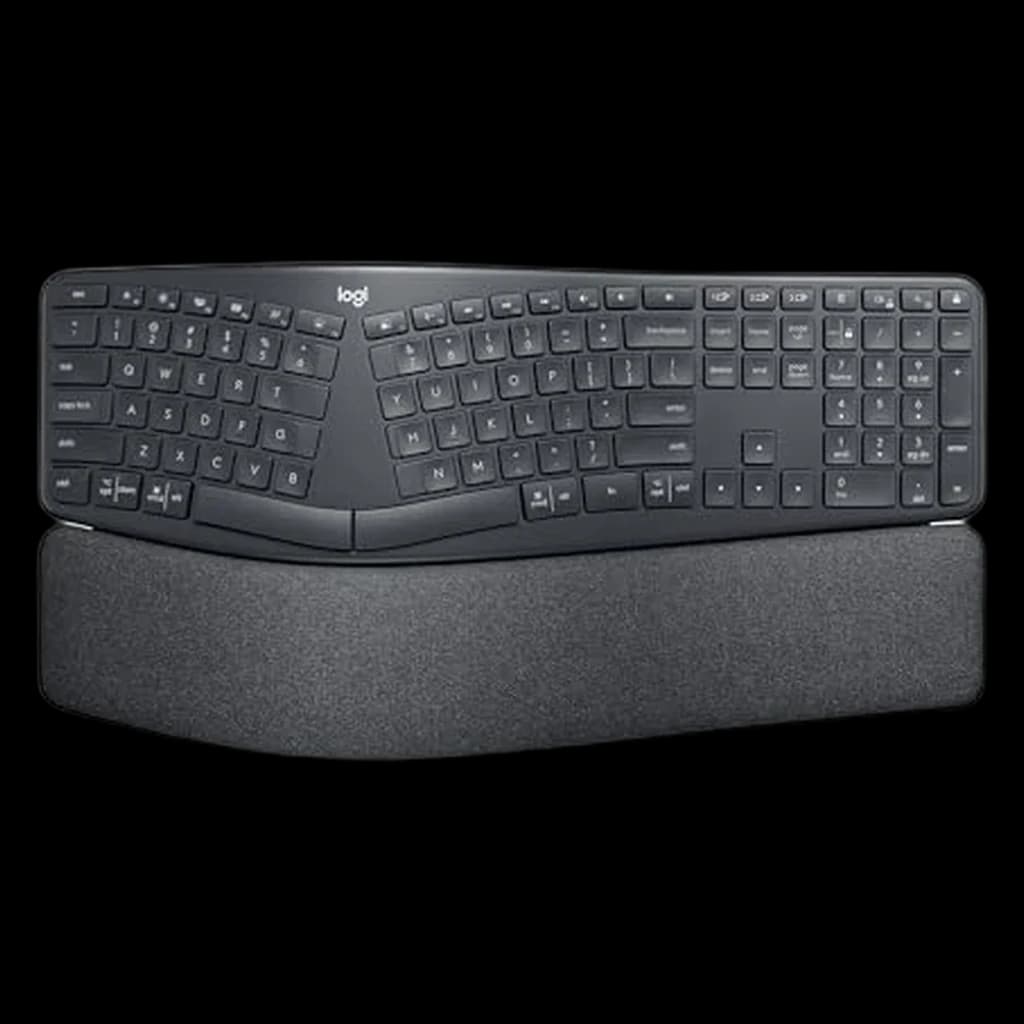 #4 4.3 | 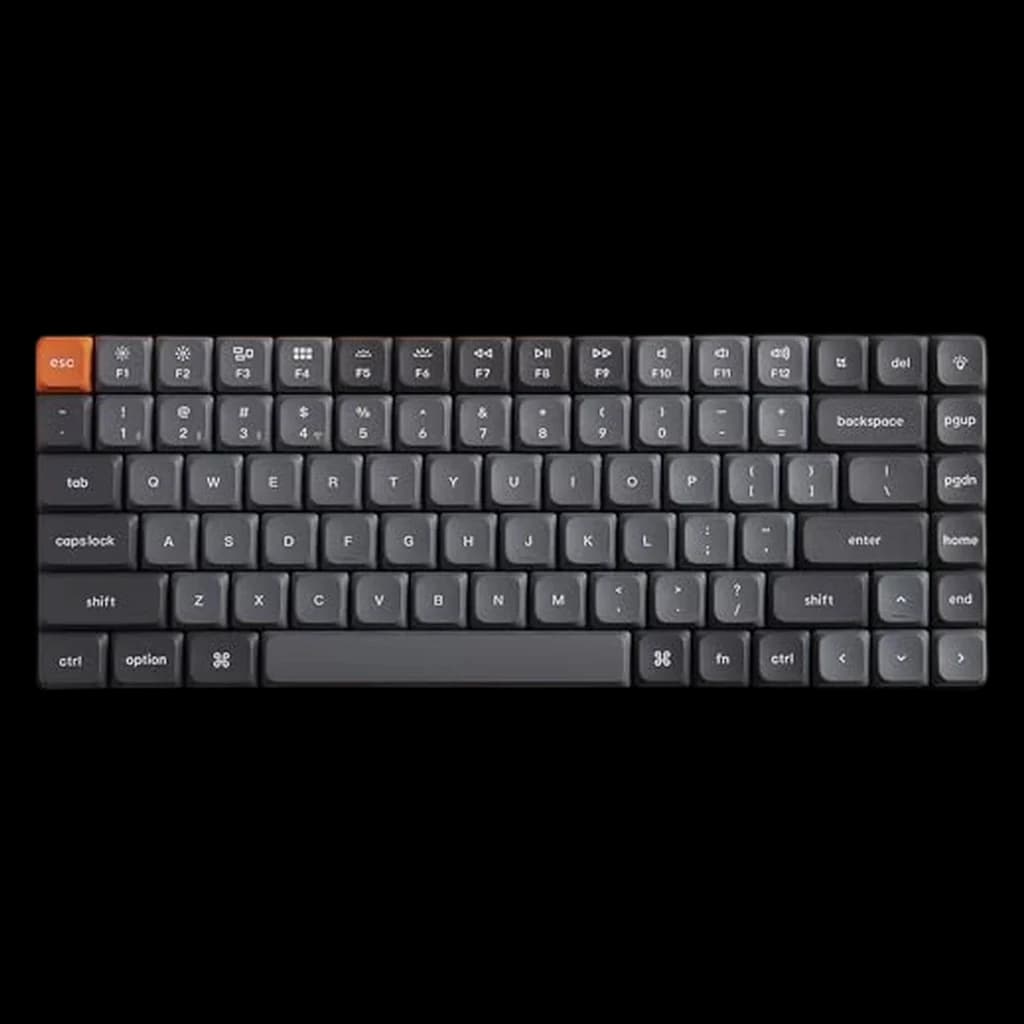 #5 4.4 | 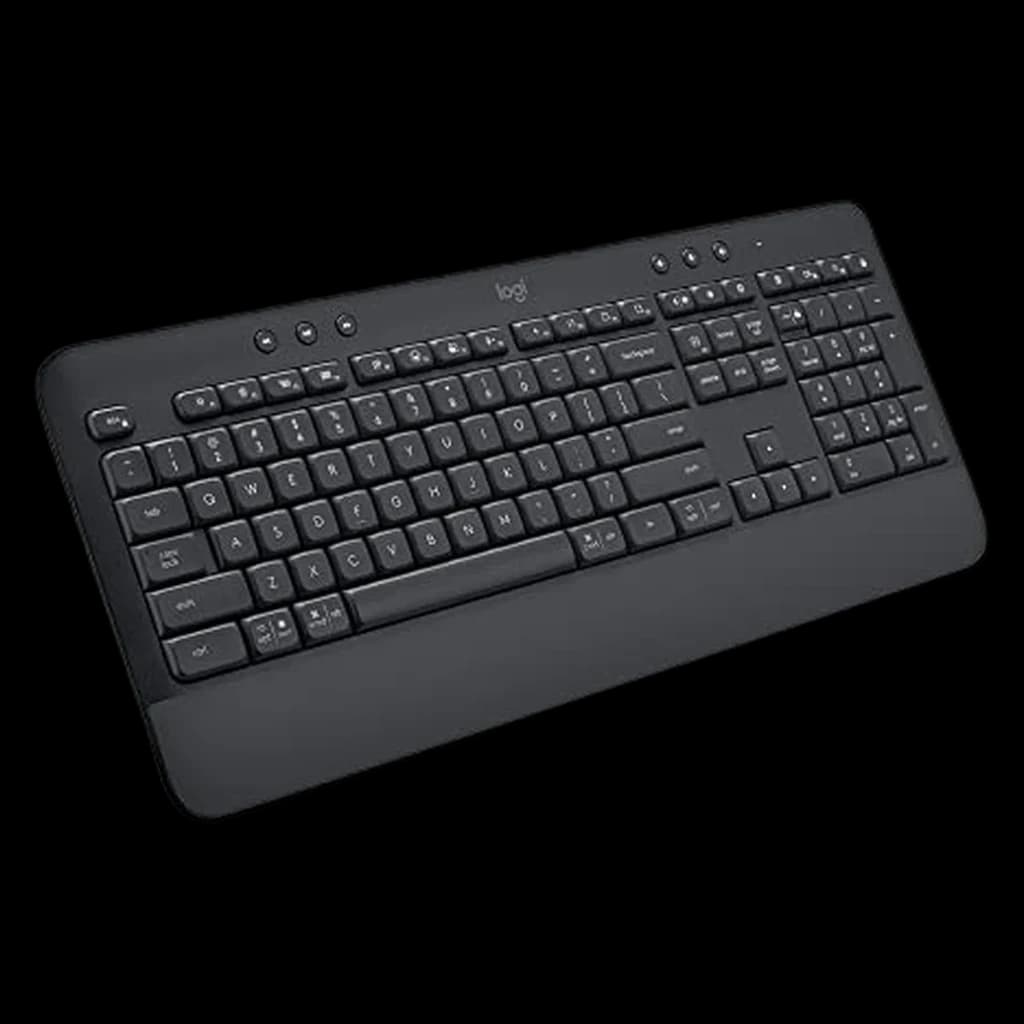 #6 4.4 | |
|---|---|---|---|---|---|---|
| Price | $119.99Buy on Amazon | $104.99Buy on Amazon | $229.99Buy on Amazon | $146.99Buy on Amazon | $59.63Buy on Amazon | $53.99Buy on Amazon |
| Verdict | Quietest full-size wireless option — near-silent on calls | Wirecutter's top TKL pick — hot-swap, wireless, QMK, knob | Full-metal 75% powerhouse — 600h battery, ZMK, 8K polling | Ergonomist-certified — reduces wrist strain 25%, zero learning curve | Thin as a laptop keyboard but with hot-swap mechanical feel | Quiet, comfortable, lasts 3 years on batteries — zero fuss budget pick |
| Buyer sentiment | Build Quality Key Feel Backlighting Quiet Buyers praise build quality, key feel, backlighting and quiet. Mixed feedback on connectivity and reliability. Based on 2,150 user mentions | Quality Keyboard feel Value for money Versatility Reliability Buyers praise quality, keyboard feel, value for money and versatility. Some flag reliability. Based on 40 user mentions | Quality Buyers praise quality. Mixed feedback on tactile feel. Based on 10 user mentions | Quality Comfort Ergonomics Keyboard Feel Reliability Durability Buyers praise quality, comfort, ergonomics and keyboard feel. Mixed feedback on value for money and connectivity. Some flag reliability and durability. Based on 2,835 user mentions | Sound Quality Tactile Feel Compact Size Build Quality Reliability Battery Life Buyers praise sound quality, tactile feel, compact size and build quality. Mixed feedback on bluetooth connectivity. Some flag reliability and battery life. Based on 369 user mentions | Quality Noise Level Keyboard Feel Comfort Buyers praise quality, noise level, keyboard feel and comfort. Mixed feedback on reliability and bluetooth connectivity. Based on 460 user mentions |
| layout | Full-size (US/ANSI) | 80% TKL (87 keys) | 75% (82 keys, with programmable knob) | Full-size with numpad, curved split frame | 75% (84 keys) | Full-size with numpad |
| switches | Scissor with membrane backing (low-profile, quiet) | Gateron Red / Brown / Banana (hot-swappable, 3-pin and 5-pin MX) | Keychron K Pro Red / Brown / Banana (hot-swappable, 5-pin MX) | Scissor membrane (quiet) | Gateron Low-Profile Red / Brown / Blue (hot-swappable) | Quiet membrane |
| connectivity | Bluetooth (3 devices) + Logi Bolt 2.4 GHz USB dongle | 2.4 GHz (1000Hz polling), Bluetooth 5.1 (3 devices), USB-C wired | 2.4 GHz (8000 Hz), Bluetooth 5.1 (3 devices), USB-C wired | Bluetooth 5.0 (3 devices) + Logi Bolt USB dongle | 2.4 GHz, Bluetooth 5.1 (3 devices), USB-C wired | Bluetooth 5.0 (3 devices) + Logi Bolt USB dongle |
| battery | USB-C rechargeable, ~10 days with backlight / 5 months without | ~4000 mAh, several weeks per charge (backlight dependent) | 4000 mAh, up to 660h (BL off); ~3 months typical | 2x AA batteries, ~24 months typical use | Rechargeable, ~300h backlight off | 2x AA batteries, ~36 months typical use |
| build | Aluminum top plate, slim profile | Gasket mount, sound-absorbing foam, PBT double-shot keycaps | Full aluminum, double-gasket, multi-layer foam, PBT KSA keycaps | Curved split keyframe, 3-layer cushioned wrist rest (memory foam + firm foam + stain-resistant fabric) | Aluminum frame, low-profile body, double-shot PBT keycaps | Integrated cushioned palm rest, 2-tilt-angle legs |
| os_support | Mac, Windows, Linux, iOS, Android | Mac, Windows, Linux (toggle switch + keycap set included) | Mac, Windows, Linux | Mac, Windows | Mac, Windows, Linux | Mac, Windows, Linux, Chrome OS |
| tilt | — | — | — | 0°, -4°, -7° negative tilt options | — | — |
| Pros |
|
|
|
|
|
|
| Cons |
|
|
|
|
|
|
* Prices checked Sep 12, 2026 and may vary. Check the latest price on Amazon.
We research — never hands-on. How we research →
Key Takeaways
The best external keyboards for remote work in 2026 — we evaluated mechanical and membrane options to find the keyboards that deliver the best typing experience for all-day productivity.
As an Amazon Associate I earn from qualifying purchases. Product prices and availability are subject to change.
If you're working from a laptop all day, your keyboard is too small, too flat, and positioned at the wrong height. Laptop keyboards force your wrists into an unnatural angle and compress your hands together, which leads to fatigue and — over time — repetitive strain. An external keyboard fixes all of that while giving you a dramatically better typing experience.
We evaluated over 15 keyboards using expert reviews, verified owner feedback, and ergonomics research — writing, coding, spreadsheet wrangling, and marathon Slack sessions — to find the five that deliver the best combination of typing feel, wireless reliability, and WFH-friendly features.
Already using a mechanical keyboard and love it? Check out our mechanical keyboard deep dive for enthusiast-grade picks. For the broader desk setup, our desk accessories guide covers everything that goes alongside your keyboard.
What the Research Says About External Keyboards for Remote Work
The wrist-flexion case for external keyboards over laptop keyboards is one of the better-supported claims in office ergonomics. NIOSH and the Cornell Ergonomics Group have measured significantly reduced wrist deviation when using an external keyboard at proper desk height vs typing directly on a laptop with the screen at viewing height.
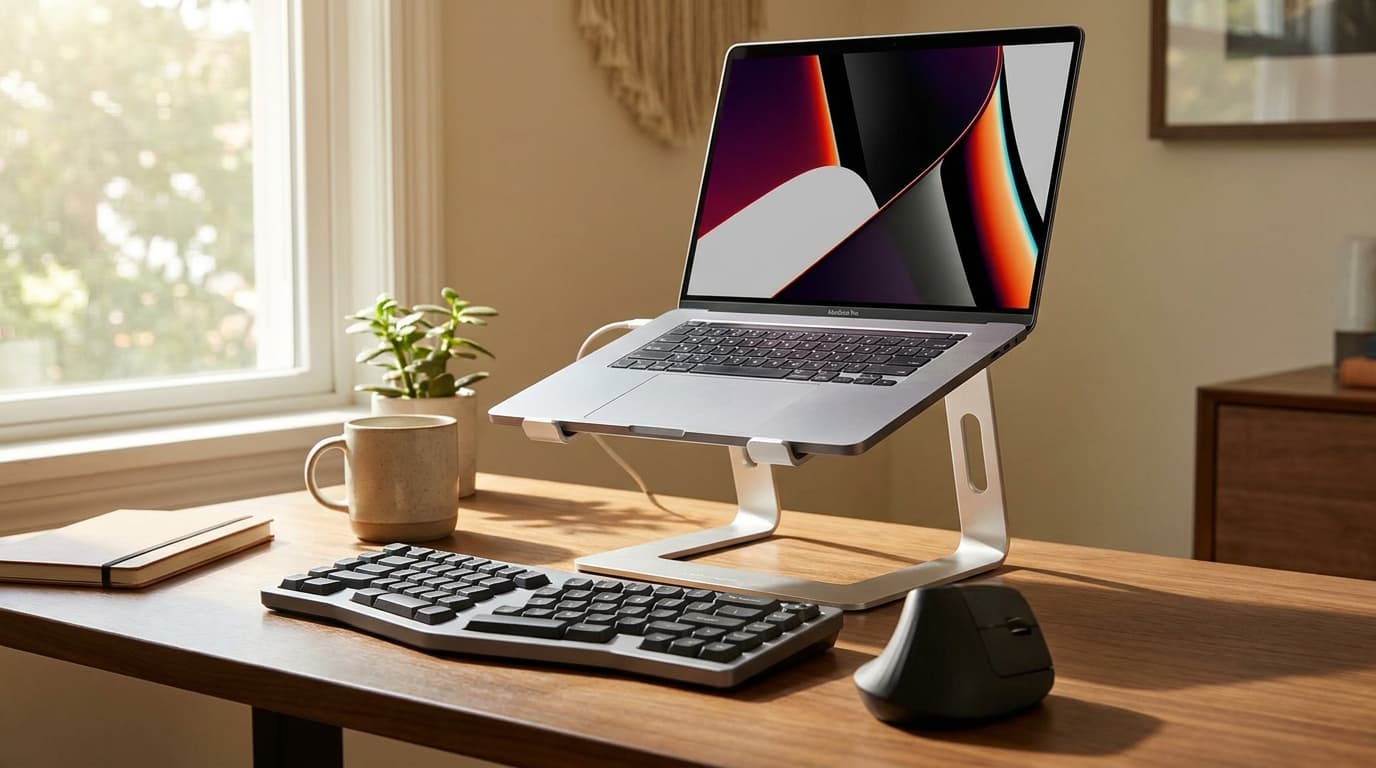
The "laptop alone" geometry: you pick between a sore neck (keyboard at eye level) or sore wrists (screen too low).
What the data does support:
- Tenkeyless (TKL) and 75% layouts reduce shoulder reach. Cornell ergo data shows mouse-hand strain correlates with horizontal reach distance — a full-size keyboard with numpad pushes the mouse 3–4 inches further right. TKLTKLTenkeyless: a keyboard with the numpad removed (~80% the width of a full-size board). Frees right-hand desk space for the mouse. Choose full-size only if you do heavy spreadsheet entry. eliminates that.
- Mechanical switches reduce error rate, not strain. A 2020 review of typing studies found that mechanical switchesmechanical switchA keyboard switch that uses a physical spring + stem mechanism (vs. rubber dome or scissor). Linear (Red) is smooth, tactile (Brown) has a bump, clicky (Blue) bumps and clicks loudly. For an office, linear or quiet tactile is the polite pick. reduced typo rate by 5–8% vs membrane, with no significant strain difference. Switch type is preference; mechanical-vs-membrane is comfort, not health.
- Key travel matters for typing-heavy roles. 4mm travel (full mechanical) vs 1.5mm travel (laptop scissor) measurably reduces finger fatigue over 5+ hour typing sessions. Lower-travel chiclet keyboards work for casual typing, fatigue heavy typists.
What the research does not support: that "ergonomic" split keyboards reduce RSI for everyone. They reduce ulnar deviation, which helps about 30% of users; the other 70% don't benefit measurably and find adaptation costly.
What to Look For
Wireless Connectivity
For a home office desk, wireless is almost always the right call. It reduces cable clutter and lets you reposition your keyboard freely. Look for one of two modes — the best keyboards offer both:
- Bluetooth — connects to your existing devices without a dongle.
- 2.4 GHz wireless — lower latency, but requires a USB receiver.
Key Switch Type
Mechanical switches give you tactile feedback, satisfying sound, and consistent actuation. They're the gold standard for all-day typing. The main variants are:
- Tactile (Brown-type): A subtle bump at the actuation point. Quiet enough for shared spaces.
- Linear (Red-type): Smooth keystroke with no bump. Faster for some typists but less feedback.
- Clicky (Blue-type): Loud, satisfying click. Fantastic to type on, but your household will hate you.
Membrane keyboards use a pressure pad system. They're quieter, usually cheaper, and lighter — but the mushy feel gets tiring over long typing sessions.
The exception: the best membranes (like Logitech's MX Keys series) bridge the gap with well-tuned key travel.
Layout and Size
- Full-size (with numpad) is ideal if you work with spreadsheets or do data entry.
- Tenkeyless (TKL) drops the numpad, giving you more mouse space and a more natural arm position.
- 75% layouts are even more compact while keeping function keys and arrow keys.
The 5 Best WFH Keyboards
#1 Logitech MX Keys S — Best Overall
Price: ~$109
The MX Keys S is the default recommendation for remote workers, and it earns that spot. The low-profile keys are sculpted with a concave shape that guides your fingers into position, the backlighting adjusts automatically based on ambient light, and the typing feel is the best of any membrane keyboard reviewed in this roundup — quiet, responsive, and satisfying.
It connects via Bluetooth or the included Logi Bolt receiver and switches between three devices with dedicated buttons. Battery life is stellar — roughly 5 months with backlighting off, or about 10 days with it on. The integrated smart actions row and proximity sensor (backlighting turns on when your hands approach) are nice workflow touches.
- Pros: Best-in-class membrane typing feel, multi-device switching, USB-C charging, smart backlighting
- Cons: No mechanical feedback, full-size only (no TKL option), pricey for membrane
- Best for: Anyone who wants a premium, quiet keyboard that works flawlessly across multiple devices
#2 Keychron K2 V2 — Best Mechanical Under $100
Price: ~$89 (Gateron Brown switches)
Keychron has become the go-to brand for affordable mechanical keyboards, and the K2 Pro is their sweet spot for office use. It's a 75% layout — compact enough to save desk space but retaining function keys and arrows. The Gateron Brown switches provide a gentle tactile bump without excessive noise, and the hot-swappable sockets mean you can change switches later without soldering. If you are torn between this 75% layout and Keychron's tenkeyless K8, our Keychron K2 vs K8 comparison walks through the size and layout trade-offs.
Bluetooth 5.1 connects to three devices, and the 2.4 GHz dongle option is available for lower latency. The aluminum frame gives it a premium feel, and the included keycap set is PBT (more durable and resistant to shine than ABS).
- Pros: Hot-swappable, Bluetooth + 2.4 GHz, aluminum build, PBT keycaps, Mac and Windows compatible
- Cons: No backlighting smart features, battery life is 2–3 weeks (shorter than MX Keys), slightly thick without wrist rest
- Best for: Typists who want the mechanical experience at a reasonable price
#3 Logitech MX Mechanical Mini — Best Compact Mechanical
Price: ~$149 (Tactile Quiet switches)
This is what happens when Logitech applies their MX ecosystem polish to a mechanical keyboard. The MX Mechanical Mini is a 75% layout with low-profile mechanical switches — quieter and shallower than traditional mechanical switches but with genuine tactile feedback. It bridges the gap perfectly between the silent MX Keys and a full mechanical board.
Smart backlighting, multi-device Bluetooth, Logi Bolt receiver, and full integration with Logitech's Options+ software for custom key mapping. The low-profile design means you don't need a wrist rest.
- Pros: Low-profile mechanical feel, compact layout, smart backlighting, Logi ecosystem integration
- Cons: Not hot-swappable, limited switch options (3 types, no third-party compatibility), expensive
- Best for: MX ecosystem users who want mechanical feedback without the bulk
#4 Apple Magic Keyboard with Touch ID — Best for Mac Users
Price: currently not sold on Amazon (checked 2026-09-11)
If you're deep in the Apple ecosystem, the Magic Keyboard with Touch ID is hard to beat for convenience. Touch ID for login and Apple Pay, a clean scissor-switch mechanism with surprisingly good key travel for how thin it is, and seamless macOS integration. It charges via Lightning (yes, still) and lasts about a month per charge.
The typing feel is polarizing — some people love the shallow, snappy keys, while others find them fatiguing over long sessions. If you've been happy typing on a MacBook keyboard, you'll be happy here. If you prefer more key travel, look elsewhere.
- Pros: Touch ID integration, zero-setup macOS pairing, aluminum build, long battery life
- Cons: Lightning charging (not USB-C), no Windows compatibility, shallow key travel, expensive for what it is
- Best for: Mac users who prioritize ecosystem integration and the Apple typing feel
#5 Razer Pro Type Ultra — Best Quiet Mechanical
Price: ~$159
Razer's Pro line is their office-focused range, and the Pro Type Ultra delivers a genuinely quiet mechanical experience. The Razer Yellow switches are linear and dampened with internal silicone, producing less noise than most membrane keyboards while maintaining a smooth mechanical feel. It's a full-size layout with a detachable cushioned wrist rest.
Bluetooth connects to four devices, and the included 2.4 GHz dongle provides a reliable backup. The keycaps are soft-touch coated, and the white-on-silver colorway looks professional on any desk.
- Pros: Whisper-quiet mechanical switches, included wrist rest, 4-device Bluetooth, professional design
- Cons: Full-size only (large footprint), Razer software can be bloated, soft-touch coating may wear over time
- Best for: Mechanical keyboard fans who share a workspace or take lots of calls
What to Skip in WFH Keyboards
- Gaming keyboards with 16M-color RGB. The lighting is marketing; the switches are often the same as productivity keyboards. You're paying $40 for RGB you'll turn off after a week.
- Wireless keyboards with proprietary dongles only. Bluetooth + dongle is the dual-mode standard; dongle-only locks you to one device.
- Full-size keyboards if you don't use the numpad daily. TKL or 75% layouts free up 3–4 inches of desk and reduce mouse-reach.
- Membrane keyboards in 2026. The price gap between membrane and mechanical has narrowed to $20–$30. Quiet linear mechanical switches are louder than typing, quieter than 90% of cheap membranes.
- Split keyboards as a "fix" without trying one first. They help some users, frustrate others. The adaptation cost is real — borrow before buying.
Products referenced in this guide
For quick reference, the products tied to this guide are the Logitech MX Keys S Wireless Keyboard ($125.99), the Keychron V3 Max TKL Wireless Mechanical Keyboard ($114.99), the Keychron Q1 Ultra 8K Wireless Mechanical Keyboard ($229.99), and the Logitech Ergo K860 Wireless Split Ergonomic Keyboard ($129.99).
Other products referenced here include the Keychron K3 V2 Ultra-Slim Wireless Mechanical Low-Profile ($84) and the Logitech Signature K650 Comfort Wireless Keyboard ($48.98).
FAQ
Should I use a wrist rest with my keyboard?
A wrist rest is helpful during pauses, but you shouldn't rest your wrists on it while actively typing — that creates pressure on the carpal tunnel. Float your wrists while typing and rest them between bursts. Pair your keyboard with a good laptop stand to get screen height right, too.
How much should I spend on a WFH keyboard?
The sweet spot is $80–$150. Below that, you're getting basic membranes that won't feel great after 6 months. Above that, you're paying for enthusiast features that don't meaningfully improve productivity.
Bluetooth or 2.4 GHz — which is better for WFH?
Bluetooth is more convenient (no dongle, multi-device pairing). 2.4 GHz has slightly lower latency, but the difference is imperceptible for typing. Go Bluetooth unless you specifically notice input lag.
Do I need a number pad?
Only if you regularly enter numbers — accounting, data entry, financial modeling. For general writing, coding, and communication, a TKL or 75% layout saves desk space and keeps your mouse closer to your body, which is better for your shoulder.
Sources & Research
- NIOSH — Computer workstation ergonomics: keyboard placement
- Cornell University Ergonomics Group — Keyboard layout and reach research
- OSHA — Computer workstation eTool: keyboards
- American Academy of Orthopaedic Surgeons — RSI and keyboard ergonomics
- Logitech Ergo Lab — Split keyboard adaptation research
The Bottom Line
The Logitech MX Keys S is the safest recommendation for most remote workers — quiet, polished, and reliable across devices. If you want the typing experience upgrade that mechanical switches provide, the Keychron K2 V2 offers remarkable value at $89. Either way, ditching your laptop keyboard for a dedicated external board is one of the highest-impact upgrades you can make for daily comfort and productivity.
Your next step
Mechanical curious? Start here.
Hilly Shore Labs
Editorial TeamWFH Lounge is published by Hilly Shore Labs. Every recommendation is built by synthesizing ergonomic research, manufacturer specs, expert reviews from outlets like Wirecutter, RTINGS, and The Verge, and aggregated long-term owner sentiment from thousands of verified buyers.
All product reviews are independently researched. Our recommendations are based on ergonomic guidelines, manufacturer specifications, and verified buyer sentiment. See our methodology.