Best Mechanical Keyboards for Remote Work: Keychron V3 Max
The Keychron Q2 Pro offers the best blend of build quality, wireless flexibility, and typing comfort for WFH professionals, while the Royal Kludge RK84 is a remarkable value at under $70.
Our #1 Pick
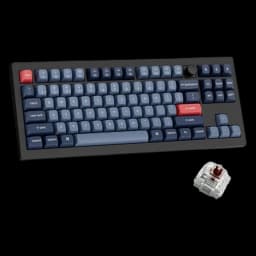
Keychron V3 Max TKL Wireless Mechanical Keyboard
Full-metal gasket-mounted build, QMK/VIA programmable, wireless tri-mode. The best all-round WFH mechanical keyboard for serious typists.
- Wirecutter's #1 mechanical keyboard pick for 2026
- Tri-mode wireless (2.4 GHz at 1000 Hz + Bluetooth 5.1 + USB-C wired)
- Full QMK/VIA programmability with hot-swappable switches
Price checked Sep 12, 2026 — verify the live price on Amazon.
Also Great
Value pick: Keychron K8 Max ($94.99) — QMK/VIA programmable, hot-swappable and tri-mode wireless for about $10 less than the V3 Max — the best value in the lineup
Buy on AmazonLow-profile: Keychron K3 V2 ($59.63) — Laptop-thin low-profile switches with hot-swap feel — the quietest and most travel-friendly of our picks
Buy on Amazon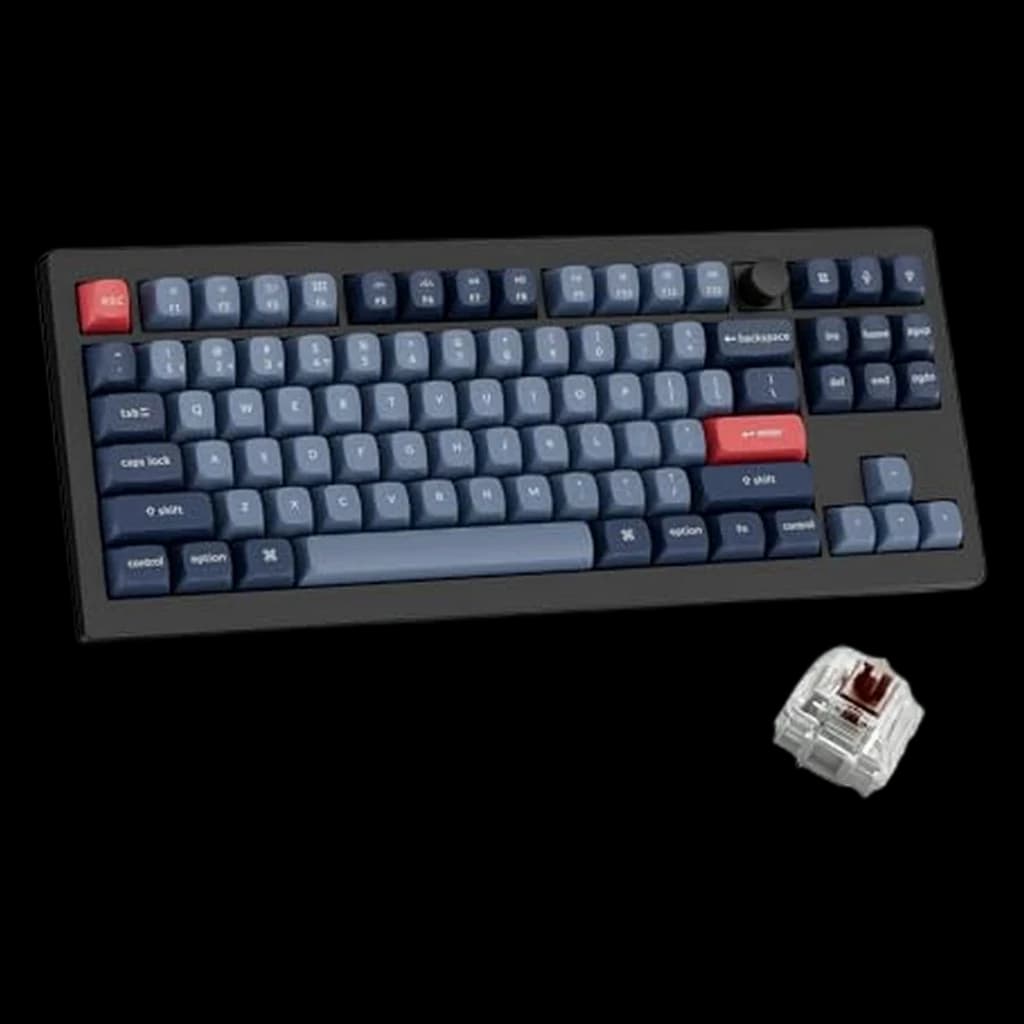 #1 3.8 | 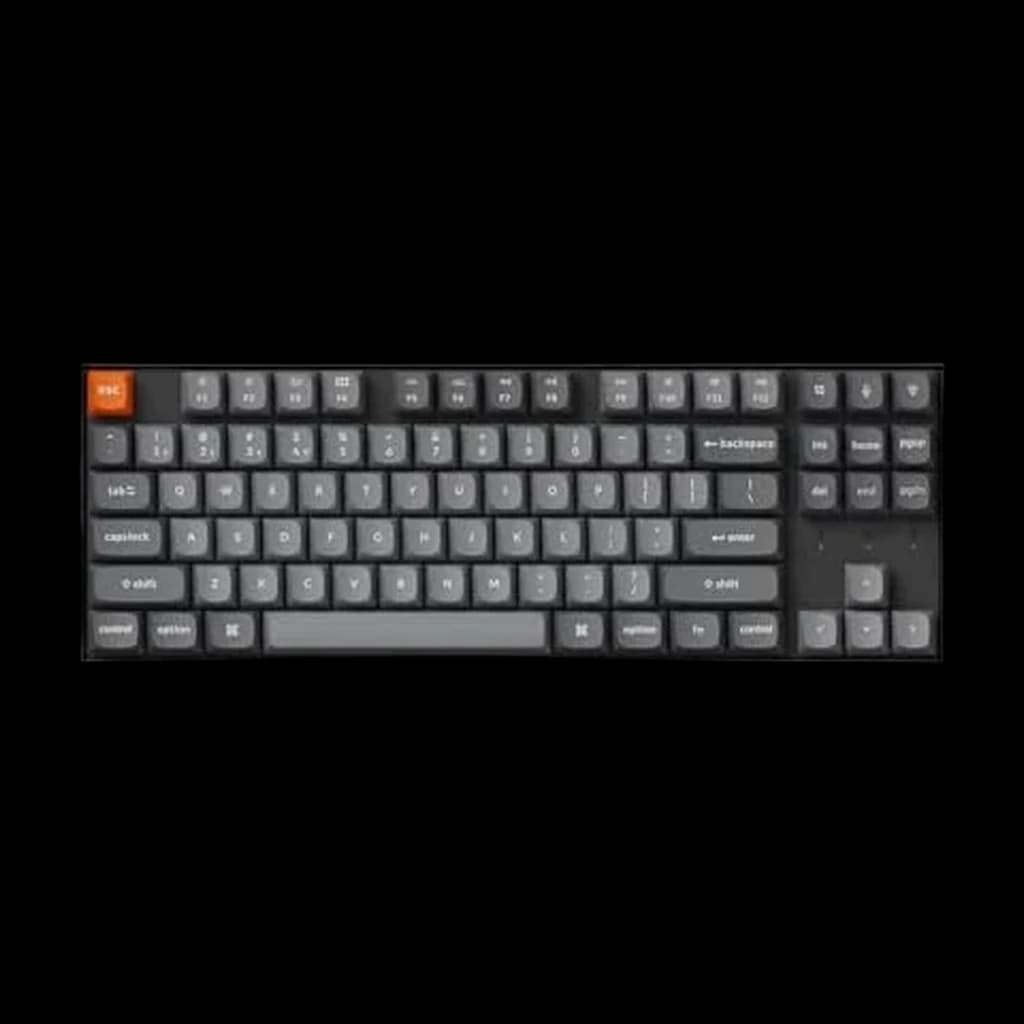 #2 4.3 | 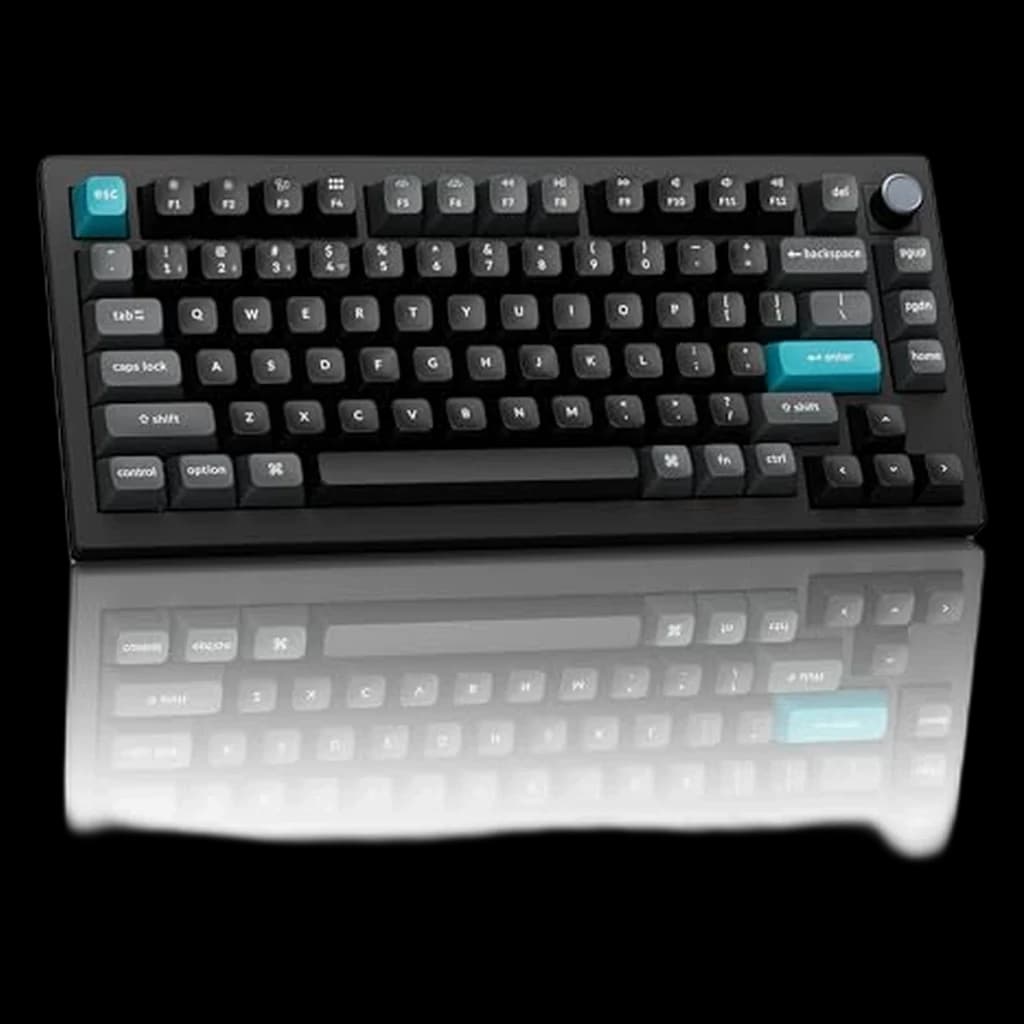 #3 4.4 | 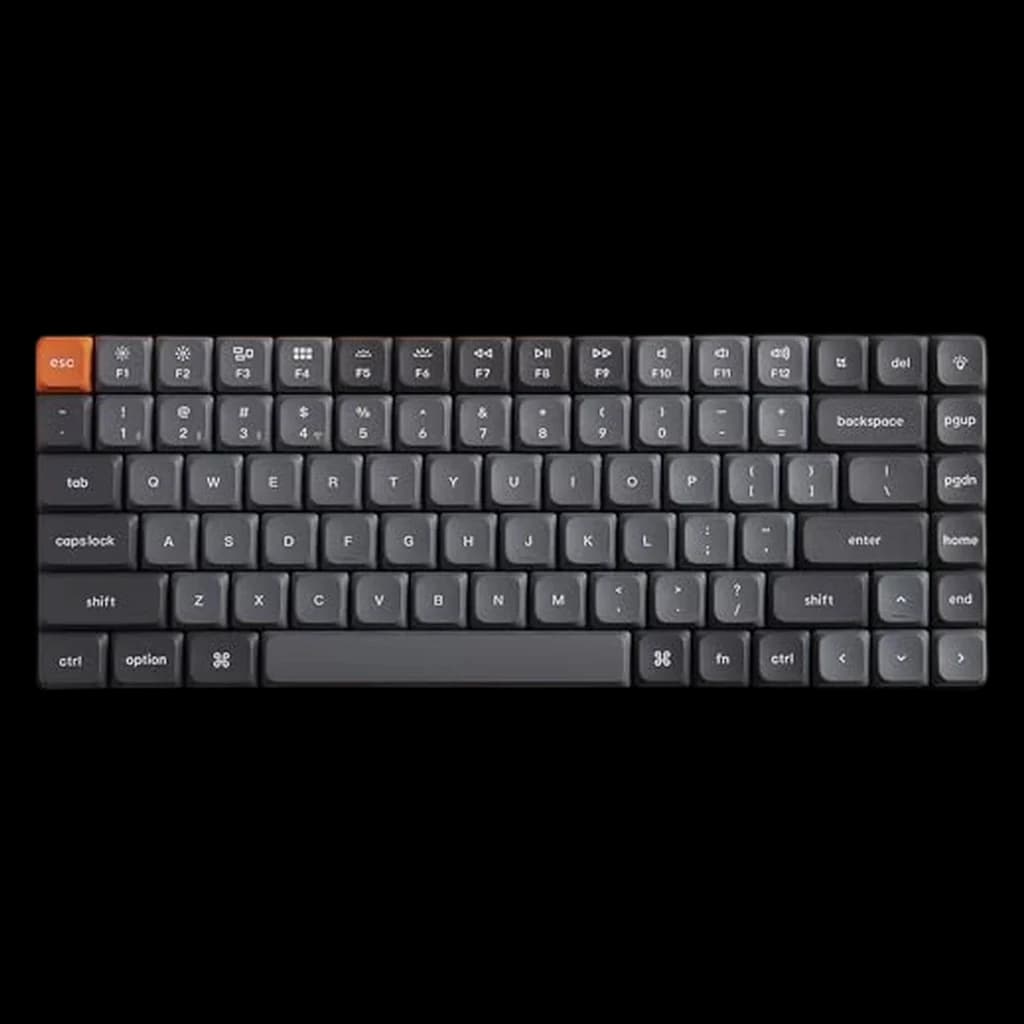 #4 4.4 | |
|---|---|---|---|---|
| Price | $104.99Buy on Amazon | $94.99Buy on Amazon | $229.99Buy on Amazon | $59.63Buy on Amazon |
| Verdict | Wirecutter's top TKL pick — hot-swap, wireless, QMK, knob | Best affordable programmable wireless — QMK/VIA and hot-swap under $120 | Full-metal 75% powerhouse — 600h battery, ZMK, 8K polling | Thin as a laptop keyboard but with hot-swap mechanical feel |
| Buyer sentiment | Quality Keyboard feel Value for money Versatility Reliability Buyers praise quality, keyboard feel, value for money and versatility. Some flag reliability. Based on 40 user mentions | Build quality Durability Sound quality Programmability Buyers praise build quality, durability, sound quality and programmability. Based on 33 user mentions | Quality Buyers praise quality. Mixed feedback on tactile feel. Based on 10 user mentions | Sound Quality Tactile Feel Compact Size Build Quality Reliability Battery Life Buyers praise sound quality, tactile feel, compact size and build quality. Mixed feedback on bluetooth connectivity. Some flag reliability and battery life. Based on 369 user mentions |
| layout | 80% TKL (87 keys) | — | 75% (82 keys, with programmable knob) | 75% (84 keys) |
| switches | Gateron Red / Brown / Banana (hot-swappable, 3-pin and 5-pin MX) | — | Keychron K Pro Red / Brown / Banana (hot-swappable, 5-pin MX) | Gateron Low-Profile Red / Brown / Blue (hot-swappable) |
| connectivity | 2.4 GHz (1000Hz polling), Bluetooth 5.1 (3 devices), USB-C wired | — | 2.4 GHz (8000 Hz), Bluetooth 5.1 (3 devices), USB-C wired | 2.4 GHz, Bluetooth 5.1 (3 devices), USB-C wired |
| battery | ~4000 mAh, several weeks per charge (backlight dependent) | — | 4000 mAh, up to 660h (BL off); ~3 months typical | Rechargeable, ~300h backlight off |
| build | Gasket mount, sound-absorbing foam, PBT double-shot keycaps | — | Full aluminum, double-gasket, multi-layer foam, PBT KSA keycaps | Aluminum frame, low-profile body, double-shot PBT keycaps |
| os_support | Mac, Windows, Linux (toggle switch + keycap set included) | — | Mac, Windows, Linux | Mac, Windows, Linux |
| Layout | — | TKL (87-key) | — | — |
| Connectivity | — | Bluetooth / wired | — | — |
| Hot-swap | — | Yes | — | — |
| Software | — | QMK/VIA | — | — |
| Pros |
|
|
|
|
| Cons |
|
|
|
|
* Prices checked Sep 12, 2026 and may vary. Check the latest price on Amazon.
We research — never hands-on. How we research →
6-month reality check
What owners say after living with this half a year — paraphrased community consensus from the subreddits below.
Six months in, the verdict is universal: linear or quiet tactile switches for the office. Clicky Blues that felt fun on day one became the reason you started taking calls from the bedroom.
r/MechanicalKeyboardsTKL or 75% layouts dominate by month 6 — full-size feels excessive once you stop thinking you'll do a lot of spreadsheet entry. Numpad use turns out to be rare for most knowledge workers.
r/HomeOfficeHot-swappable boards earn their price by the half-year mark. Owners who tried 2-3 switch types on the same board are uniformly happier than those who locked in a single switch on a soldered keyboard.
r/keyboards
Key Takeaways
Four mechanical keyboards ranked for remote work in 2026. Keychron V3 Max TKL ($114.99) is our top pick — quiet tactile feel that stays off your Zoom mic.
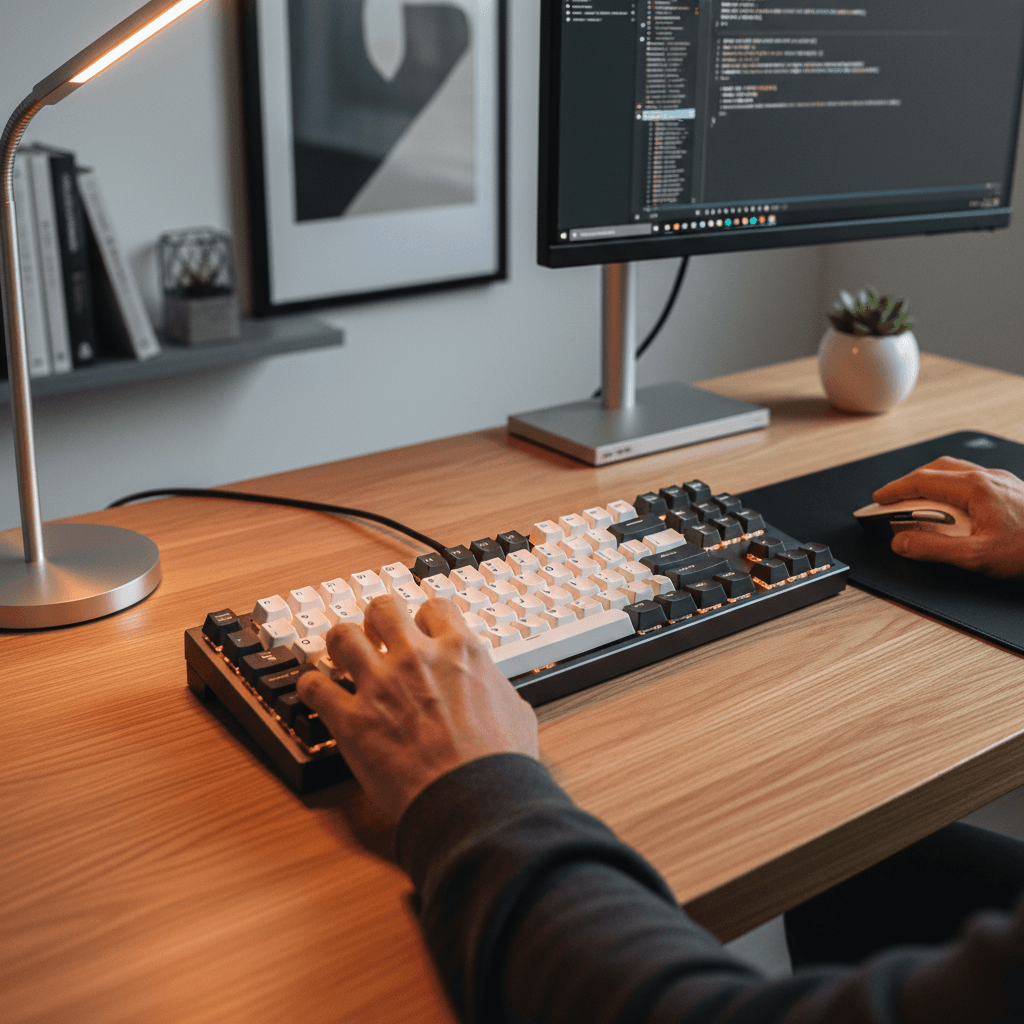
As an Amazon Associate I earn from qualifying purchases. Product prices and availability are subject to change.
If you work from home full-time, you type more than most people realize. The average knowledge worker hits somewhere between 40,000 and 100,000 keystrokes per day. Over a year, that adds up to tens of millions of key presses — and the keyboard you use for all of those matters far more than most people give it credit for.
Across six years of remote-work gear research, the case for a quality mechanical keyboard is one of the strongest in a home-office budget. Not because they're flashy or trendy, but because the typing experience is measurably better: less finger fatigue, fewer typos, and a level of durability that means your keyboard will outlast multiple laptops.
The problem is that the mechanical keyboard market has exploded in recent years. There are hundreds of options across a bewildering range of switch types, sizes, and price points. Most reviews are written by enthusiasts who care about sound profiles and keycap materials — interesting stuff, but not what a WFH professional needs to focus on.
This guide cuts through the noise. We focus on what actually matters for daily remote work: reliable wireless, comfortable typing for long sessions, build quality that lasts, and reasonable noise levels for shared spaces and open mics.
What to Look For in a WFH Mechanical Keyboard
Switch Types
Switches are the mechanism under each keycap, and they define how the keyboard feels. There are three main families:
- Linear switches (like Cherry MX Red or Gateron Red): Smooth keystroke with no bump or click. Quiet and fast, but some people find them mushy or easy to mistype on because there's no tactile feedback telling you a keypress registered.
- Tactile switches (like Cherry MX Brown or Gateron Brown): A subtle bump partway through the keystroke signals the keypress. This is the sweet spot for most typists — you get feedback without excessive noise.
- Clicky switches (like Cherry MX Blue or Kailh Box White): A tactile bump plus an audible click. Satisfying to type on, but genuinely too loud for most WFH situations. Your coworkers on Zoom will hear them. Your partner in the next room will hear them.
For WFH, we generally recommend tactile switches. They give you the typing feedback that reduces errors without the noise that disrupts calls and households.
Wireless Connectivity
Wireless is essentially mandatory for a clean WFH desk. Look for keyboards that support both Bluetooth and 2.4GHz wireless via a USB dongle. Bluetooth alone can introduce occasional input lag or connectivity hiccups; the 2.4GHz dongle provides a more reliable, lower-latency connection. The best keyboards let you switch between multiple paired devices, so you can toggle between your work laptop and personal machine with a keystroke.
Build Quality and Keycaps
Cheap keyboards use ABS plastic keycaps that develop a greasy shine within months. Better keyboards use PBT keycaps — a denser plastic that resists shine and feels more textured under your fingers. For the frame, aluminum construction adds weight (which keeps the keyboard from sliding) and rigidity. A gasket-mounted plate — where the switch plate sits on silicone gaskets rather than being screwed directly to the case — produces a softer, less fatiguing typing feel.
Ergonomics and Layout
Most people do fine with a standard layout, but if you've experienced wrist pain or RSI symptoms, consider a split or columnar-stagger keyboard. These position your hands at a more natural angle and can dramatically reduce strain. They have a steep learning curve, but the long-term payoff for heavy typists is significant.
Size matters too. A 75% layout (which drops the numpad but keeps function keys and arrows) hits the sweet spot for most WFH workers: compact enough to keep your mouse closer to center, but not so small that you're constantly hunting for missing keys.
Our Picks
1. Best Overall: Keychron V3 Max TKL
Price: ~$115 | Layout: TKLTKLTenkeyless: a keyboard with the numpad removed (~80% the width of a full-size board). Frees right-hand desk space for the mouse. Choose full-size only if you do heavy spreadsheet entry. | Switches: Hot-swappable mechanical | Connectivity: Bluetooth + 2.4GHz + USB-C
The Keychron V3 Max TKL is the best fit for most WFH typists because it keeps the function row and navigation cluster without forcing a full-size board onto the desk. The typing feel is a major step up from laptop keyboards, the 2.4GHz dongle is more reliable than Bluetooth for daily desk use, and hot-swap sockets leave room to quiet the board later with softer tactile switches.
Pros: Reliable wireless, TKL layout, hot-swappable switches, strong value
Cons: No numpad, taller than low-profile office keyboards
2. Best Mac-Friendly Value: Keychron K8 Max
Buy on Amazon · $94.99Price: ~$71 | Layout: TKL | Switches: Hot-swappable mechanical | Connectivity: Bluetooth 5.1 + 2.4GHz + USB-C
The Keychron K8 Max is the safer pick if you want a proven Keychron board with Mac keycaps, QMK/VIA remapping, and a quieter out-of-box profile than many budget mechanical keyboards. It is not as polished as the Q-series boards, but for daily writing, email, coding, and Slack it lands in the practical middle. Deciding between the K8's tenkeyless layout and the more compact K2? Our Keychron K2 vs K8 comparison covers the differences that matter at a desk. Generation note: this slot was the K8 Pro, which Keychron has discontinued; the K8 Max replaces it in the same position in the line, adding a 2.4GHz wireless mode alongside Bluetooth and USB-C.
Pros: Mac/Windows support, QMK/VIA remapping, hot-swap sockets, comfortable TKL layout
Cons: Case is less premium than aluminum Keychrons, Bluetooth is fine rather than exceptional
3. Best Premium Compact: Keychron Q1 Ultra 8K Wireless
Price: ~$230 | Layout: 75% | Switches: Hot-swappable mechanical | Connectivity: Bluetooth + 2.4GHz + USB-C
The Keychron Q1 Ultra 8K Wireless is the upgrade for people who type all day and care about the feel of every keystroke. The compact 75% layout keeps arrows and the function row, the aluminum case feels planted, and the higher-end wireless hardware makes it feel less like a compromise than older enthusiast boards.
Pros: Premium case, compact but practical layout, excellent typing feel, strong wireless options
Cons: Expensive, heavier than most people need, enthusiast features may be overkill
4. Best Low-Profile: Keychron K3 V2
Price: ~$60 | Layout: 75% low-profile | Switches: Low-profile mechanical | Connectivity: Bluetooth + USB-C
The Keychron K3 V2 is the right choice if you like the short travel of laptop keyboards but want more tactility and better durability. It is easier on the wrists than tall mechanical boards, fits small desks well, and is quiet enough for shared home offices when paired with tactile or low-noise switches.
Pros: Slim profile, compact layout, easier transition from laptop keyboards, good travel board
Cons: Less cushioned than full-height boards, smaller keycaps are not for everyone
Frequently Asked Questions
Are mechanical keyboards too loud for video calls?
Not necessarily. Tactile switches like Cherry MX Brown or Gateron Brown produce a moderate sound that most modern noise-cancellation software (Krisp, NVIDIA Broadcast, or the built-in processing in Zoom and Teams) handles effectively. Clicky switches like MX Blue are a different story — avoid those for WFH. If noise is a top priority, the low-profile tactile switches on the Keychron K3 V2 are the quietest option among our picks.
What is the best budget mechanical keyboard for working from home?
The Keychron K8 Max at $94.99 is the value pick: QMK/VIA programmability, hot-swappable switches and tri-mode wireless for about $10 less than the V3 Max. If you want to spend less, the low-profile Keychron K3 V2 is $59.63. Below roughly $50 you are into membrane boards, where the switch feel that makes mechanical worth buying disappears.
Do I need a wrist rest with a mechanical keyboard?
It depends on the keyboard height. Taller keyboards with cherry-profile or SA keycaps benefit from a wrist rest to keep your wrists in a neutral position. Low-profile keyboards like the MX Mechanical or ZSA Voyager generally don't need one. The key principle: your wrists should float or rest at the same height as the home row, never bend upward.
Is a 60% keyboard practical for daily work?
For most WFH professionals, we recommend 65% or 75% as the minimum. A 60% board drops the arrow keys and function row entirely, requiring you to use function layers for tasks you probably do dozens of times a day. Programmers who live in Vim might love it, but for general productivity work, it adds friction.
How long do mechanical keyboards last?
Most mechanical switchesmechanical switchA keyboard switch that uses a physical spring + stem mechanism (vs. rubber dome or scissor). Linear (Red) is smooth, tactile (Brown) has a bump, clicky (Blue) bumps and clicks loudly. For an office, linear or quiet tactile is the polite pick. are rated for 50 to 100 million keystrokes per key. At average typing volumes, that translates to 10-20 years of daily use. The switches will outlast the keycaps, the cable, and possibly you. This longevity is one of the strongest arguments for investing in a mechanical keyboard — the cost per year of ownership is remarkably low.
What's the difference between hot-swappable and soldered switches?
Hot-swappable keyboards let you pull out switches and pop in new ones without any soldering. This means you can experiment with different switch types, replace worn switches, or customize individual keys. Soldered switches are permanent — the only way to change them is to desolder, which requires equipment and skill. For a first mechanical keyboard, we strongly recommend hot-swappable.
The Bottom Line
For most WFH professionals, the Keychron Q2 Pro is the keyboard to buy. It offers the best combination of build quality, wireless reliability, and typing experience in a compact, office-friendly package. If your budget is tight, the Royal Kludge RK84 delivers 80% of the experience at less than half the price.
If you're experiencing wrist pain and willing to invest the time to relearn your typing, the ZSA Voyager is a long-term health investment that pays dividends. And if you just want a great keyboard that works seamlessly across devices without any fiddling, the Logitech MX Mechanical is the most polished, least fussy option.
Whatever you choose, your fingers will thank you for leaving that mushy laptop keyboard behind.
Related Reading
- →Best Keyboards for Working From HomeBroader keyboard roundup including non-mechanical picks
- →Best Mice for Working From HomePair your keyboard with the right mouse
- →Best Desk Accessories for a Clean, Productive SetupComplete your desk
- →Best USB-C Hubs for WFHSimplify your cable setup
- →KeyboardsBrowse all our keyboard reviews
- →MiceErgonomic and wireless mice
More WFH Setup Resources
Your next step
Match it with a mouse that keeps up.
Hilly Shore Labs
Editorial TeamWFH Lounge is published by Hilly Shore Labs. Every recommendation is built by synthesizing ergonomic research, manufacturer specs, expert reviews from outlets like Wirecutter, RTINGS, and The Verge, and aggregated long-term owner sentiment from thousands of verified buyers.
All product reviews are independently researched. Our recommendations are based on ergonomic guidelines, manufacturer specifications, and verified buyer sentiment. See our methodology.