Best USB-C Hubs for WFH 2026: 8 Docks for Mac and Windows
The CalDigit TS4 is the most capable Thunderbolt dock for WFH with 18 ports and flawless reliability, while the Anker 341 at $35 is all most single-monitor setups need.
Our #1 Pick
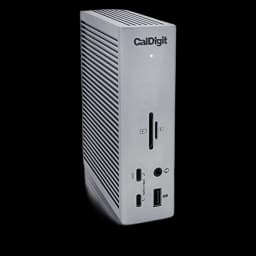
CalDigit TS4
Thunderbolt 4 dock that drives two 4K displays at 60Hz, charges your laptop at 98W, and adds 18 ports. The hub that serious dual-monitor WFH setups settle on once.
- 18 ports including 3x TBT4, 5x USB-A, 3x USB-C, UHS-II SD card reader, 2.5GbE Ethernet
- 98W laptop charging handles 16-inch MacBook Pro under load
- Dual 6K@60Hz or 8K@30Hz display support
Price checked Sep 12, 2026 — verify the live price on Amazon.
Also Great
Thunderbolt upgrade: CalDigit TS4 ($379.99) — If your laptop has Thunderbolt, the TS4's 18 ports and 98W charging is worth every dollar
Buy on AmazonBudget pick: Vava USB-C Hub 8-in-1 ($40) — Solid build, covers the essentials — best under $45
 #1 4.2 | 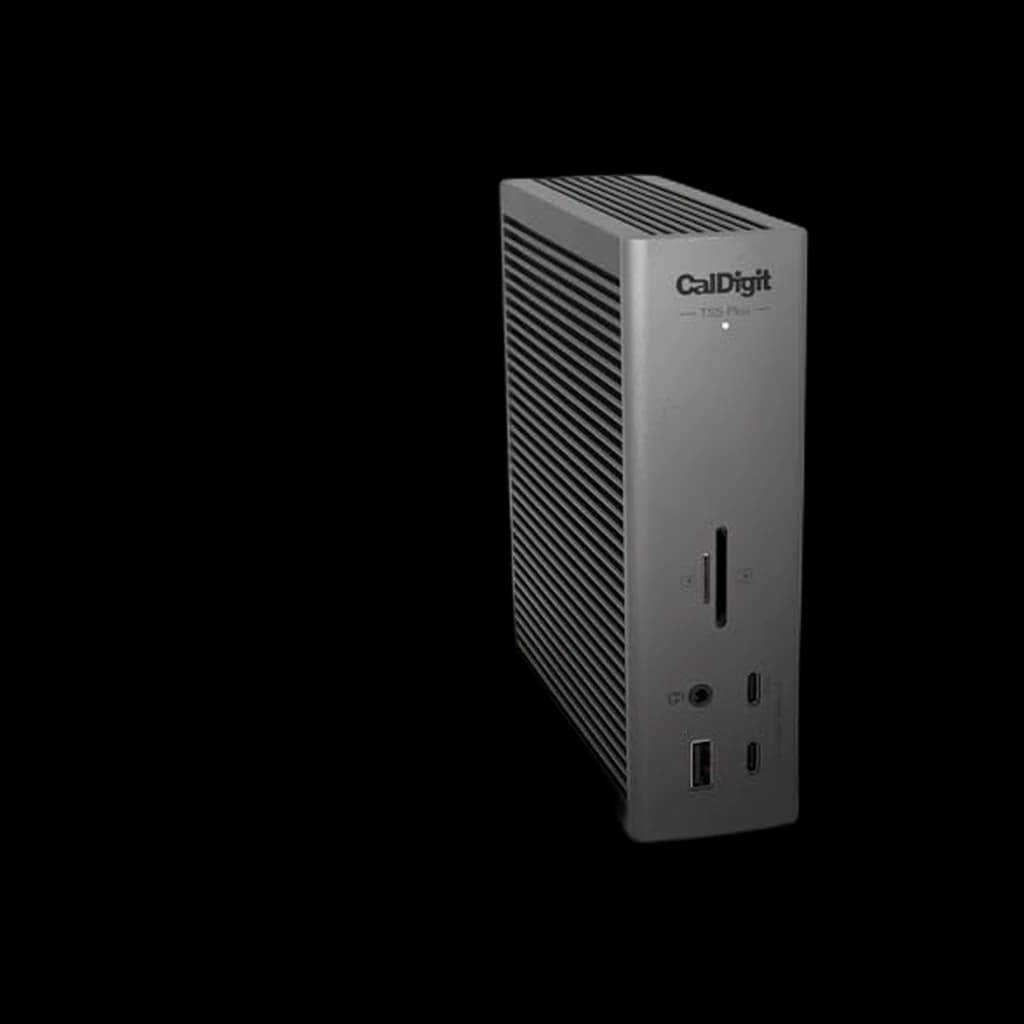 #2 4.2 | 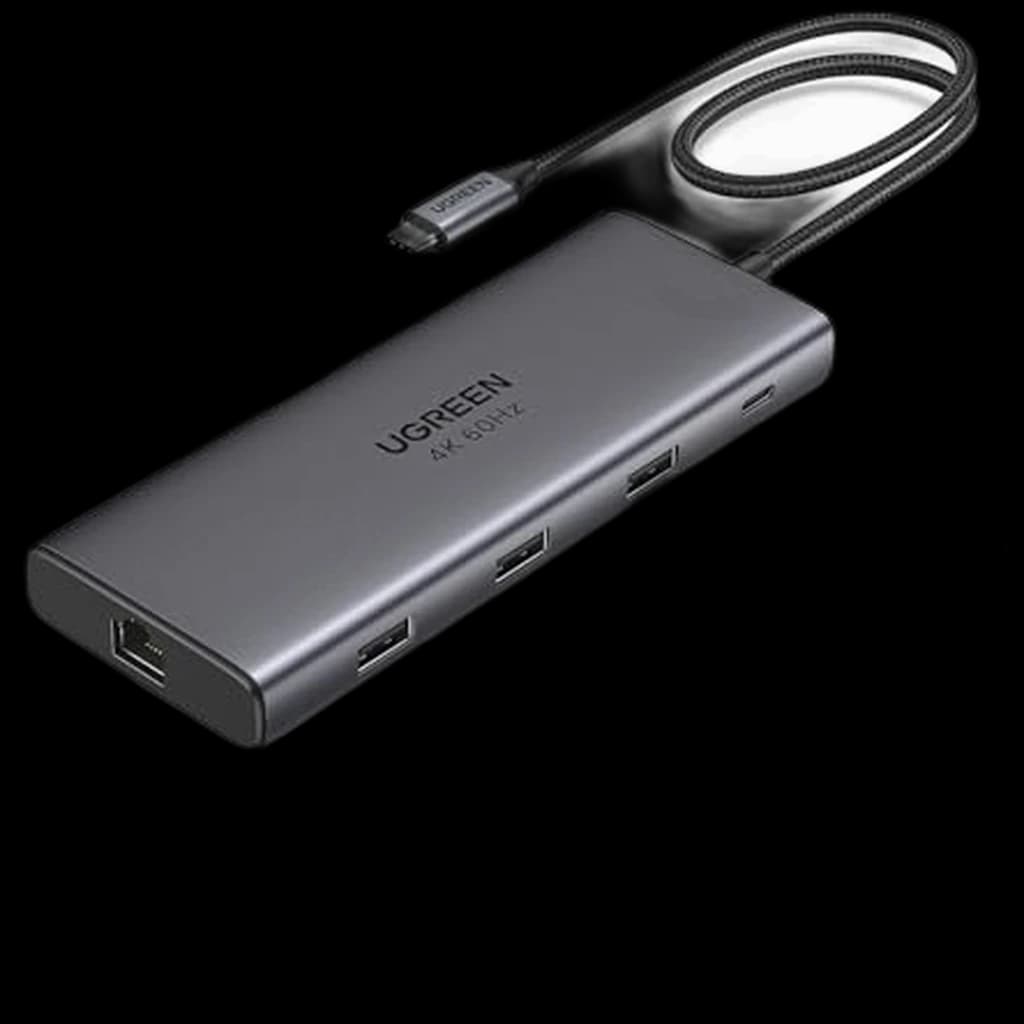 #3 4.4 | 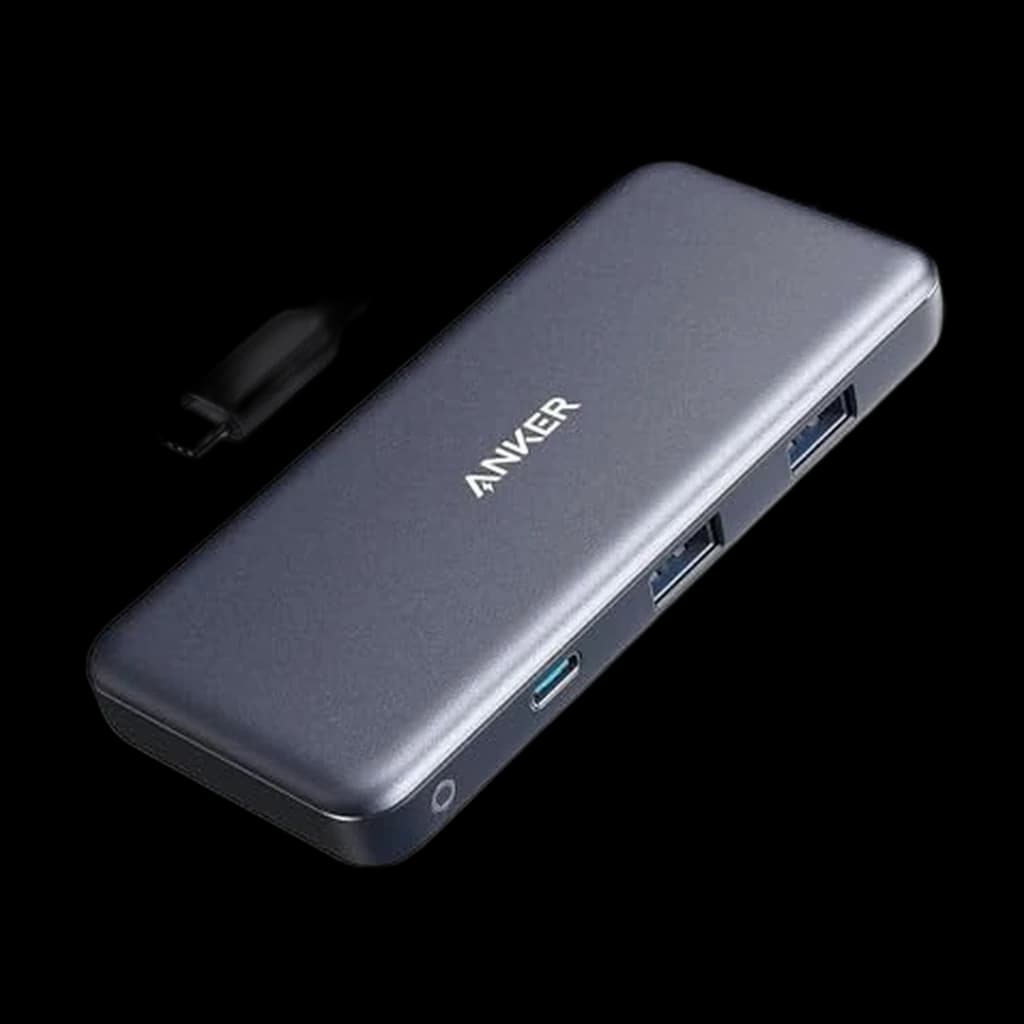 #4 4.2 | |
|---|---|---|---|---|
| Price | $379.99Buy on Amazon | $499.99Buy on Amazon | $31.99Buy on Amazon | $35.49Not sold on Amazon right now |
| Verdict | Best overall Thunderbolt dock | Best mid-range dock | Best-overall USB-C hub for 2026 — 9-in-1 with 10Gbps data, 4K HDMI, Ethernet and 100W PD at ~$35 | Best budget USB-C hub |
| Buyer sentiment | Functionality Build Quality Value for money Ethernet Connectivity Buyers praise functionality and build quality. Mixed feedback on reliability and ports. Some flag value for money and ethernet connectivity. Based on 1,148 user mentions | Device Compatibility Port Selection Network Connectivity Power Output Value for money Overheating Buyers praise device compatibility, port selection, network connectivity and power output. Mixed feedback on reliability and build quality. Some flag value for money and overheating. Based on 300 user mentions | Port performance Quality Versatility Connectivity Video quality Buyers praise port performance, quality, versatility and connectivity. Some flag video quality. Based on 96 user mentions | Value Portability Compatibility Buyers praise value, portability. Some flag compatibility. Based on 100 user mentions |
| Interface | Thunderbolt 4 | Thunderbolt 4 | — | USB-C 3.2 |
| Ports | 18 total | 12 total | 9-in-1 | 7 total |
| Power Delivery | 98W | 90W | — | 85W pass-through |
| Displays | 2× 4K@60Hz | 2× 4K@60Hz | — | — |
| HDMI | — | — | 4K | — |
| Data | — | — | 10Gbps | — |
| PD | — | — | 100W | — |
| Display | — | — | — | 4K@30Hz |
| Pros |
|
|
|
|
| Cons |
|
|
|
|
* Prices checked Sep 4, 2026 and may vary. Check the latest price on Amazon.
We research — never hands-on. How we research →
Worth the upgrade
A $30 hub solves today's port problem. If the real goal is one cable forever, the jump worth making is straight past mid-range hubs to a Thunderbolt 5 dock — the TS5 PLUS will still be current when your next two laptops are e-waste.
Key Takeaways
Eight USB-C and Thunderbolt hubs ranked for WFH in 2026. CalDigit TS4 is the top pick, Anker 777 the dual-display runner-up for remote work.

As an Amazon Associate I earn from qualifying purchases. Product prices and availability are subject to change.
Decide in 30 seconds:
- Two external monitors + Thunderbolt laptop: get a Thunderbolt 4 dock. Stop reading, skip to the picks.
- One monitor, or a laptop without Thunderbolt: get a USB-C hub. A $60 hub does the job a $300 dock does for you.
- Desktop PC: you don't need a hub. Close this tab.
- Only one or two USB accessories ever: a $15 USB-C splitter is enough. You don't need anything on this page.
Everything below is the detail — which spec actually matters, how to tell Thunderbolt from regular USB-C, and the five picks we'd buy with our own money in 2026. If you want to short-circuit the reading, scroll up to the comparison table.
What to Look For
Thunderbolt vs. USB-C: The Critical Distinction
This is the single most important thing to understand before buying a dock. Thunderbolt and USB-C use the same physical connector, but Thunderbolt carries significantly more bandwidth. Think of it like two roads with the same on-ramp but different speed limits.
- USB-C (USB 3.2/USB4): Up to 10-20 Gbps bandwidth. Can drive one external display reliably. Cheaper.
- Thunderbolt 4: 40 Gbps bandwidth. Can drive two 4K displays at 60Hz simultaneously. More expensive, but dramatically more capable.
If you use (or plan to use) two external monitors, you almost certainly need a Thunderbolt dock. If you use a single monitor, a USB-C hub will work fine and save you money. Check your laptop's specs — not all USB-C ports support Thunderbolt, and an older laptop without Thunderbolt won't benefit from a Thunderbolt dock.
Power Delivery
A good dock charges your laptop through the same cable that carries data and video. Look for at least 85W power delivery for most laptops. Larger laptops (like 16-inch MacBook Pros or gaming-adjacent machines) may need 96W or even 140W to charge at full speed while under load.
Insufficient power delivery doesn't break anything — your laptop will just charge slowly or drain faster than it charges during heavy workloads. But it defeats the purpose of a single-cable setup if you need a separate charger plugged in alongside your dock cable.
Display Support
This is where compatibility headaches live. The number and resolution of external displays a dock can drive depends on three things: the dock's capabilities, your laptop's capabilities, and the display protocol used.
- DisplayPort Alt Mode is the standard protocol supported by virtually all USB-C devices.
- HDMI Alt Mode is less common in docks but lets you connect HDMI monitors without an adapter.
- DisplayLink is a driver-based workaround that uses software compression to push additional displays through limited bandwidth. It works, but adds CPU overhead and can introduce slight input lag or compression artifacts.
For the cleanest experience, avoid DisplayLink if possible. Native display output through Thunderbolt or DisplayPort Alt Mode will always be smoother and more reliable.
Port Selection
Think about what you actually need to plug in. A realistic WFH port inventory might include:
- 1-2 display outputs (HDMI, DisplayPort, or USB-C)
- 1-2 USB-A ports (webcam, microphone, keyboard dongle)
- 1 Ethernet port (for reliable wired internet)
- SD card reader (photographers and content creators)
- 3.5mm audio jack (for wired headphones or speakers)
Don't pay extra for ports you won't use. But do count your actual peripherals before buying — running out of ports and needing an additional hub defeats the purpose.
Our Picks
1. Best Overall: CalDigit TS4
Buy on Amazon · $379.99Price: ~$380 | Interface: Thunderbolt 4 | Ports: 18 total | Power Delivery: 98W | Displays: Up to 2x 4K@60Hz
The CalDigit TS4 is the most capable dock on the market for WFH professionals, and it's the one sitting on my own desk. With 18 ports — including three Thunderbolt 4 downstream ports, five USB-A, DisplayPort 1.4, SD and microSD card readers, 2.5Gb Ethernet, and a 3.5mm combo jack — you will not run out of connectivity.
The 98W power delivery charges a 14-inch MacBook Pro at full speed. Two 4K monitors run at 60Hz without any DisplayLink trickery — it's all native Thunderbolt bandwidth. Build quality is outstanding: the aluminum enclosure doubles as a heatsink, and the unit has been running on my desk for over a year without a single disconnect or firmware hiccup.
The TS4 is expensive, but if you're building a desk setup that you want to last for years without limitations, it's the one to buy.
Pros:
- 18 ports covers virtually any peripheral configuration
- 98W power delivery charges most laptops at full speed
- Dual 4K@60Hz native display support via Thunderbolt
- 2.5Gb Ethernet future-proofs your wired connection
- Rock-solid reliability in long-term use
Cons:
- At ~$380, it's the most expensive option on this list
- Requires a Thunderbolt 4 laptop to access full capabilities
- Large footprint — not travel-friendly
- No HDMI port (requires DisplayPort-to-HDMI adapter for HDMI monitors)
2. Best Mid-Range: Anker 13-in-1 USB-C Docking Station
Price: ~$250 | Interface: Thunderbolt 4 | Ports: 12 total | Power Delivery: 90W | Displays: Up to 2x 4K@60Hz
The Anker 13-in-1 Docking Station delivers most of what the CalDigit TS4 offers at a meaningfully lower price. You get 12 ports including Thunderbolt 4 downstream, USB-A, HDMI 2.0, Gigabit Ethernet, SD card reader, and 90W power delivery. The aluminum build feels solid, and Anker's reliability reputation is well-earned.
The key tradeoff versus the CalDigit is fewer total ports (12 vs. 18) and standard Gigabit Ethernet instead of 2.5Gb. For most WFH setups, neither limitation matters — 12 ports is more than enough, and Gigabit Ethernet handles any realistic home internet speed.
Where the Anker 13-in-1 Docking Station also edges ahead is its inclusion of an HDMI port alongside the Thunderbolt downstream. If your monitor uses HDMI (many do), you won't need an adapter.
Pros:
- $130 less than the CalDigit TS4
- HDMI port included — no adapter needed for HDMI monitors
- 90W power delivery is sufficient for most laptops
- Clean aluminum design with good thermal management
- Anker's customer support and warranty are excellent
Cons:
- Fewer ports than CalDigit TS4 (12 vs. 18)
- Gigabit Ethernet (not 2.5Gb)
- Occasional firmware updates required for stability
- Thunderbolt cable included is 0.7m — may be short for some desk layouts
3. Best for Enterprise: Dell WD22TB4 Thunderbolt 4 Dock
Price: ~$290 | Interface: Thunderbolt 4 | Ports: 11 total | Power Delivery: 130W | Displays: Up to 2x 4K@60Hz
The Dell WD22TB4 is the dock you're most likely to find in a corporate IT department's approved list, and there's a reason: it offers the highest power delivery on this list (130W, enough for Dell's most power-hungry laptops), straightforward compatibility with Dell's ecosystem, and manageability features that IT teams care about.
For WFH professionals using Dell or Lenovo laptops issued by their employer, this dock often represents the smoothest path to a reliable setup. Dell's firmware update utility keeps the dock current, and compatibility with enterprise display configurations is thoroughly tested.
The 130W power delivery is the standout spec. If your laptop draws more than 90-100W under load (common with 15-16 inch workstation-class machines), this is the dock that won't leave you draining battery while docked.
Pros:
- 130W power delivery — highest on this list
- Excellent compatibility with Dell and Lenovo enterprise laptops
- Module-based design allows future port upgrades
- Reliable firmware update process
- Kensington lock slot for shared office security
Cons:
- Dell-centric firmware and utilities (works with other brands but optimized for Dell)
- Plastic construction feels less premium than CalDigit or Anker
- Only 11 ports with no SD card reader
- Fan can be audible under heavy load
4. Best Budget: Anker 341 USB-C Hub (7-in-1)
Price: ~$35 | Interface: USB-C 3.2 | Ports: 7 total | Power Delivery: 85W pass-through | Displays: 1x 4K@30Hz
If you use a single monitor and just need a few extra ports, spending $250+ on a Thunderbolt dock is overkill. The Anker 341 gives you HDMI (4K@30Hz), two USB-A 3.0 ports, an SD card reader, a microSD slot, and 85W pass-through charging — all for around $35.
The critical limitation is display output: 4K@30Hz means your external monitor will look slightly less smooth than at 60Hz. For document work, browsing, and video calls, 30Hz is honestly fine — you'll notice it if you're dragging windows or scrolling rapidly, but it's not a dealbreaker for standard productivity tasks. If you need 4K@60Hz, you need to step up to a Thunderbolt dock or a pricier USB-C hub.
Build quality is compact aluminum, and the integrated cable means no extra cables to carry. It's the perfect travel companion and a perfectly adequate desk hub for simple setups.
Pros:
- Exceptional value at ~$35
- Compact and portable — great for travel
- 85W pass-through charging keeps your laptop powered
- SD and microSD readers included
- No drivers or software needed — true plug-and-play
Cons:
- Display output limited to 4K@30Hz
- Only supports one external display
- No Ethernet port
- Two USB-A ports may not be enough for peripheral-heavy setups
- USB-C 3.2 bandwidth limits data transfer speeds
Products referenced in this guide
For quick reference, the products tied to this guide are the CalDigit TS4 ($379.99), the CalDigit TS5 PLUS Thunderbolt 5 Dock 20-Port 140W ($499.99), the UGREEN Revodok Pro 109 USB-C Hub (9-in-1) ($31.34), and the Anker 341 USB-C Hub (7-in-1) ($33.97).
Frequently Asked Questions
Do I need Thunderbolt for a single-monitor WFH setup?
No. If you use one external monitor at up to 4K resolution, a standard USB-C hub or dock handles that fine. Thunderbolt becomes important when you want to drive two or more high-resolution displays natively, or when you need the maximum bandwidth for high-speed data transfer (like working with large video files on external SSDs). For a typical single-monitor WFH desk, save the money and go USB-C.
Can a docking station charge my laptop while connected?
Yes, as long as the dock supports USB Power DeliveryUSB-C PDUSB Power Delivery: the spec that lets USB-C deliver up to 100W (240W on PD 3.1) of charging power. A 90W+ PD monitor can charge most laptops while also handling video and peripherals over a single cable. (PD) at sufficient wattage for your laptop. Most modern docks provide 85-100W, which is enough for the majority of laptops. Check your laptop's charger wattage — if it's a 65W charger, any dock providing 85W+ will charge at full speed. If your laptop ships with a 140W charger, only the Dell WD22TB4 at 130W comes close (and even it will charge slightly slower under full load).
Why does my dock disconnect randomly or my display flicker?
This is almost always a cable issue. Thunderbolt and USB-C docks are sensitive to cable quality. Use the cable that came with your dock, or a certified Thunderbolt 4 cable for Thunderbolt docks. Cheap USB-C cables often lack the wiring for full bandwidth and power delivery, causing intermittent disconnects. If problems persist, check for firmware updates — dock manufacturers regularly release fixes for compatibility issues.
Is DisplayLink a good alternative to Thunderbolt for multiple monitors?
DisplayLink works, but it's a compromise. It uses software compression to push video data through limited USB bandwidth, which means it consumes CPU resources (typically 5-15% of a CPU core per display) and can introduce slight artifacts or input lag. For static content like documents, spreadsheets, and email, it's perfectly acceptable. For video playback, design work, or anything where color accuracy and smooth motion matter, native Thunderbolt output is noticeably better.
How do I know if my laptop supports Thunderbolt?
Check for the Thunderbolt symbol — a lightning bolt icon — next to your USB-C port. On macOS, go to Apple menu > About This Mac > System Report and look for Thunderbolt under Hardware. On Windows, open Device Manager and look for Thunderbolt controllers. Most MacBooks from 2016 onward support Thunderbolt. On the Windows side, it's more varied — many ultrabooks and workstations support it, but budget laptops typically don't.
The Bottom Line
For WFH professionals who want the most capable, future-proof docking solution, the CalDigit TS4 is the clear winner. Its 18 ports, native dual-4K support, and flawless reliability make it the last dock you'll need to buy. The Anker 13-in-1 Docking Station offers nearly the same capability at $130 less and is the sweet spot for most buyers.
If you're on a Dell or Lenovo enterprise laptop and need high-wattage charging, the Dell WD22TB4 is purpose-built for that use case. And if you just need a few extra ports for a simple single-monitor setup, the Anker 341 at $35 gets the job done without overcomplicating things.
Related Reading
- →Best Monitors for Working From HomeThe displays your dock will drive
- →Best Cable Management SolutionsKeep your desk tidy
- →Best Laptop Stands for Working From HomeErgonomic laptop positioning
- →The Ultimate WFH Setup Guide for 2026Complete desk setup walkthrough
- →MonitorsBrowse our monitor reviews
- →Cable ManagementTidy up your workspace
More WFH Setup Resources
Your next step
Need more than a hub? Step up to Thunderbolt.
Hilly Shore Labs
Editorial TeamWFH Lounge is published by Hilly Shore Labs. Every recommendation is built by synthesizing ergonomic research, manufacturer specs, expert reviews from outlets like Wirecutter, RTINGS, and The Verge, and aggregated long-term owner sentiment from thousands of verified buyers.
All product reviews are independently researched. Our recommendations are based on ergonomic guidelines, manufacturer specifications, and verified buyer sentiment. See our methodology.