Best WFH Setup 2026: $500, $1,500, $3,500 Build Guides
The best WFH setup in 2026 isn't the most expensive — it's the most balanced, with smart investments in your desk, monitor, chair, audio, and lighting based on your specific work needs.
Our #1 Pick
FLEXISPOT Q8 Bamboo Standing Desk
The $1,500 build anchor: a dual-motor sit-stand desk, a 4K USB-C monitor that hubs the whole setup over one cable, and a sub-$500 ergonomic chair that holds up for 8-hour workdays. This is the combo that delivers most of what the $3,500 pro tier does at less than half the cost.
- Dual-motor 3-stage adjustable (22.8"–48.4")
- 55" bamboo top with built-in wireless charging pad
- 220lb weight capacity
Price checked Sep 12, 2026 — verify the live price on Amazon.
Also Great
Monitor upgrade: Dell U2724DE 27" 4K ($550) — IPS Black panel with near-perfect color accuracy and USB-C hub built in
Keyboard: Logitech MX Keys S ($119.99) — Quiet, backlit, pairs with 3 devices — the laptop-to-desktop bridge most WFH workers need
Buy on Amazon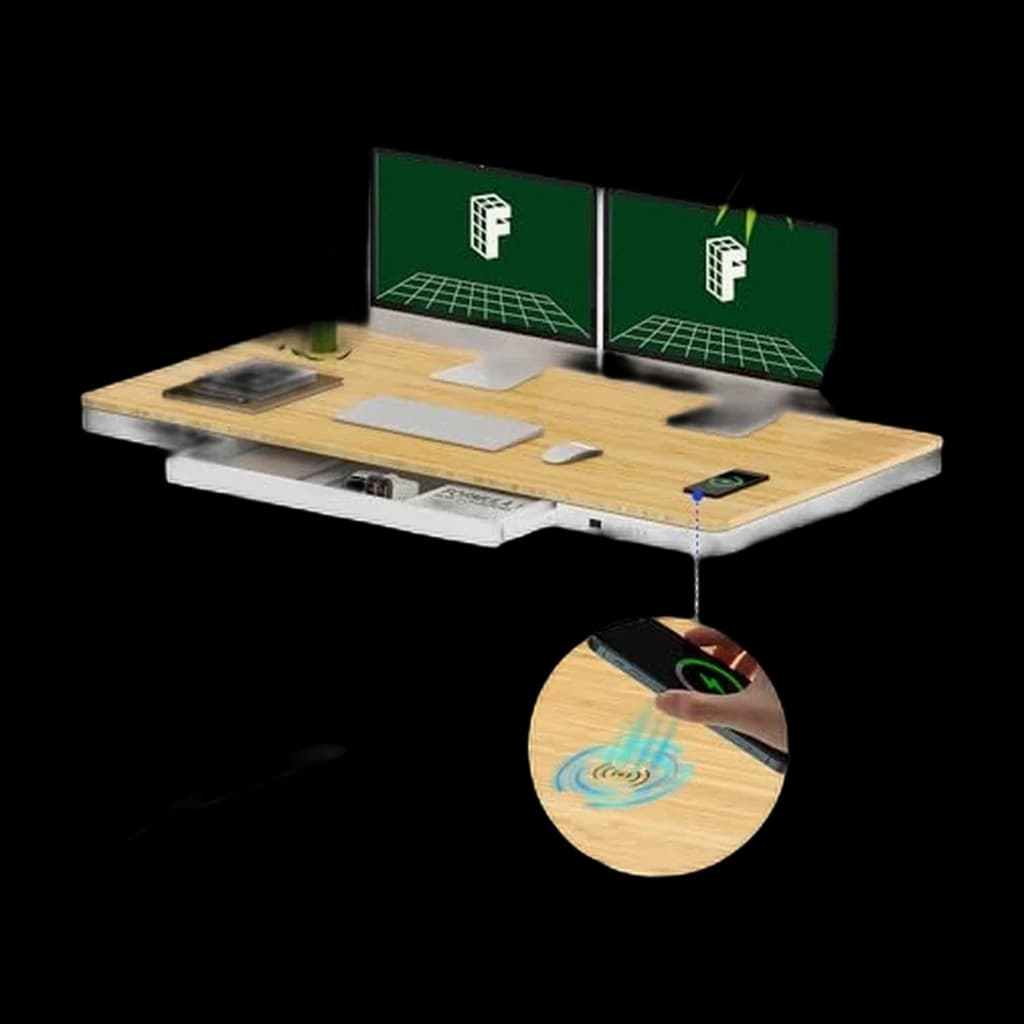 #1 4.4 | 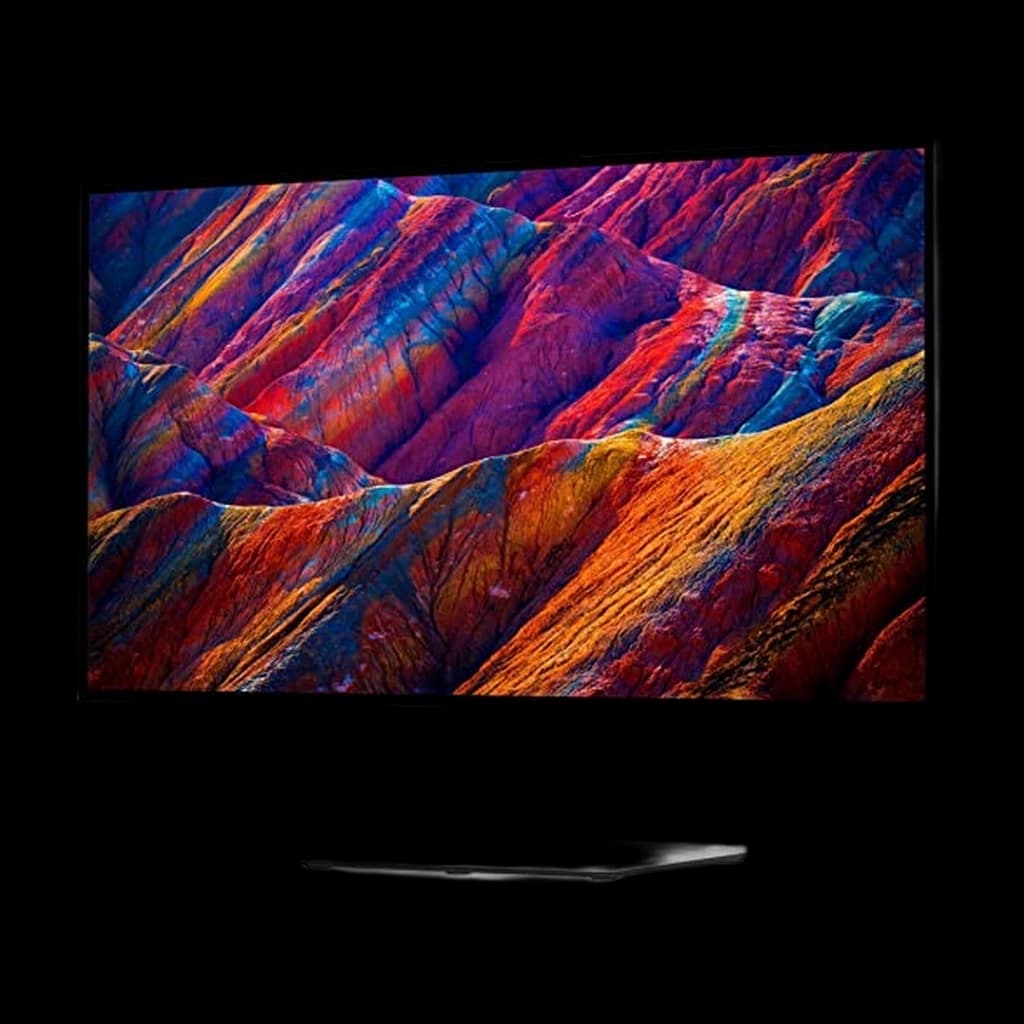 #2 4.3 | 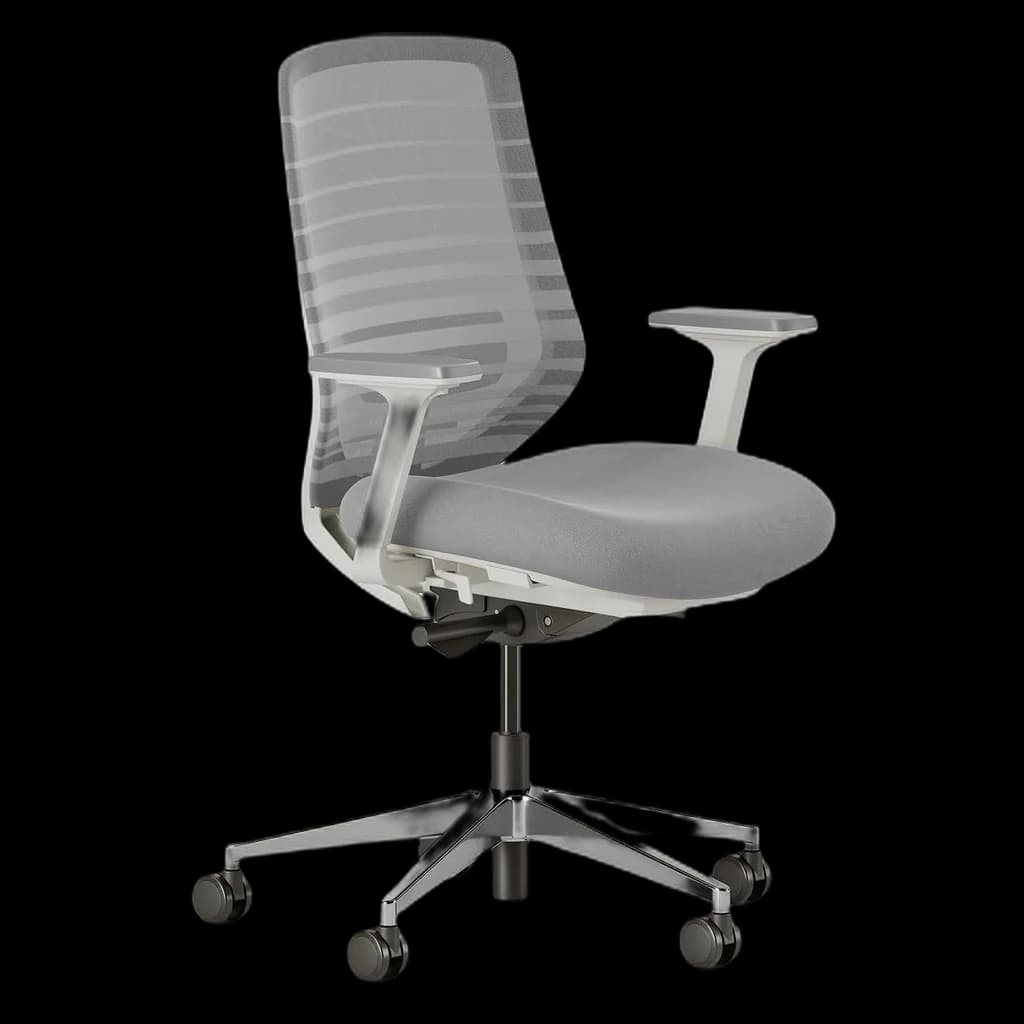 #3 4.1 | 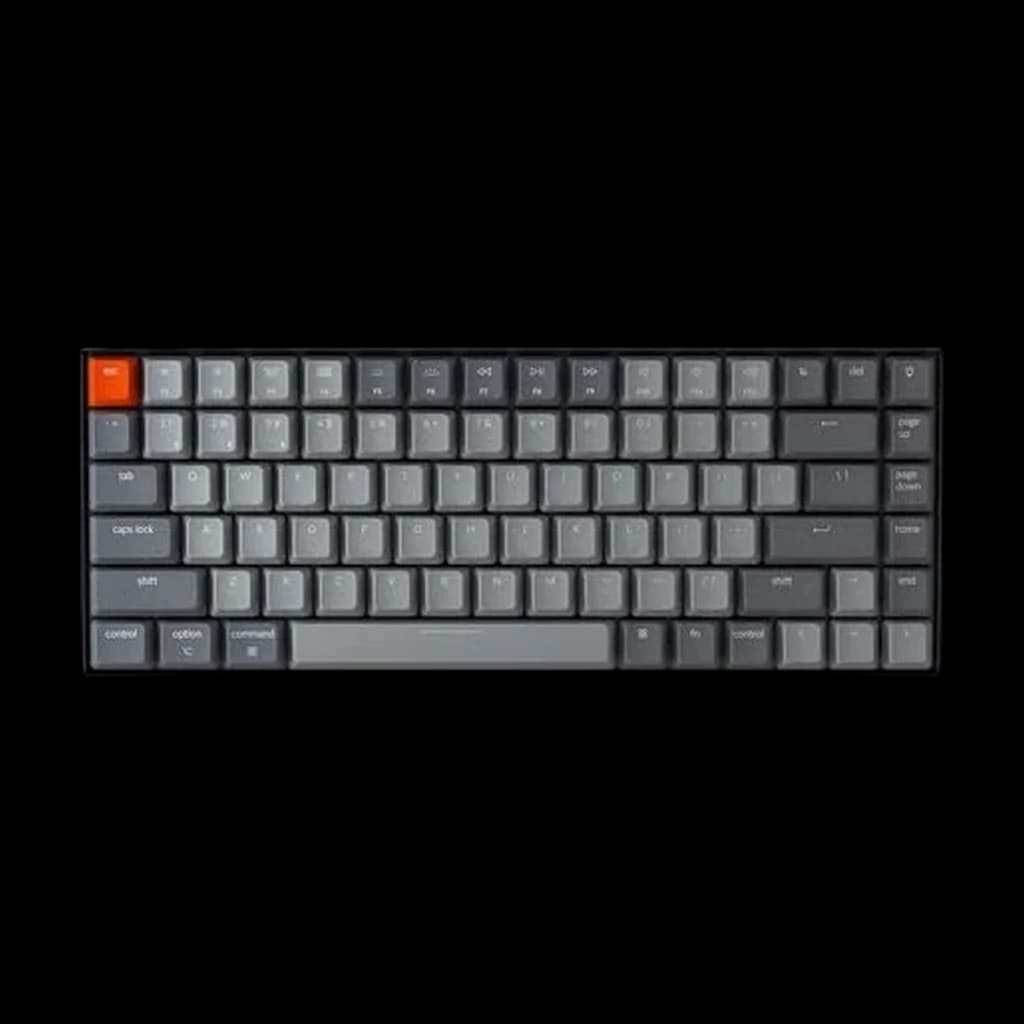 #4 4.6 | 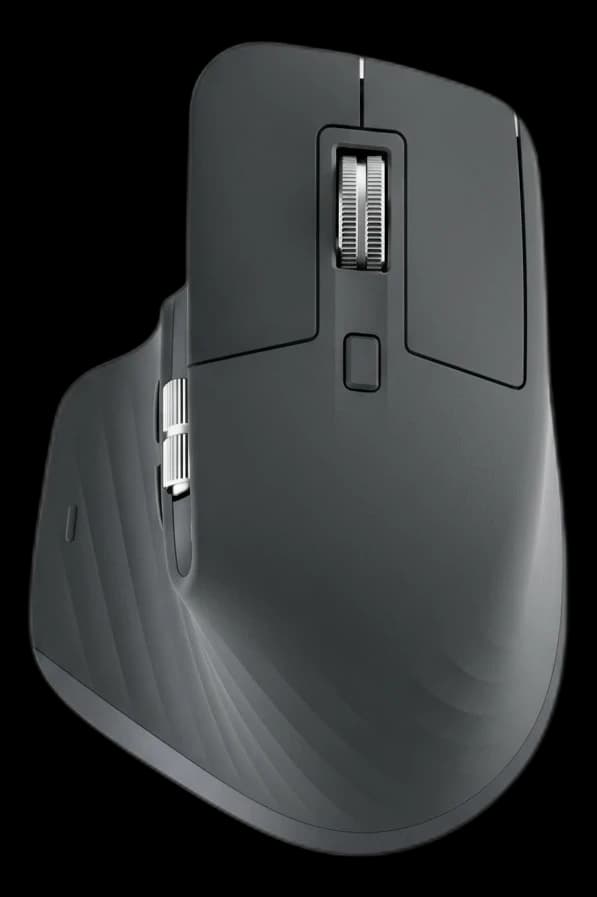 #5 4.6 | |
|---|---|---|---|---|---|
| Price | $569.99Buy on Amazon | $639Buy on Amazon | $499Buy on Amazon | $89.99Buy on Amazon | $119.99Buy on Amazon |
| Verdict | The current FlexiSpot dual-motor 3-stage in stock. 220lb capacity, bamboo top, wireless charging on the deck — premium for the price. | Best WFH monitor — IPS Black, USB-C 90W, built-in KVM | Best under-$500 ergonomic chair for full-time WFH | The current in-stock Keychron K2 variant. 75% layout with hot-swap switches and aluminum frame — same form factor as the discontinued K2 Pro, minus the QMK/VIA firmware. | Best WFH mouse — the undisputed productivity standard — The MX Master 3S is no longer sold on Amazon; Amazon lists the MX Master 4 as its replacement, and that is what this link goes to. |
| Buyer sentiment | Assembly Sturdiness Quality Appearance Buyers praise assembly, sturdiness, quality and appearance. Based on 187 user mentions | Display Quality Picture Quality Color Productivity Buyers praise display quality, picture quality, color and productivity. Mixed feedback on performance and brightness. Based on 502 user mentions | Quality Assembly Versatility Appearance Seat Cushion Buyers praise quality, assembly, versatility and appearance. Mixed feedback on adjustability and value for money. Some flag seat cushion. Based on 202 user mentions | Quality Appearance Build Quality Typing Experience Reliability Bluetooth Connectivity Buyers praise quality, appearance, build quality and typing experience. Some flag reliability and bluetooth connectivity. Based on 73 user mentions | Quality Ergonomics Comfort Customizability Buyers praise quality, ergonomics, comfort and customizability. Mixed feedback on reliability and connectivity. Based on 3,166 user mentions |
| Specs |
|
|
|
|
|
| Pros |
|
|
|
|
|
| Cons |
|
|
|
|
|
* Prices checked Sep 12, 2026 and may vary. Check the latest price on Amazon.
We research — never hands-on. How we research →
12-month reality check
What owners say after living with this 12 months — paraphrased community consensus from the subreddits below.
A year in, the setup that actually held up was the one with a real height-adjustable desk and a chair you can sit in for 8 hours. The flashy LED lighting and dual-arm mounts get rearranged or sold within 6 months — the desk and chair don't.
r/HomeOfficeCable management feels overbuilt on day one and inadequate by month 4. Plan for twice the cables you think you'll have, because the second monitor, second keyboard, and webcam upgrades happen on every single battlestation.
r/battlestationsThe single biggest regret across long-term WFH veterans is buying a cheap monitor 'to see how it goes.' A year later it's a paperweight, the eye strain was real, and they end up spending double on the upgrade they should have made on day one.
r/wfh
Cheaper alternative
FLEXISPOT Q8 Bamboo Standing Desk ($569.99)is excellent — but if the price tag makes your stomach lurch, here’s the pick we’d quietly point most home-office buyers to instead.
Worth the upgrade
If one piece of this setup deserves buy-once money, it's the chair — it's the only item here your body is in contact with for eight hours a day. The Leap V2's 12-year warranty and decades-long refurb market mean it routinely outlives three cycles of budget chairs.
Key Takeaways
Three complete home office builds ranked for 2026: $500 starter, $1,500 mid-tier, $3,500 pro. Exact chair, desk, monitor, and webcam picks included.
As an Amazon Associate I earn from qualifying purchases. Product prices and availability are subject to change.
Six years into mainstream remote work, we finally know what a great work-from-home setup looks like — and what isn't worth the money. This guide walks through:
- The 8 pieces of gear that actually matter in 2026
- Three complete home office builds at different budgets
- The questions we see in GSC, Reddit, and owner forums every week
Whether you're calling it a "WFH setup" or a "home office," the principles are the same.
The rule: spend on what your body touches for 8+ hours, skip what nobody will notice.
We're a research-based site — we don't hands-on test every product. Instead we synthesize the deepest reviews in each category (Wirecutter, RTINGS, The Verge, Cornell Ergonomics Lab, OSHA guidance) plus long-term owner feedback from Reddit and Amazon verified reviews at the 6-month-plus mark. That's the bar every pick on this page had to clear.
The 3-Tier WFH Setup at a Glance
| Tier | Total Cost | Best For | What You Get |
|---|---|---|---|
| Budget | ~$500 | First-time remote workers, students, short-term WFH | Mid-tier chair, used standing desk, 27" 1440p monitor, entry peripherals |
| Mid-Tier | ~$1,500 | Full-time remote workers 1–5 years in | Quality ergonomic chair, electric standing desk, USB-C 1440p monitor, mechanical keyboard, good webcam + lighting |
| Pro | ~$3,500 | Senior ICs, executives, anyone doing this for the long haul | Premium ergonomic chair (Aeron/Leap), 27" 4K 120Hz monitor, split keyboard, pro-grade webcam and audio, full cable management |
Scroll to the bottom for the full build-out of each tier. First, the 8 pieces of gear every WFH setup needs.
The 8 Core Pieces of a 2026 WFH Setup
1. Standing Desk — The Foundation
Your desk determines every ergonomic decision downstream. In 2026, the clear winner is an FLEXISPOT Q8 Bamboo Standing Desk with memory presets. Prices have dropped — a solid dual-motor standing desksit-stand deskA desk whose surface raises and lowers (electric or crank) so you can alternate sitting and standing through the day. Cornell ergonomics research recommends ~30-min sitting / ~10-min standing / ~2-min walking cycles, not all-day standing. with a 60-inch laminate top runs $350–$500 from FlexiSpot, Uplift, or Vari. Look for:
- Dual motors (smoother lift)
- 250 lb+ capacity
- 24"–50" height range (covers 5'0" to 6'6")
- Programmable presets
Collision detection is worth the $20 upcharge. Whatever top you choose, one of the best desk mats protects the laminate and gives your mouse a consistent surface.
If a standing desk isn't in the budget, a 29"–30" fixed desk plus a standing desk converter works but adds visual clutter. Our standing desk buying guide breaks down the full checklist and the best standing desks for 2026 covers our top picks.
2. Monitor — The Single Biggest Productivity Upgrade
After the chair, a proper external monitor is the WFH upgrade with the biggest return on your time.
The 2026 sweet spot has shifted from 27-inch 4K at 60Hz to 27-inch 4K at 120Hzrefresh rateHow many times per second a monitor redraws the image, measured in hertz (Hz). 60Hz is fine for documents; 120Hz+ makes scrolling, cursor motion, and video noticeably smoother — especially on macOS and high-DPI displays.. The higher refresh rate makes scrolling, dragging, and cursor movement feel noticeably smoother — it's not just a gaming feature anymore.
Dell UltraSharp U2723QE 27-inch 4K Monitor continues to set the WFH standard. IPSIPS panelIn-Plane Switching: an LCD panel type with wide viewing angles and accurate color, at the cost of slightly slower response time than TN. The default sensible choice for office work, design, and most WFH monitors. Black panels deliver contrast close to VA without sacrificing color accuracy or viewing angles, and USB-C with 90W power delivery means one cable charges your laptop and drives the monitor. For maximum screen real estate without dual monitors, 34" ultrawide (21:9) is compelling — it's like two side-by-side displays with no bezel gap. Full picks in our best monitors for WFH guide.
3. Ergonomic Chair — Your Body's Best Friend
You'll spend more time in your office chair than your bed. A bad one causes back pain, hip problems, and focus loss; a good one disappears.
The premium tier is the Herman Miller Aeron, Steelcase Leap V2, and Humanscale Freedom — all $1,200–$1,800 new with 12-year warranties and strong resale value. Under $500, the Branch Ergonomic Chair Pro, Autonomous ErgoChair Pro, and HON Ignition 2.0 are the mid-tier picks that owner reviews consistently rate 4.3+ stars at the 1-year mark. See our full picks in best ergonomic chairs under $500 and the Aeron vs Leap V2 deep-dive.
4. Keyboard — What Your Fingers Live On
A mechanical keyboard with the right switches reduces finger fatigue on long coding or writing sessions. Wireless mechanicals have fully matured in 2026 — Bluetooth latency is imperceptible for typing and battery life runs weeks. The Keychron K2 V2 Wireless Mechanical Keyboard and Logitech MX Mechanical dominate our best mechanical keyboards for WFH list. Switch choice matters more than brand:
- Tactile (Brown, Clear) — balances feedback and noise
- Linear (Red) — smoother, but leads to bottoming out
- Clicky (Blue) — will end your marriage
For RSI or shoulder discomfort, a split keyboard like the ZSA Voyager or Kinesis Advantage360 is worth the premium.
5. Mouse — Precision and Comfort
The Logitech MX Master 3S (no longer sold on Amazon — this link goes to its successor, the MX Master 4) is still the WFH mouse to beat: MagSpeed scroll, multi-device Bluetooth, and an ergonomic shape that works for 95% of hand sizes.
- For wrist pain: a vertical mouse (Logitech MX Vertical, Anker Vertical) puts your hand in a handshake position that reduces forearm pronation.
- For minimalist setups: the Logitech ERGO M575 trackball eliminates arm movement entirely.
Full breakdown in best mouse for remote work 2026.
6. Headset or Headphones — Audio Matters More Than Video
A dirty secret of remote work: audio quality matters more than video on calls. People tolerate a grainy picture, but echoey or choppy audio makes you unworkable.
Over-ear ANCANCActive Noise Cancellation: microphones sample ambient sound and the headphones generate an inverted waveform to cancel it. Best on steady low-frequency noise (planes, HVAC). Less effective on speech, which is why open-plan office chatter still gets through. headphones (Sony WH-1000XM5, Bose 700, Apple AirPods Max) are the versatile pick — great for calls and for blocking out household noise during focus work. For office-specific use, the Jabra Evolve2 75 has a flip-down boom mic that beats any laptop mic on call quality. Picks in best WFH headphones and best headsets for Zoom calls.
7. Webcam and Lighting — The Professional Presence Stack
Your colleagues judge your video quality. In 2026, 1080p at 60fps is the baseline; 4K is the upgrade. The Insta360 Link 2 leads with AI tracking and gesture controls; the Anker C300 is the $70 value pick.
Lighting matters more than the webcam. A simple LED key light like the Elgato Key Light Mini, placed 45° above your eyeline, dramatically improves how you look on any camera.
Full picks in best webcams for video calls 2026 and best ring lights for home office.
8. Desk Lamp — Task Lighting That Protects Your Eyes
Overhead room lighting is too dim or too harsh for focused desk work. A task lamp with adjustable color temperatureKelvinColor temperature, measured in Kelvin. ~2700K is warm/yellow (incandescent), ~4000K is neutral white, ~5000–6500K is cool/daylight. Match desk-lamp temp to your monitor's white point so your eyes don't constantly re-adapt. (2700K warm → 6500K cool) and wide light spread lets you match lighting to your task and time of day. The BenQ ScreenBar mounts on top of your monitor and illuminates your desk without screen glare — a brilliantly simple solution. See our best desk lamps for home office for more picks.
How to Build Your Home Office in 7 Steps
Whether you're starting from a kitchen table or upgrading a 5-year-old setup, this is the order that produces the best result per dollar spent.
Step 1. Measure your space and set a budget
Measure your desk footprint (length × depth), ceiling height, and outlet locations before buying anything. Decide your total budget, then allocate it:
- Chair 30–40%
- Desk 15–20%
- Monitor 15–20%
- Peripherals 10–15%
- Lighting/audio/misc 10–15%
If your budget is under $500, prioritize ruthlessly — chair first, monitor second, everything else used or secondhand.
Step 2. Start with the chair
Your chair is the one piece you can't afford to get wrong. Buy new or certified-refurbished (never Craigslist unsanitized), and prioritize adjustable lumbar, seat depth, armrest height, and tilt tension.
Test it at a showroom if you can — what feels fine for 10 minutes may not at hour 6.
Step 3. Get the desk right
Standing desk if you can afford it, fixed + converter if you can't. Desk height matters:
- Sitting: your forearms should rest parallel to the floor when your hands are on the keyboard
- Standing: elbows at 90°
Step 4. Add the monitor (and mount it)
Get a 27" 1440p minimum — smaller or lower-res is a squint factory. Mount it on a $100 monitor arm, not the included stand. A proper arm:
- Gets the screen to eye-level
- Frees desk space
- Eliminates neck strain (Cornell Ergonomics guideline: top of screen at eye level, 20–30 inches from your face)
Step 5. Dial in the peripherals
Keyboard, mouse, external webcam if you're on video calls multiple hours a day.
Skip the built-in laptop camera and mic — they're the single biggest unforced error in WFH setups.
Step 6. Fix your lighting
- One key light at 45° above your eyeline (Elgato Key Light Mini, LUME Cube Panel Pro, or any $40 LED panel)
- A task lamp for the desk surface
Avoid sitting with a window directly behind you — it silhouettes you on camera and no webcam software can fix it.
Step 7. Organize cables and add personality
- Under-desk cable tray
- Velcro cable ties (not zip ties — you'll want to adjust)
- One power strip in the tray as your single point of wall connection
Then add a desk plant, a wall calendar or corkboard, and a couple of small personal items. The room should feel like yours, not a cubicle.
What to Skip in Your 2026 WFH Setup
Six years of remote-work gear cycles produced a lot of stuff that sounds smart in a YouTube ad and falls apart in actual use. These are the categories we tell readers to skip, with the reasons.
Cheap no-name standing desks ($150–$250 from unknown brands)
Single-motor wobble, 24-month plastic glide failures, and zero parts availability when something breaks. The savings vanish the first time you replace a control box. Detailed breakdown in why most cheap standing desks aren't worth it.
"Gaming" chairs marketed as office chairs
Bucket seats are designed for short reclined sessions, not 8 hours upright.
- The fixed lumbar curves don't match adult spines
- The foam compresses asymmetrically by year two
- Racing-stripe vinyl peels
A $400 ergonomic task chair will outperform a $900 gaming chair for actual work. See gaming chairs as office chairs — what to know.
Blue-light glasses worn at night for sleep
The science doesn't support it.
AAO guidance and multiple Cochrane reviews show no clinically meaningful sleep benefit from blue-blocking lenses — the actual factor is screen brightness and ambient room lighting.
For daytime desk work, lightly tinted lenses can reduce glare-related strain, but skip the orange "sleep" lenses entirely. Full breakdown in blue-light glasses for sleep — the evidence.
24-inch monitors and below
For coding, spreadsheets, or any side-by-side window work, a 24" monitor is a squint factory in 2026. The price gap between a 24" 1080p and a 27" 1440p IPS is now $50–$80. The cost of doing 8 hours a day on a screen that's too small is paid in eye strain, neck-craning, and lost productivity.
Built-in laptop webcams and mics for video calls
The 720p sensor and pinhole mic on every modern laptop produce the worst version of you that exists, and colleagues notice. A $55 external webcam (Anker PowerConf C200) and a $50 USB headset together cost less than a mid-tier mouse and produce instant-noticeable improvement on every call.
Cable raceways with adhesive backing
The adhesive fails in summer heat or under moderate cable load, and the raceway falls down with every cable still inside. Use screw-mount cable trays under the desk instead. Full setup in cable management ideas for home office.
"Ergonomic" gel mouse pads with built-in wrist rests
The gel compresses to nothing within 6 months and the wrist rest forces your hand into a bent position anyway.
Cornell Ergonomics guidance is to keep your wrist neutral, not propped over a pad.
A flat hard-surface mouse pad plus correct seat height — so your forearm rests on the desk, not your wrist — is what actually works.
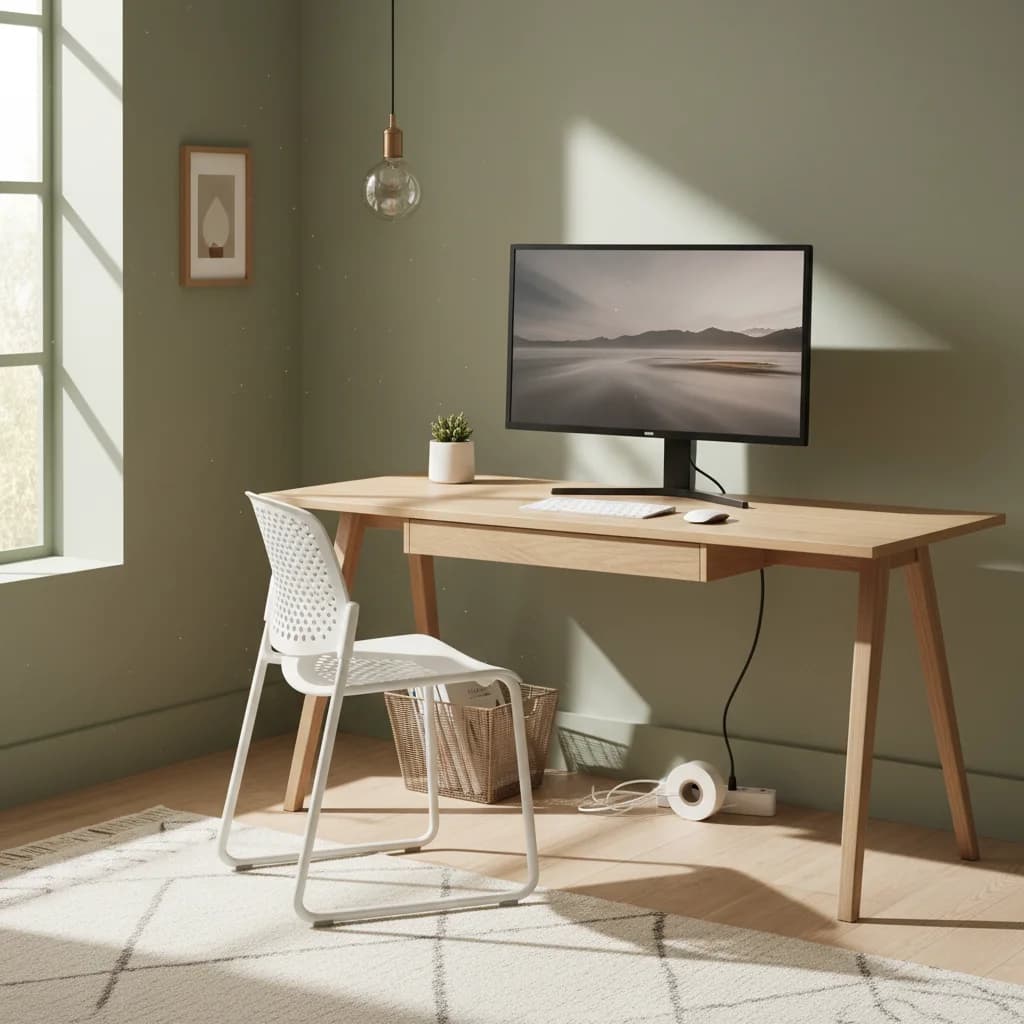
The $500 Budget WFH Build
For the first year or two of remote work, or if you're testing whether WFH is for you long-term.
- Chair ($250): HON Ignition 2.0 mesh task chair — adjustable lumbar, seat height, armrests. Not Aeron-level but genuinely comfortable for 8-hour days.
- Desk ($0–$120): Reuse an existing table OR a $120 Ikea Linnmon + Adils fixed desk. Save for a standing desk later.
- Monitor ($180): LG 27QP60G-B — 27" 1440p IPS, 99% sRGB, basic tilt stand. Pair with a $30 laptop stand to raise the screen closer to eye level.
- Keyboard + Mouse ($50): Logitech MK345 wireless combo. Not exciting, but it works and frees your laptop keyboard.
- Lighting ($0): Use window light during the day, buy a $30 LED lamp later.
Total: ~$510. Upgrade path: chair first (you'll feel it), then add a proper monitor arm and USB-C hub.
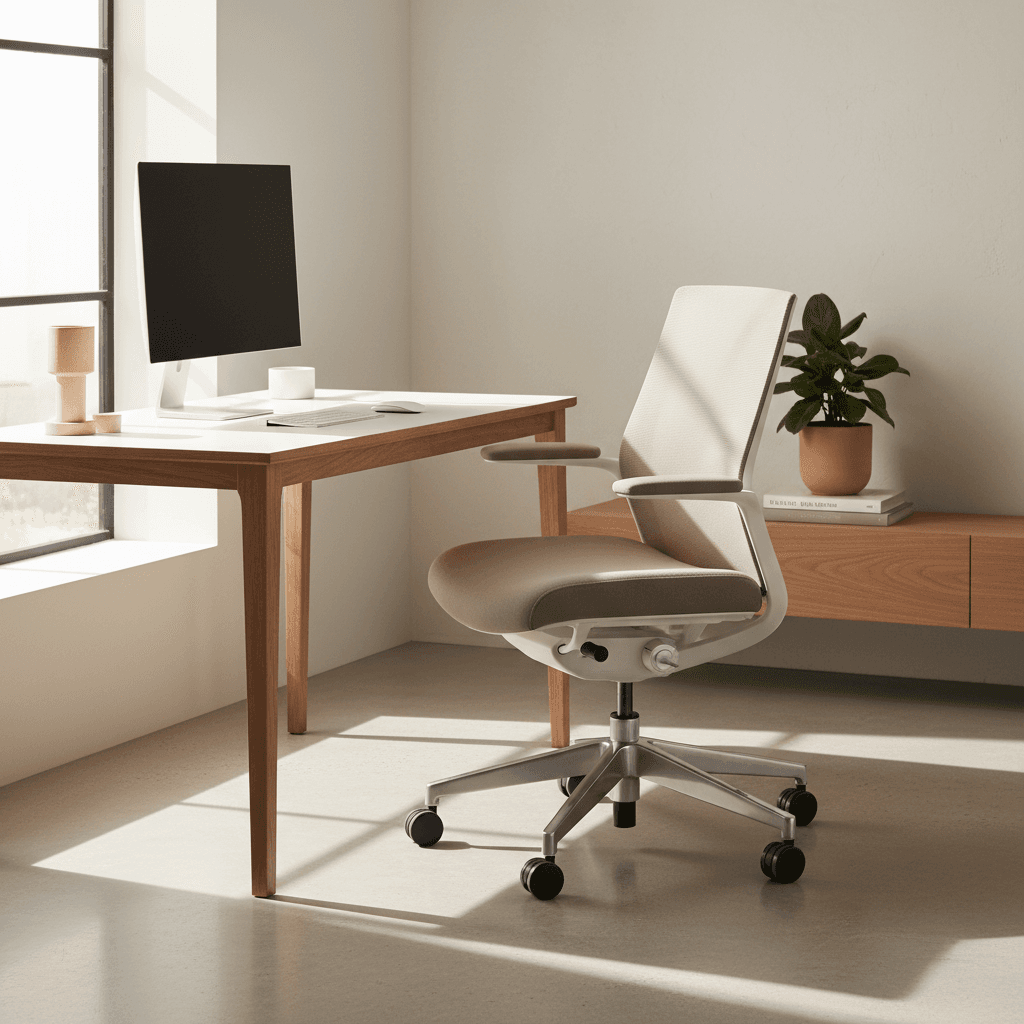
The $1,500 Mid-Tier Build
For full-time remote workers 1–5 years in who want gear that lasts a decade.
- Chair ($500): Branch Ergonomic Chair Pro or Autonomous ErgoChair Pro — two-way lumbar, 5D armrests, 14 points of adjustment, 7-year warranty.
- Desk ($400): FlexiSpot Q8 standing desk with 55" bamboo top, dual motor, 4 memory presets, 220 lb capacity.
- Monitor ($450): Dell UltraSharp U2723QE — 27" 4K IPS, USB-C 90W power delivery, built-in KVMKVM switchKeyboard-Video-Mouse switch: lets one keyboard, mouse, and monitor (or set of monitors) control multiple computers via a hotkey or button. The clean way to share a setup between a work laptop and a personal desktop without re-cabling.. One-cable laptop docking.
- Keyboard + Mouse ($200): Keychron K2 V2 mechanical + Logitech MX Master 3S.
- Webcam + Lighting ($100): Anker C300 webcam + Elgato Key Light Mini. Call quality jump is immediate.
Total: ~$1,650. Upgrade path: add a monitor arm, a quality headset, and a cable tray. Replace the chair with an Aeron in 2–3 years when it shows up used on your local listings.
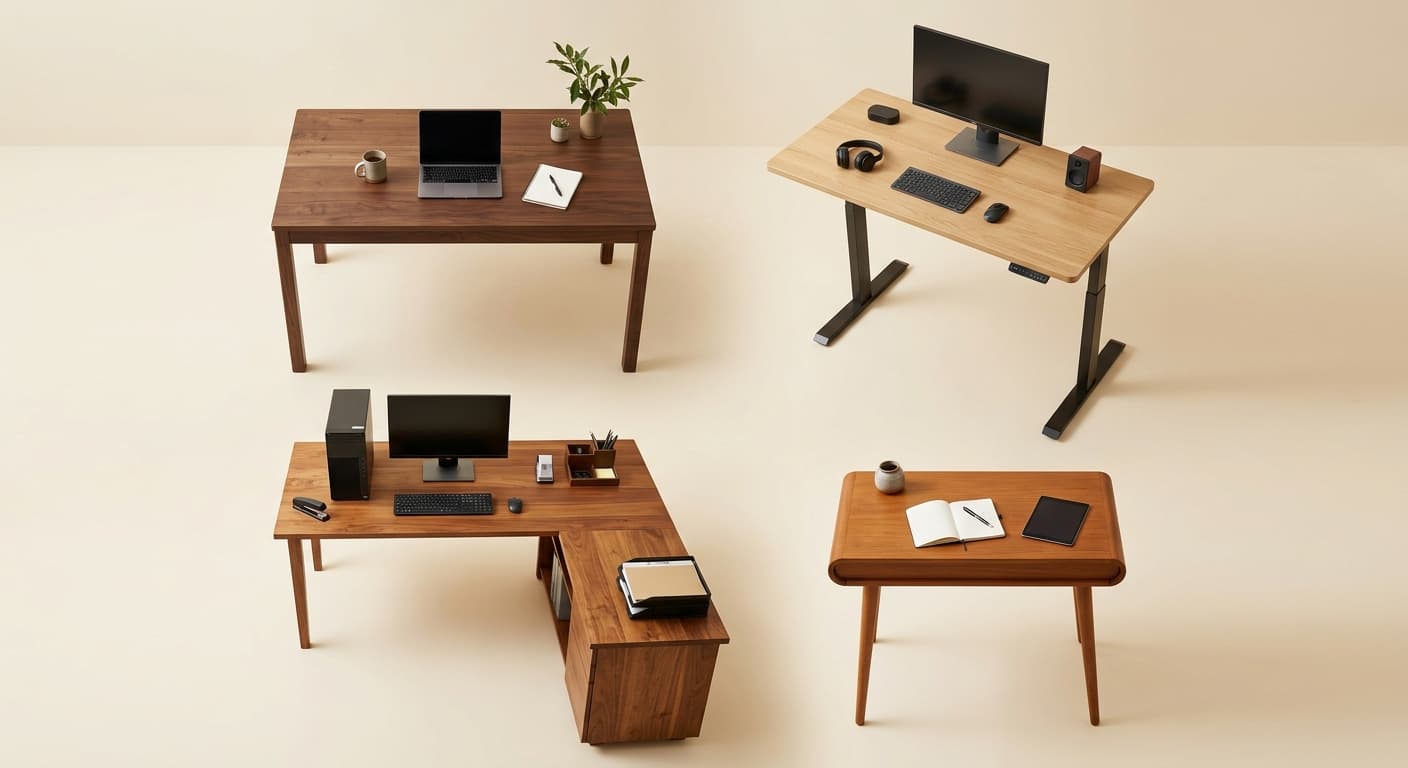
The $3,500 Pro WFH Build
For senior ICs, engineers on the tools 10+ hours a day, and executives who do this for the long haul.
- Chair ($1,400): Herman Miller Aeron (Remastered, size B) or Steelcase Leap V2. Both come with 12-year warranties and hold 60% resale value.
- Desk ($700): Uplift V2 Commercial, 72" × 30" bamboo, dual motor, advanced keypad, 355 lb capacity. Add the wire management kit.
- Monitor ($800): Dell U3225QE 32" 4K IPS Black, USB-C 140W, built-in KVM, 99.5% DCI-P3. Mounted on a $180 Fully Jarvis monitor arm.
- Keyboard + Mouse ($350): ZSA Voyager split mechanical + Logitech MX Master 3S + MX Keys Mini for travel.
- Webcam + Audio ($250): Insta360 Link 2 4K webcam + Shure MV7+ USB/XLR mic + Apple AirPods Max or Sony WH-1000XM5 for calls.
Total: ~$3,500. This is the setup that doesn't need another upgrade for a decade. Every piece is engineered for daily use by people whose work depends on it.
Side-by-Side Build Specs
A breakdown of every piece in the three builds with our scored picks. Use this table to mix-and-match if you want a setup that doesn't fit neatly into one tier.
| Component | $500 Build | $1,500 Build | $3,500 Build |
|---|---|---|---|
| Chair | HON Ignition 2.0 ($250) | Branch Ergonomic Chair Pro ($499) | Aeron Remastered ($1,400) |
| Desk | Reuse / Ikea Linnmon ($120) | FlexiSpot Q8 dual-motor ($450) | Uplift V2 Commercial 72" ($700) |
| Monitor | LG 27QP60G-B 27" 1440p ($180) | Dell U2723QE 27" 4K USB-C ($550) | Dell U3225QE 32" 4K + arm ($800) |
| Keyboard | Logitech MK345 combo ($30) | Keychron K2 V2 ($120) | ZSA Voyager split + MX Keys Mini ($350) |
| Mouse | (combo bundled) | Logitech MX Master 3S ($100) | Logitech MX Master 3S ($100) |
| Webcam | Built-in laptop | Anker PowerConf C200 ($55) | Insta360 Link 2 4K ($300) |
| Lighting | Window + $30 lamp ($30) | Elgato Key Light Mini ($60) | Elgato Key Light + BenQ ScreenBar ($300) |
| Audio | Built-in / earbuds ($0) | $80 USB headset ($80) | Shure MV7+ + AirPods Max ($800) |
| Cable mgmt | Twist ties ($0) | Cable tray + clips ($40) | J-channel + power tray ($90) |
| Total | ~$510 | ~$1,549 | ~$3,490 |
The chair → monitor → desk order produces the highest comfort-per-dollar return. Audio and lighting can wait until those three are dialed in. Cable management is the last upgrade — do it after you've stopped moving things around.
Building a WFH Setup in a Small Apartment or Studio
Compact spaces don't require compromising on ergonomics — they require pickier furniture choices.
The goal: a footprint under 4 square feet of floor that still delivers a real ergonomic posture.
The 48"×24" compact electric standing desk
A 48-inch top is enough for one 27" monitor + laptop + keyboard. The FlexiSpot EN1 ($250) and Vari Electric Compact ($395) both ship in this size with electric motor and memory presets. Skip frame-only 60"+ desks — at 48" you get a real workspace without owning a 5-foot piece of furniture.
Single 27" monitor on an arm — not dual displays
A monitor arm reclaims 6–8 inches of desk depth and lets you push the screen behind the desk edge for a deeper work area. For dual-display workflows in a small space, use macOS Spaces or Windows virtual desktops — the extra real estate isn't worth the floor footprint of a second physical screen.
Wall-mount everything you can
- A wall-mounted shelf 12" above the desk holds books, a printer, or a plant without consuming desk surface
- A wall-mount monitor arm (vs desk-clamp) frees even more depth
- A wall-mounted power strip with USB-C keeps cables off the work surface entirely
Folding or wheeled chair
A standard ergonomic chair on locking casters can roll to a closet when you need the floor back (yoga, dinner guests, in-laws visiting). Branch's Ergonomic Chair Pro fits this pattern; refurbished Aerons from the Herman Miller Store also work.
Bedroom-corner setup vs. dining-room shared
A dedicated bedroom corner usually beats a shared dining-room setup because you control the entire 4×4 footprint and don't pack up between meals. The tradeoffs are real: blackout curtains for video calls (avoid being backlit), and a separate task lamp because bedroom overheads are usually too warm and too dim for desk work.
For full layouts, see our standing desk for small apartment guide and home office ideas for no dedicated room.
WFH Setup FAQ
What's the single most important piece of a WFH setup?
The chair. You'll spend more time in it than in bed, and it's the one piece that causes immediate, measurable body pain when it's wrong. Spend 30–40% of your total budget here. If your total budget is small, buy a mid-tier ergonomic chair before you buy anything else.
How much should I spend on a first home office?
$500 gets you a workable setup (chair, reused or cheap desk, 27" monitor, basic peripherals). $1,500 gets you a setup that will last 3–5 years without upgrades. $3,500+ gets you gear that lasts a decade. Most full-time remote workers land in the $1,500 range over 12–24 months of upgrades.
Do I really need a standing desk?
No — but alternating postures reduces fatigue, back pain risk, and afternoon energy crashes. If you can't afford an electric standing desk, a $150 standing desk converter on a regular desk is a solid compromise. The key is movement, not the specific furniture.
Is an ergonomic chair worth $500+?
For full-time remote workers, yes. The jump from a $100 task chair to a $500 ergonomic chair is genuinely noticeable — better lumbar, better armrest travel, better materials that don't sag after a year. The jump from $500 to $1,500 is smaller but real: premium chairs feel the same at hour 8 as they did at hour 1.
What monitor size is best for a home office?
27" at 1440p is the minimum for 2026. 27" 4K is the sweet spot if your laptop can drive it. 32" 4K is better for dual-app workflows if you have the desk depth (30"+ recommended). Skip 24" unless your desk is genuinely tiny. Ultrawide (34" 21:9) is excellent for coding and financial work but overkill for everyone else.
Can I build a great home office in a small apartment?
Yes. A 48" × 24" compact standing desk fits in most apartments (we cover this in standing desk for small apartment). A single 27" monitor on an arm gives you the workspace without the footprint. Prioritize vertical storage (shelves above the desk) and a fold-up chair option for when you need the floor space back.
How do I make my home office tax-deductible?
In the US, the home office deduction requires the space to be used regularly and exclusively for work. W2 employees (post-2018 Tax Cuts and Jobs Act) generally can't deduct home office expenses federally, but 1099 contractors and business owners can. Our WFH tax deductions checklist for 2026 covers what you can deduct and how.
What's the difference between a WFH setup and a home office setup?
Nothing functional — they're the same thing. "WFH setup" is the tech/ergonomics term used by remote workers talking about gear; "home office" is the real-estate/tax term used when talking about the room. We use both interchangeably on this site, and Google treats them as the same query cluster.
Should I buy everything at once or upgrade over time?
Upgrade over time. Start with the chair (non-negotiable), add a monitor, then add peripherals. Gear tastes are personal — buying the whole setup upfront means you'll replace half of it within 6 months as you figure out what you actually like. The exception: if you're a new remote worker using a kitchen chair and a laptop screen, the chair and monitor together are the one bundle worth buying immediately.
Sources & Research
This guide synthesizes primary sources on workstation ergonomics, product test methodology, and long-term owner feedback. Every pick above had to clear all three.
- →Cornell University Ergonomics — Sit-Stand Workstation Guidelinessource of the "top of screen at eye level, 20–30 inches from your face" guideline used throughout this guide.
- →OSHA Computer Workstation eToolfederal US guidance on chair adjustment, keyboard height, monitor positioning, and break frequency.
- →NIOSH (CDC) Office Ergonomicsthe primary US public-health research source on office workstation injury prevention. Premium chair manufacturers (Steelcase, Herman Miller, Humanscale) design to NIOSH and BIFMA guidance; we require this level of testing for any chair we recommend at the $500+ tier.
- →American Academy of Ophthalmology — Computer Eye Strainsource of the 20-20-20 guidance and the basis for skipping blue-light glasses for sleep.
- →The Wirecutter — Best Standing Deskand RTINGS Monitor Reviews — long-form independent test methodologies we cross-reference for desk and monitor picks.
- →r/wfh long-term owner threads6-month-plus durability reports we use as a final filter on every product on this page.
Related WFH Setup Guides
- →Best Monitors for Working From Homefull monitor buying guide
- →Best Mechanical Keyboards for WFHswitch guide and top picks
- →Best Ergonomic Chairs Under $500mid-tier chair picks
- →Herman Miller Aeron vs Steelcase Leap V2premium chair showdown
- →Best Webcams for Video Calls 2026professional video picks
- →Best Standing Desks for Home Office 2026electric standing desk picks
- →Standing Desk Buying Guidewhat to look for
- →Cable Management for Home Officeclean up your desk
- →WFH Tax Deductions Checklist 2026what you can deduct
- →Monitors· Standing Desks · Office Chairs · Keyboards · Headsets
Buying this setup through a business?
If you’re self-employed and expensing the build, a free Amazon Business account is worth opening before you order — business-only pricing on the same gear, and itemized invoices instead of a pile of personal receipts to reconcile later.
- Free to open — no Prime or membership required
- Business-only pricing + quantity discounts on office gear
- Itemized invoices with tax detail, so write-offs are painless at filing time
Your next step
Go deeper on the anchor pieces.
Hilly Shore Labs
Editorial TeamWFH Lounge is published by Hilly Shore Labs. Every recommendation is built by synthesizing ergonomic research, manufacturer specs, expert reviews from outlets like Wirecutter, RTINGS, and The Verge, and aggregated long-term owner sentiment from thousands of verified buyers.
All product reviews are independently researched. Our recommendations are based on ergonomic guidelines, manufacturer specifications, and verified buyer sentiment. See our methodology.