Cable Management for Home Office 2026: 12 Ideas That Work
An under-desk cable tray and velcro ties are all you need to transform a messy desk — 30 minutes of setup for a permanently cleaner, more productive workspace.
Quick Answer
The 80/20: an under-desk cable tray plus a pack of reusable velcro ties solves most cable clutter for under $30 in about 30 minutes. Add a cable sleeve for the desk-to-wall run, and switch your keyboard, mouse, and phone charger to wireless if they aren't already. That's the whole system — everything below is context.
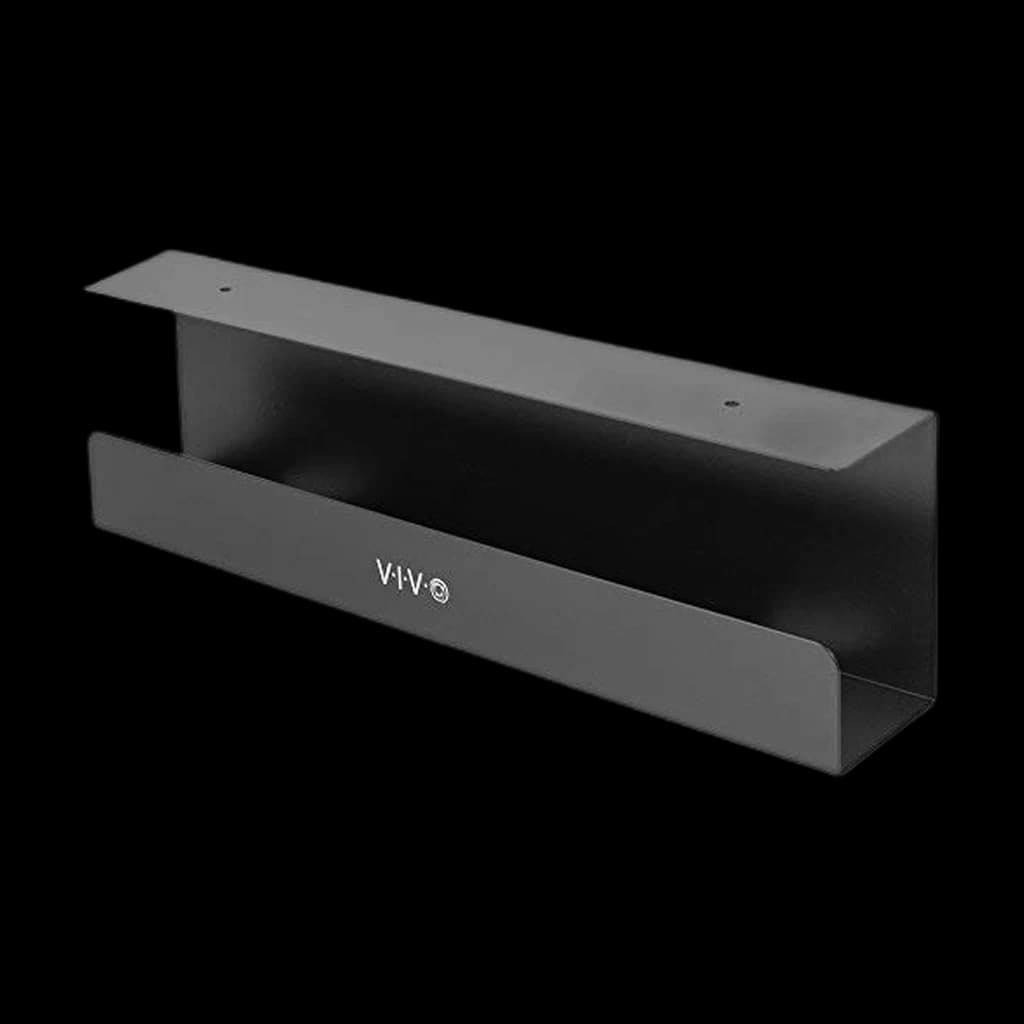 #1 4.5 | 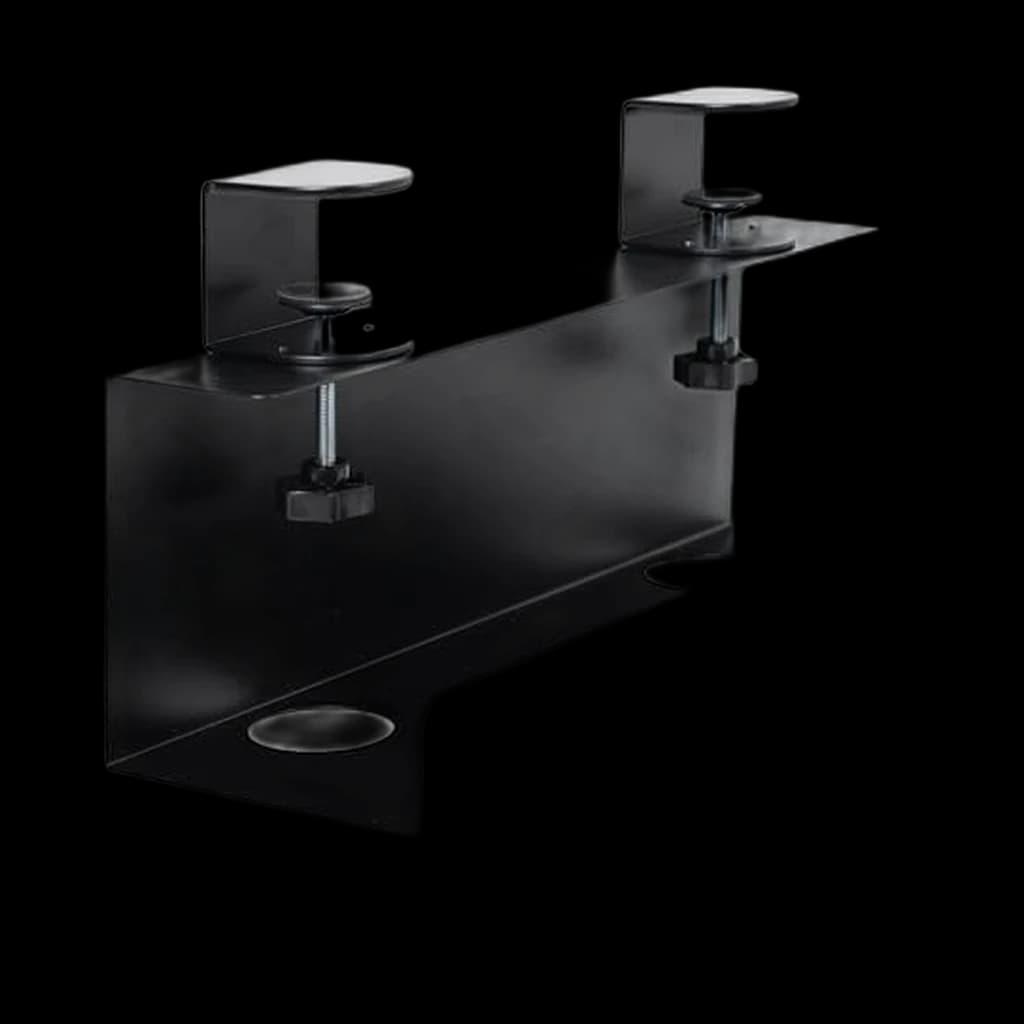 #2 4.7 |  #3 4.6 | 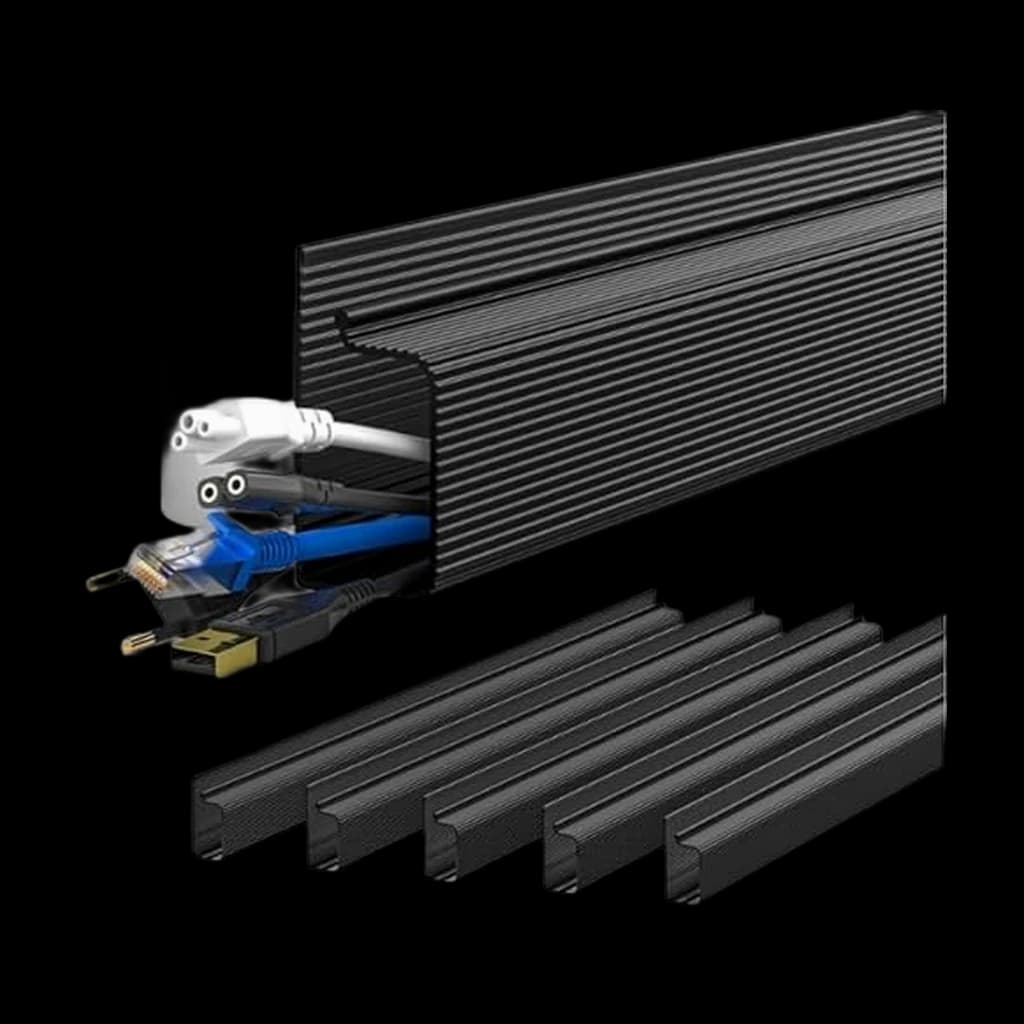 #4 4.6 | 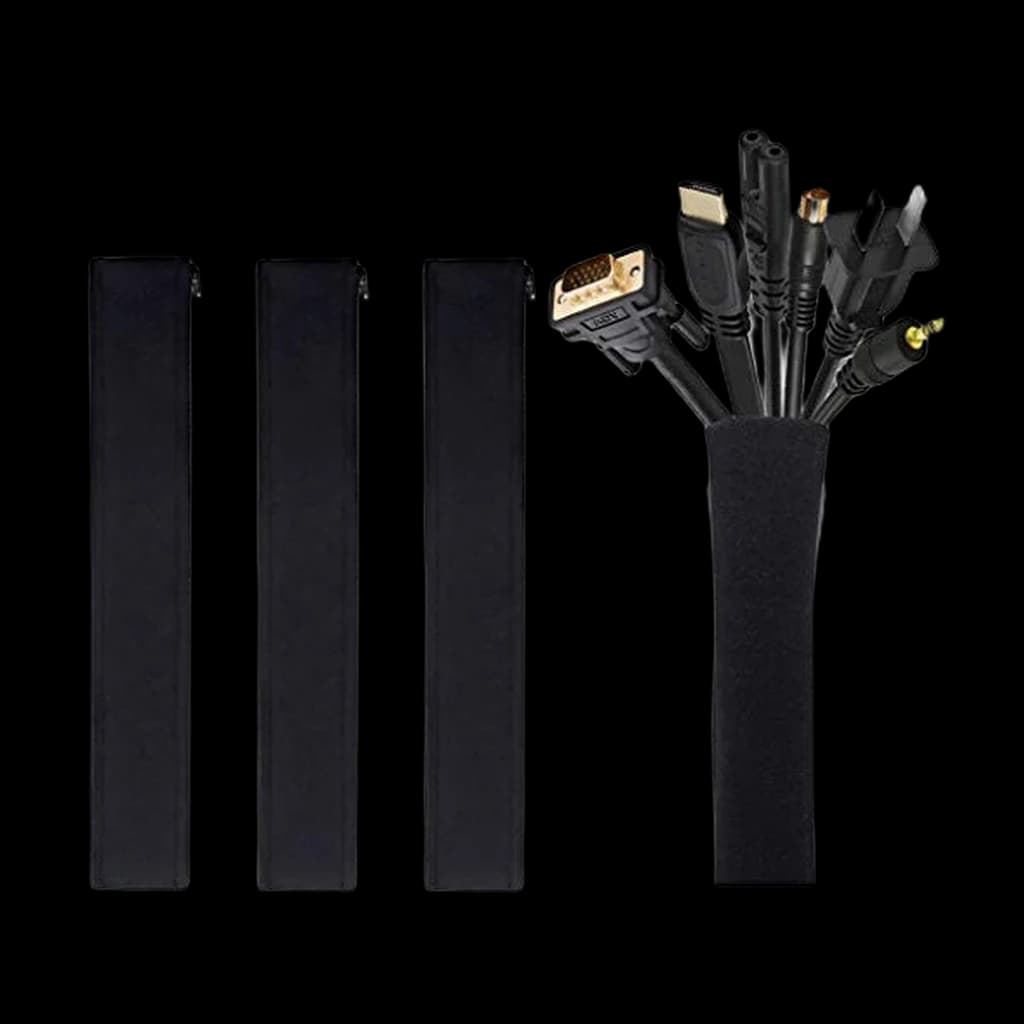 #5 4.6 | 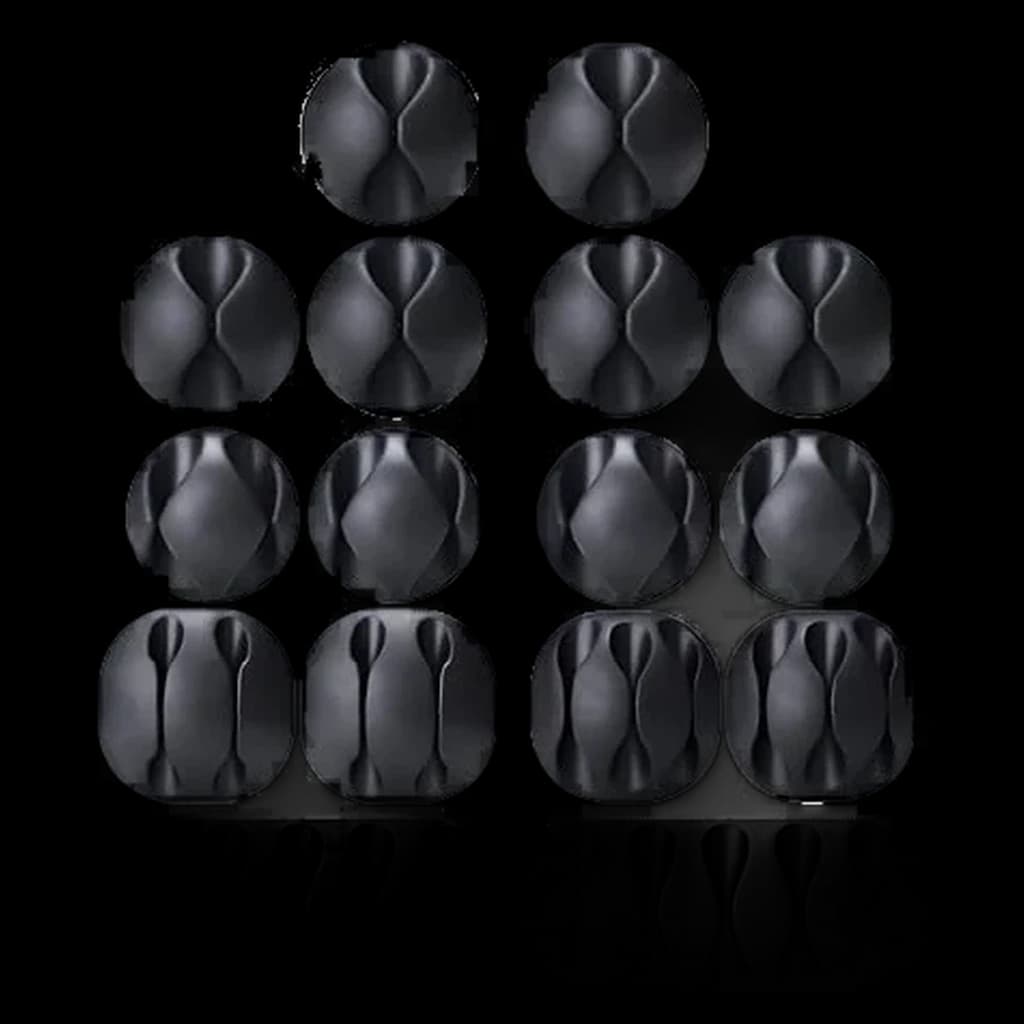 #6 4.3 | |
|---|---|---|---|---|---|---|
| Price | $19.99Buy on Amazon | $39.99Buy on Amazon | $27.99Buy on Amazon | $16.99Buy on Amazon | $9.99Buy on Amazon | $5.99Buy on Amazon |
| Verdict | Steel tray that holds any power strip out of sight | Zero-drill clamp installs in minutes, perfect for renters | 13,000-review proven box that fully conceals any power strip | Six-piece raceway kit routes up to 10 cables per channel | Zip-up neoprene sleeves bundle the standing desk cable drop cleanly | 77,000-review clips that route any single cable along any surface |
| Buyer sentiment | Installation Functionality Durability Build Quality Buyers praise installation, functionality, durability and build quality. Mixed feedback on size. Based on 188 user mentions | Ease of installation Durability Quality Cord holding Buyers praise ease of installation, durability, quality and cord holding. Based on 24 user mentions | Appearance Cord Visibility Quality Functionality Buyers praise appearance, cord visibility, quality and functionality. Mixed feedback on ease of use and size. Based on 1,787 user mentions | Easy To Use Functionality Quality Cable Management Buyers praise easy to use, functionality, quality and cable management. Mixed feedback on adhesive. Based on 1,000 user mentions | Quality Ease Of Use Functionality Appearance Buyers praise quality, ease of use, functionality and appearance. Mixed feedback on zipper. Based on 4,717 user mentions | Functionality Quality Ease Of Use Adhesion Durability Stability Buyers praise functionality, quality and ease of use. Mixed feedback on value for money. Some flag adhesion and durability. Based on 6,485 user mentions |
| Specs |
|
|
|
|
|
|
| Pros |
|
|
|
|
|
|
| Cons |
|
|
|
|
|
|
* Prices checked Sep 19, 2026 and may vary. Check the latest price on Amazon.
We research — never hands-on. How we research →
Key Takeaways
Twelve proven cable-management ideas for 2026: trays, sleeves, velcro, power strip placement. Clean, focused WFH desk in under an hour, under $60.
As an Amazon Associate I earn from qualifying purchases. Product prices and availability are subject to change.
A messy tangle of cables under your desk isn't just ugly — it's a productivity killer. Visual clutter competes for your attention, tangled cables make it harder to troubleshoot when something disconnects, and dust collects on cable nests like a magnet. The good news is that solid cable management takes about 30 minutes to set up and costs under $50 in supplies.
This guide walks you through a practical, step-by-step approach to organizing every cable in your home office — from power cords to USB connections to charging cables.
Why Cable Management Matters
Beyond aesthetics, organized cables deliver practical benefits:
- Easier troubleshooting — when a device disconnects, you can trace the cable in seconds instead of untangling a nest
- Reduced dust accumulation — bundled, elevated cables collect far less dust than loose cables on the floor
- Safer workspace — no tripping hazards from loose cables crossing your floor
- Better airflow — organized cables don't block air vents on your computer or monitors
- Mental clarity — a clean workspace reduces cognitive load, according to research from Princeton's Neuroscience Institute
Essential Cable Management Supplies
Before you start, gather these supplies. Everything listed below is available for under $50 total on Amazon.
Under-Desk Cable Tray ($15-25)
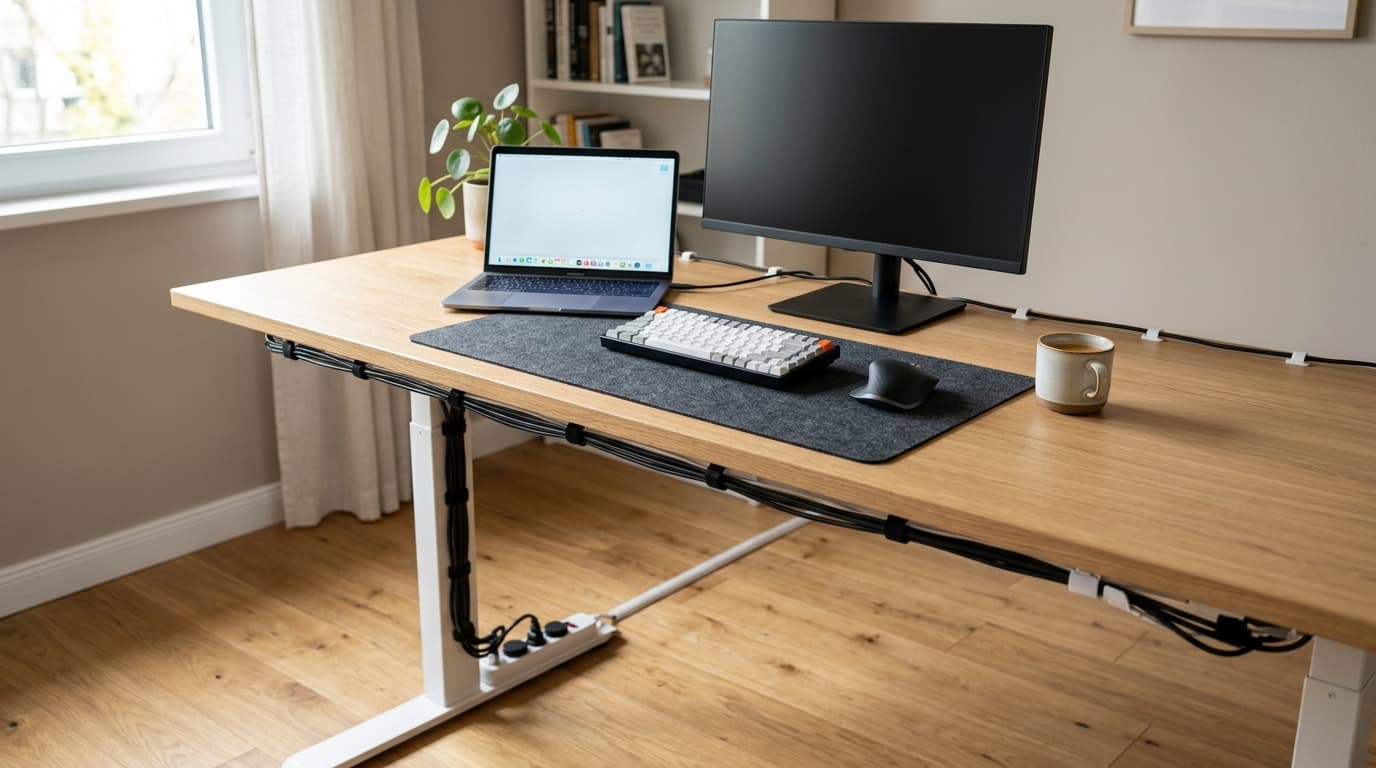
An under-desk cable tray is the single most impactful cable management purchase. It's a metal or plastic channel that mounts underneath your desk surface, capturing all your power cables, adapters, and surge protectors. From seated position, everything disappears.
Top pick: 6 Pack Under Desk Cable Management Kit — mounts in minutes with adhesive or screws, holds up to 10 cables.
Velcro Cable Ties ($8-12 for a pack of 50)
Never use zip ties for cable management. They're permanent — once you cut one to adjust a cable, you need a new one. Velcro ties are reusable, adjustable, and just as effective. Buy a pack of 50 and you'll have enough for your entire home office with plenty to spare.
Top pick: VELCRO Brand ONE-WRAP Cable Ties — the original and still the best.
Cable Clips ($6-10)
Adhesive cable clips attach to the edge of your desk or the wall behind it, holding individual cables in place. They're perfect for charging cables that you plug and unplug frequently — the clip holds the cable in reach when it's not connected to a device.
Cable Sleeve ($8-15)
A cable sleeve is a flexible fabric tube that bundles multiple cables running the same route into a single clean line. They're ideal for the run from your desk to the wall outlet, where power cables, ethernet, and other connections travel together.
Step-by-Step Cable Management
Step 1: Unplug Everything
Start fresh. Unplug every cable from your desk setup and lay them all out. This is your chance to identify cables you don't even use anymore — old chargers, redundant USB cables, that ethernet cable from before you switched to Wi-Fi. Remove anything you don't actively need.
Step 2: Map Your Cable Routes
Before plugging anything back in, plan where each cable needs to go. Most home office cables fall into three categories:
- Power cables — monitor, computer, desk lamp, charger → all route to a single power strip
- Data cables — USB connections between devices, ethernet, display cables → route to your computer
- Charging cables — phone charger, headphone charger, tablet charger → route to a charging hub or desk-edge clips
Group cables by destination and route them together where possible.
Step 3: Install the Under-Desk Tray
Mount your cable tray along the back edge of your desk's underside. Place your power strip inside the tray — this single change hides the bulkiest, ugliest part of your cable setup. Now every power cable routes into the tray and connects out of sight.
Step 4: Bundle and Route
Use velcro ties to bundle cables that run the same path. A typical bundle might be your monitor's power cable and display cable tied together as they route from the monitor to the desk tray. Keep bundles loose enough that cables aren't strained at connection points.
Step 5: Manage the Desk-to-Wall Run
The cable run from your desk to the wall outlet is often the most visible mess. Use a cable sleeve to combine all outbound cables into a single, clean line. For a standing desksit-stand deskA desk whose surface raises and lowers (electric or crank) so you can alternate sitting and standing through the day. Cornell ergonomics research recommends ~30-min sitting / ~10-min standing / ~2-min walking cycles, not all-day standing., leave enough slack in this run that cables don't pull tight at maximum desk height.
Step 6: Add Desk-Edge Cable Clips
For cables you plug and unplug frequently (phone charger, headphone cable), attach adhesive cable clips to the edge of your desk. When the cable isn't connected to a device, it stays clipped in place at desk level instead of sliding to the floor.
Advanced Cable Management Tips
Go Wireless Where Possible
The fewer cables, the less to manage. In 2026, these peripherals are effectively wireless with no performance penalty:
- Keyboard (Bluetooth or 2.4GHz wireless)
- Mouse (Bluetooth or 2.4GHz wireless)
- Headset (Bluetooth with AptX for low latency)
- Phone charging (MagSafeMagSafeApple's magnetic charging connector — currently the fast-charge standard on iPhone 12+ (15W with the official puck, up to 25W on iPhone 15 Pro+). MagSafe-compatible mounts, stands, and chargers snap to the back of the phone with no fiddling. or Qi2 wireless charging pad)
Switching four peripherals from wired to wireless eliminates four cables from your desk entirely. See our complete setup guide for wireless peripheral recommendations.
Use a USB-C Hub to Reduce Cable Count
If your monitor supports USB-C with power delivery, a single USB-C cable replaces your display cable, laptop charger, and USB hub. That's three cables reduced to one — the single biggest cable reduction you can make.
A good USB-C hub adds ports for everything else you need while keeping your desk minimal.
Color-Code Your Cables
When multiple cables run together, use different colored velcro ties or label them with a label maker. This makes future troubleshooting instant — you can identify any cable without tracing it end to end.
Which label maker you buy decides whether that label is still readable in three years, and the deciding factor is the tape rather than the machine - see our label maker comparison for which Brother models take laminated TZe tape and which two do not.
Standing Desk Cable Management
Standing desks add complexity because cables need to accommodate a height range of about 18 inches. Key strategies:
- Use a cable management spine (a flexible vertical chain) from desk to floor — it compresses and extends as the desk moves
- Leave extra slack in all cables so they don't pull at maximum height
- Route the cable spine behind a desk leg where it's least visible
- Use retractable cable reels for cables that need the most slack
Products referenced in this guide
For quick reference, the products tied to this guide are the VIVO Under Desk 17 Inch Cable Management Tray, Power Strip Holder, DESK-AC06-1C ($19.99), the VIVO No Drill Clamp-On 17 Inch Power Strip Cable Management Tray, DESK-CM6L-B ($39.99), the D-Line Cable Management Box, Power Strip Holder, Large Black ($27.99), and the YECAYE 6x15.7in Cable Management Under Desk J Channel Raceway, Black ($16.14).
Other products referenced here include the JOTO 4 Pack Cable Management Sleeve, 19-20 Inch Cord Organizer with Zipper, Black ($9.99) and the OHill 16-Pack Black Cord Organizer Adhesive Cable Clips ($7.96).
Frequently Asked Questions
How often should I redo my cable management? Redo it whenever you add or remove a device from your setup. For most people, that's 2-3 times per year. A well-managed initial setup stays clean with minimal maintenance.
Should I use cable raceways on the wall? Wall-mounted raceways are excellent for hiding the cable run from desk to outlet, especially in apartments where you can't run cables through walls. Paintable raceways blend with your wall color for a near-invisible look.
What about cable management for dual monitor setups? Dual monitors double your cable count, making management even more important. Route both monitors' cables together along the same path to the cable tray. A dual monitor arm with integrated cable channels helps enormously.
The Bottom Line
Cable management isn't glamorous, but it's one of the most satisfying home office upgrades you can make. Start with an under-desk cable tray and a pack of velcro ties — those two items solve 80% of cable clutter for under $30. Then add cable clips, sleeves, and wireless peripherals as needed.
The 30 minutes you invest in organizing your cables pays dividends every single day in cleaner aesthetics, easier maintenance, and the subtle but real focus benefit of a clutter-free workspace.
Related Reading
- →Best Desk Accessories for WFHComplete your clean desk setup
- →Best USB-C Hubs for WFHReduce cable count with one connection
- →Best WFH Setup for 2026Plan your entire home office
- →How to Set Up Dual Monitors Working From HomeCable management for multi-monitor setups
- →Cable ManagementOur top cable management product picks
Your next step
Get the gear that tidies it up.
Hilly Shore Labs
Editorial TeamWFH Lounge is published by Hilly Shore Labs. Every recommendation is built by synthesizing ergonomic research, manufacturer specs, expert reviews from outlets like Wirecutter, RTINGS, and The Verge, and aggregated long-term owner sentiment from thousands of verified buyers.
All product reviews are independently researched. Our recommendations are based on ergonomic guidelines, manufacturer specifications, and verified buyer sentiment. See our methodology.