How to Build a Productive Home Office for Under $300
A thoughtfully assembled $300 home office — lumbar support, laptop stand, mechanical keyboard, desk lamp, and quality audio — delivers 80% of the experience of setups costing five times more.
Quick Answer
A $300 home office that covers lumbar support, a laptop stand, a mechanical keyboard (Royal Kludge RK84 tier), a quality desk lamp, and decent audio delivers roughly 80% of the experience of setups costing five times more. Prioritize seating support and screen position first — they fix the two problems that actually hurt.
Key Takeaways
You don't need thousands of dollars to create a comfortable, productive home office. Here's exactly how to build a great WFH setup for under $300 with specific product recommendations.
As an Amazon Associate I earn from qualifying purchases. Product prices and availability are subject to change.
The internet will tell you that a proper home office costs $2,000 to $5,000. Ergonomic chairs run $800+. Standing desks start at $400. A good monitor is another $300-500. Before you know it, the dream setup on Reddit costs more than a used car.
Here's what six years of working from home — and testing hundreds of products along the way — has taught me: you can build a genuinely productive, comfortable home office for under $300. Not a compromise setup. Not a "good enough for now" setup. A setup where the quality of your work and the health of your body are well taken care of.
The secret isn't finding magic products that are inexplicably cheap. It's understanding which categories demand investment and which have perfectly good budget options. It's knowing where the diminishing returns hit hard and where the difference between a $50 product and a $500 product genuinely matters.
Let me walk you through exactly how to allocate $300 across the things that matter most.
The Priority Framework: Where Your Money Matters Most
Before spending a dollar, understand this hierarchy. It's based on impact per dollar — what gives you the biggest improvement in comfort, productivity, and health relative to cost.
Tier 1 — High Impact, Spend Here:
- Ergonomic seating support
- Monitor or screen positioning
- Input devices (keyboard and mouse)
Tier 2 — Medium Impact, Spend If Possible:
- Desk lighting
- Audio for calls
Tier 3 — Lower Impact, Skip or DIY:
- Desk (use what you have)
- Webcam (your laptop camera works initially)
- Desk accessories and organization
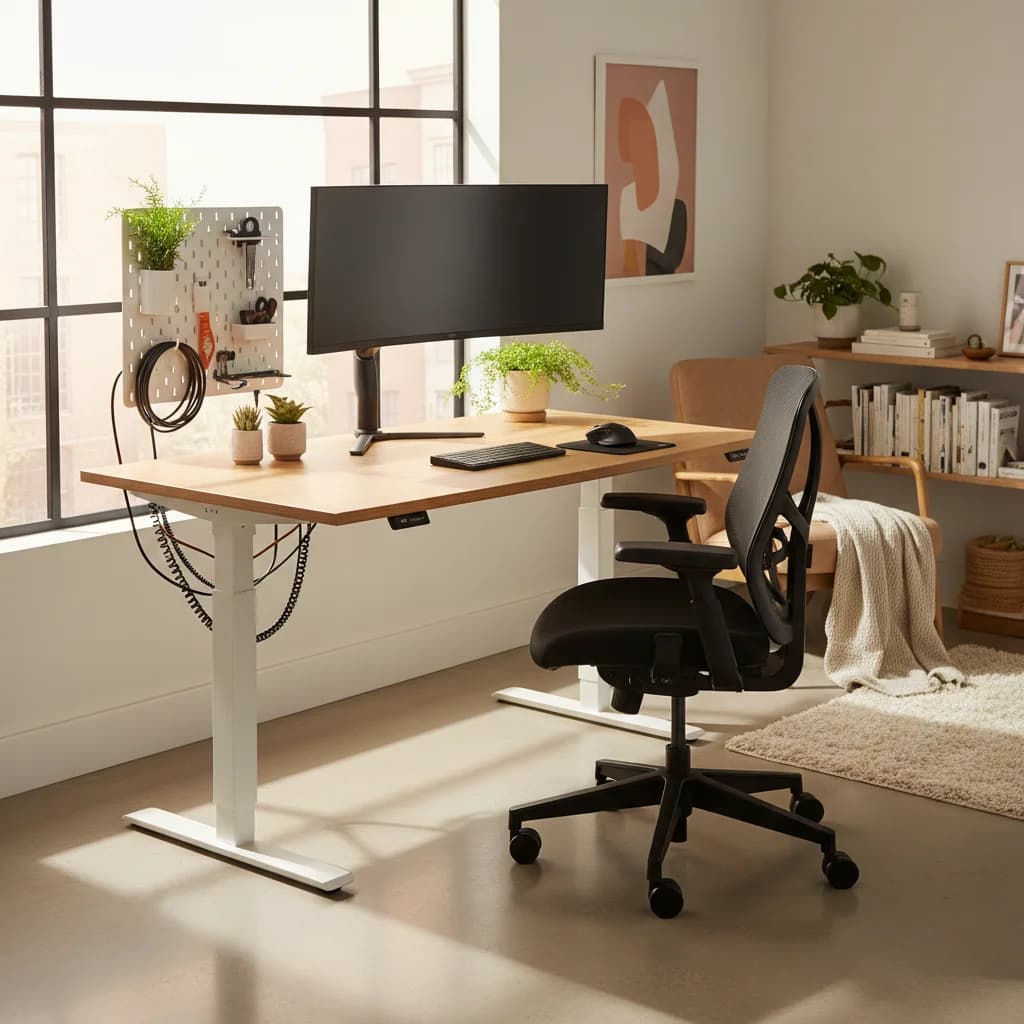
Most people make the mistake of buying a fancy desk first. Your desk is a flat surface. Unless your current table is wobbly or too small, it's perfectly functional for a home office. The IKEA LINNMON tabletop ($30) on ADILS legs ($4 each) has served as the desk for thousands of remote workers. A kitchen table or dining table works too. Don't spend your limited budget on something that's essentially furniture when your body is sitting in a bad chair for eight hours.
The Budget Breakdown: $300 Allocation
Here's how I'd spend $300 to build a complete WFH setup from scratch:
| Category | Product | Cost |
|---|---|---|
| Seating Support | Lumbar support pillow | $30 |
| Monitor Stand | Laptop stand + external display positioning | $25 |
| Keyboard | Royal Kludge RK84 mechanical | $65 |
| Mouse | Logitech M720 Triathlon | $40 |
| Lighting | TaoTronics TT-DL16 desk lamp | $35 |
| Audio | Anker PowerConf S330 speakerphone | $50 |
| Headphones | Anker Soundcore Life Q30 | $55 |
| Total | $300 |
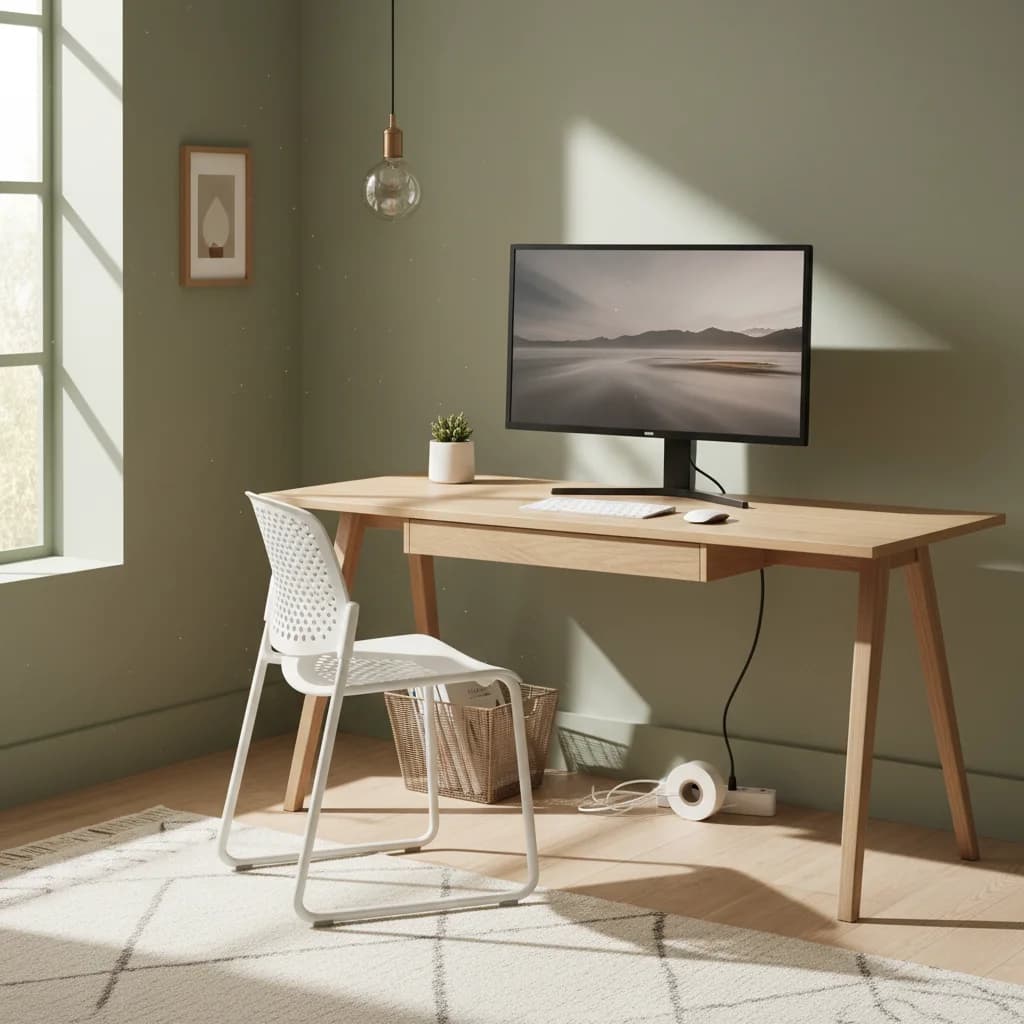
This leaves no room for a desk or monitor — intentionally. Use the table you have and your laptop screen to start. Those are the two things worth saving up for separately once you've nailed the essentials.
Let me explain each choice.
Category 1: Seating — Lumbar Support ($30)
You probably can't afford a good ergonomic chair for under $300 — not one worth recommending, anyway. Chairs under $150 tend to have the same problems: non-adjustable armrests, shallow seat pans, and lumbar supportlumbar supportA chair feature (built-in curve, adjustable knob, or strap-on pillow) that supports the inward curve of the lower spine. Cornell ergonomics: lumbar support height should land roughly at your belt line, not higher. that's either absent or fixed in the wrong position.
But here's the thing: you don't need a new chair if you can fix the biggest problem with your existing chair. And the biggest problem is almost always lumbar support. A lumbar support pillow (like the Everlasting Comfort Memory Foam Lumbar Pillow, ~$30) strapped to virtually any chair transforms the seating experience. It fills in the gap between your lower back and the chair back, promoting the natural S-curve of your spine and reducing the slouching that causes lower back pain.
This is not as good as a Herman Miller Aeron. But it's $30 vs. $1,300, and it gets you 60% of the ergonomic benefit. When your budget grows, invest in a proper ergonomic chair. Until then, a lumbar pillow on your existing dining or desk chair is remarkably effective.
Budget Tip: If even $30 is tight, a rolled-up towel positioned at your lower back works in a pinch. It's less comfortable and needs repositioning, but the ergonomic principle is the same.
Category 2: Screen Positioning — Laptop Stand ($25)
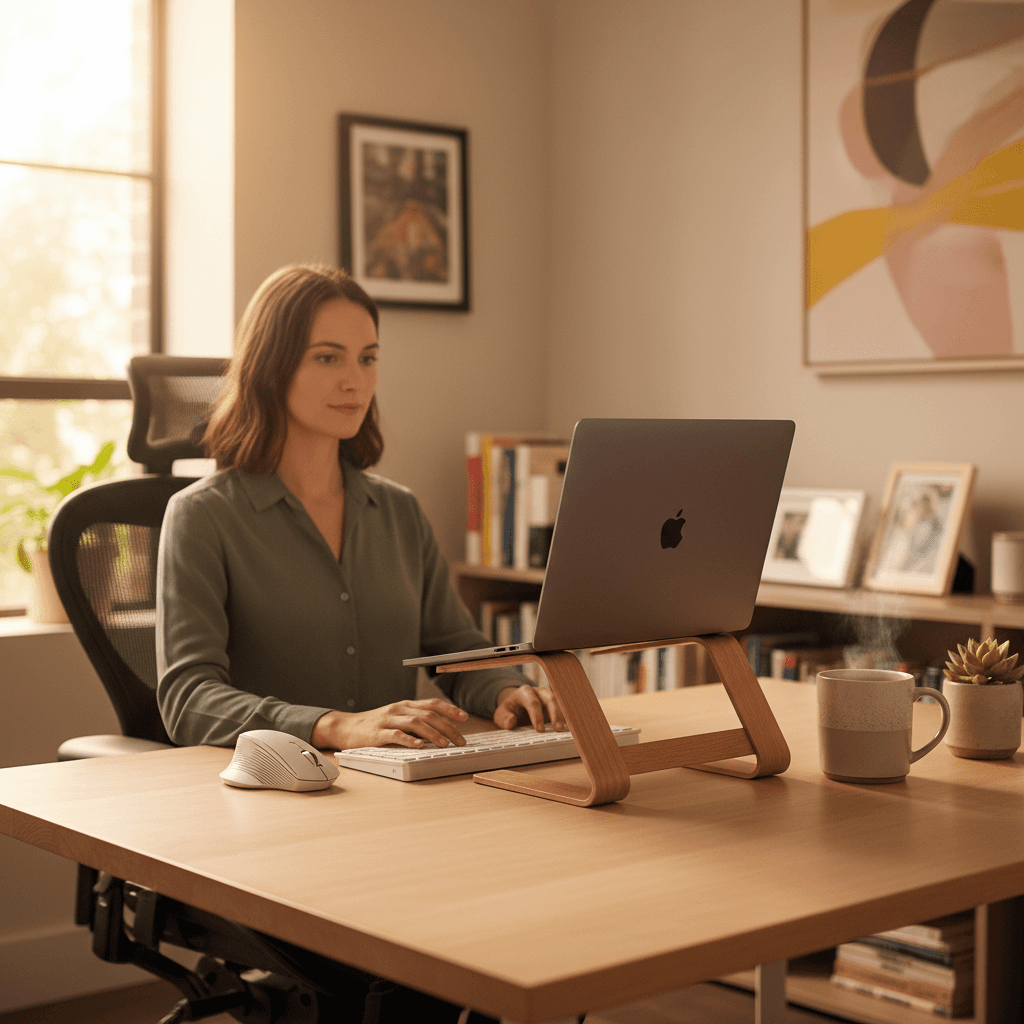
If you're working off a laptop, your screen is too low. This forces your neck into a forward-tilted position for eight hours a day, which leads to neck pain, headaches, and the rounded-shoulder posture that plagues desk workers.
A laptop stand (like the Amazon Basics Adjustable Laptop Stand, ~$25) raises your screen to eye level. This single change — just moving your screen up six inches — can eliminate neck pain within days. Your eyes should hit the top third of the screen when looking straight ahead.
The catch: once your laptop is elevated, you can't comfortably use its keyboard and trackpad. Which is why the next category matters.
Budget Tip: A stack of books or a shoebox works as a temporary laptop stand. It's not adjustable and it's not pretty, but the ergonomic benefit is identical.
Category 3: Keyboard — Royal Kludge RK84 ($65)
With your laptop elevated, you need an external keyboard. And since you're buying one, you might as well buy one that's genuinely good. The Royal Kludge RK84 is the best keyboard you can buy under $70: mechanical switchesmechanical switchA keyboard switch that uses a physical spring + stem mechanism (vs. rubber dome or scissor). Linear (Red) is smooth, tactile (Brown) has a bump, clicky (Blue) bumps and clicks loudly. For an office, linear or quiet tactile is the polite pick. for comfortable long-form typing, wireless via Bluetooth and 2.4GHz dongle, hot-swappable switches for future customization, and a 75% layout that keeps arrow keys and function row while saving desk space.
The typing experience is dramatically better than any membrane keyboard at this price. Mechanical switches register with less force and provide tactile feedback that reduces typos and finger fatigue. After a day of using one, your laptop keyboard will feel like typing on wet cardboard.
Budget Alternative: If $65 is too much, the Logitech K380 (~$30) is a reliable wireless membrane keyboard that's compact and pairs with up to three devices. It won't match the typing feel of a mechanical board, but it's well-built and functional.
Category 4: Mouse — Logitech M720 Triathlon ($40)
The Logitech M720 Triathlon is the best productivity mouse under $50. It supports Bluetooth and Logitech's Unifying Receiver for reliable wireless, connects to up to three devices with one-button switching, has a hyper-fast scroll wheel for long documents, and includes customizable buttons for shortcuts.
Its ergonomic shape fits the hand naturally, and the rubber side grips prevent the sweaty slipping that plagues cheaper mice. Battery life is exceptional — a single AA battery lasts up to 24 months.
Budget Alternative: The Logitech M185 (~$12) is perfectly functional as a basic wireless mouse. You lose multi-device support and the fast scroll wheel, but it's reliable and comfortable for occasional use.
Category 5: Lighting — TaoTronics TT-DL16 ($35)
Proper lighting reduces eye strain, which reduces headaches and end-of-day fatigue. The TaoTronics TT-DL16 gives you adjustable color temperatureKelvinColor temperature, measured in Kelvin. ~2700K is warm/yellow (incandescent), ~4000K is neutral white, ~5000–6500K is cool/daylight. Match desk-lamp temp to your monitor's white point so your eyes don't constantly re-adapt. (warm to cool), five brightness levels, and a CRICRIColor Rendering Index, 0–100. Measures how accurately a light source shows colors compared to natural daylight. CRI 90+ is the bar for video calls and any color-sensitive work; cheap LEDs sit at CRI 70–80 and make skin tones look off. above 90 — all for $35. Position it to illuminate your desk surface and reduce the contrast between your screen and surroundings.
This makes more difference than most people expect. If you've been working under dim room lighting or harsh overhead fluorescents, adding a tunable desk lamp is like putting on a pair of prescription glasses for the first time.
Budget Alternative: Any LED desk lamp with adjustable brightness helps. Even a basic $15 gooseneck LED from Amazon is better than no desk light at all.
Category 6: Audio — Speakerphone + Headphones ($105)
Bad audio on calls is a career liability. People notice when you sound like you're in a tin can, and it subtly undermines your presence in meetings. Two products solve this:
The Anker PowerConf S330 (~$50) is a USB speakerphone with a 4-microphone array and built-in noise cancellation. It sits on your desk and picks up your voice clearly while filtering out background noise — dogs, traffic, construction. For calls where you don't want to wear headphones, it's transformative compared to your laptop's built-in microphone.
The Anker Soundcore Life Q30 (~$55) headphones provide active noise cancellationANCActive Noise Cancellation: microphones sample ambient sound and the headphones generate an inverted waveform to cancel it. Best on steady low-frequency noise (planes, HVAC). Less effective on speech, which is why open-plan office chatter still gets through., 40-hour battery life, and surprisingly good sound quality for the price. They're comfortable for multi-hour wear and fold flat for storage. When you need to focus in a noisy environment or take private calls, these deliver 80% of what $350 Sony or Bose headphones offer.
Budget Alternative: The Apple EarPods with USB-C ($19) provide better microphone quality than most laptop mics and work as a quick plug-in solution. Not noise-canceling, but effective and cheap.
What to Upgrade First When Budget Allows
Once you're working with this $300 setup, you'll know exactly what bothers you most. Here's the upgrade path I recommend:
-
External monitor ($200-350): The single biggest productivity upgrade. A 27-inch 1440p or 4K monitor transforms how much you can accomplish. Look at the Dell S2722QC or LG 27UL500-W.
-
Ergonomic chair ($300-500): Once you can invest, the HON Ignition 2.0 (
$300) or Autonomous ErgoChair Pro ($400) offer genuine ergonomic adjustability. Your lumbar pillow served you well, but a proper chair is a different league. -
Standing desk frame ($200-300): The FlexiSpot E7 or UPLIFT V2 frame can turn any tabletop into a sit-stand desksit-stand deskA desk whose surface raises and lowers (electric or crank) so you can alternate sitting and standing through the day. Cornell ergonomics research recommends ~30-min sitting / ~10-min standing / ~2-min walking cycles, not all-day standing.. Alternating between sitting and standing is one of the best things you can do for your long-term health as a desk worker.
-
Better lighting ($110-180): Upgrade from the TaoTronics to a BenQ ScreenBar for zero-footprint monitor lighting that eliminates glare entirely.
Frequently Asked Questions
Is it really possible to be productive with a $300 home office?
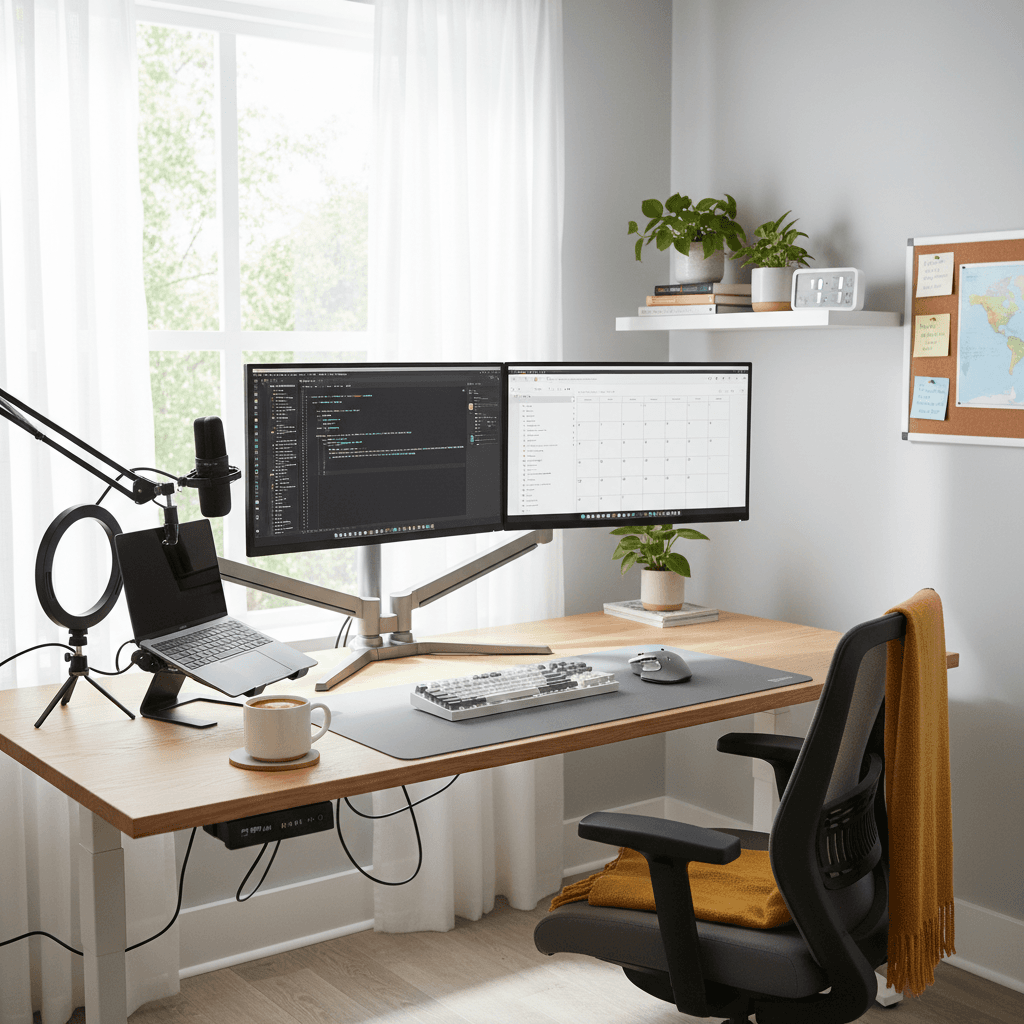
Absolutely. Productivity comes from reducing friction and discomfort, not from expensive equipment. A properly positioned screen (laptop stand), comfortable typing experience (mechanical keyboard), good lighting (desk lamp), and clear audio (speakerphone or headset) address the friction points that actually slow you down. The $2,000 setups look nicer, but the marginal productivity gain over a thoughtfully assembled $300 setup is smaller than most people think.
Should I buy a cheap desk or use a table I already have?
Use what you have. A kitchen table, a dining table, a folding table — any flat, stable surface at roughly 28-30 inches high works. The height matters more than the material or brand. If your surface is too high, a keyboard tray ($20-30) that clamps underneath can bring your keyboard to the correct height. Don't spend limited budget on a desk when that money is better invested in your chair, input devices, and lighting.
What about a second monitor — isn't that essential?
A second monitor is a significant productivity boost, but it's not essential on a $300 budget. Your laptop screen, elevated to eye level on a stand, works perfectly well as your primary display. Use virtual desktops (built into both Windows and macOS) to separate workspaces without a second screen. When your budget allows, an external monitor should be your first major upgrade.
Can I deduct home office expenses on my taxes?
If you're self-employed or an independent contractor, yes — you can deduct home office expenses as a business expense. If you're a W-2 employee, federal tax law (as of 2026) does not allow home office deductions, though some states do. Keep receipts for everything you buy. Check out our home office tax deductions guide for detailed information.
What's the minimum I can spend and still have a functional WFH setup?
If you already have a laptop and a table, you can get a functional (not optimal, but functional) WFH setup for under $100: a laptop stand ($25), the Logitech K380 keyboard ($30), a basic wireless mouse ($12), and budget earbuds with a microphone ($19). That's $86. Add a lumbar pillow for $30 if your chair is uncomfortable. It's not luxurious, but it addresses the core ergonomic and communication needs.
The Bottom Line
A $300 budget forces you to be strategic, and that's actually an advantage. Instead of browsing Reddit battlestations and impulse-buying a $300 monitor arm, you focus on the things that genuinely affect your daily comfort and productivity: how your back feels at 4 PM, whether your neck hurts from looking down at a laptop, how you sound on calls, and whether your eyes are strained from bad lighting.
Nail these fundamentals with the products above, and you'll have a home office that serves you well for years — or until you're ready to upgrade piece by piece.
Related Reading
- →The $500 WFH Setup That Beats Most $2000 OnesWhen you have a bit more to spend
- →How to Build an Ergonomic Home Office on Any BudgetThree-tier ergonomic guide
- →Best Laptop Stands for Working From HomeCheap ergonomic wins
- →WFH in a Small Apartment: Setup IdeasSpace-saving strategies
- →MonitorsBudget-friendly monitors
- →KeyboardsAffordable mechanical keyboards
- →Office ChairsErgonomic chairs at every price
Your next step
The budget picks that punch above their price.
Hilly Shore Labs
Editorial TeamWFH Lounge is published by Hilly Shore Labs. Every recommendation is built by synthesizing ergonomic research, manufacturer specs, expert reviews from outlets like Wirecutter, RTINGS, and The Verge, and aggregated long-term owner sentiment from thousands of verified buyers.
All product reviews are independently researched. Our recommendations are based on ergonomic guidelines, manufacturer specifications, and verified buyer sentiment. See our methodology.