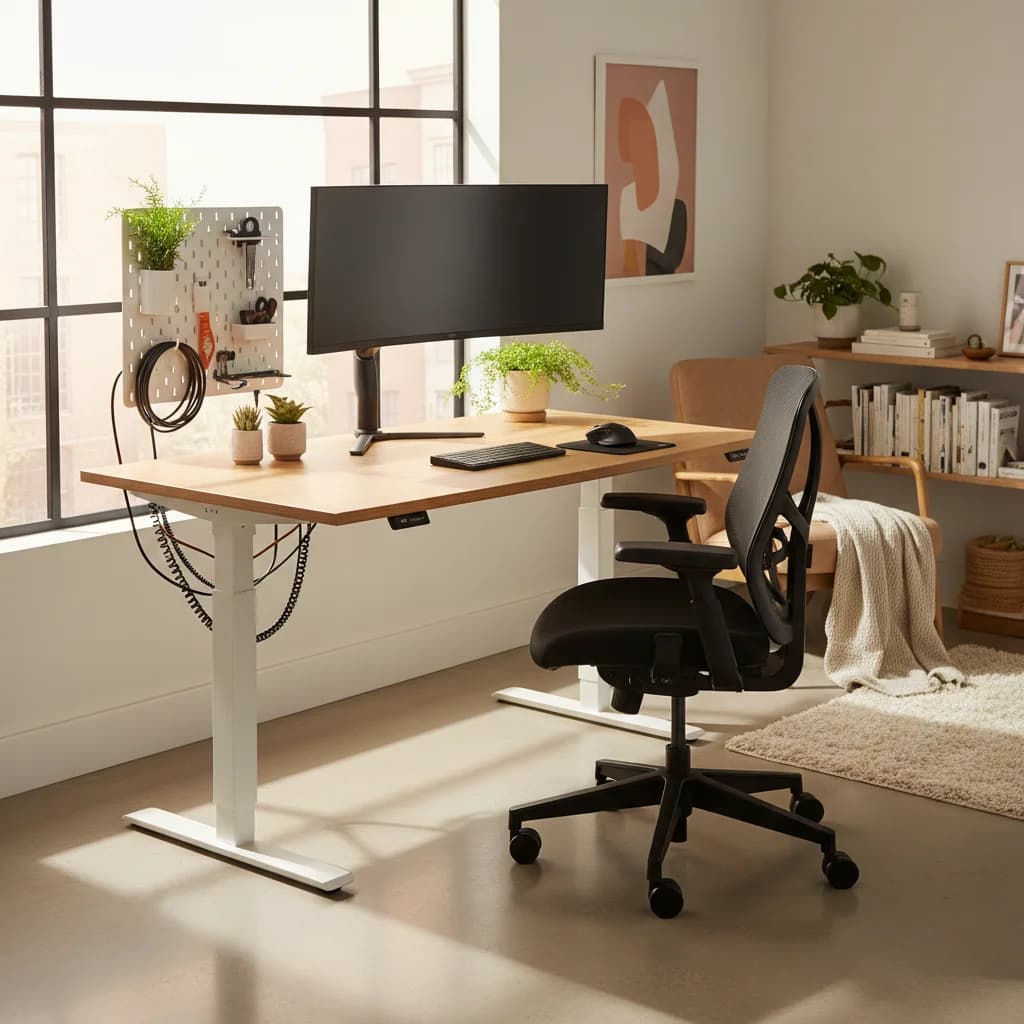
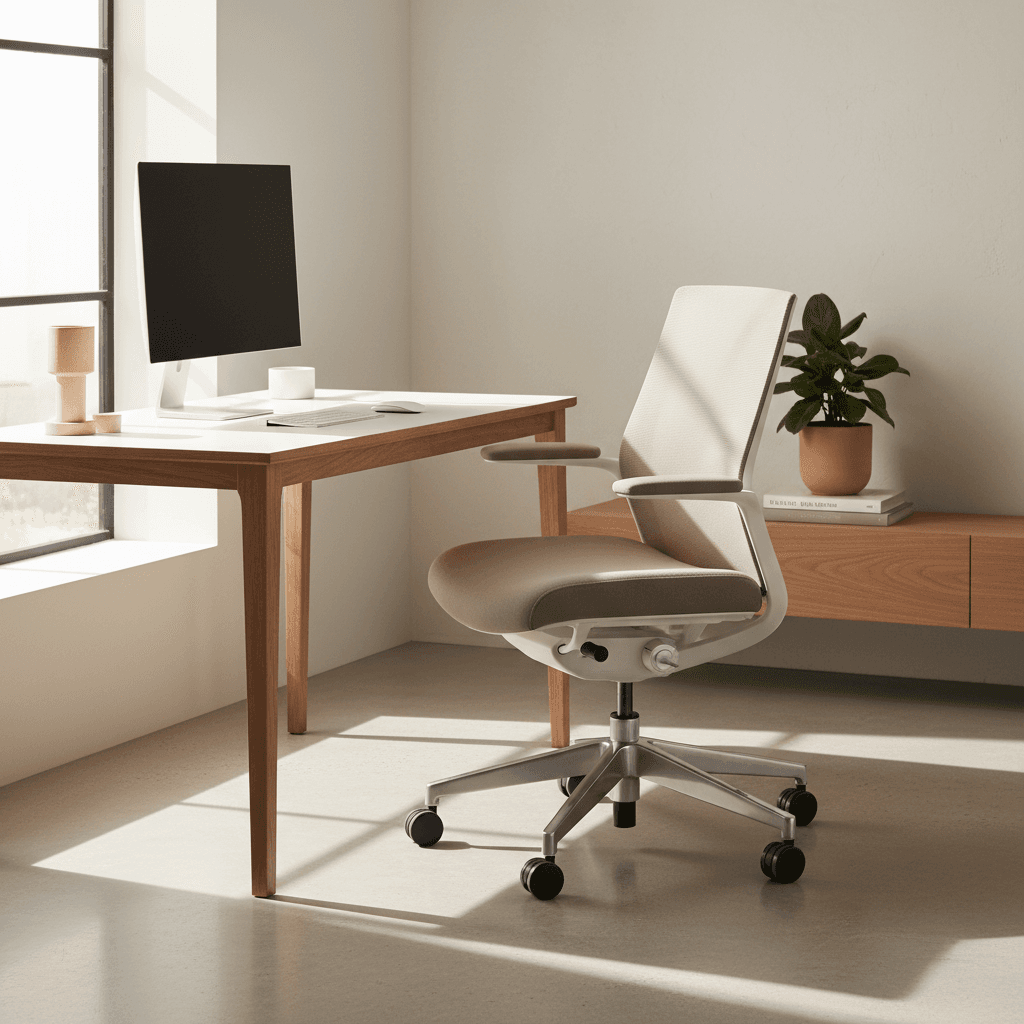
$500 WFH Setup 2026: Full Build (Chair, Desk, Monitor)
A $500 budget covering monitor, chair upgrades, keyboard, mouse, webcam, lighting, and audio delivers a more balanced and functional setup than many $2,000 builds with glaring gaps.
Quick Answer
A $500 budget covering a 24-inch monitor (~$180), chair upgrades (~$80), keyboard (~$55), mouse, webcam, lighting, and audio delivers a more balanced setup than many $2,000 builds with glaring gaps. The principle: spend where your body touches the setup, skip aesthetics entirely at this price.
Key Takeaways
A complete $500 work-from-home build for 2026. How to allocate every dollar across chair, desk, monitor, keyboard, and mouse for full-time remote work.
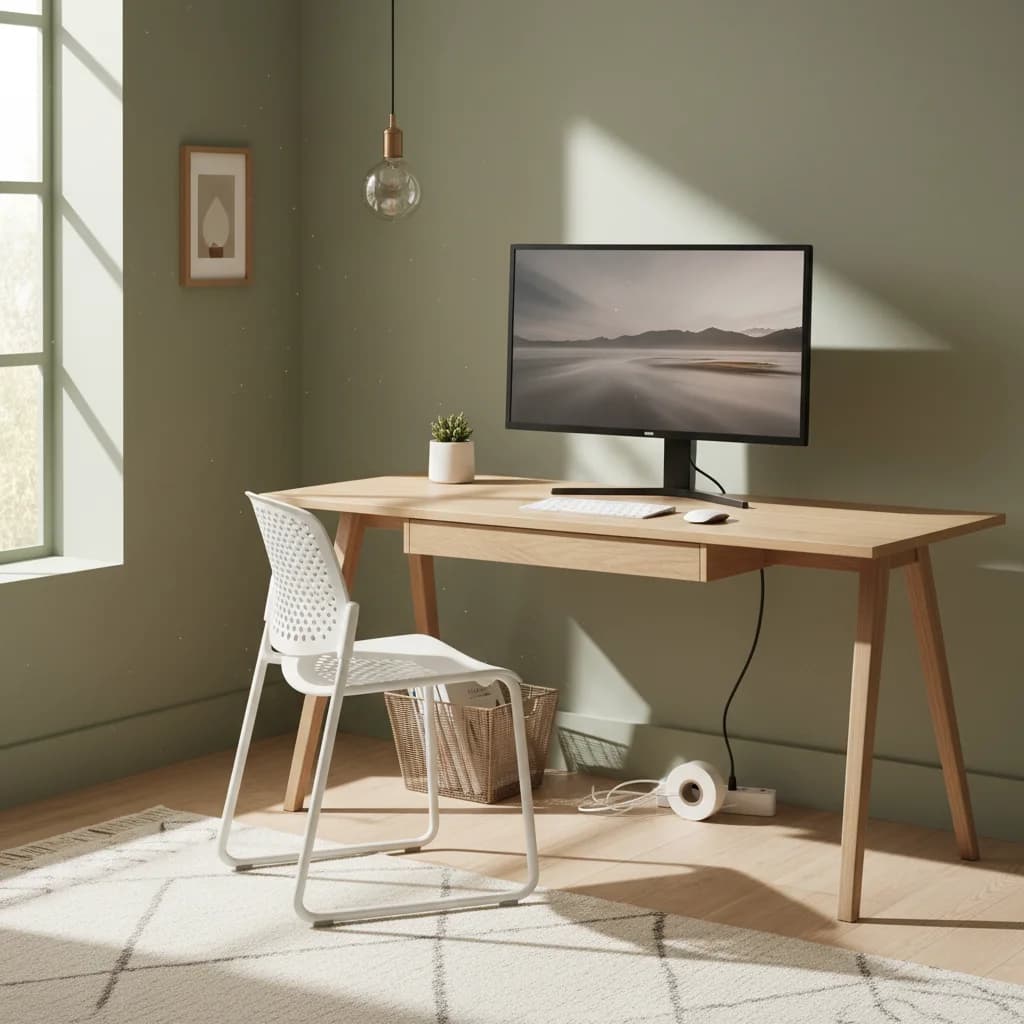
As an Amazon Associate I earn from qualifying purchases. Product prices and availability are subject to change.
Scroll through any WFH subreddit or YouTube channel and you'll see setups that cost $3,000, $5,000, even $10,000. Ultrawide OLED monitors, Herman Miller chairs, custom mechanical keyboards with artisan keycaps — the gear lust is real. And look, those setups are gorgeous. But here's the thing most people won't tell you: you can build a setup that's 90% as good for a fraction of the price.
This guide is for the practical remote worker. You want to be comfortable, productive, and professional on video calls — without draining your savings account. Here's exactly how to do it for $500 or less.
The Philosophy: Spend Where It Counts
The key to a great budget setup is understanding where diminishing returns kick in. In some categories, the difference between a $50 product and a $200 product is massive. In others, the difference between a $200 product and an $800 product is barely noticeable.
Here's the general rule: invest more in things that touch your body (chair, keyboard, mouse) and things you look at all day (monitor). Spend less on aesthetics, brand names, and nice-to-have features you'll rarely use.
Our $500 budget breaks down like this:
- Monitor: $180
- Chair upgrade: $80
- Keyboard: $55
- Mouse: $30
- Webcam: $50
- Lighting: $30
- Desk organization: $25
- Audio: $50
Let's go through each category.
Monitor: $180
This is the single biggest upgrade you can make. If you're working on a 13 or 14-inch laptop screen, you're handicapping yourself every single day. An external monitor gives you space to have multiple windows open, positions the screen at eye level (reducing neck strain), and creates a psychological boundary between "work mode" and "laptop mode."
At the $180 price point, you can get an excellent 27-inch 1440p IPSIPS panelIn-Plane Switching: an LCD panel type with wide viewing angles and accurate color, at the cost of slightly slower response time than TN. The default sensible choice for office work, design, and most WFH monitors. monitor. The Dell S2722QC or a comparable model from LG delivers sharp text, good color accuracy, and decent out-of-the-box calibration. 1440p at 27 inches provides noticeably sharper text than 1080p, and the IPS panel gives you wide viewing angles so colors don't shift when you lean back in your chair.
Why not 4K? At this budget tier, a 4K monitor would eat too much of your allocation. And honestly, 1440p at 27 inches is more than sharp enough for document work, spreadsheets, email, and video calls. Save the 4K upgrade for when your budget allows.
Pro tip: check manufacturer refurbished listings. Dell, LG, and Samsung sell refurbished monitors directly with full warranties at 20 to 30 percent off retail. A $250 monitor becomes a $180 monitor with zero compromise on quality.
Chair Upgrade: $80
A new ergonomic chair costs $300 to $1,500. That blows our entire budget. Instead, we're going to upgrade the chair you already have.
For $80, get these three items:
-
Lumbar support pillow ($25-35): This single accessory transforms any chair. Look for one with an adjustable strap that attaches to the chair back. Memory foam versions conform to your spine's natural curve. The difference in lower back comfort after a full workday is dramatic.
-
Seat cushion ($30-40): A gel or memory foam seat cushion adds pressure relief for your sit bones and improves circulation in your legs. The Purple Royal Seat Cushion and similar gel-grid designs work exceptionally well for long sitting sessions.
-
Foot rest ($15-20): If your feet don't comfortably reach the floor when your chair is at the right height, a foot rest eliminates the dangling-feet problem that causes circulation issues and hip strain.
This $80 investment addresses the three biggest ergonomic complaints people have about their chairs: back support, seat comfort, and leg positioning. It won't match a $1,200 Herman Miller, but it gets you 70% of the way there for 6% of the cost.
Keyboard: $55
The Keychron C3 Pro is a revelation at this price point. For $55, you get a full mechanical keyboard with hot-swappable switches, a solid build quality, PBT keycaps (which don't develop the greasy shine that ABS caps do), and USB-C connectivity. It's available with red (linear), brown (tactile), or blue (clicky) switches.
Alternatively, the Logitech K380 at $40 is an excellent wireless option if you prefer a quieter, membrane typing experience. It connects to three devices via Bluetooth and switches between them with dedicated buttons — perfect if you toggle between a work laptop and personal computer.
Why spend $55 on a keyboard when your laptop has one built in? Two reasons. First, an external keyboard lets you position it at elbow height (which is lower than desk height for most people) while your monitor sits at eye level. This eliminates the posture compromise of laptop use. Second, mechanical keys with proper travel reduce finger fatigue and typing errors over long sessions.
Mouse: $30
The Logitech M750 is the budget productivity mouse to beat. At around $30, it offers Bluetooth connectivity to three devices, a comfortable sculpted shape, quiet clicks, and a high-precision sensor. It runs on a single AA battery for up to two years.
If ergonomics is a priority, the Anker Vertical Mouse at $26 puts your hand in a neutral handshake position that reduces forearm strain. It's wired (which means no batteries to worry about) and surprisingly comfortable once you adapt to the vertical orientation over a day or two.
Webcam: $50
Your laptop webcam is almost certainly terrible. It's positioned below your face (looking up your nose), has a tiny sensor that performs poorly in anything less than perfect lighting, and produces a soft, grainy image.
The Anker C300 at around $50 delivers 1080p resolution with autofocus and solid low-light performance. Mount it on top of your external monitor and you instantly look more professional on every video call. The higher position creates a more flattering camera angle, and the larger sensor captures more light.
Another solid option is the NexiGo N60 at $35 — it's 1080p with a built-in privacy cover and decent image quality for the price.
Lighting: $30
Here's the secret that most WFH setups miss: lighting matters more than your webcam for video call quality. A $30 ring light or LED panel positioned behind your monitor will make you look professional on even a mediocre camera. Without good lighting, even a $200 webcam produces a dark, shadowy image.
A small LED desk light with adjustable color temperatureKelvinColor temperature, measured in Kelvin. ~2700K is warm/yellow (incandescent), ~4000K is neutral white, ~5000–6500K is cool/daylight. Match desk-lamp temp to your monitor's white point so your eyes don't constantly re-adapt. does triple duty: it lights your face for calls, illuminates your desk for focused work, and provides ambient light for eye comfort. Position it slightly above and to one side of your face for the most flattering angle.
Avoid relying on overhead room lights alone — they create harsh shadows under your eyes and nose. Front-facing or angled lighting is the key to looking good on camera.
Audio: $50
Bad audio is the fastest way to look unprofessional on calls. Echo, background noise, and muffled voice quality are all distracting and disrespectful to the people you're communicating with.
The best budget audio solution depends on your environment. If you work in a quiet space, a USB headset with a boom microphone like the Logitech H390 ($25) delivers clear voice pickup for calls and blocks enough ambient noise for focus work.
If you need noise cancellation (kids, pets, neighbors, street noise), the Soundcore Space Q45 by Anker ($50) offers surprisingly effective active noise cancellationANCActive Noise Cancellation: microphones sample ambient sound and the headphones generate an inverted waveform to cancel it. Best on steady low-frequency noise (planes, HVAC). Less effective on speech, which is why open-plan office chatter still gets through. with excellent Bluetooth connectivity and 50-hour battery life. They're comfortable enough for all-day wear and the microphone quality is solid for calls.
Desk Organization: $25
With the remaining $25, tidy up your workspace:
- Cable clips or a small cable tray ($10): Route cables out of sight. A clean desk surface reduces visual distraction and makes your setup feel more intentional.
- Monitor riser or laptop stand ($15): If your monitor doesn't adjust to eye level, a simple riser elevates it to the correct height. VIVO and AmazonBasics both make solid risers in this price range.
A tidy desk isn't vanity — research from Princeton's Neuroscience Institute showed that visual clutter reduces your ability to focus and process information. Spending $25 on organization returns dividends in daily concentration.
The Complete $500 Setup — What It Gets You
Let's add it up:
| Item | Cost |
|---|---|
| 27-inch 1440p monitor | $180 |
| Chair ergonomic upgrades | $80 |
| Mechanical keyboard | $55 |
| Wireless mouse | $30 |
| 1080p webcam | $50 |
| LED desk light | $30 |
| Headset/headphones | $50 |
| Cable management + riser | $25 |
| Total | $500 |
With this setup, you have:
- A sharp, well-sized monitor at eye level
- A chair that supports your back, seat, and legs properly
- Quality peripherals that reduce typing and mousing fatigue
- Professional video and audio for every call
- Proper lighting that protects your eyes and makes you look great
- A clean, organized desk that helps you focus
That's a complete, ergonomic, professional home office for $500.
Why This Beats Most $2000 Setups
Here's the counterintuitive truth: many expensive WFH setups look amazing in photos but have glaring functional gaps. We've seen $2,000 setups with a stunning ultrawide monitor and custom keyboard — but terrible lighting, no webcam upgrade, and a dining chair. The person looks incredible in their desk photo but sounds awful and appears shadowy on every Zoom call.
Our $500 setup covers every functional base. Monitor, ergonomics, audio, video, lighting, and organization — nothing is neglected. It may not win any Instagram awards, but it will make you more productive, more comfortable, and more professional than setups costing four times as much that have gaping holes in critical categories.
The best WFH setup isn't the most expensive one. It's the most balanced one. And balance, it turns out, is very achievable on a budget.
Related Reading
- →How to Build a Productive Home Office for Under $300Even tighter budget? We've got you
- →Best Ergonomic Chairs Under $500Where to spend on seating
- →Best Laptop Stands for Working From HomeCheap ergonomic wins
- →Best Mice for Working From HomeComfort picks at every price
- →How to Build an Ergonomic Home Office on Any BudgetThree-tier budget guide
- →MonitorsBudget-friendly monitor picks
- →KeyboardsAffordable mechanical keyboards
- →HeadsetsBest audio gear for remote work
More WFH Setup Resources
Buying this setup through a business?
If you’re self-employed and expensing the build, a free Amazon Business account is worth opening before you order — business-only pricing on the same gear, and itemized invoices instead of a pile of personal receipts to reconcile later.
- Free to open — no Prime or membership required
- Business-only pricing + quantity discounts on office gear
- Itemized invoices with tax detail, so write-offs are painless at filing time
Your next step
Build the rest of the setup.
Hilly Shore Labs
Editorial TeamWFH Lounge is published by Hilly Shore Labs. Every recommendation is built by synthesizing ergonomic research, manufacturer specs, expert reviews from outlets like Wirecutter, RTINGS, and The Verge, and aggregated long-term owner sentiment from thousands of verified buyers.
All product reviews are independently researched. Our recommendations are based on ergonomic guidelines, manufacturer specifications, and verified buyer sentiment. See our methodology.