How to Look Good on Video Calls: Lighting & Camera Tips
Looking good on video isn't about gear — it's three free fixes: light your face from the front (face a window), raise the camera to eye level, and clear your background. Do those before buying anything.
Quick Answer
Looking good on video is three free fixes before it's any purchase: light your face from the front (face a window), raise the camera to eye level, and clear the background. Only after those, gear helps — a real webcam over the laptop's built-in, and a small key light for dark rooms.
Key Takeaways
Simple fixes to look professional on Zoom, Teams, and Google Meet. Lighting, camera angle, and background tips that cost almost nothing.
As an Amazon Associate I earn from qualifying purchases. Product prices and availability are subject to change.
You've been on a call with that person. The one who looks like they're broadcasting from a cave. Harsh shadows. Grainy webcam. Pile of laundry in the background.
Don't be that person.
Looking professional on video calls isn't about expensive equipment. It's about 3 things: lighting, camera angle, and background. Get those right and you'll look better than 90% of people on your next Zoom call.
The 3 rules
Rule 1: Light Your Face, Not Your Room
The single biggest improvement you can make — and it's free.
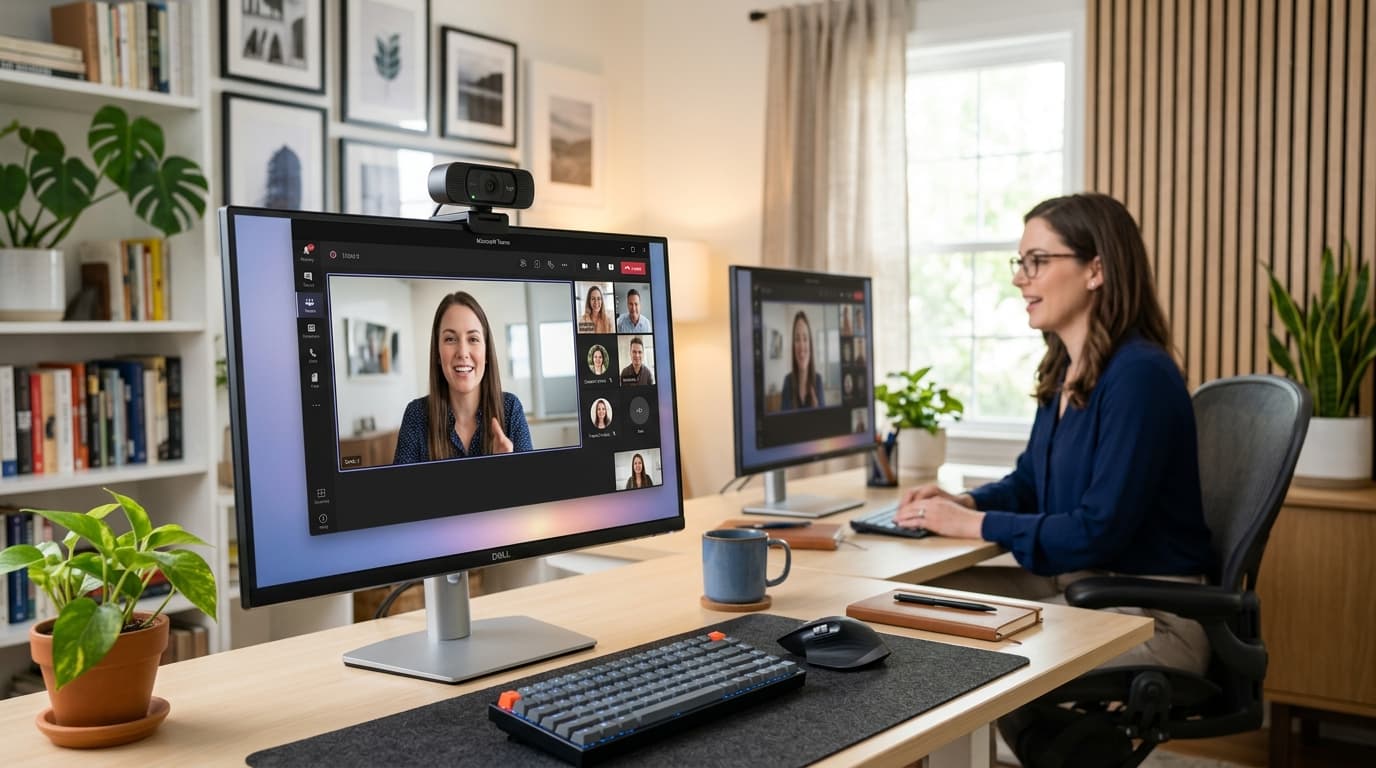
Face a window. That's it. Natural light from in front of you (not behind you, not from the side) is the most flattering light source that exists. If your desk faces a wall, turn it around.
No window? Use a desk lamp.
- Point it at the wall behind your monitor so it bounces soft light back at you
- A BenQ ScreenBar mounts on top of your monitor and lights your face perfectly without glare
- Even a clip-on ring light pointed at your face works
Never have a window behind you. Your camera will expose for the bright window and turn your face into a silhouette.
Rule 2: Camera at Eye Level
Your laptop camera is below your face. That means everyone on the call is looking up your nostrils.
Fix: Put your laptop on a stack of books or a laptop stand so the camera is at eye level. Or better: get an external webcam and mount it on top of your monitor.
Look at the camera, not the screen. This is hard but makes a huge difference. When you look at the camera lens, it looks like eye contact to the other person.
Rule 3: Clean Background
You don't need a perfectly styled bookshelf. You just need not-distracting.
Best backgrounds (ranked):
- Clean wall with one or two items (plant, art print)
- Tidy bookshelf
- Virtual background (if your webcam supports it well)
- Blur effect (built into Zoom/Teams)
Avoid: Bed visible, open closet, cluttered shelves, kitchen sink, bright window behind you.
Equipment upgrades (if you want them)
Webcam Tier List
- Good enough: Your laptop camera + good lighting (free)
- Big upgrade: Logitech C920 — 1080p, great auto-exposure
- Premium: Elgato Facecam Pro — 4K, manual controls, amazing low-light
Lighting Tier List
- Free: Face a window
- Budget: Clip-on LED ring light
- Sweet spot: BenQ ScreenBar — no desk space used
- Premium: Elgato Key Light — adjustable color temp and brightness
Audio Tier List
The way you sound matters more than the way you look.
- Minimum: AirPods or any wireless earbuds with mic
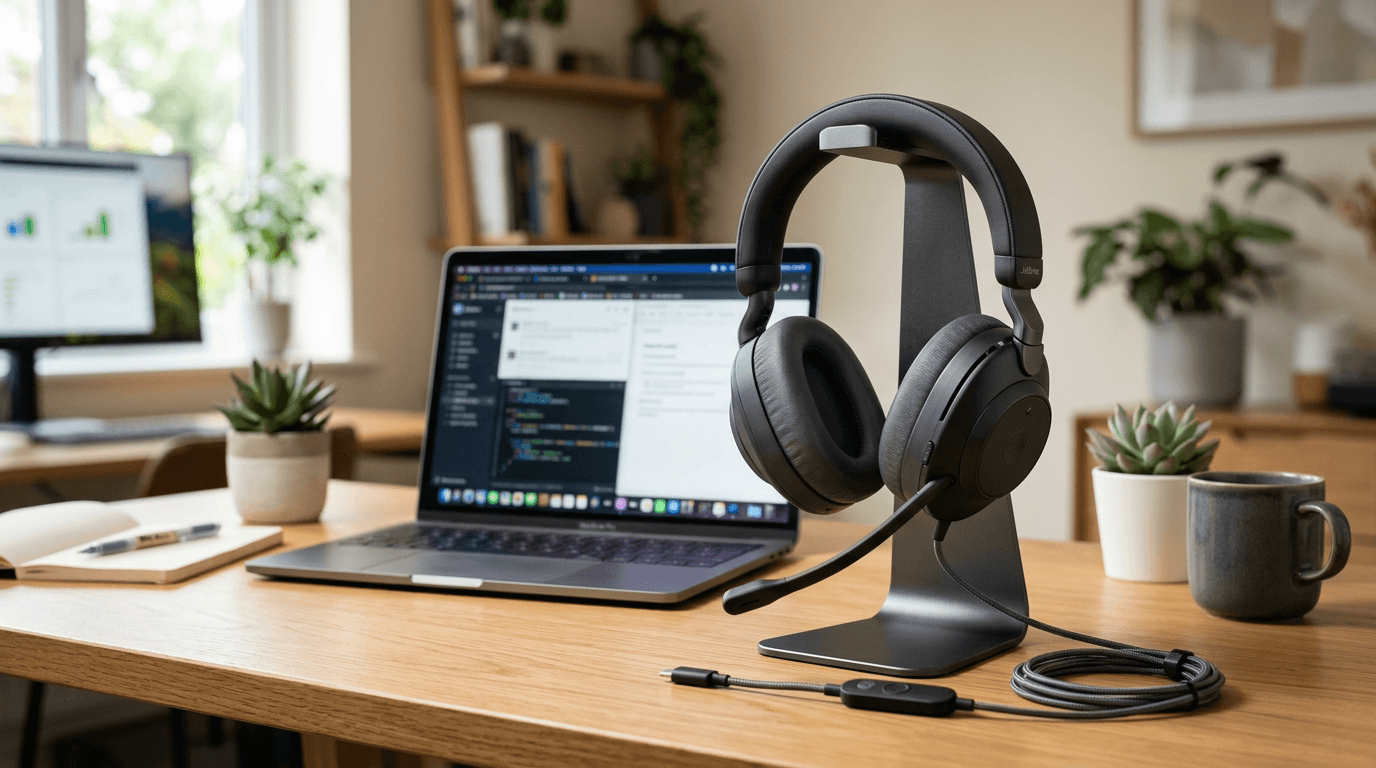
- Better: USB headset with boom mic
- Best: Standalone microphone + headphones (for content creators)
The 2-minute setup checklist
Before your next call, run this:
- Face a window, or point a lamp at the wall behind your screen — never a window behind you
- Raise the camera to eye level (a laptop on a stack of books works)
- Look at the lens, not the screen, when you speak
- Clear or blur the background
- Test audio — a headset mic beats your laptop's built-in mic
- Mute by default; unmute to talk
Lighting first, then the camera: once the light is sorted, seven webcams under $100 cover the hardware side.
The bottom line
You don't need expensive gear to look good on video — you need front lighting, a camera at eye level, and a tidy background. Nail those three and you'll look more professional than almost everyone else on the call. Upgrade the webcam and lighting only after the free fixes are in place.
Your next step
The lights and cameras that do the work.
Hilly Shore Labs
Editorial TeamWFH Lounge is published by Hilly Shore Labs. Every recommendation is built by synthesizing ergonomic research, manufacturer specs, expert reviews from outlets like Wirecutter, RTINGS, and The Verge, and aggregated long-term owner sentiment from thousands of verified buyers.
All product reviews are independently researched. Our recommendations are based on ergonomic guidelines, manufacturer specifications, and verified buyer sentiment. See our methodology.