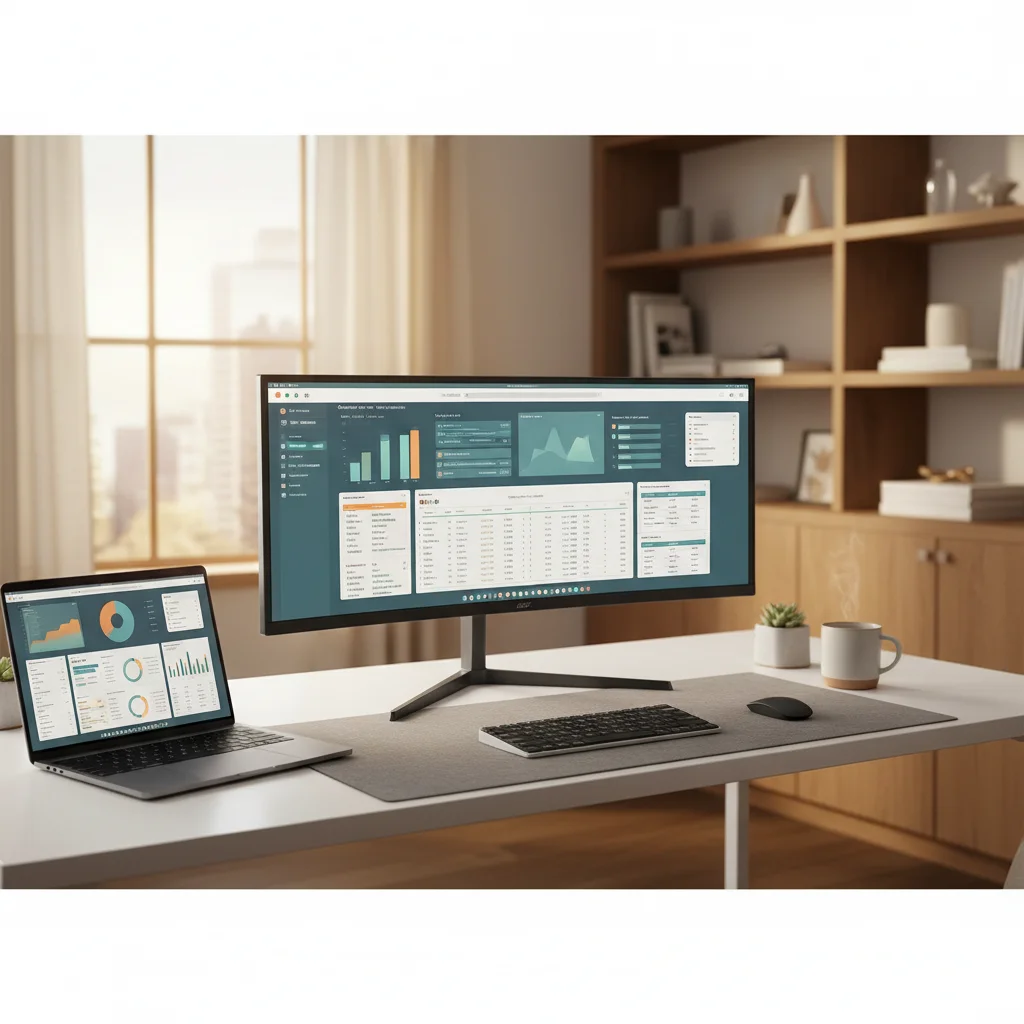
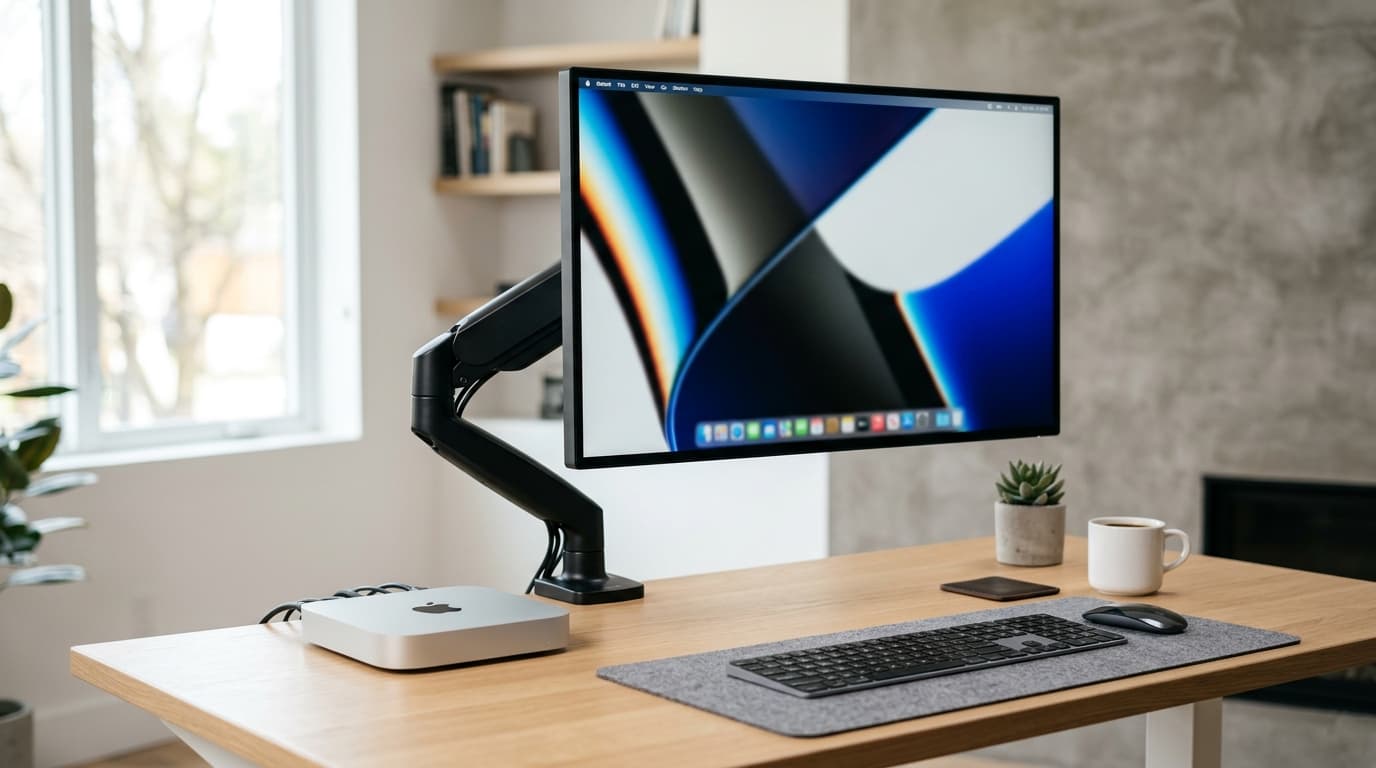
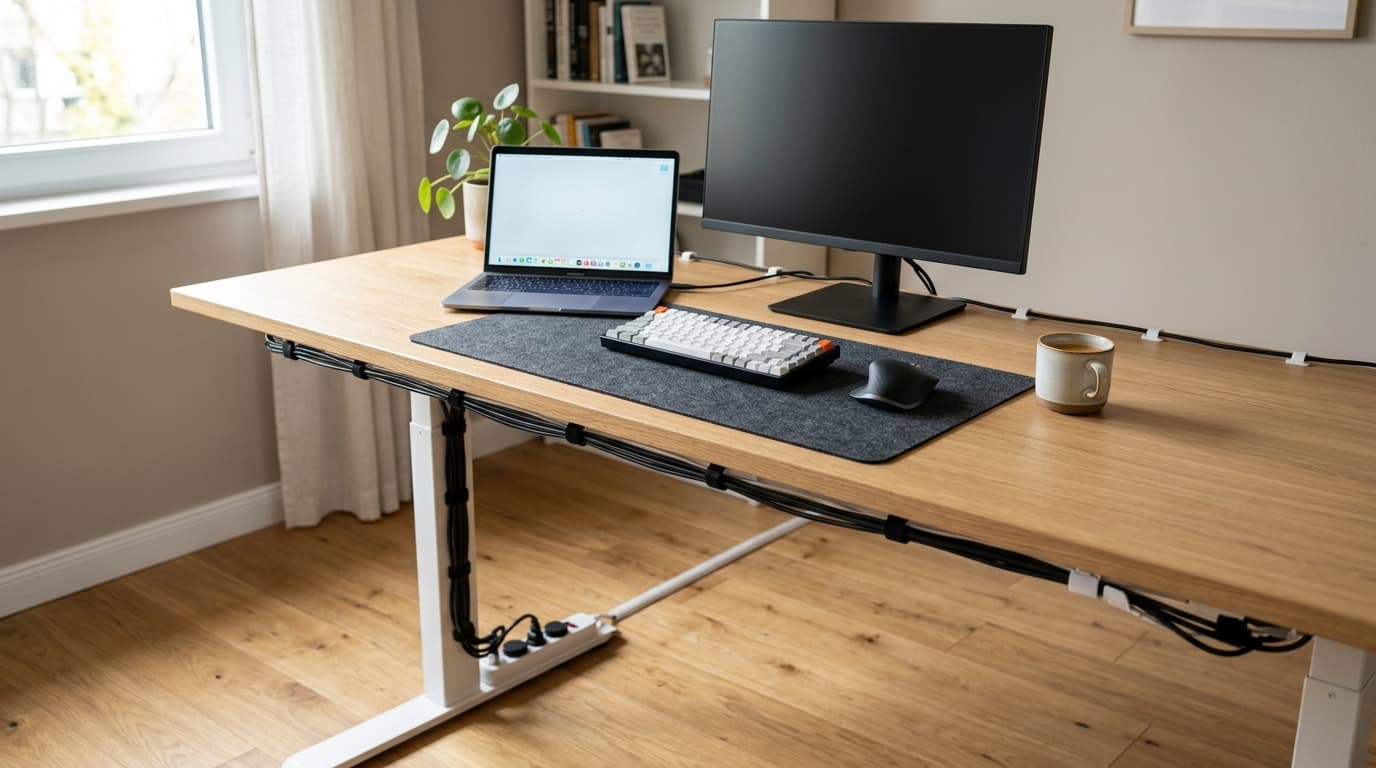
How to Set Up Dual Monitors for WFH 2026: Step-by-Step
Dual monitors measurably speed up reference-heavy work — the often-cited 20–30% figure comes from an NEC-funded University of Utah study, so treat it as directional. Center your primary monitor, use a dual arm for clean positioning, and invest in window management software.
Quick Answer
Center your primary monitor directly in front of you with the secondary angled 30 degrees to the side, match heights so your eyes track level, and use a dual monitor arm for clean positioning. Check your laptop or dock can actually drive both displays before buying anything — that's the step most people skip.
Key Takeaways
Cable types, resolution matching, arm mounting — a full WFH dual-monitor setup walkthrough for 2026. Plus the #1 layout mistake that wrecks posture.
As an Amazon Associate I earn from qualifying purchases. Product prices and availability are subject to change.
Adding a second monitor to your home office is one of the most impactful productivity upgrades you can make. A University of Utah study funded by monitor maker NEC reported productivity gains of 20-30% for tasks involving information comparison, copy-paste workflows, and reference-heavy work — a real study, but one with an obvious sponsor, so read it as directional rather than precise. If your job involves email in one window while working in another, dual monitors pay for themselves in days.
This guide covers everything you need to know — from choosing compatible monitors to physical setup, ergonomic positioning, and software configuration on both macOS and Windows.
Do You Actually Need Dual Monitors?
Before investing, consider whether dual monitors are right for your workflow:
Dual monitors are ideal for:
- Developers who reference documentation while coding
- Writers and editors who compare drafts
- Financial analysts working with multiple spreadsheets
- Customer support agents juggling chat, email, and knowledge bases
- Designers who need palettes, layers, and canvas visible simultaneously
- Anyone who frequently copies information between applications
You might prefer a single ultrawide instead if:
- You want seamless window management without a bezel gap in the center
- Your desk space is limited (ultrawides have a smaller footprint than two monitors side by side)
- You do a lot of full-screen presentations or video editing
What You Need for a Dual Monitor Setup
Two Monitors (Obviously)
Matching monitors look best, but mismatched monitors work fine functionally. If you're adding a second monitor to an existing one, try to match:
- Resolution — running different resolutions causes scaling headaches, especially on macOS
- Size — significantly different sizes (like a 24-inch next to a 32-inch) create an awkward height and pixel density mismatch
- Panel type — mixing IPSIPS panelIn-Plane Switching: an LCD panel type with wide viewing angles and accurate color, at the cost of slightly slower response time than TN. The default sensible choice for office work, design, and most WFH monitors. and VA panels means different color temperatures and viewing angles
If you're buying two new monitors, our monitor buying guide covers what specs matter most for home office use.
The Right Cables
Check your computer's video outputs and your monitors' inputs. Common connections in 2026:
- USB-C / Thunderbolt — preferred for laptops; carries video, data, and power in one cable
- HDMI 2.1 — universal, supports up to 4K at 120Hzrefresh rateHow many times per second a monitor redraws the image, measured in hertz (Hz). 60Hz is fine for documents; 120Hz+ makes scrolling, cursor motion, and video noticeably smoother — especially on macOS and high-DPI displays.
- DisplayPort 1.4+ — preferred for desktops; supports daisy-chaining on some monitors
Most laptops support one external display natively via USB-C. For a second display, you may need a USB-C hub or dock that supports dual display output. Check your specific laptop model's external display support — Apple Silicon Macs have specific limitations (M1/M2 base models support only one external display natively; M3 and later support two).
A Dual Monitor Arm (Highly Recommended)
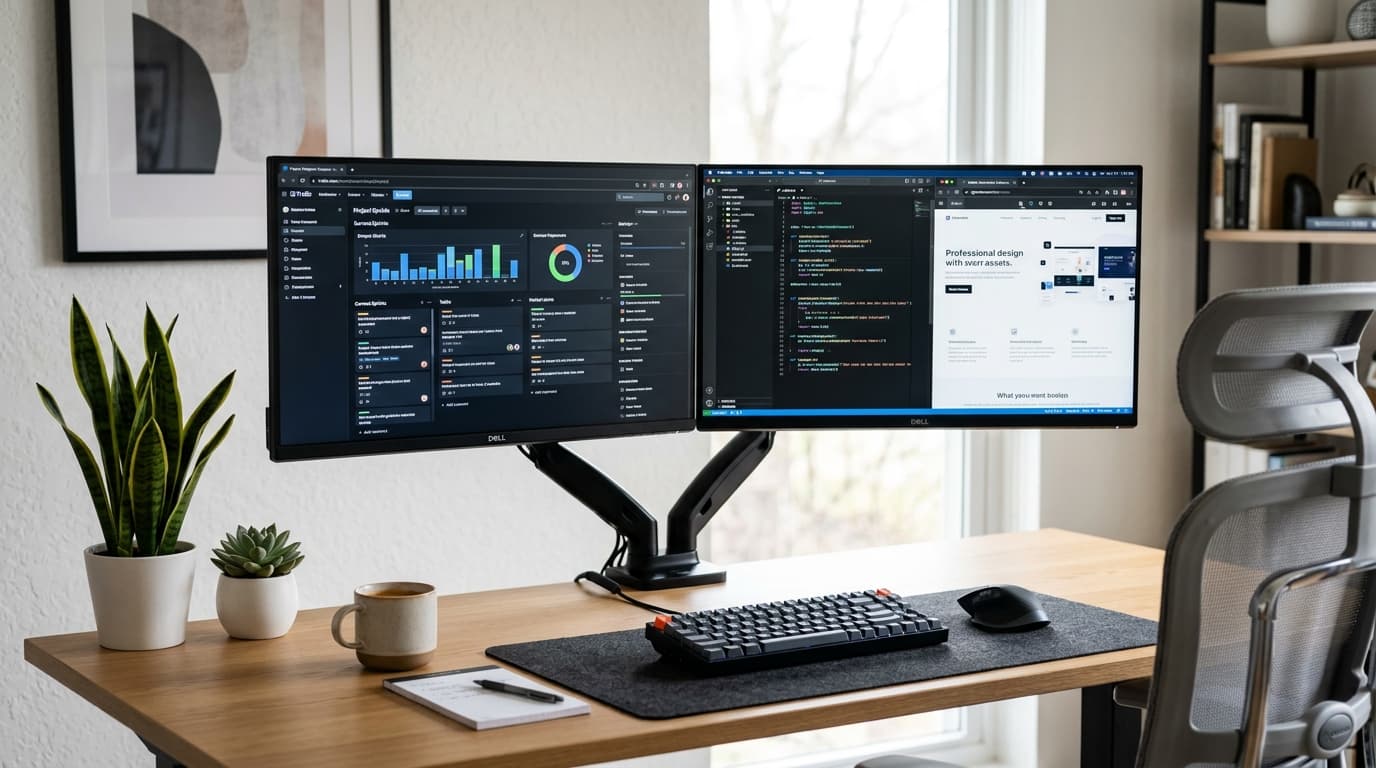
A dual monitor arm is not strictly necessary — you can use each monitor's stock stand. But a dual arm offers three major advantages:
- Perfect positioning — adjust each monitor's height, angle, and distance independently
- Reclaimed desk space — two monitor stands eat up a lot of desk real estate
- Clean aesthetics — both monitors appear to float, with a single clamp point on the desk
The VIVO Dual Monitor Desk Mount ($34.99) is the value default — it holds two screens up to 30 inches and carries more than 60,000 owner ratings at 4.4 stars, which is the largest track record of any arm we list. If you want a heavier-duty gas-spring arm with independent height on each screen, the Ergotron LX Dual is the long-standing benchmark, but its Amazon listing goes in and out of stock; see our monitor arm picks for what is actually available today.
Physical Setup: Step by Step
Step 1: Position Your Primary Monitor
Your primary monitor should be directly centered in front of you at arm's length distance. The top edge of the screen should be at or slightly below eye level. This is the monitor you'll look at most — it gets the center position.
Step 2: Position Your Secondary Monitor
Place the secondary monitor adjacent to the primary, angled slightly toward you (about 15-30 degrees). The inner edges of both monitors should be close together with minimal gap.
The key ergonomic principle: your primary monitor is centered, and the secondary is off to one side. Do not center the bezel between two monitors — this forces you to look slightly sideways all day, which causes neck strain.
If you use both monitors equally (rare but possible), then centering the bezel and angling both monitors inward at equal angles is appropriate.
Step 3: Match Heights
The top edges of both monitors should be at the same height. If your monitors are different sizes, the smaller one will sit higher relative to its center point. A monitor arm makes this adjustment trivial; with stock stands, you may need a riser or stack of books.
Step 4: Manage Cables
Dual monitors mean double the cables. A cable management tray under your desk and velcro ties for bundling are essential. Route both monitors' cables through a dual monitor arm's integrated cable channels if you're using one.
Software Configuration
macOS Setup
- Go to System Settings → Displays
- Both monitors should appear automatically. Click Arrange to position them relative to each other
- Drag the displays to match their physical layout (left/right, same height)
- The display with the menu bar (white bar at top) is your primary display — drag it to the monitor you want as primary
- Adjust Resolution and Refresh Rate for each display independently
Pro tip: Hold Option while clicking "Scaled" to see all available resolutions, including non-default options that may suit your workflow better.
Windows Setup
- Right-click the desktop → Display Settings
- Both monitors appear as numbered rectangles. Click Identify to see which number corresponds to which physical monitor
- Drag the rectangles to match your physical layout
- Select each display and adjust Scale, Resolution, and Orientation independently
- Check Make this my main display on the monitor you want as primary
Window Management Software
Dual monitors benefit enormously from window management tools:
- Rectangle (macOS, free) — keyboard shortcuts for snapping windows to halves, quarters, and thirds of each screen
- Magnet (macOS, $5) — similar to Rectangle with more customization
- PowerToys FancyZones (Windows, free) — Microsoft's built-in window management with custom layouts
- DisplayFusion (Windows, $30) — advanced multi-monitor management with taskbars on each screen
Ergonomic Considerations
Neck Strain Prevention
The most common dual monitor health issue is neck strain from turning your head to one side repeatedly. Prevent this by:
- Keeping your primary monitor centered, not off to one side
- Placing the most-used application on the primary (centered) monitor
- Taking regular breaks to look straight ahead and stretch your neck
Eye Strain
Two monitors means more pixels to focus on and more light sources. Reduce eye strain by:
- Matching brightness levels between both monitors
- Using consistent color temperatureKelvinColor temperature, measured in Kelvin. ~2700K is warm/yellow (incandescent), ~4000K is neutral white, ~5000–6500K is cool/daylight. Match desk-lamp temp to your monitor's white point so your eyes don't constantly re-adapt. settings (both warm or both cool)
- Following the 20-20-20 rule: every 20 minutes, look at something 20 feet away for 20 seconds
- Ensuring your desk lamp doesn't create reflections on either screen
Posture
Dual monitors can actually improve posture if set up correctly — you're less likely to hunch forward when you have ample screen space at the right height. The key is not leaning toward the secondary monitor. If you find yourself leaning, move the monitor closer or increase its font size.
What the Research Says About Dual Monitors
The productivity case for dual monitors is well established, if imperfectly measured. Jon Peddie Research, cited in a Steelcase workplace report, found that multiple-monitor users estimated their productivity gains at roughly 42% on average — a self-reported figure, but one that aligns with follow-on workplace studies showing faster task-switching when you don't have to alt-tab between overlapping windows.
The ergonomics are where most dual setups go wrong. Per OSHA's Computer Workstations eTool, the preferred viewing distance is 20–40 inches (50–100 cm) from your eyes to the screen, and the top of the screen should sit at or slightly below eye level. CCOHS adds that the screen center is most comfortable at about 15 degrees below your horizontal line of sight. For two monitors, angle them in a slight arc so each stays roughly arm's length away — a flat side-by-side layout pushes the second screen off-axis and forces neck rotation.
If you split work evenly across both screens, center the gap between them in front of you. If one screen is primary, put it dead center and the secondary off to your dominant side.
Frequently Asked Questions
Can I use my laptop screen as one of the dual monitors?
Yes, though it's not ideal ergonomically because the laptop screen is lower and forces you to look down. If you do this, make the laptop the secondary screen and keep it for reference material only. Elevating the laptop on a laptop stand helps with the height issue.
Should both monitors be the same size?
Ideally yes. Matching sizes create a symmetrical, comfortable setup. But mismatched monitors (e.g., a 27-inch primary and 24-inch secondary) work fine — just prioritize matching resolution and set the secondary slightly higher so the top edges align.
Do dual monitors use significantly more power?
A typical 27-inch monitor draws 25-40 watts. Adding a second monitor costs roughly $3-5 per month in electricity at average US rates — negligible for the productivity benefit.
Can I use dual monitors in portrait (vertical) orientation?
Yes, and it's excellent for coding and document reading. A common setup is one landscape monitor for your main work and one portrait monitor for code, chat, or reference documents. You'll need a monitor arm that supports 90-degree rotation.
Is a single ultrawide better than dual monitors for working from home?
It depends on your work. An ultrawide gives one seamless surface with no center bezel gap — great for timelines, spreadsheets, and video editing. Dual monitors are better when you want a hard divide between tasks (a call on one screen, notes on the other) and for running apps full-screen on each. Dual setups are also usually cheaper for the same total screen area.
What's a good affordable monitor for a dual-monitor setup?
Two matching 24–27 inch 1080p or 1440p IPS monitors are the sweet spot for most home offices. Matching the resolution matters more than matching the exact size — see our best 27-inch monitors for WFH for current picks.
The Bottom Line
Dual monitors are one of the highest-ROI home office upgrades available. The setup process is straightforward: choose compatible monitors, connect them to your computer, arrange them physically with your primary centered, and configure your OS display settings.
Invest in a dual monitor arm for the cleanest setup and most ergonomic flexibility. Use window management software to make the most of your expanded screen real estate. And keep your cable management tight — dual monitors double your cable count.
Related Reading
- →Best Monitors for Working From HomeChoose the right displays for your dual setup
- →Best Monitor Arm for Mac MiniVESA mount options for your displays
- →Cable Management Ideas for Home OfficeTame the cable chaos of dual monitors
- →The Ultimate WFH Setup Guide for 2026Plan your complete home office
- →MonitorsOur top-rated displays for remote work
More WFH Setup Resources
Your next step
Ready to buy the second screen?
Hilly Shore Labs
Editorial TeamWFH Lounge is published by Hilly Shore Labs. Every recommendation is built by synthesizing ergonomic research, manufacturer specs, expert reviews from outlets like Wirecutter, RTINGS, and The Verge, and aggregated long-term owner sentiment from thousands of verified buyers.
All product reviews are independently researched. Our recommendations are based on ergonomic guidelines, manufacturer specifications, and verified buyer sentiment. See our methodology.