Why Is My Monitor Blurry or Fuzzy? The 3-Step Fix
Set the external monitor to its Recommended (native) resolution, use the OS scale slider to make text bigger instead of a lower resolution, then swap to a cable rated for that resolution and refresh rate.
Key Takeaways
Monitor blurry or text fuzzy while your laptop screen looks sharp? It's a resolution, scaling or cable mismatch, not a broken screen. Here's the fix.
As an Amazon Associate I earn from qualifying purchases. Product prices and availability are subject to change.
You plugged a second monitor into your laptop and the picture is wrong: one monitor is sharp, the other is blurry. Text looks fuzzy, the desktop does not fill the screen, icons are huge or tiny, or you get a black box reading "resolution not supported." None of that means the monitor is broken. It almost always means the resolution, scaling, or cable does not match what the screen actually wants.
Quick answer: A blurry or mis-sized external display is a settings or bandwidth mismatch, not a dead monitor. Set the resolution to your operating system's Recommended value (its native resolution), adjust the scale so text is comfortable, and confirm your cable and port can carry that resolution at the refresh rate you want. Fix those three things in order and the picture sharpens up.
The four things going wrong
- Native resolution comes first. A monitor is sharpest only at the exact pixel grid it was built for. Running anything else forces interpolation, which is what "blurry" actually is.
- Scaling is separate from resolution. Keep the resolution native and use the OS scale slider to make text bigger, not a lower resolution.
- "Resolution not supported" is usually a bandwidth ceiling. The cable or port version caps how many pixels and refreshes per second can travel down the link.
- One change at a time. Resolution, then scale, then cable. Changing all three at once hides which one was the problem.
Start With Native Resolution
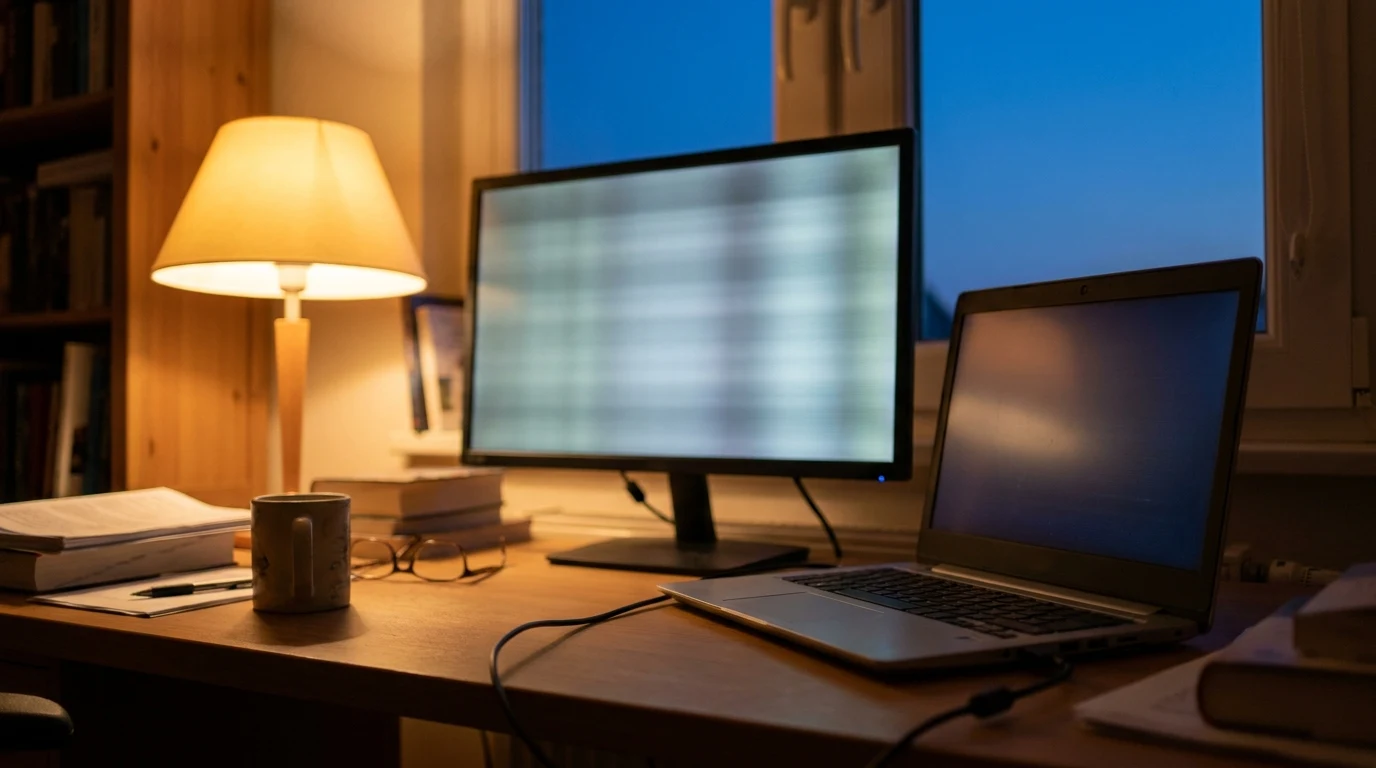
Every flat-panel monitor has one native resolution baked into the hardware, the literal grid of physical pixels. A 27-inch "1440p" panel is 2560 by 1440 dots. Send it exactly that many pixels and each one maps one-to-one. Send anything else and the graphics chip has to stretch or squeeze the image to fit, blending neighboring pixels. That blending is what you see as soft, smeared text.
This is why a lower resolution does not look "zoomed in," it looks fuzzy. Microsoft's own display guidance tells you to pick the resolution marked (Recommended), because the OS reads the monitor and flags its native value automatically.
The 10-second check: Open display settings, find the Resolution row, and choose the option labeled Recommended. If text instantly looks crisper, resolution was your whole problem.
| Symptom | Likely cause | Fix |
|---|---|---|
| Text is soft or smeared everywhere | Non-native resolution | Set resolution to Recommended |
| Everything is tiny but sharp | Native resolution, no scaling | Raise the scale (125 to 175 percent) |
| Desktop has black bars around it | Wrong aspect ratio or underscan | Match native resolution; disable TV overscan |
| Black screen, "resolution not supported" | Bandwidth or refresh limit | Lower refresh rate or upgrade the cable |
Scaling Is Not Resolution
Here is the mistake almost everyone makes: the monitor is sharp but the text is too small, so they drop the resolution to make things bigger. That trades sharpness for size and you lose both.
The right lever is display scaling. Scaling keeps every pixel native and tells apps to draw their menus and text larger, measured in percent. On a 27-inch 1440p panel, 100 percent scale is comfortable for many people. On a 27-inch 4K panel, the pixels are tiny, so 150 percent is closer to right. The picture stays razor-sharp because the resolution never changed, the interface just gets physically bigger.
Rule of thumb: Want bigger text? Reach for the scale slider. Want a sharper picture? Reach for resolution and set it to native. They solve different problems.
When the Screen Says "Resolution Not Supported"
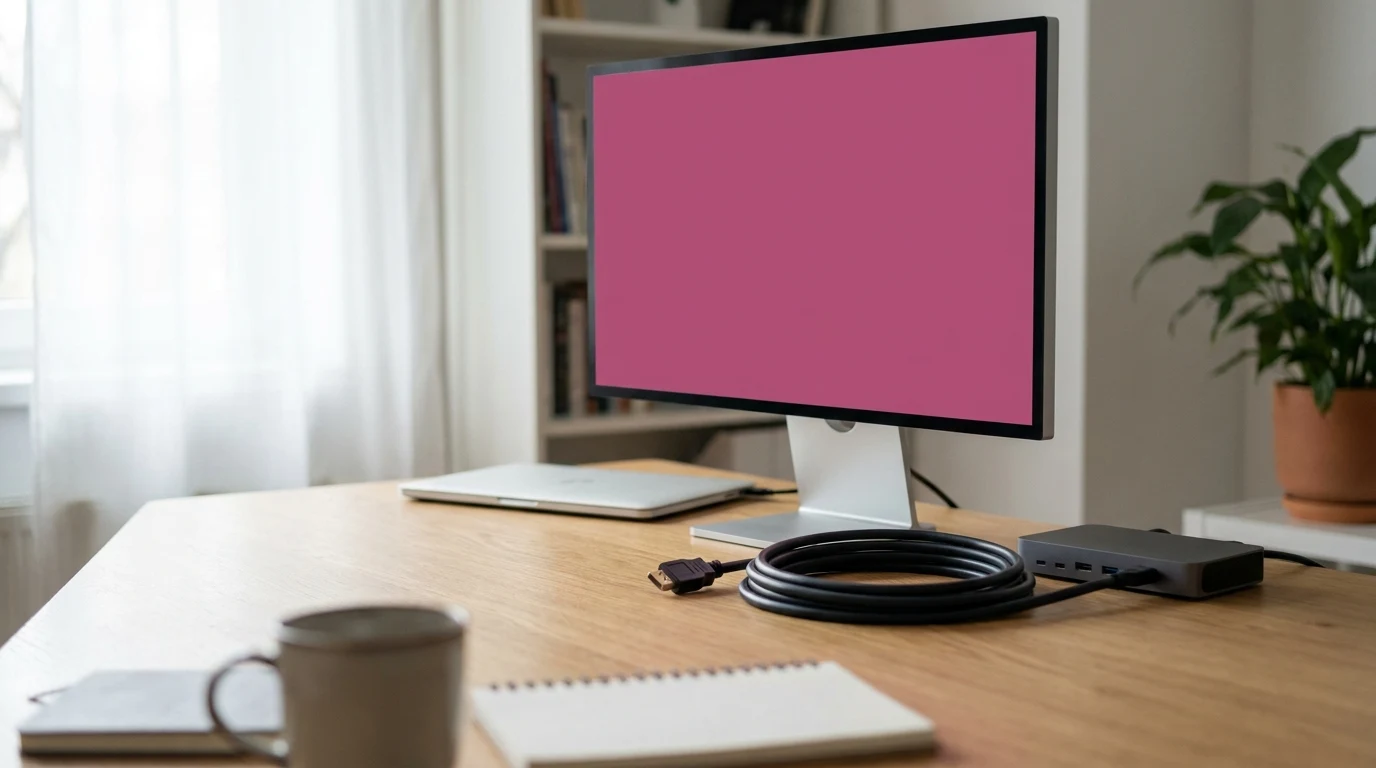
A black screen with an error message, or a desktop that refuses to go native, is usually not a software setting at all. It is the cable and port hitting a bandwidth ceiling. A display link can only carry so many pixels times so many refreshes per second, and that ceiling is set by the version of DisplayPort or HDMI on both ends, plus the cable.
Per VESA's DisplayPort specification, DisplayPort 1.2 (2009) was the first version with enough effective bandwidth for 4K at 60 Hz, and DisplayPort 1.3 and 1.4 raised that to 4K at 120 Hz. Those figures already account for encoding overhead; DisplayPort's older 8b/10b scheme spends about 20 percent of the raw link rate on signaling, so the usable bandwidth is lower than the headline number. On the HDMI side, the HDMI Licensing Administrator specifies that 4K at 120 Hz and 8K need an Ultra High Speed HDMI cable (the HDMI 2.1 generation, up to 48 Gbps). An older High Speed cable physically cannot carry those modes, no matter how good the monitor is.
The cheap-cable trap: A cable rated for 4K at 30 Hz will often run a 4K screen, but only at 30 Hz, which feels laggy and can fall back to a lower resolution. If a 4K monitor refuses its native mode, suspect the cable before you suspect the monitor.
So the fix order for a "not supported" error is:
- Lower the refresh rate first. Dropping from 120 Hz to 60 Hz roughly halves the bandwidth needed, and 60 Hz is fine for office work.
- Swap the cable for one explicitly rated at the resolution and refresh you want (DisplayPort 1.4 or Ultra High Speed HDMI for 4K).
- Check the port version on your laptop or dock. A USB-C port that only does DisplayPort 1.2 caps you at 4K 60 Hz regardless of cable. If the bottleneck turns out to be the dock rather than the laptop, our docking station picks list which ones carry DisplayPort 1.4 and how many displays each can actually drive.
What the Research Does Not Support
A common belief is that a sharper-sounding spec, like a 4K panel or a 240 Hz refresh, automatically gives you a better-looking screen. It does not. A 4K monitor set to a non-native resolution looks worse than a 1440p monitor set to native, because native one-to-one pixel mapping beats raw pixel count every time. And refresh rate beyond 60 Hz does nothing for static text and spreadsheets; it only matters for motion. There is no evidence that buying a higher-spec monitor fixes blurriness if the resolution, scaling, and cable are still mismatched. The settings are the fix, not the price tag.
The Bottom Line
A blurry or wrong-sized external monitor is a three-part diagnosis. Set the resolution to native (the Recommended option), use the scale slider to size text without losing sharpness, and make sure the cable and port can carry the resolution and refresh rate you are asking for. Work through those in order, one change at a time, and the monitor almost always sorts itself out, no new hardware required.
Why does my external monitor look blurry when my laptop screen looks fine?
The laptop is running at its own native resolution while the external monitor is set to a non-native one. Set the external display to its Recommended (native) resolution, and use scaling rather than a lower resolution to make text larger.
Should I lower the resolution to make text bigger?
No. Lowering resolution makes everything fuzzy. Keep the resolution native and raise the display scale (for example 125 to 175 percent), which enlarges text and menus while keeping the image sharp.
What does "resolution not supported" mean?
The monitor is being sent a signal it cannot display, usually because the cable or port cannot carry that resolution at that refresh rate. Lower the refresh rate, use a cable rated for the mode you want, and check that your port version supports it.
Do I need a special cable for a 4K monitor?
For 4K at 60 Hz a DisplayPort 1.2-or-newer or High Speed HDMI cable works. For 4K at 120 Hz you need DisplayPort 1.4 or an Ultra High Speed (HDMI 2.1) cable. A cheap cable rated only for 4K at 30 Hz will look choppy or refuse the native mode.
If the fix doesn't work: it's the panel
If the resolution is native, scaling is set, the cable is rated for the mode and text still looks soft, the limit is the panel itself. A 27-inch 1080p monitor spreads 1920 by 1080 pixels across a large surface, which works out to roughly 82 pixels per inch. At normal desk distance the individual pixels are visible, so text edges never get truly crisp no matter what you change in settings. The same 27 inches at 1440p is about 109 PPI, and at 4K about 163 PPI, which is why those panels look sharp at the same viewing distance. If you are stuck on a 27-inch 1080p screen, the honest fix is a higher-density panel. The jump we would make is the Dell S2725QC 27" 4K USB-C 120Hz ($329.99): about 163 PPI, so text stays crisp at 150% scaling, and one USB-C cable carries the picture and 65W of laptop charging. On a tighter budget, a 1440p panel such as the LG 27U631A-B ($169.99) gets you to about 109 PPI. Our best 27-inch monitors and the broader best monitors for working from home guide compare the rest.
FAQ
Why does my second monitor look blurry?
Almost always because it is running at a resolution other than its native one, so the graphics chip is stretching or squeezing the image and blending neighboring pixels. Open display settings, select the second monitor, and set the resolution to the option marked Recommended. If it was already native, check the scale setting and then the cable, in that order.
Why is text blurry on my external monitor but not my laptop?
The laptop screen is running at its own native resolution while the external display has been set to a non-native one, or the two displays are on different scale settings and one of them is being resampled. Set the external monitor to its Recommended resolution first. If text is then too small, raise the scale percentage for that display rather than lowering its resolution.
Does HDMI make a monitor blurry compared to DisplayPort?
Not by itself. Both carry a digital signal and look identical at the same resolution and refresh rate. What HDMI can do is hit a bandwidth ceiling on an older cable or port, which forces the monitor to fall back to a lower resolution or refresh rate and that is what looks soft. For 4K at 120 Hz you need DisplayPort 1.4 or an Ultra High Speed HDMI (HDMI 2.1) cable; for 4K at 60 Hz, DisplayPort 1.2 or a High Speed HDMI cable is enough.
How do I fix blurry text on an external monitor on a Mac?
Open System Settings, go to Displays, select the external monitor and choose the resolution that matches the panel's native pixel grid. macOS presents this as the Default for display option or as a text-size slider, so pick the setting that keeps the panel native and adjust the appearance of text size from there rather than picking a scaled resolution well below native. If the monitor cannot reach its native mode at all, lower the refresh rate or swap the cable for one rated for that resolution.
Is a 1080p 27-inch monitor always blurry?
It is never as sharp as a 1440p or 4K panel of the same size, because 1920 by 1080 pixels spread across 27 inches is only about 82 pixels per inch. Settings can make it as sharp as the hardware allows, but they cannot add pixels. If crisp text matters for your work, a 27-inch 1440p panel at roughly 109 PPI is the practical step up.
Sources
- →Microsoft Support — Change your screen resolution and layout in WindowsOfficial guidance to choose the resolution marked Recommended and adjust scale.
- →Eaton — DisplayPort explained (VESA specification)DisplayPort version bandwidth table and the 8b/10b encoding overhead.
- →HDMI Licensing Administrator — Ultra High Speed HDMI CableCable requirements for 4K at 120 Hz and 8K video.
Hilly Shore Labs
Editorial TeamWFH Lounge is published by Hilly Shore Labs. Every recommendation is built by synthesizing ergonomic research, manufacturer specs, expert reviews from outlets like Wirecutter, RTINGS, and The Verge, and aggregated long-term owner sentiment from thousands of verified buyers.
All product reviews are independently researched. Our recommendations are based on ergonomic guidelines, manufacturer specifications, and verified buyer sentiment. See our methodology.