Monitor Settings for WFH: The 7 That Cut Eye Strain
Most "my monitor hurts my eyes" problems are factory showroom settings, not hardware. Match brightness to the room, raise contrast, keep color on Standard or sRGB, and fix distance and height. The blue-light filter is a sleep tool, not an eye-strain tool — use it at night, not all day.
Quick Answer
Turn brightness down to match your room instead of maxing it out, raise contrast, and keep the panel at arm's length with its top at or below eye level. Skip the all-day blue-light filter — there's no evidence it reduces eye strain; warm mode only helps sleep, so save it for the evening.
Key Takeaways
How to set your monitor's brightness, contrast, and color to cut WFH eye strain — and why the blue-light filter won't help during the day.
As an Amazon Associate I earn from qualifying purchases. Product prices and availability are subject to change.
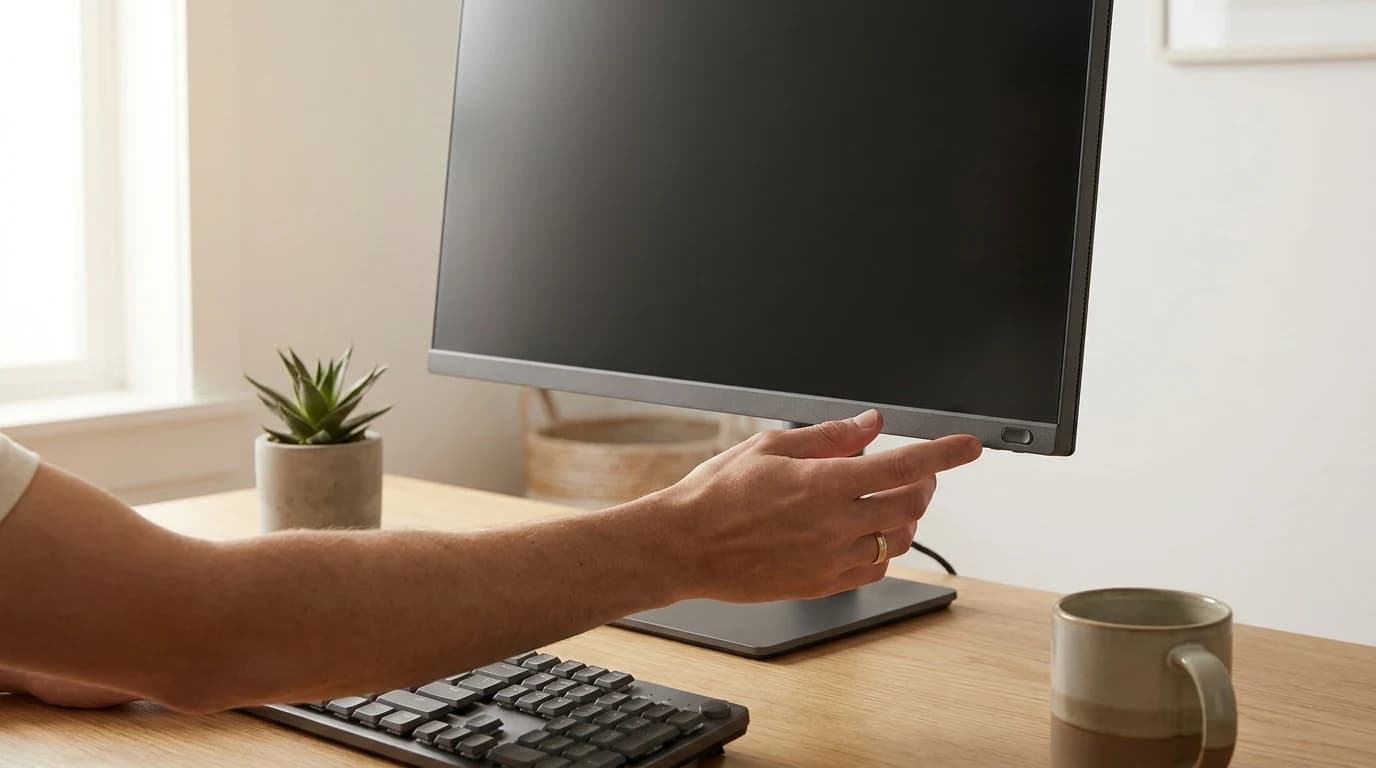
Your monitor shipped on showroom settings — cranked brightness, punchy contrast, and a "vivid" color mode built to pop under fluorescent store lights, not to sit two feet from your face for eight hours. Most eye strain at a desk isn't a hardware problem; it's a settings problem you can fix in ten minutes from the on-screen menu (the buttons or joystick on the monitor itself, not just your operating system's display panel). Here is exactly what to change, and the target for each.
The one that matters most: turn the brightness down. The American Academy of Ophthalmology's guidance is to match your screen's brightness to the light in the room — if the screen glows brighter than its surroundings, your eyes have to work harder. Almost nobody does this; almost everybody runs at 100%.
The short list
- Match brightness to the room, don't maximize it. A screen brighter than its surroundings is the most common cause of self-inflicted eye strain.
- "Eye saver" and blue-light modes don't fix eye strain. There is no evidence blue light from screens damages eyes or causes strain — warm mode's only proven payoff is better sleep, so use it in the evening, not all day.
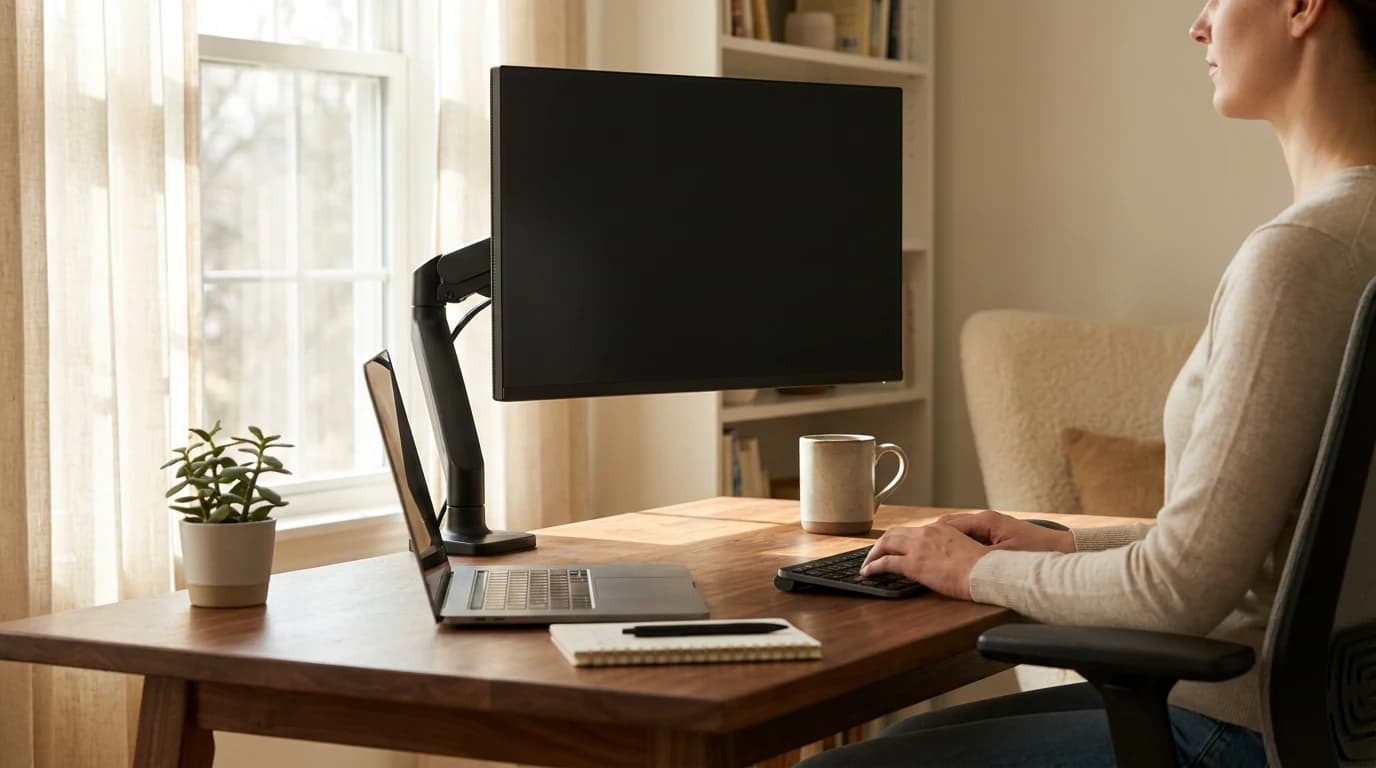
- Two of the most important "settings" aren't in the menu: viewing distance (about arm's length) and screen height (top at or below eye level).
- Native resolution and correct scaling beat any picture mode. Blurry text strains eyes far more than color temperature does.
The target-settings table
Work down your monitor's on-screen menu once. These are the targets:
| Setting | Set it to | Why |
|---|---|---|
| Brightness | Match the room (often 30–50%, not 100%) | A screen brighter than surroundings makes eyes work harder |
| Contrast | High but not clipping (~70–80%) | Crisper text edges; AAO recommends raising contrast to ease strain |
| Picture / color mode | Standard or sRGB — not "Vivid/Dynamic" | Store modes oversaturate and over-sharpen for showroom pop |
| Color temperature | ~6500K (Normal) by day; Warm at night | Warm/night mode helps sleep, not daytime eye strain |
| Blue-light / "Eye Saver" filter | Off by day, on in the evening | No evidence it reduces strain; the only benefit is circadian, at night |
| Sharpness | Default / ~50% — don't crank it | Over-sharpening adds halos that read as "tired eyes" |
| Resolution & scaling (OS) | Native resolution, scale to taste | Non-native, blurry text is a bigger strain source than any color setting |
Brightness is the whole game
If you change one thing, change this. AAO's plain-language rule: "Adjust your screen brightness to match the level of light around you." A bright room needs a brighter screen; a dim evening room needs a dim one. The quick test — pull up a mostly-white page (a blank document) next to a white wall or a sheet of paper. If the screen looks like a lightbulb against the wall, it's too bright. Most people land between 30% and 50% indoors, not the 100% their monitor ships at.
Why the "eye saver" mode won't save your eyes
This is where the settings blogs get it wrong. Warm and blue-light filters are sold as an eye-strain cure. They aren't. The American Academy of Ophthalmology states plainly that "there is no scientific evidence that the light coming from computer screens is damaging to the eyes," and it does not recommend blue-light-blocking eyewear. Reviews — including a Cochrane review — found blue-light-blocking glasses do not improve digital-eye-strain symptoms.
What blue light does affect is your circadian rhythm — your sleep timing. So warm mode has one real use: switch it on in the last two to three hours before bed (AAO's actual advice is to avoid screens then; night mode is the fallback). Running an orange screen all day won't spare your eyes — it will just make any color work look wrong.
Eye strain comes from how you use the screen, not from the screen's light. The mechanism is blinking: people blink about 15 times a minute normally, but only 5 to 7 times a minute at a screen, which lets the eye surface dry out. No display setting fixes that — deliberate blinking and breaks do.
Glare and contrast
After brightness, glare is the next culprit. If a window or ceiling light reflects on the panel, no brightness setting compensates. Reposition the monitor perpendicular to windows, and if reflections persist, AAO suggests a matte screen filter. In the menu, nudge contrast up (roughly 70–80%) so text edges stay crisp — higher contrast between text and background takes less focusing effort.
The two settings that aren't in the menu
Half of "eye strain from my monitor" is really neck and focus strain from where the monitor sits. Two physical targets, from Canada's CCOHS occupational-health guidance:
- Distance: 40–74 cm (about 16–29 inches) from your eyes — roughly arm's length. Too close forces constant refocusing.
- Height and angle: your line of sight should tilt 15–30° downward to screen center, with the top of the screen at or below eye level. CCOHS is explicit that a monitor set too high is worse than one slightly too low. (This is also why a 27-inch panel rotated to portrait usually breaks the rule — see how to position your monitor.)
What most people get wrong
- Running at 100% brightness "to see better." It's the top self-inflicted strain source; match the room instead.
- Treating warm/night mode as a daytime eye-strain fix. It's a sleep tool, not a strain tool.
- Buying blue-light glasses instead of dimming the screen. No evidence they help strain; the free brightness slider does more.
- Leaving the monitor on "Vivid" and non-native scaling. Punchy, slightly-blurry text is quietly exhausting.
Ten minutes in the on-screen menu, plus nudging the panel to arm's length and eye level, undoes most of what a factory "showroom" configuration does to your eyes. If symptoms persist after that, it's a breaks-and-blinking problem, not a settings one — see our guide to reducing eye strain working from home.
Should I use my monitor's blue light filter all day?
No. There's no evidence blue light from screens causes eye strain or eye damage. Blue light's only well-supported effect is on sleep timing, so a warm/night filter is worth using in the two to three hours before bed — not as an all-day eye-strain fix.
What brightness should my monitor be for eye strain?
Bright enough to match the room, not maxed out. The ophthalmology guidance is to match screen brightness to the surrounding light; indoors that's often 30–50%, not the 100% monitors ship at. Compare a white screen to a white wall — if the screen looks like a lightbulb, lower it.
Does higher contrast help or hurt eye strain?
Higher contrast generally helps, up to a point. AAO recommends increasing contrast to reduce strain, because crisper text edges take less focusing effort. Set it high (roughly 70–80%) but back off if bright areas start losing detail.
Is a 60Hz monitor bad for my eyes?
For text and office work, no. Refresh rate affects motion smoothness, not eye strain — 60Hz is fine for documents, email, and calls. Non-native-resolution blur and glare matter far more than refresh rate for desk comfort.
Sources
- American Academy of Ophthalmology — Computers, Digital Devices and Eye Strain (match brightness to surroundings, raise contrast, matte filter for glare, blink rate, ~25-inch viewing distance)
- American Academy of Ophthalmology — Are Blue Light-Blocking Glasses Worth It? (no evidence blue light damages eyes; glasses don't reduce strain; blue light affects circadian rhythm)
- Canadian Centre for Occupational Health and Safety — Office Ergonomics: Positioning the Monitor (viewing distance 40–74 cm; 15–30° downward line of sight; top of screen at or below eye level)
Hilly Shore Labs
Editorial TeamWFH Lounge is published by Hilly Shore Labs. Every recommendation is built by synthesizing ergonomic research, manufacturer specs, expert reviews from outlets like Wirecutter, RTINGS, and The Verge, and aggregated long-term owner sentiment from thousands of verified buyers.
All product reviews are independently researched. Our recommendations are based on ergonomic guidelines, manufacturer specifications, and verified buyer sentiment. See our methodology.