Why Your HDMI Splitter Won't Extend to Two Monitors
A splitter clones one screen and cannot extend your desktop. Extending needs a second video stream from a spare port, an MST hub, a dock, or DisplayLink, plus the OS set to Extend.
Key Takeaways
An HDMI splitter mirrors one screen, it does not extend it. Here is the real reason your second monitor duplicates, and the four fixes that work.
As an Amazon Associate I earn from qualifying purchases. Product prices and availability are subject to change.
You bought a cheap HDMI splitter, plugged in a second monitor, and got two identical screens instead of one big desktop. That is not a broken splitter. That is exactly what a splitter does. The device you wanted is not a splitter at all.
Quick answer: An HDMI splitter takes one video signal and copies it to several screens, so every monitor shows the same picture. To extend your desktop, each monitor needs its own independent video stream. That comes from a second port on your computer, a DisplayPort MST hub, a USB-C/Thunderbolt dock, or a DisplayLink adapter. Then you switch Windows or your Mac from "Duplicate" to "Extend."
The short version
- A splitter clones, it cannot extend. One input, identical copies out. By design.
- Extending needs one stream per screen. Either more ports, an MST hub, a dock, or DisplayLink.
- "Resolution not supported" usually means bandwidth. Two high-res screens on one MST port can exceed what the link can carry.
- Macs are the big exception. Apple Silicon ignores DisplayPort MST, and base chips cap you at one external display no matter what hub you buy.
What a Splitter Actually Does
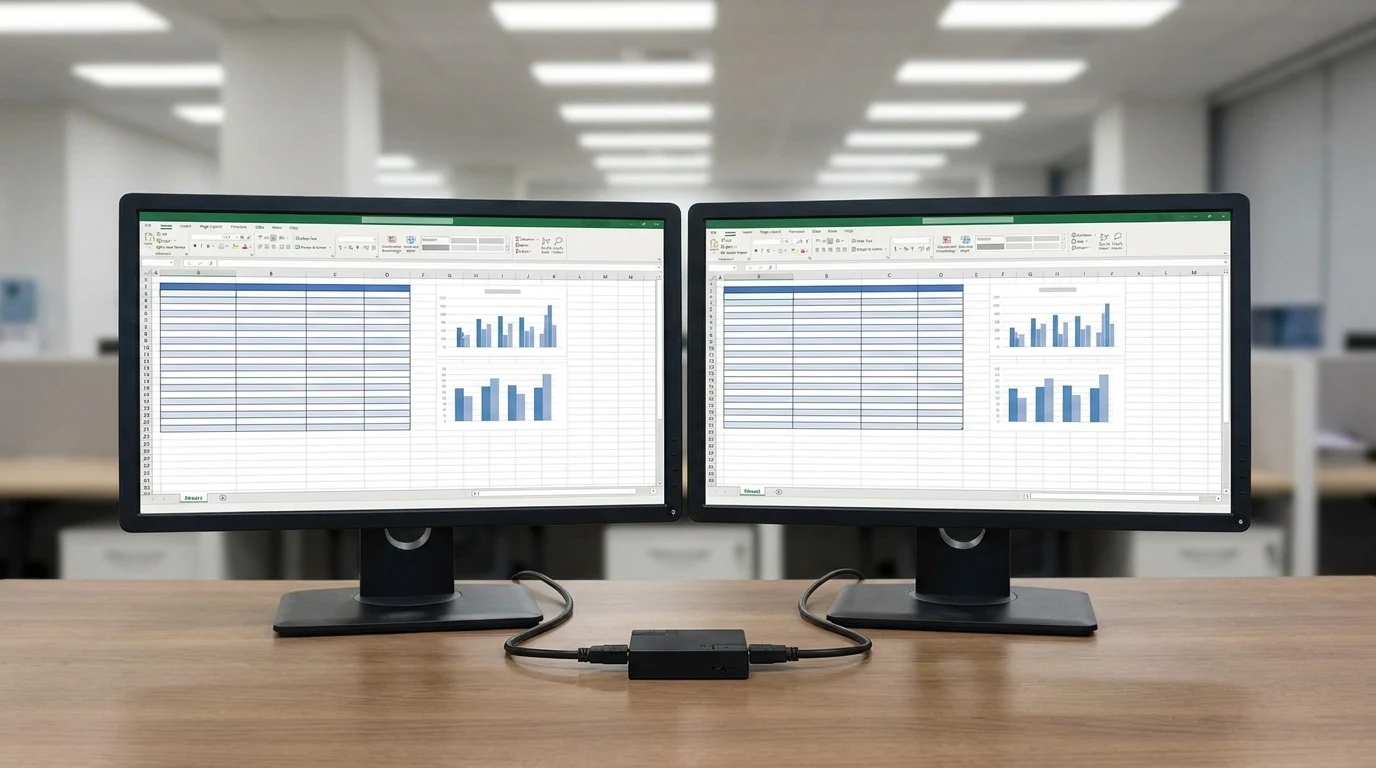
A splitter is a one-to-many copier. It receives a single video stream and duplicates that same stream out to two or more displays. Every connected screen sees the identical picture. That is genuinely useful for a conference room, a digital sign, or a classroom projector, where you want the same image everywhere. It is the wrong tool for a desk where you want spreadsheets on the left and a call on the right.
The confusion comes from the word "split." It sounds like dividing your desktop in half across two monitors. What it really means is splitting one copy into many copies. Your computer only ever sends one screen's worth of pixels into the splitter, so one screen's worth is all that comes back out.
Extending Needs One Stream Per Screen
To put different windows on each monitor, your computer has to generate a separate, independent video stream for each one. There is no adapter that conjures a second stream out of a single one that was never sent. As Cable Matters explains, single-stream transport keeps a strict one-to-one relationship between a video source and a display, while multi-stream transport is what lets one port carry several independent screens.
So the question is never "which splitter extends?" It is "how do I get a second independent stream out of this computer?" You have four honest options.
The Four Ways to Actually Extend
| Method | How it adds a screen | Best when |
|---|---|---|
| A second video port | Use the HDMI and the USB-C/DisplayPort outputs you already have | Your laptop or PC has more than one display output |
| DisplayPort MST hub | Splits one DP stream into independent ones | You have a DisplayPort 1.2+ MST-capable PC and Windows |
| USB-C / Thunderbolt dock | Carries video over USB-C using DisplayPort Alt Mode | Your laptop's USB-C port supports video output |
| DisplayLink adapter | A driver compresses an extra display over plain USB | You are out of real video outputs, or on a base Mac |
The first option is free and the one most people miss. Many laptops already have both an HDMI port and a USB-C port that can output video. Plug one monitor into each and you have two independent streams without buying anything.
A DisplayPort MST hub is the device people think a splitter is. Per Eaton's MST guide, an MST hub takes one DisplayPort 1.2 connection and breaks it into multiple independent streams, so it can extend, mirror, or build a video wall. The catch is that the hub shares one port's bandwidth: a 1080p screen eats roughly 22% of it and a 4K screen 40% or more, which is why a single DP 1.2 port tops out around four 1080p monitors and far fewer 4K ones.
Why It Says "Resolution Not Supported"
When a second screen connects but throws a "resolution not supported" or "no signal" error, the usual culprit is bandwidth, not a dead cable. An MST hub or daisy chain divides one port's capacity across every screen. Ask it to push two 4K panels at high refresh and you run past what the link can carry, so a display drops out or refuses the resolution.
The fixes are unglamorous but reliable:
- Lower one screen's resolution or refresh rate.
- Use a newer DisplayPort or Thunderbolt connection with more headroom.
- Move one monitor to a different physical port so it gets its own bandwidth instead of sharing.
Then Flip the Switch to "Extend"
Even with the right hardware, the operating system still defaults to mirroring more often than people expect. This is the last step everyone forgets. On Windows, Microsoft's own guide points to Settings > System > Display > Multiple displays, where you choose between three modes:
- Duplicate — the same image everywhere. This is what a splitter does in hardware.
- Extend — one desktop spread across screens, with windows you can drag between them. Pick this one.
- Second screen only — the third option, and not the one you want here.
On a Mac, open System Settings > Displays and make sure the second display is not set to mirror. If the second monitor never appears at all, hit Detect in the Windows display settings before assuming the cable is bad.
The Mac Exception Most Guides Skip
Here is the trap that wastes the most money. Multi-Stream Transport is a DisplayPort feature, and Apple does not support it. Cable Matters notes plainly that MST is not supported by macOS, which limits Mac users to a single external display over DisplayPort. Worse, Apple's own support documentation states that a hub or daisy chain "does not increase the maximum number of displays that you can connect" — that ceiling is set by the Mac's chip.
The Mac ceiling: a base Apple Silicon MacBook drives exactly one external display, and no splitter, MST hub, or dock can raise that number. The only software workaround is a DisplayLink adapter, which compresses an extra display over USB instead of relying on the GPU's native outputs.
If you have a base-chip Mac and want two real external screens, DisplayLink is the answer, not a hub.
What Most People Get Wrong
The internet is full of advice to "just get a powered HDMI splitter" to run dual monitors. That advice is wrong.
What actually extends your desktop:
- A second video output you already own — HDMI plus USB-C/DisplayPort
- A DisplayPort MST hub, on a Windows PC with DisplayPort 1.2+
- A USB-C or Thunderbolt dock whose port supports DisplayPort Alt Mode
- A DisplayLink adapter, when you are out of real video outputs
What people try first, and shouldn't:
- A powered HDMI splitter — power has nothing to do with it
- A 4K or expensive splitter — no version of a splitter can extend a desktop
- Any listing promising a splitter that "extends to two different displays" — it is either a rebadged MST/DisplayLink device or a misleading listing
- An MST hub on a Mac — macOS ignores MST entirely
Read the spec, not the marketing: a splitter copies a single stream; extending requires multiple streams, full stop. The word "split" on the box tells you nothing about which one you are buying.
What to buy instead of a splitter
If your laptop has Thunderbolt, the clean fix is a dock that drives two displays natively: the CalDigit TS4 runs dual 4K at 60Hz from one cable and is the dock we've seen most readers settle on. For a second screen on any laptop, a good 27-inch USB-C monitor (see our 27-inch monitor picks) connects directly and removes the adapter from the equation entirely.
Bottom Line
Match the tool to the goal. Want the same picture on every screen? A splitter is correct. Want a wider desktop with different windows on each monitor? You need a second stream — from a spare port, an MST hub, a USB-C dock, or a DisplayLink adapter — and then you set the OS to Extend. On a base-chip Mac, skip the hub entirely and reach for DisplayLink.
Frequently asked questions
Does an HDMI splitter work for dual monitors with an extended display?
No. A splitter takes one video signal and copies it to every screen, so both monitors always show the same picture. Extending needs one independent stream per screen: a second video port, a DisplayPort MST hub, a USB-C or Thunderbolt dock, or a DisplayLink adapter, then Extend in your display settings.
Can you extend two monitors with one HDMI port?
Not with the HDMI port alone. One HDMI port sends one stream, which drives one extended screen. The second screen needs its own stream from somewhere else: another video output on the computer (many laptops have a USB-C port that outputs video), a USB-C or Thunderbolt dock, or a DisplayLink adapter over plain USB. On a base-chip Mac, a DisplayLink adapter is the workaround for the external-display limit, because a hub or dock cannot raise it.
Sources
Your next step
The right tool: a dock that drives two screens.
Hilly Shore Labs
Editorial TeamWFH Lounge is published by Hilly Shore Labs. Every recommendation is built by synthesizing ergonomic research, manufacturer specs, expert reviews from outlets like Wirecutter, RTINGS, and The Verge, and aggregated long-term owner sentiment from thousands of verified buyers.
All product reviews are independently researched. Our recommendations are based on ergonomic guidelines, manufacturer specifications, and verified buyer sentiment. See our methodology.