Best Dual Monitor Setup for WFH 2026: Arms & Layouts
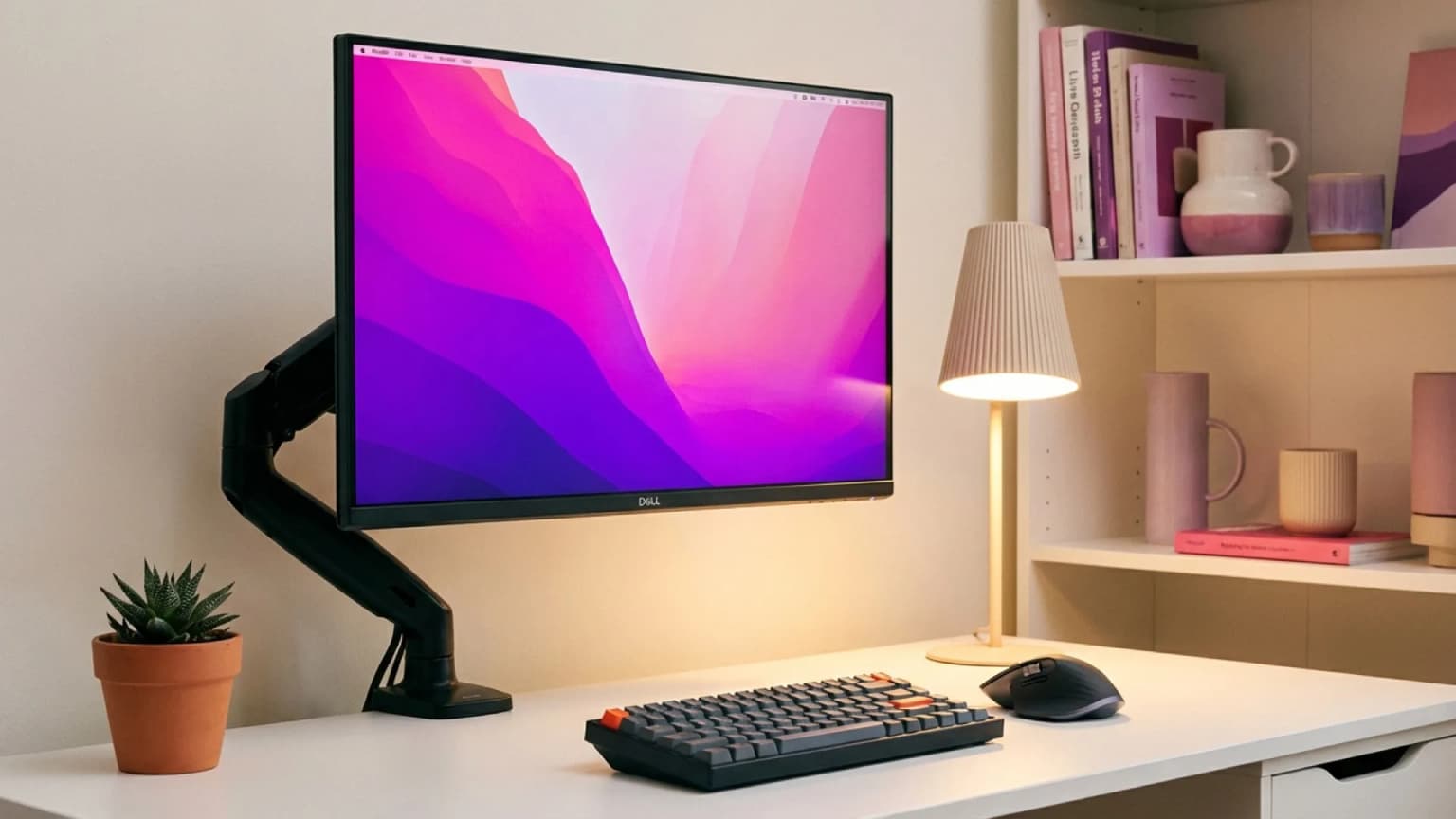
Two 27″ monitors on an Ergotron LX Dual arm, primary dead-center — $800–$1,000 all-in. If that's overkill, your laptop is already a second screen.
Our #1 Setup
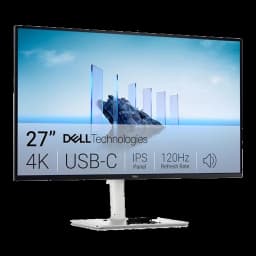
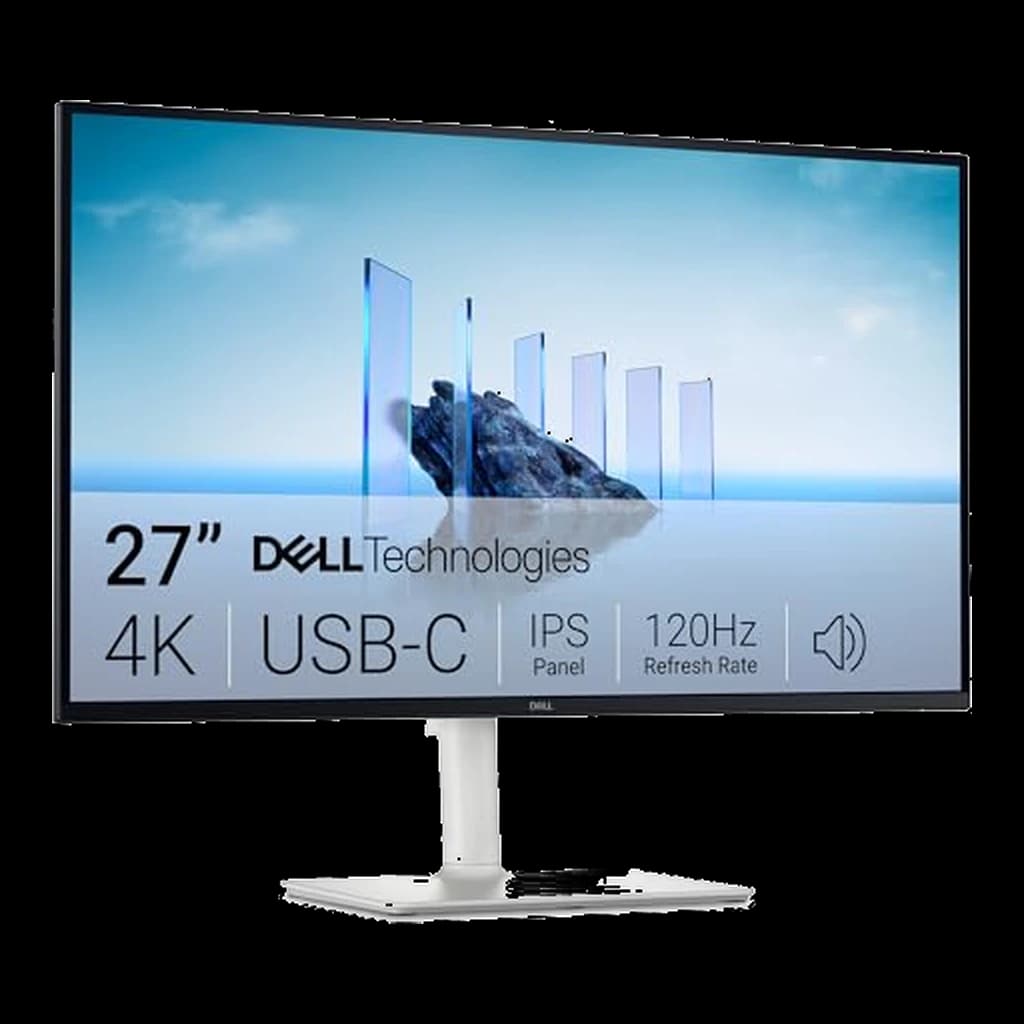
Dell S2725QC 27" 4K USB-C 120Hz
Two of these is the best dual-monitor value going: matched 27-inch 4K panels at 120Hz with USB-C, for roughly the price of one UltraSharp. Pair with the Ergotron LX arm below.
Fits: laptops that charge on 65W USB-C (an Air or 14" Pro); no DisplayPort socket — USB-C or HDMI 2.1- Genuine 4K UHD at 120Hz for buttery scrolling
- 65W USB-C delivers single-cable laptop charging
- 99% sRGB and AMD FreeSync Premium for sharp text and smooth motion
Price checked Oct 8, 2026 — verify the live price on Amazon.
 #1 Owner rating |  #2 Owner rating | 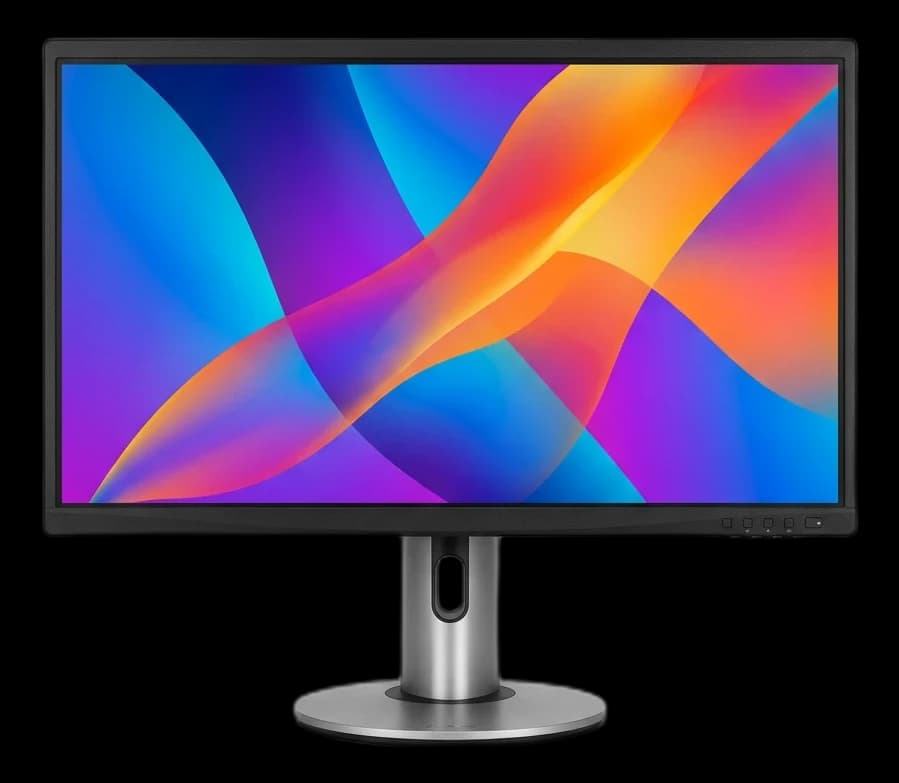 #3 Owner rating |  #4 Owner rating |  #5 Owner rating | 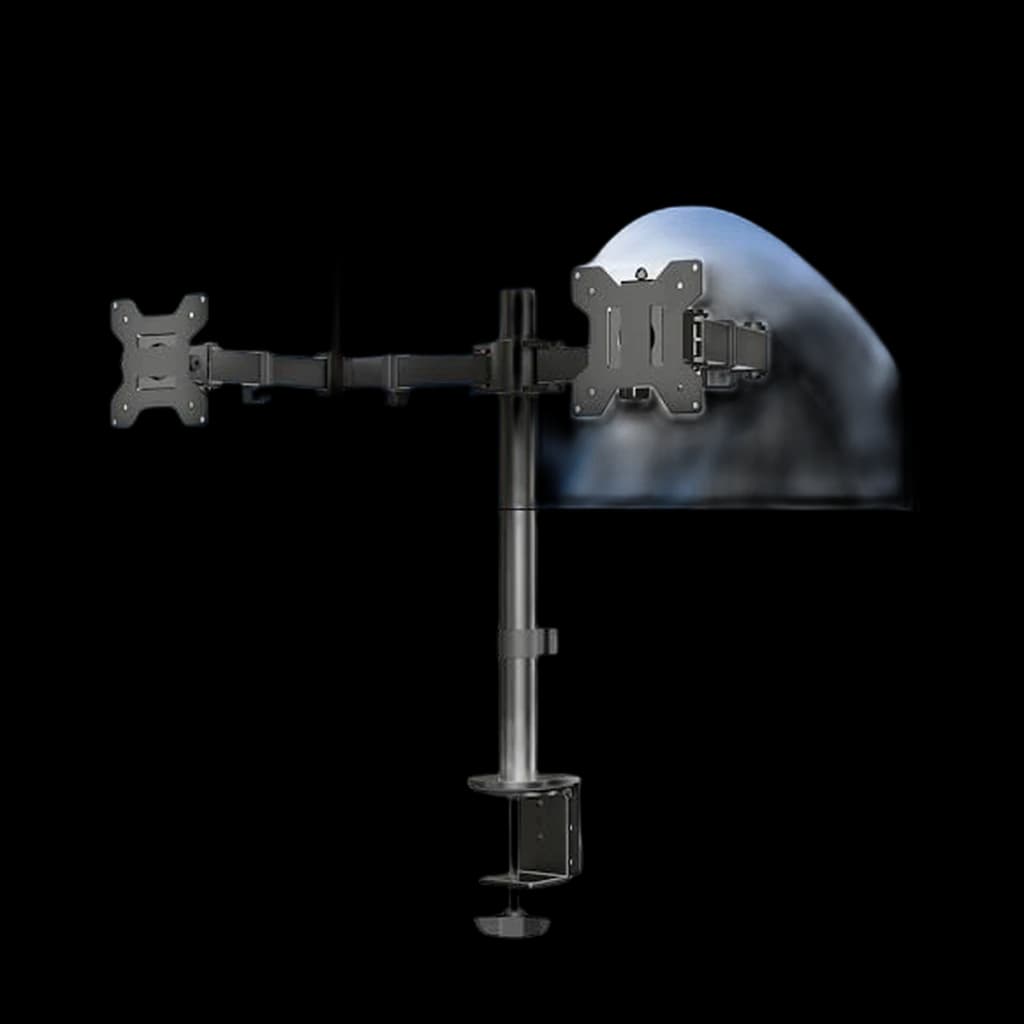 #6 Owner rating | |
|---|---|---|---|---|---|---|
| Price | $358.74Buy on Amazon | $628.88Buy on Amazon | $399Buy on Amazon | $209.69Buy on Amazon | $356Buy on Amazon | $34.99Buy on Amazon |
| Verdict | Best for most WFH desks — 4K, 120Hz and 65W USB-C for about $330, and the monitor our readers actually buy | The new productivity benchmark — 4K, 120Hz, Thunderbolt 4, 140W charging in one cable. | Color-accurate 4K at a price that undercuts every other ProArt-class display. | The default WFH-pro pick - Constant Force gas spring holds position indefinitely, 25-pound capacity, 10-year warranty | Office-furniture-grade mechanical-spring arm - no gas to fade, decade-plus lifespan, the buy-it-once pick | The honest dual-arm budget pick for two matched flat panels |
| Buyer sentiment | Display Quality Picture Quality Value for money Connectivity Buyers praise display quality, picture quality, value for money and connectivity. Mixed feedback on functionality. Based on 470 user mentions | IPS Black Panel Thunderbolt 4 Hub 120Hz at 4K KVM Switch Premium Price 60Hz over HDMI Buyers praise the IPS Black contrast and Thunderbolt 4 hub. Some note the price premium vs standard IPS. | Quality Color Accuracy Picture Quality Value for money Buyers praise quality, color accuracy, picture quality and value for money. Mixed feedback on functionality and brightness. Based on 368 user mentions | Quality Sturdiness Installation Adjustability Buyers praise quality, sturdiness, installation and adjustability. Mixed feedback on stability and value for money. Based on 238 user mentions | Noise Cancellation Value Design Build Quality Buyers praise noise cancellation, value, design. Based on 320 user mentions | Quality Assembly Sturdiness Value for money Buyers praise quality, assembly, sturdiness and value for money. Mixed feedback on adjustability and stability. Based on 17,421 user mentions |
| Specs |
|
|
|
|
|
|
| Pros |
|
|
|
|
|
|
| Cons |
|
|
|
|
|
|
* Prices checked Oct 8, 2026 and may vary. Check the latest price on Amazon.
We research — never hands-on. How we research →
Pick your build
Three complete setups — monitors, mount, and total cost. Match the build to how you work, not to a spec sheet.
3. The hidden dual
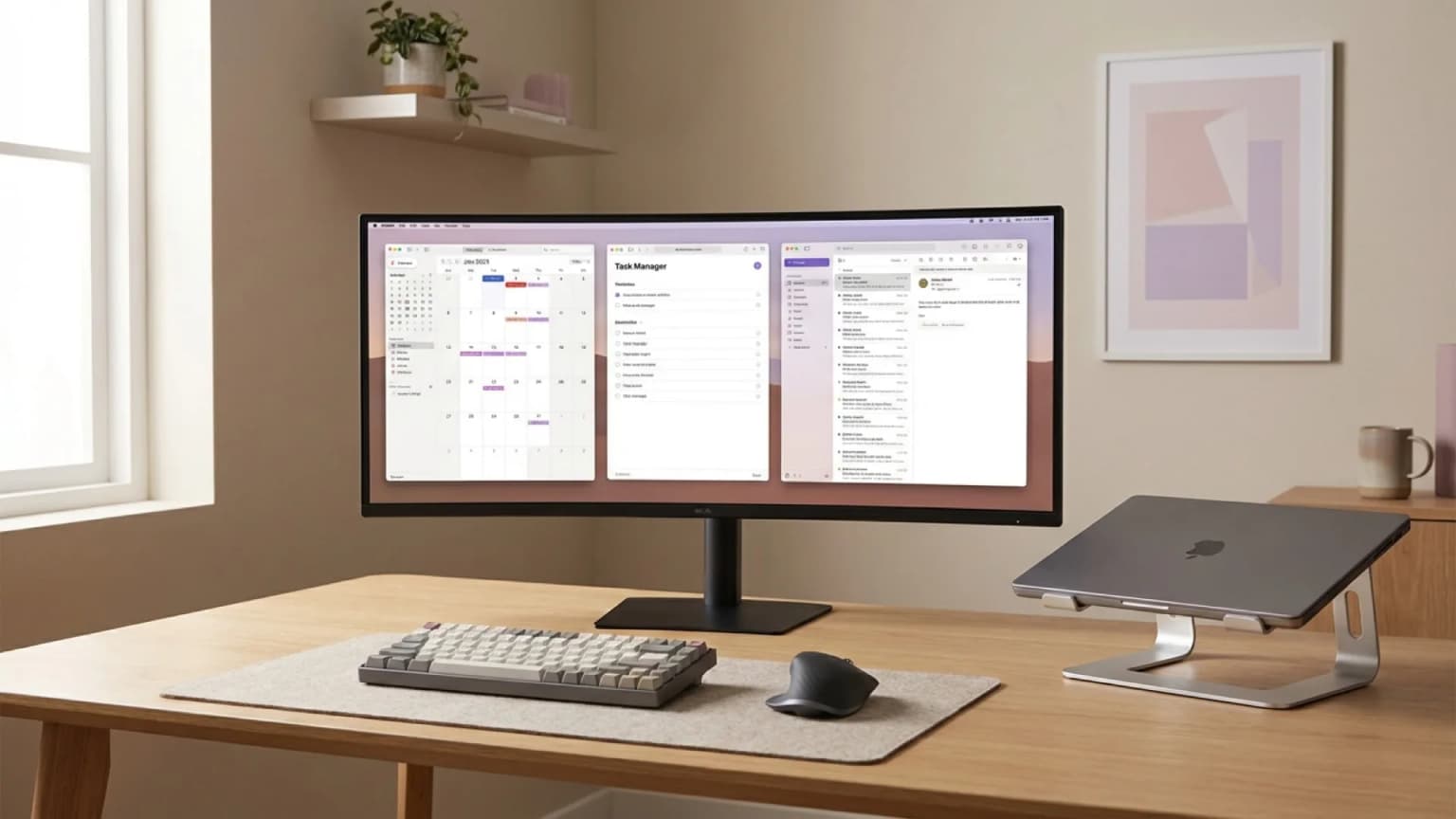
Laptop on a stand + one 27″ 4K. Your laptop screen becomes the secondary for Slack and email — two-minute setup, great ergonomics, and it covers 80% of dual-monitor use cases.

ASUS ProArt PA279CRV 27″ 4K
4.4★ (514 reviews)
2. The sweet spot
Two 27″ 1440p panels on an Ergotron LX Dual — primary dead-center, secondary angled. Sharp text for 8-hour days, and the arm holds position for a decade. The 5-year setup.

2× Dell S2722DC + Ergotron LX Dual
$260 ×2 + ~$300 arm
1. The monitor wall
Two 4K Thunderbolt hubs on Humanscale arms — our #1 pick above, doubled. One cable per laptop, KVM built in, and either panel pivots into portrait.

2× Dell U2725QE + Humanscale M2.1
$629 ×2 + $356 ×2
The one rule most setups break
Primary monitor dead-center, secondary angled to the side. Place both at the center line and your neck twists all day — it wrecks your upper back in weeks. You use the primary 80% of the time; you only glance at the secondary. And if you have to ask which one is primary, you don't need dual monitors.
Key Takeaways
The best dual-monitor pairs, arms, and layouts ranked for WFH in 2026. Plus when a single 34-inch ultrawide actually beats two 27-inch screens.
As an Amazon Associate I earn from qualifying purchases. Product prices and availability are subject to change.
Do you actually need two monitors?
Worth it if you…
- Reference docs, Slack or email while working
- Work spreadsheets alongside their source data
- Code with a terminal or browser visible
- Take calls with notes on the other screen
Skip it if you…
- Already own a 34″+ ultrawide
- Live in one full-screen app all day
- Have a desk under 48″ wide
- Find multi-window setups distracting
The productivity backing is real — a University of Utah study measured 9–50% faster task completion for document-heavy work, and it's been replicated — but the curve flattens after two screens. Three- and four-monitor setups show no significant office-work gain, just worse posture. If you lean ultrawide, see our best ultrawide monitors guide.
Dual-monitor setups are the WFH power-user move. But "two monitors" is the easy part. The hard part is picking two that match, mounting them at the right height, positioning them so your neck doesn't cramp, and deciding whether you actually want dual or a single bigger monitor.
This guide walks through the whole dual-monitor decision. We pulled from Reddit's r/battlestations, r/WFH, Wirecutter's monitor coverage, and long-term owner feedback on monitor arms. No thorough research — this is synthesis from the best reviewers who've spent weeks with these products.
Go dual if:
- You want independent control over each window
- Your work is document comparison, code-and-reference, or spreadsheet-plus-dashboard — the workflows that see the biggest measured gains
Go single ultrawide if:
- You want clean aesthetics and fewer cables
- You work in one application at a time, where a second screen gains almost nothing
What the Research Says About Dual Monitor Setups
The productivity case for dual monitors is one of the few WFH claims with consistent research backing. A landmark Fujitsu/University of Utah study (2003, replicated multiple times) measured 9–50% faster task completion on dual-monitor setups for document-heavy work. Microsoft Research's 2008 follow-up confirmed the effect was real but less dramatic for single-application workflows.
What the data does support:
- Effect size scales with task type. Document comparison, code-and-reference workflows, and spreadsheet-plus-dashboard work see the biggest gains. Single-app workflows (one Google Doc, one IDE window) gain almost nothing.
- Asymmetric layouts work. A 27-inch primary plus a 24-inch vertical secondary outperforms two identical 24-inch monitors for most knowledge workers. Your eyes don't need symmetry; your task layout does.
- Eye-tracking matters more than pixel count. AAO viewing-distance guidance (20–28 inches) constrains practical layout more than resolution. A 32-inch monitor at 24 inches forces head-turning; two 24-inch monitors don't.
What it does not support:
- That "more screens = more productive." The productivity curve flattens after two monitors.
- Three- and four-monitor setups: studies show no significant gain over dual for most office workers, and worse posture from extreme head-turn.
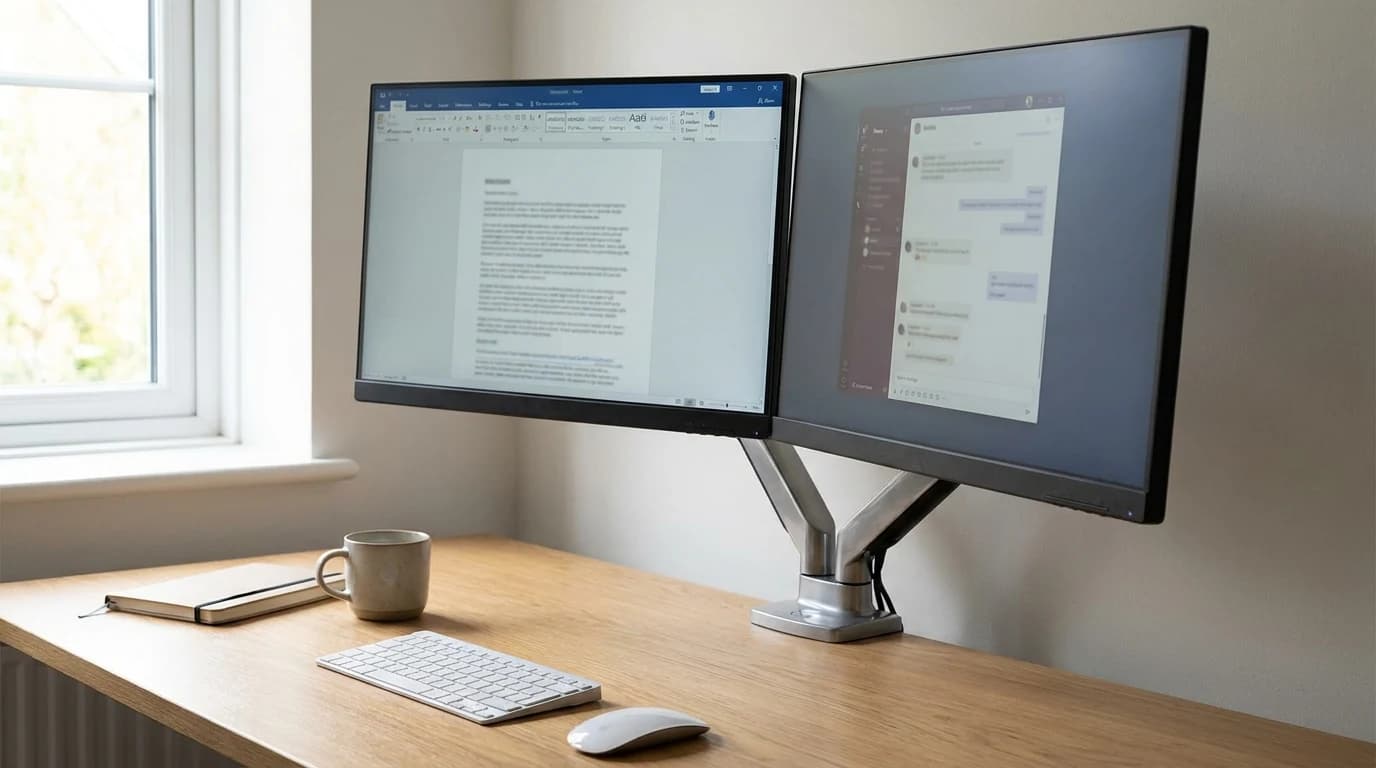
Worth knowing: the productivity curve flattens after two monitors. Three and four screens show no significant gain for most office workers, and worse posture from the extra head-turn.
Matching monitors: same or different?
Same size, same model (ideal)
Two identical monitors are the cleanest setup. Colors match, height matches, bezels match. Downside: cost. Two of the same monitor means doubling your monitor budget.
Same size, different models (fine)
Works if the resolutions match. Two 27" 1440p monitors from different brands look close enough. Colors won't match perfectly — mild annoyance for general use, deal-breaker for design work.
Different sizes (the flexible option)
A 27" primary + 24" secondary is the most common asymmetric setup. Cheaper than dual-27". Works well when the secondary is used for reference material (Slack, docs, email) rather than primary work.
Another popular pattern: 27" horizontal primary + 24" vertical secondary. The vertical second monitor is perfect for long docs, Slack, or code files. Requires a monitor that pivots into portrait orientation and a graphics card/OS that supports mixed orientations.
Laptop + external (the hidden dual setup)
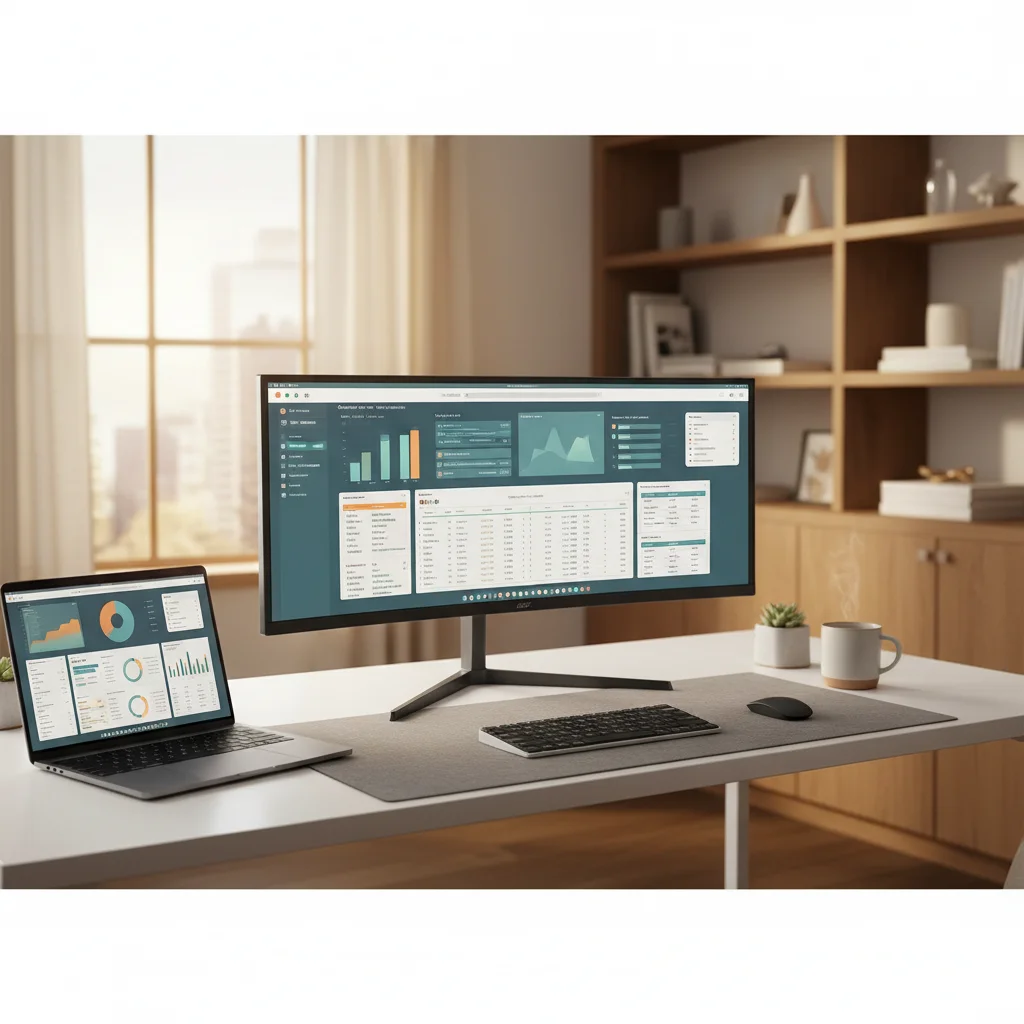
A laptop + single external monitor IS a dual setup. Most people don't think of it this way. With a laptop stand and external keyboard, your laptop screen becomes your "secondary" for Slack/email while the external is the primary. Cheap, flexible, and fine for 80% of dual-monitor use cases.
Best dual monitor pairings by budget
| Budget | The setup | Best for |
|---|---|---|
| Under $600 | Two 24" 1440p monitors (~$250 each) with basic stands | Tight budgets that genuinely need two screens |
| $600–$900 | Two 27" 1440p ($250–$350 each) | The "I'll keep this for 5 years" setup |
| $900–$1500 | Two 27" 1440p on a dual arm (Ergotron LX Dual, ~$300), one vertical | Power users juggling code, docs, and comms |
| $1500–$2500 | Two 4K 27" ($500–$700 each) with premium arms, or 32" 4K + 27" | Serious home-office territory |
| $2500+ | Dual BenQ PD or Dell UltraSharp U-series | Designers who want monitor quality to match the laptop |
Under $600: Dual 24"
Two 24" 1440p monitors (LG 24QP500 or similar, ~$250 each) with basic stands. Cheap, functional. Best for users who really need dual screens but are on a tight budget.
$600–$900: Dual 27" 1440p
The sweet spot. Two LG 27QP60G or Dell S2722DC monitors ($250–$350 each). Sharp text, great for 8+ hours of work. The best "I'll keep this setup for 5 years" dual setup.
$900–$1500: 27" primary + 27" vertical secondary with arms
Two 27" 1440p monitors on a dual monitor arm (Ergotron LX Dual, ~$300). One horizontal, one vertical. The most flexible setup for power users juggling code, docs, and communication.
$1500–$2500: Dual 4K or 32" main + 27" secondary
Two 4K 27-inch monitors (Dell U2725QE or LG UltraFine, $500–$700 each) with premium monitor arms. Or a 32" 4K primary + 27" 1440p secondary. Serious home-office territory.
$2500+: Professional pairs
Dual BenQ PD or Dell UltraSharp U-series. Factory-calibrated, USB-C daisy chain, premium stands. For designers and people who want monitor quality to match their laptop.
Recommended gear that actually fits these setups
For most dual-monitor desks, start with two matching 27-inch displays. The Dell UltraSharp U2725QE is the premium 4K USB-C option, while the ASUS ProArt PA279CRV is the better-value 4K pick for color-sensitive work. If your desk edge has room for two clamps, a pair of Ergotron LX arms is sturdier than most dual-arm mounts; if you need one shared post, the VIVO Dual Monitor Desk Mount is the honest budget choice. For premium desks where motion smoothness matters, the Humanscale M2.1 is the long-term upgrade.
Monitor arms — the underrated upgrade
If you're going dual, you should seriously consider monitor arms. The stock stands that come with monitors are usually adequate for one monitor but get in each other's way with two.
Benefits of monitor arms for dual setups:
- Reclaim desk space. No stock stands eating your desk.
- Independent positioning. Each screen can be at its own height and angle.
- Easier cable management. Arms have integrated cable routing.
- Adjust for the day. Some days you want both at center height, some days you want one lower. Arms let you do this.
Best dual monitor arms:
Budget ($34.99): VIVO Dual Monitor Arm
Cheapest functional dual arm. Supports most 27" monitors. Build quality is basic but works. Fine for a first upgrade.
Mid ($150–$300): Ergotron LX Dual Stacking or Side-by-Side
The workhorse. Ergotron arms are used in professional offices worldwide for good reason — they're overbuilt and hold position forever. The LX Dual Side-by-Side is the standard for two 27" monitors at equal height.
Premium ($300–$500): Humanscale M8 or Jarvis Premium
The "buy once, cry once" tier. Humanscale's M8 is the gold standard for durability and smooth motion. Pair of them for dual = $700–$900, but they'll outlast the monitors.
Physical layout patterns
1. Flat side-by-side (the default)
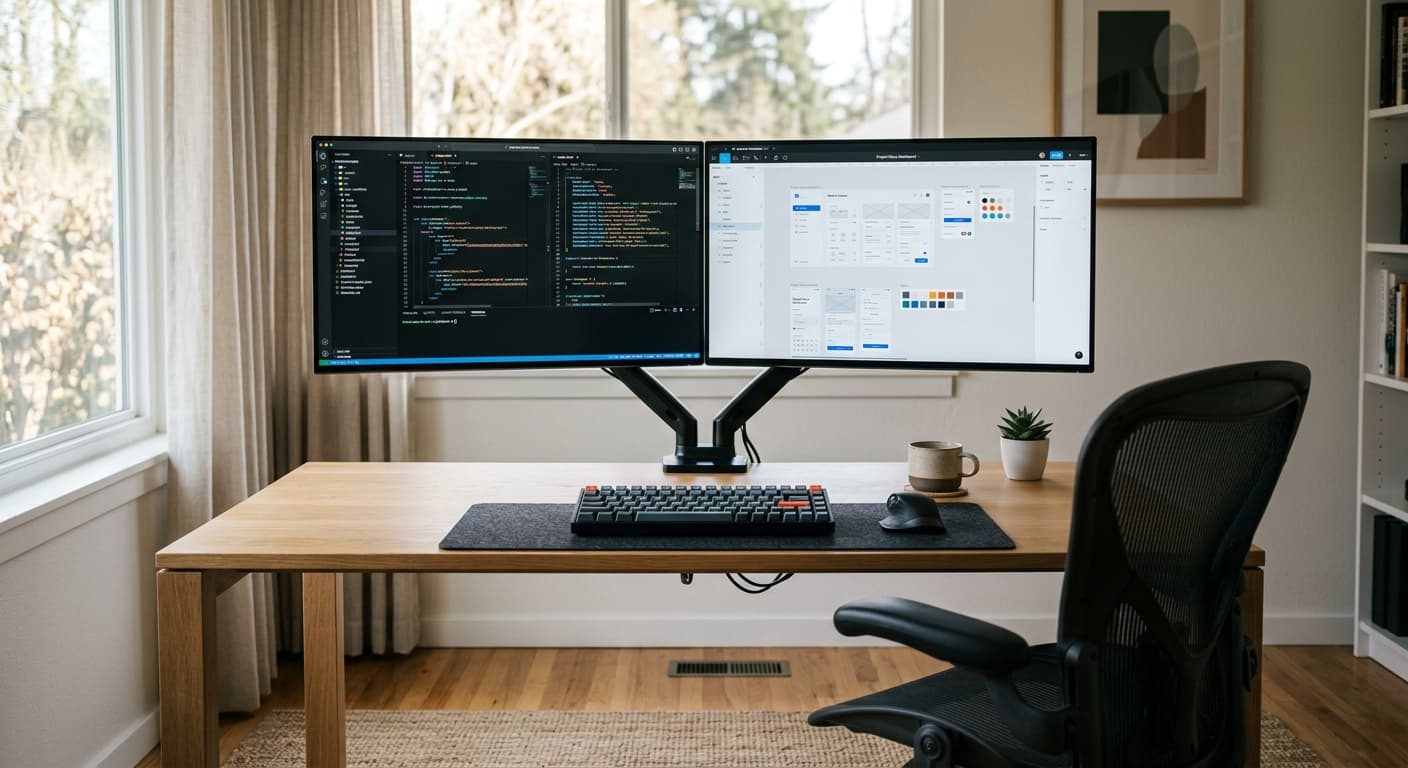
Both monitors in a flat line, bezels touching. Simplest setup. Works well for a true 50/50 dual workflow. Downside: the middle bezel is in your direct line of sight, which is distracting.
2. Shallow V (the recommended)
Both monitors angled inward 10–15 degrees. Puts each screen slightly facing you. Reduces neck strain and hides the bezel gap slightly.
3. L-shape (for heavy reference users)
Primary directly in front. Secondary off to the right at a 45-degree angle. Used by developers who reference docs constantly, and by traders monitoring feeds.
4. Vertical + horizontal (for code or docs)
27" horizontal primary + 24" vertical secondary. Vertical orientation fits long documents or code files in a single view. Popular with developers and technical writers.
5. Stacked (rare)
One monitor above the other. Only works if your secondary is used rarely and only needs occasional glances. Ergonomically worse than side-by-side for most use cases.
Cable management for dual setups
Two monitors means twice the cables. Budget $20–$40 for:
- A cable tray or under-desk cable basket
- Velcro straps (not zip ties — you'll want to adjust over time)
- A cable sleeve for the bundled run from desk to laptop
- Cable clips to attach runs to the desk edge
See cable management ideas for home office for a full walkthrough.
Graphics and connectivity
Driving two monitors requires enough video outputs on your laptop or desktop. Check before buying:
- MacBook Pro (M1/M2/M3 base): Only drives 1 external monitor. MacBook Pro Max/Pro chips drive 2 or more.
- MacBook Pro 14/16 Pro/Max: 2+ external monitors via Thunderbolt.
- Framework, Dell XPS, ThinkPad: Usually 2+ via Thunderbolt and/or HDMI.
- Mac mini: 2 external monitors (M2) or 3 (M2 Pro).
- Older laptops: Check spec sheet — some are limited to 1 external even with multiple ports.
If your laptop only supports 1 external monitor, you'll need a USB-C DisplayLink adapter ($80–$150) to drive a second. See our best USB-C hubs for WFH guide for picks that include DisplayLink.
The trap: splitters mirror, they don't extend. True dual-monitor extension needs two physical outputs, or a Thunderbolt/USB-C dock.
What to Skip in Dual Monitor Setups
- Mismatched DPI panels. A 27-inch 4K next to a 27-inch 1080p means your cursor and text constantly resize when you cross the bezel. Match the pixel density even if you can't match the resolution.
- Cheap clamp-style monitor arms ($25–$40 range). They sag within months under 15+ lb monitors, the gas cylinders weaken, and the cable management is afterthought. Get Ergotron or Amazon Basics — both rated for 30 lb.
- Daisy-chained displays via single HDMI splitter. Splitters mirror, they don't extend. You need two physical outputs (or a Thunderbolt/USB-C dock) for true dual-monitor extension.
- Identical 32-inch panels on most desks. Two 32s require a desk depth >32 inches to avoid head-turning. Most home desks are 24-30 inches deep — go 27-inch dual instead.
Frequently asked questions
Is dual monitor better than ultrawide? For independent window control, yes. For clean aesthetics and fewer cables, ultrawide is better. For most people, ultrawide is easier to live with.
Can I mix monitor brands? Yes. They should be the same resolution and similar size if possible. Color matching won't be perfect across brands, which matters for design work but not for general office use.
Do I need matching refresh rates? For Windows, yes — mismatched refresh rates can cause animation issues. For macOS, mixed refresh rates work fine.
Should the second monitor be horizontal or vertical? Depends on what you put on it. Horizontal for reference material (Slack, email, docs). Vertical for long docs or code files.
What's the easiest dual setup to build? Laptop + one 27" 1440p external monitor on a laptop stand. Two-minute setup, great ergonomics, under $400 all-in.
How do I stop my neck from hurting?
- Put your primary monitor directly in front of you
- Don't place both monitors at the center line
- Look at your secondary by turning your head, not your whole body
Sources & Research
- University of Utah — Productivity of Multi-Monitor Computer Configurations (Fujitsu-funded study)
- American Academy of Ophthalmology — Computers, digital devices and eye strain
- VESA — Monitor mount and arm certification
- Cornell University Ergonomics Group — Monitor placement and viewing distance
Bottom line
The best dual monitor setup for most WFH workers: two 27" 1440p IPS monitors on an Ergotron LX Dual arm, arranged in an asymmetric layout with the primary directly in front of you. Budget: $800–$1000 all-in. The secondary sits to the side for Slack, docs, and reference material.
If that feels like overkill, the next-best option is a single 27" 1440p on a laptop stand as a "dual setup" where the laptop IS your second screen. Cheap, flexible, and adequate for most use cases.
For the single-monitor alternative, see our ultimate 2026 monitor buying guide. For specific monitor picks, see best monitors for home offices. For the ergonomics of setting up multiple screens, see how to set up dual monitors for WFH.
Your next step
Two screens need the right mounts.
Hilly Shore Labs
Editorial TeamWFH Lounge is published by Hilly Shore Labs. Every recommendation is built by synthesizing ergonomic research, manufacturer specs, expert reviews from outlets like Wirecutter, RTINGS, and The Verge, and aggregated long-term owner sentiment from thousands of verified buyers.
All product reviews are independently researched. Our recommendations are based on ergonomic guidelines, manufacturer specifications, and verified buyer sentiment. See our methodology.