Best Monitor Arms for Mac Mini 2026: 4 Picks for 27" & 32"
The Ergotron LX is the best monitor arm for most Mac Mini users — rock-solid, smooth, and it frees up desk space perfectly sized for the Mac Mini itself.
Our #1 Pick
Ergotron LX Desk Mount
The gold standard for adjustable monitor arms. Smooth spring-loaded adjustment, supports up to 34" monitors, ships with both C-clamp and grommet mount — and it actually holds position without drift.
- Smooth, effortless adjustment
- Holds monitors up to 34 inches
- Cable management built-in
Price checked Sep 19, 2026 — verify the live price on Amazon.
 #1 4.2 | 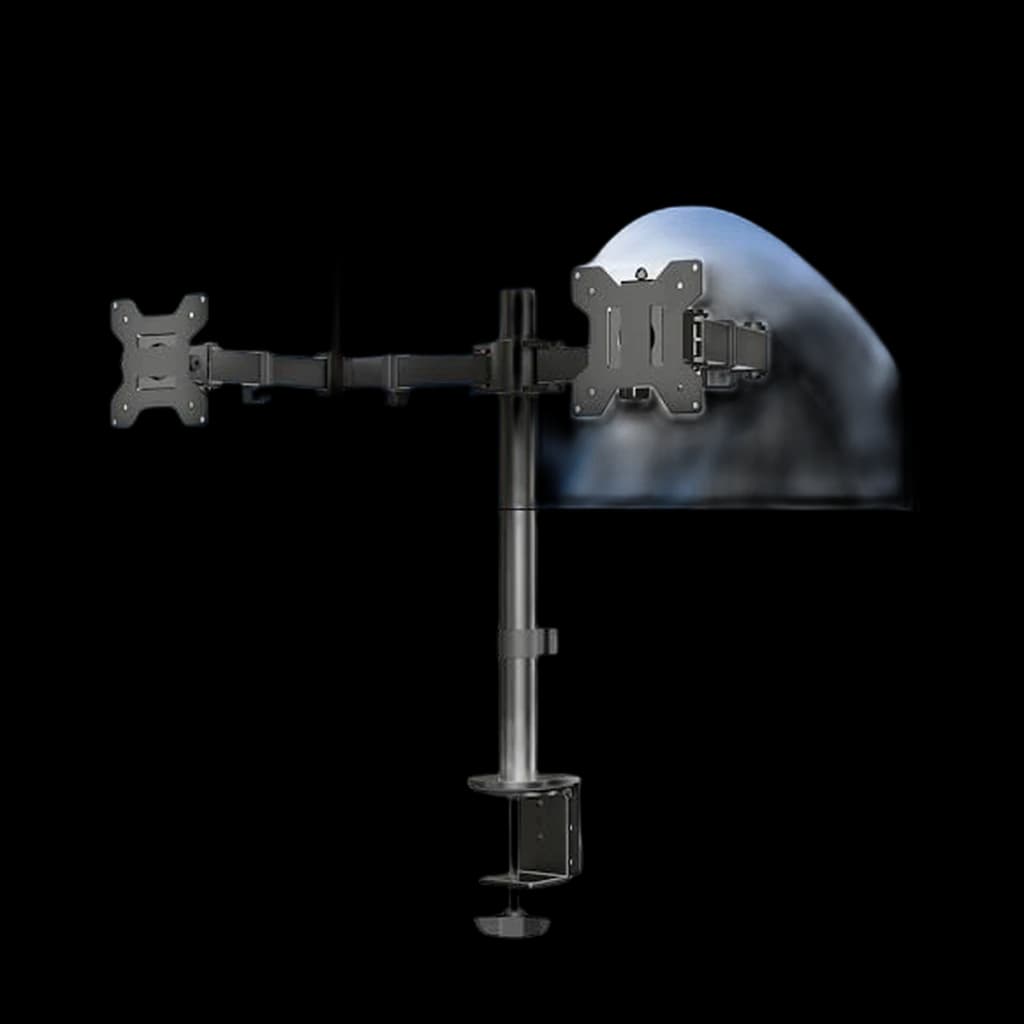 #2 4.4 | |
|---|---|---|
| Price | $209.99Buy on Amazon | $34.99Buy on Amazon |
| Verdict | Best premium monitor arm | Best budget dual-monitor arm |
| Buyer sentiment | Quality Adjustability Sturdiness Installation Buyers praise quality, adjustability, sturdiness and installation. Mixed feedback on stability and value for money. Based on 1,293 user mentions | Quality Assembly Sturdiness Value for money Buyers praise quality, assembly, sturdiness and value for money. Mixed feedback on adjustability and stability. Based on 17,421 user mentions |
| Weight Range | 7–25 lbs | Up to 22 lbs each |
| Max Size | 34" | 30" per arm |
| VESA | 75x75 / 100x100mm | 75x75 / 100x100mm |
| Movement | Full articulation | — |
| Mounting | — | C-clamp + grommet |
| Pros |
|
|
| Cons |
|
|
* Prices checked Sep 19, 2026 and may vary. Check the latest price on Amazon.
We research — never hands-on. How we research →
Key Takeaways
Six monitor arms ranked for Mac Mini setups in 2026. Ergotron LX is the top pick, VIVO Pneumatic V002O the budget play. VESA, reach compared.
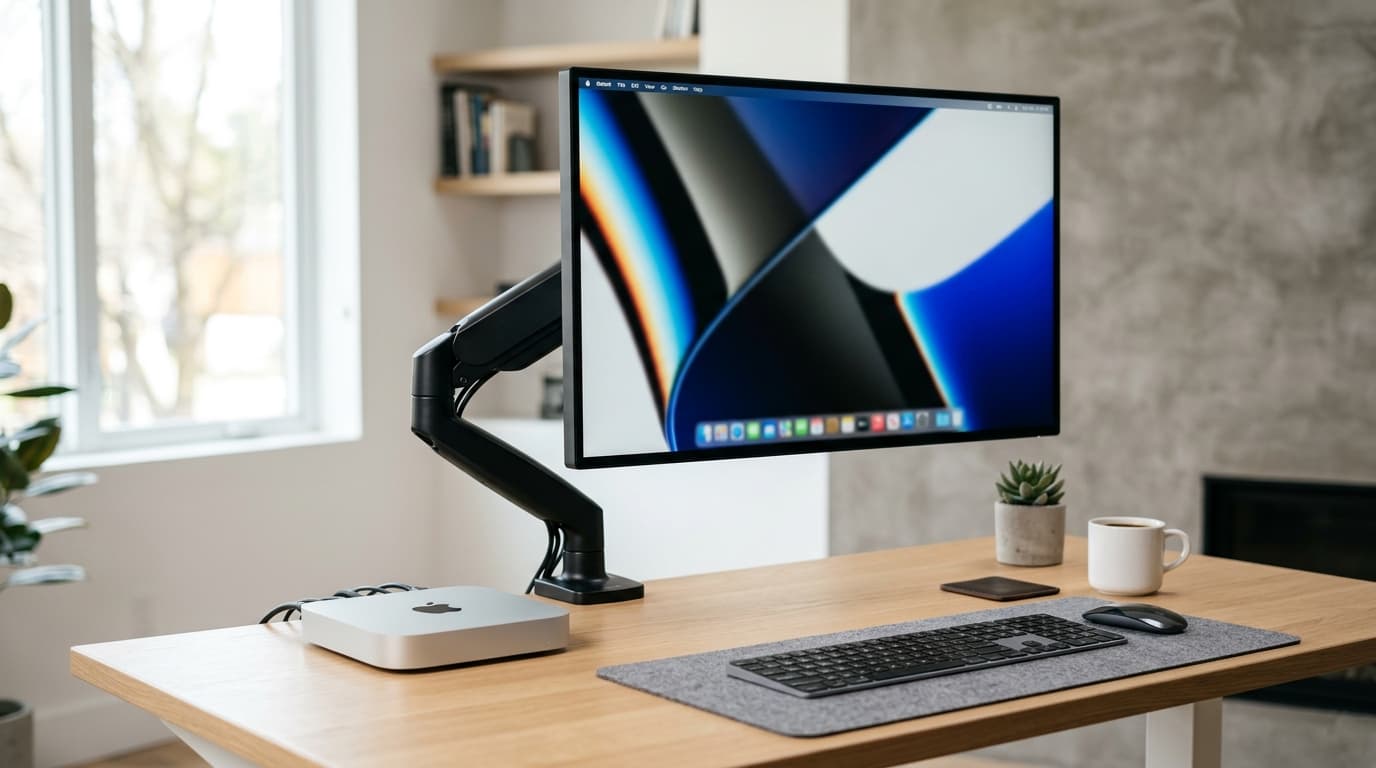
As an Amazon Associate I earn from qualifying purchases. Product prices and availability are subject to change.
The Mac Mini is one of the most popular desktop computers for remote workers in 2026 — compact, powerful, and endlessly flexible. But pairing it with the right monitor arm can transform your desk from cluttered to clean while putting your display at the perfect ergonomic height.
Unlike laptop users who need integrated stands, Mac Mini owners need a dedicated arm that clamps to the desk and supports their chosen display. The right arm frees up the real estate where the monitor's stock stand used to sit — space you can use for the Mac Mini itself, a notebook, or simply a cleaner workspace.
What to Look for in a Monitor Arm for Mac Mini
VESA Compatibility
Every monitor arm worth considering uses the VESAVESA mountStandardized screw-hole pattern on the back of a monitor (typically 75x75mm or 100x100mm) for attaching arms, wall mounts, or stands. Almost every monitor over 24" supports it; check before buying an arm. mounting standard.
- Most monitors support either a 75x75mm or a 100x100mm pattern
- Check the back of your monitor for four screw holes in a square
- Nearly all modern monitors 24 inches and above support VESA mounting
Weight Capacity
This is where people make mistakes. Monitor arms have weight limits, and exceeding them means a slowly drooping display.
- Weigh your monitor using the spec sheet — it's listed without the stand
- Buy an arm rated for at least 2-3 pounds more than that figure
- A 27-inch 4K display typically weighs between 9 and 15 pounds without its stand
The trap: an over-loaded arm doesn't fail loudly. It just droops, slowly, until the display is no longer where you set it.
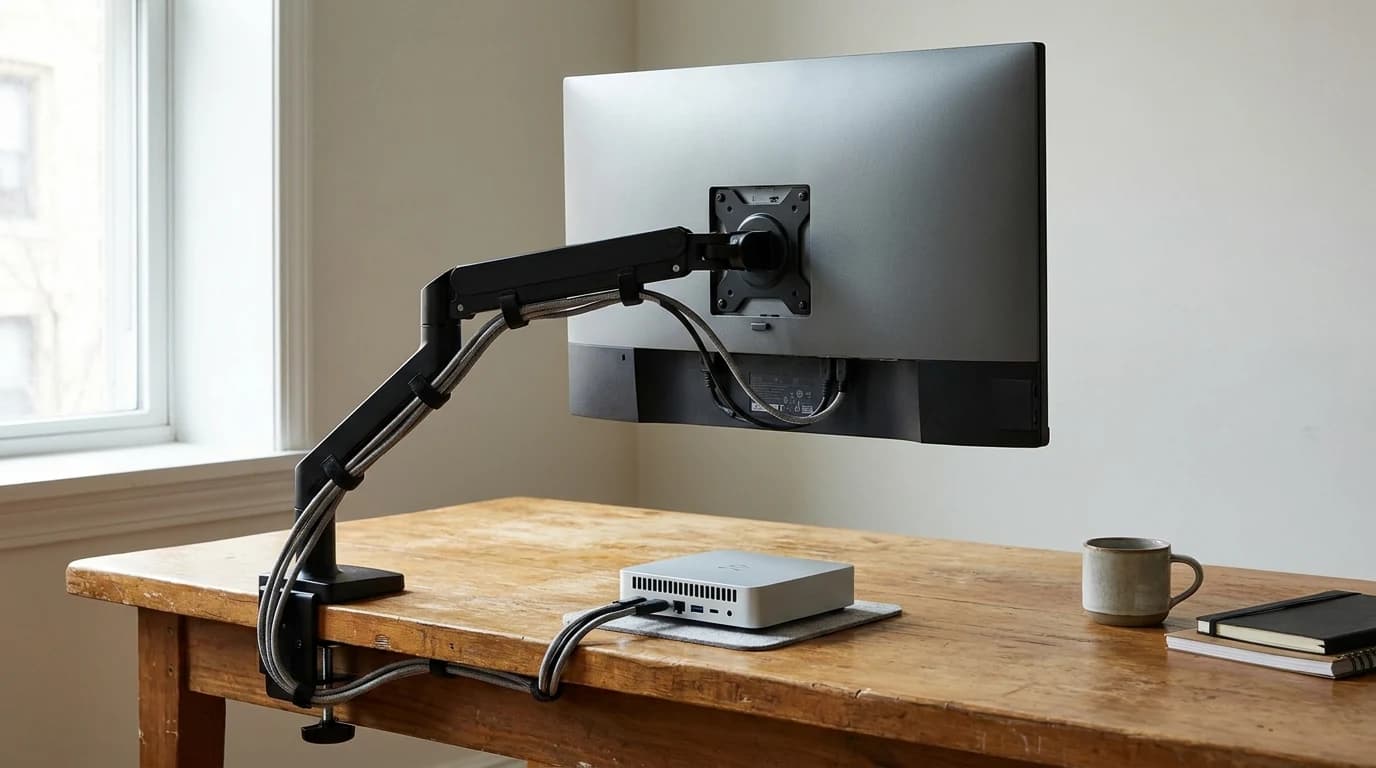
Desk Clamp vs. Grommet Mount
Most arms offer two mounting options.
Clamp mount:
- Grips the edge of your desk
- Requires no drilling
- The most popular choice for home offices
Grommet mount:
- Bolts through a hole in the desk
- More permanent, and more stable for it
- Does double duty if your desk already has a cable management hole
Cable Management
The best monitor arms include integrated cable channels that route your display cable and power cord along the arm itself. This keeps cables hidden and prevents them from catching when you adjust the monitor's position.
Top Monitor Arms for Mac Mini Users
| Arm | Price | Weight capacity | Standout |
|---|---|---|---|
| Ergotron LX Desk Mount | ~$130 | 25 lbs | 20 inches of lift and 360-degree rotation |
| Amazon Basics Monitor Arm | ~$110 | 25 lbs | Made by Ergotron, same core mechanism |
| VIVO Premium Aluminum | ~$40 | 22 lbs | Gas spring tension, clamp and grommet hardware included |
| Humanscale M8.1 | ~$455 | 28 lbs | Counterbalance, with cables routed inside the arm |
1. Ergotron LX Desk Mount — Best Overall
Buy on Amazon · $209.99Price: Around $130 on Ergotron
The Ergotron LX has been the gold standard in monitor arms for years, and for good reason. It supports monitors up to 34 inches and 25 pounds, offers smooth height adjustment from desk level to 20 inches above, and includes a polished cable management system that keeps things tidy.
For Mac Mini users specifically, it lifts your monitor high enough to place the Mac Mini directly underneath on the desk. The articulation lets you push the display back against the wall or pull it forward for close work, and 360-degree rotation means switching between landscape and portrait takes seconds.
Why it works for Mac Mini: The lift range lets you position the monitor at the height recommended for ergonomic viewing — the top of the screen at or slightly below eye level — regardless of desk height. The freed desk space underneath is perfect for the Mac Mini's compact footprint.
2. Amazon Basics Monitor Arm — Best Budget Option
Price: Around $110 on Amazon
Here's a lesser-known fact: the Amazon Basics Monitor Arm is manufactured by Ergotron. It uses the same core mechanism as the LX, supports up to 25 pounds, and costs less. The trade-off is fewer color options and slightly less refined cable management.
Worth knowing: if you're setting up a Mac Mini workstation on a budget, this arm delivers 90% of the Ergotron experience with the same height and tilt adjustment range.
3. VIVO Premium Aluminum Monitor Arm — Best Value
Price: Around $40 on HUANUO Single Monitor Mount
For those who want a solid arm without spending over $100, the VIVO Premium is a compelling option. It supports monitors up to 32 inches and 22 pounds, features gas spring tension adjustment, and includes both clamp and grommet mounting hardware.
The build quality is impressive for the price — aluminum construction with integrated cable clips. It's not quite as silky smooth as the Ergotron, but for a Mac Mini user who simply wants their monitor off the desk and at the right height, it's hard to beat this value proposition.
4. Humanscale M8.1 — Premium Pick
Price: Around $455 on Humanscale M8.1 Adjustable Monitor Arm with Two Piece Clamp
If budget isn't a constraint and you want the absolute best, the Humanscale M8.1 is the premium choice. Its counterbalance mechanism automatically adjusts to your monitor's weight, making repositioning feel effortless. The slim profile and minimalist design complement the Mac Mini's aesthetic.
The M8.1 supports monitors up to 28 pounds and features the cleanest cable management of any arm on the market — cables route completely inside the arm, making them invisible from the front.
Setting Up Your Mac Mini Monitor Arm
Once you've chosen an arm, setup takes about 15 minutes:
- Remove your monitor's stock stand — usually four screws on the back
- Attach the VESA plate from the monitor arm to the back of your monitor
- Clamp the arm base to your desk edge (most desks between 0.5 and 2.5 inches thick work)
- Mount the monitor onto the arm and adjust the tension so it holds position without drooping
- Route cables through the arm's cable management channels
- Position your display so the top edge is at or slightly below eye level when sitting upright
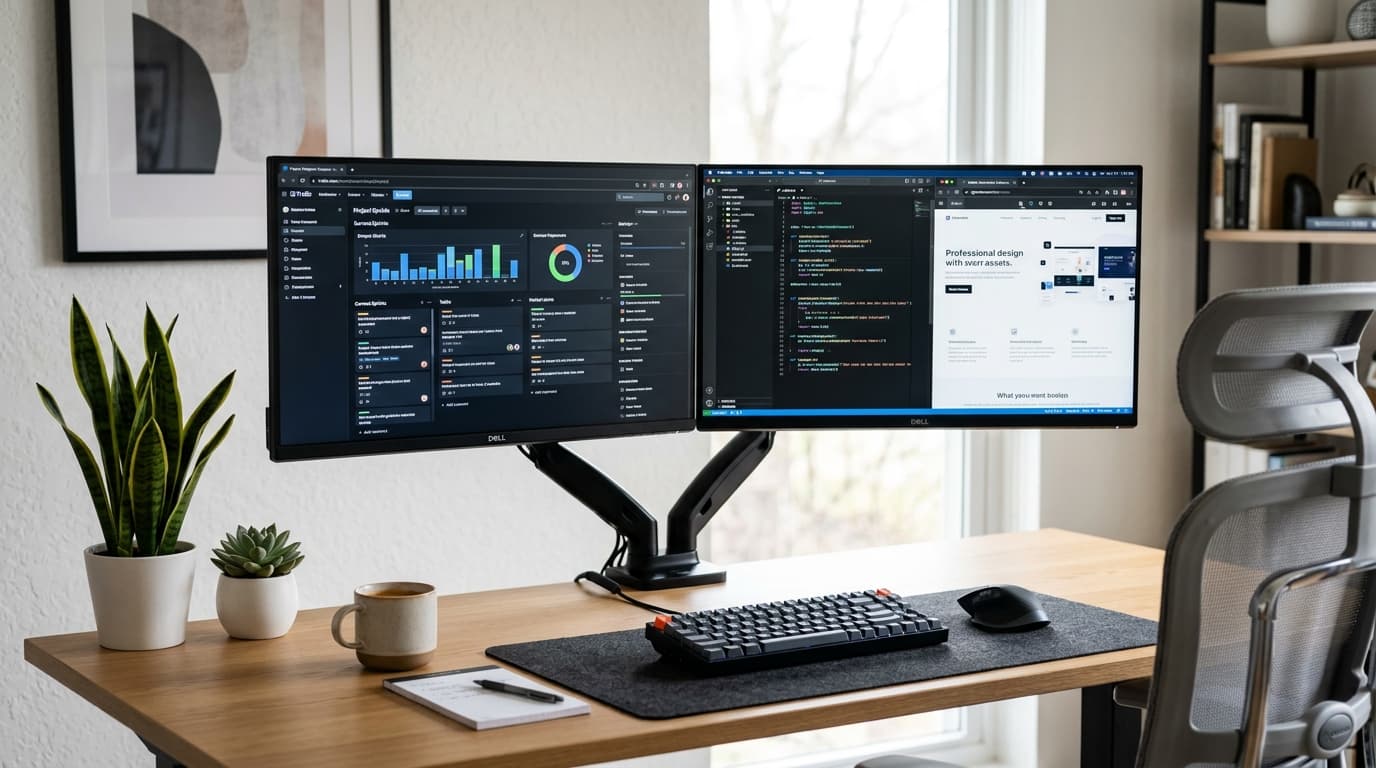
A common setup for Mac Mini users is to put the Mac Mini directly below the monitor, using the reclaimed space from the removed stand. That keeps the ports easily accessible while maintaining a clean sightline.
Frequently Asked Questions
Can I use a dual monitor arm with a Mac Mini? Absolutely. The Mac Mini supports up to two external displays (three on M4 Pro and M4 Max models). A dual monitor arm like the Ergotron LX Dual mounts both displays on a single clamp, saving even more desk space.
Will a monitor arm work with an ultrawide monitor? Yes, but check the weight rating carefully. A 34-inch ultrawide can weigh 15-20 pounds, and some budget arms can't handle that. The Ergotron LX and Humanscale M8.1 both support ultrawides without issue.
Do I need a monitor arm if I have a standing desk? A monitor arm paired with a standing desk is actually the ideal combination. The arm lets you fine-tune the monitor height independently of the desk height, which matters because your ideal sitting and standing monitor positions are different.
The Bottom Line
A monitor arm is one of the highest-impact, lowest-cost upgrades you can make to a Mac Mini workstation.
- For most people: the Ergotron LX at around $130 offers the best balance of quality, adjustability, and durability
- On a budget: the VIVO Premium delivers excellent value under $50
- Either way: match the arm's weight capacity to your monitor, and check the clamp style against your desk thickness
Once installed, you'll wonder why you didn't make this change sooner — the desk space you reclaim and the ergonomic improvement are immediately noticeable.
Related Reading
- →Best Monitors for Working From HomeFind the right display for your Mac Mini
- →How to Set Up Dual Monitors Working From HomeExpand your screen real estate
- →Cable Management Ideas for Home OfficeKeep your desk clean after mounting
- →The Ultimate WFH Setup Guide for 2026Complete home office planning guide
- →MonitorsOur top-rated displays for remote work
More WFH Setup Resources
Your next step
Building around a Mac mini? The full picks.
Hilly Shore Labs
Editorial TeamWFH Lounge is published by Hilly Shore Labs. Every recommendation is built by synthesizing ergonomic research, manufacturer specs, expert reviews from outlets like Wirecutter, RTINGS, and The Verge, and aggregated long-term owner sentiment from thousands of verified buyers.
All product reviews are independently researched. Our recommendations are based on ergonomic guidelines, manufacturer specifications, and verified buyer sentiment. See our methodology.