Why Your USB-C Cable Doesn't Work (and How to Read the Spec)
Quick Answer
USB-C power, data and video are separate capability checks. The host port, dock or device and cable must all support the job, and a cable that charges may still not carry video. Use the maker’s specs and a known-compatible cable to isolate the fault before buying anything.
Key Takeaways
Same connector, wildly different cables. Why one charges but won't drive your monitor — and how to read the power, data, and video spec on it.
As an Amazon Associate I earn from qualifying purchases. Product prices and availability are subject to change.
You plugged the cable into your dock and the second monitor stayed black. Or your laptop charges, but slowly. Or the external SSD crawls. The connector clicked in perfectly, but that does not prove the whole connection supports the job. The same USB-C shape appears on cables and ports with different capabilities. Check the host, accessory and cable as a chain before deciding what to replace.
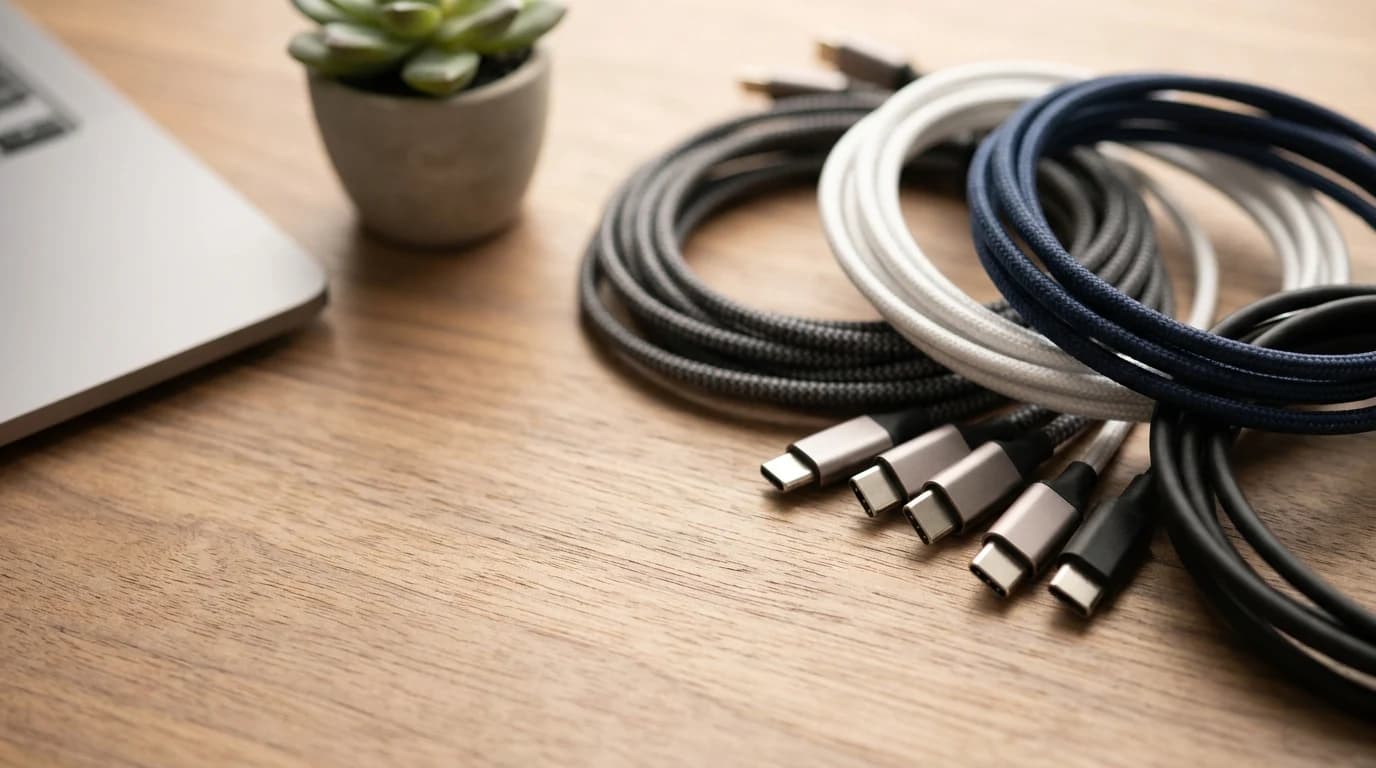
The short version: A USB-C plug tells you nothing about what the cable inside can do. The same oval connector can carry 5W or 240W of power, 480 Mbps or 80 Gbps of data, and either full 4K video or none at all. A failure can be in the host, port, dock, cable, selected input or display settings; charging alone does not identify which one.
Four things worth knowing first
- A USB-C cable has three independent jobs — power, data, and video — and a given cable may be good at one, two, or all three. They are not bundled.
- The official standards bodies say this out loud. USB-IF states plainly that "all cables do not have the same capabilities" and that picking the right one is your responsibility.
- Charging working ≠ everything working. A USB 2.0-only cable may charge a device and transfer data without supporting the video connection you need.
- Check before buying: the computer port and accessory must support the job too. A capable cable cannot add a feature they lack.
The three jobs, and why they're separate
Treat power, data and video as separate capability checks, rather than assuming one specification promises all three:
| Job | What it controls | Low end | High end |
|---|---|---|---|
| Power | How fast it charges your laptop | ~15W (phone cable) | 240W (USB PD 3.1) |
| Data | Drive transfers, hubs, peripherals | 480 Mbps (USB 2.0) | 80 Gbps (USB4 / TB) |
| Video | Driving an external monitor | none | 4K, 8K, dual displays |
A USB 2.0-only charging cable can look like a full-featured dock cable. Read the manufacturer’s specification for each job instead of inferring capability from its price or connector.
The trap: USB-C is a connector shape, not a capability. "USB-C to USB-C" on the packaging is almost meaningless on its own — it's like buying "a box" without knowing what's in it.
Power: why your laptop charges slowly
The power side runs on USB Power Delivery (PD). Older cables tapped out at 100W using a 20V/5A design. USB-IF's PD 3.1 spec raised that ceiling to 240W, adding new 28V, 36V, and 48V levels (140W / 180W / 240W). A big-screen laptop that wants 100W on a cable only rated for 60W will charge — just slowly, or not at all under load.
Certification scope: USB-IF’s compliance policy requires 60W or 240W power markings on USB-C-to-USB-C cables entering its compliance program. Match the cable, charger and device power specifications; a 240W marking is about power, not video.
Good news: power delivery is negotiated. A pair of earbuds and a 240W cable won't fry the earbuds — the device requests only the power it needs. The risk is the opposite: an under-rated cable starving a hungry laptop.
Data: why your SSD crawls
Data speed is where the gap is largest, and it's invisible. Two cables that both "work" can differ by 160x:
- USB 2.0 — 480 Mbps. Most bundled charging cables. Fine for power and a keyboard; painful for a drive.
- USB 3.2 — 5 to 20 Gbps. The common "fast" tier.
- USB4 / Thunderbolt — up to 80 Gbps over 80 Gbps-certified cables, per USB-IF. Doubles USB's previous max and shares one link across data and display.
If your external SSD benchmarks below its rating, compare the drive, host port and cable data capabilities before assigning the cause. In the USB-IF compliance program, non-USB-2.0 USB-C-to-USB-C cables also need a data-rate marking. If the cable has no readable specification, use its maker’s documentation rather than assuming a speed.
Video: why the second monitor stays black
This is the one that blindsides home-office setups. Driving a monitor over USB-C uses DisplayPort Alt Mode, a VESA standard that reroutes the cable's high-speed lanes to carry video. Per VESA, DisplayPort Alt Mode lets the USB-C connector "transmit up to 80 Gbps of DisplayPort video data" — VESA calls USB-C the "connector of choice" and DisplayPort the de facto video standard across PC and mobile.
But here's the catch: a cable that lacks the high-speed wiring carries no video at all. USB 2.0-only cables (the bundled ones) physically can't do Alt Mode. So you plug into your dock, power and your keyboard work fine, and the monitor port is simply dead. People spend an hour blaming the dock; the cable never had the lanes.
One variable at a time: test a known-working video cable on a documented video-capable port. If that still fails, check the monitor input and host support instead of buying progressively faster cables.
Trace the connection before replacing a cable
| Symptom | Check first, then isolate |
|---|---|
| Slow charging | Compare charger, cable and device power; test maker-supplied equipment |
| Slow drive | Compare drive, port and cable data rates; change one cable, keeping the port fixed |
| Black monitor | Check input and host video support; try a direct connection without the dock |
| Mirrored screens | Select Extend; check host limits and exact dock/OS compatibility |
| Dropped peripherals | Check dock power/instructions; reconnect accessories one at a time |
For the full display-count and OS checks, use our dual-monitor setup walkthrough. A cable can be correct while the requested two-screen mode is unsupported.
A better cable cannot add a missing port feature
USB-IF states that cable certification does not augment the capabilities of the connected products. That is the key limit: replacing the cable can fix a cable mismatch, but cannot add native video support to a port or increase the computer's supported display count.
VESA's DisplayPort FAQ says device documentation should identify DisplayPort Alt Mode support. Check that documentation first, then confirm the dock and cable support the same path. If the laptop's port only serves USB data and charging, a passive USB-C video connection will not become available because you buy a cable marked with a larger number.
Buy for the job, after the free checks
Keep a record of the cable's model and capabilities so you can put the correct one back into the same setup.
- Charging: match device demand, charger output and cable power rating. A higher-rated cable won't charge faster than the charger and device allow.
- Dock or monitor: use the accessory maker's recommended cable and check its supported video path. Power wattage alone does not prove this.
- Fast drive: match the data capability across the drive, port and cable; the slowest part limits the connection.
- Unknown drawer cable: look up its model or borrow a known-compatible one for diagnosis before purchasing another accessory.
Our USB-C hubs guide and Thunderbolt docks guide are the next step only once you know which feature is missing. Avoid replacing a working dock to solve a display-limit or settings problem.
Sources
- →USB-IF — Cables and Connectors: "all cables do not have the same capabilities"; required 60W/240W power logos and data-rate markings.
- →USB-IF — USB4: up to 80 Gbps over 80 Gbps-certified cables; backward compatible; shares one link across data and display.
- →USB-IF — USB Power Delivery: PD 3.1 raises power to 240W (vs. the old 100W cap); devices negotiate only the power they need.
- →VESA — DisplayPort Alt Mode 2.0: video over USB-C up to 80 Gbps; USB-C as the connector of choice.
Your next step
Skip cable roulette — get a real dock.
Hilly Shore Labs
Editorial TeamWFH Lounge is published by Hilly Shore Labs. Every recommendation is built by synthesizing ergonomic research, manufacturer specs, expert reviews from outlets like Wirecutter, RTINGS, and The Verge, and aggregated long-term owner sentiment from thousands of verified buyers.
All product reviews are independently researched. Our recommendations are based on ergonomic guidelines, manufacturer specifications, and verified buyer sentiment. See our methodology.