Do You Need a 4K Monitor for Working From Home?
Skip 4K for typical home-office work: a 27-inch 1440p screen at arm's length is the sweet spot, and a sharpness complaint is usually a scaling problem, not a resolution one.
Key Takeaways
4K sounds like the upgrade, but most home-office work never benefits. How resolution, size, and scaling actually decide your monitor.
As an Amazon Associate I earn from qualifying purchases. Product prices and availability are subject to change.
4K gets sold as the obvious upgrade, but for most home-office work it is not the spec that matters. The thing that actually makes your screen comfortable to work on is the combination of three settings: physical size, resolution, and how the operating system scales text. Buy the wrong size for your desk distance and 4K will not save you. Get those three in balance and 1440p often feels just as good for far less money.
Quick answer: Most WFH work does not need 4K. A 27-inch 1440p monitor at arm's length is the comfortable sweet spot for documents, spreadsheets, calls, and code. 4K mainly pays off on larger panels (32-inch and up), for photo/video work, or if a 27-inch screen looks soft and scaling does not fix it.
What Most People Get Wrong
The common mistake is treating "4K" as a quality score, like buying a bigger number because bigger must be better. It is not. 4K (3840 x 2160) is just a pixel count. Whether those pixels help depends entirely on how large the screen is and how far your eyes sit from it.
On a 27-inch panel viewed at a normal desk distance, 4K packs in so many pixels that the operating system has to enlarge everything anyway, or the text becomes uncomfortably tiny. Once you scale it up to a readable size, you have effectively paid for a sharper version of a 1440p workspace. That sharpness is real, but it is a polish-level difference for office work, not a productivity difference.
The Three Settings That Actually Matter
| Setting | What it controls | Why it matters for WFH |
|---|---|---|
| Physical size (inches) | How much desk space the screen takes and how big content looks | Determines comfortable viewing distance and how much fits on screen |
| Resolution (pixels) | Total pixels available | More pixels = more potential workspace and sharper text, only if size and scaling cooperate |
| Scaling (text size %) | How large the OS draws text and UI | This is what most people actually feel as "too small" or "just right" |
The reason this matters: a "blurry" or "tiny text" complaint is almost always a scaling problem, not a resolution problem. Both Windows and macOS let you change how large everything is drawn independently of the panel you bought.
Size and Distance Set the Ceiling
Resolution only helps if you can sit at a distance where your eyes resolve the extra detail and read the text without leaning in. The ergonomics guidance here is well established.
- OSHA puts the preferred monitor viewing distance at 20 to 40 inches (50 to 100 cm) from your eyes to the screen, and explicitly notes that text size may need to be increased for smaller monitors.
- The American Academy of Ophthalmology recommends sitting about 25 inches, roughly arm's length, from the screen, with the gaze angled slightly downward.
At arm's length, a 27-inch 1440p display already shows crisp, comfortable text at its native scale. Push the same 27 inches to 4K and the pixels get so small that you must scale up to read them, which trades away much of the "extra workspace" people imagine they are buying.
The Resolution-by-Size Cheat Sheet
| Panel size | Native sweet-spot resolution | Does 4K help? |
|---|---|---|
| 24-inch | 1080p or 1440p | Rarely; pixels too small to read at native scale |
| 27-inch | 1440p (QHD) | Marginal for office work; nice for media/photos |
| 32-inch | 1440p or 4K | Yes; 4K gives real extra usable space here |
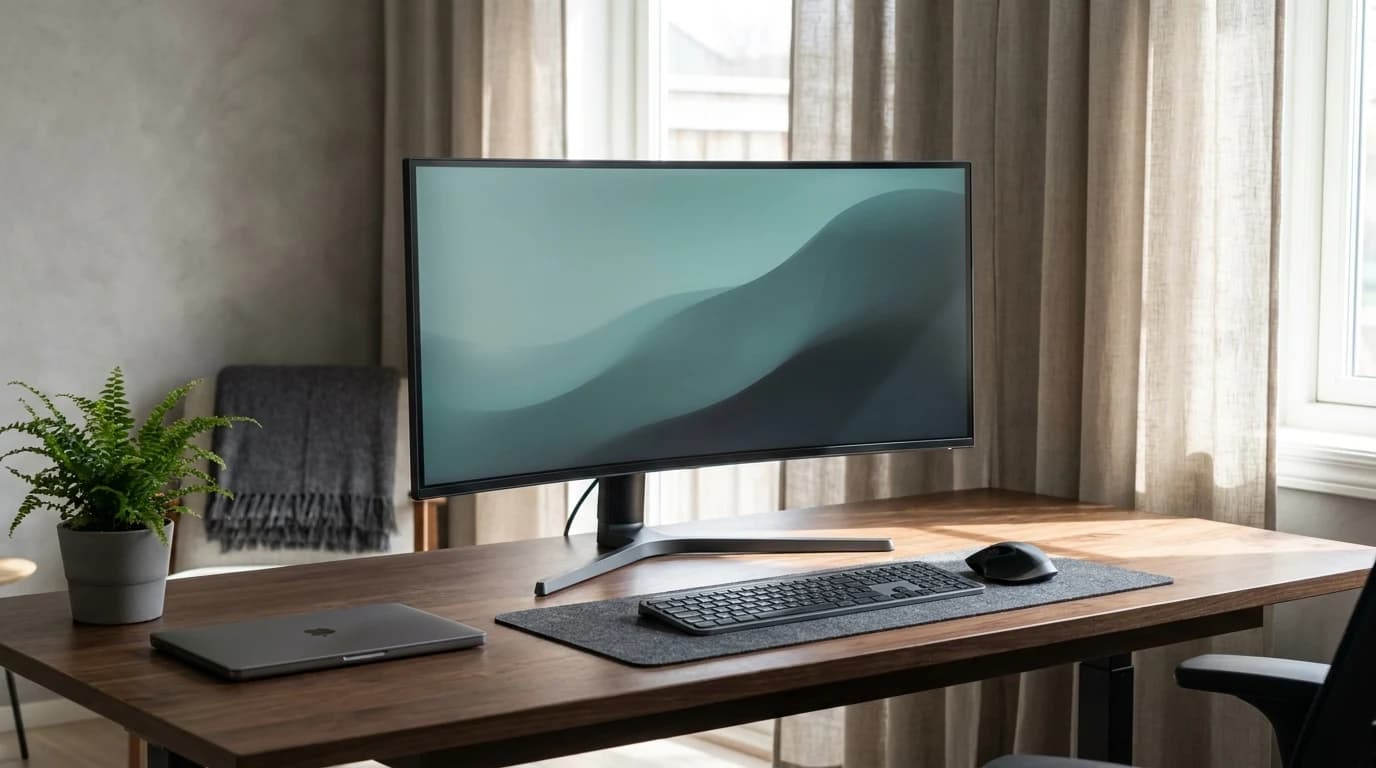
| 34-inch ultrawide | 1440p-tall (3440 x 1440) | N/A; width matters more than 4K |
| 42-inch and up | 4K | Yes; at this size 1440p starts to look coarse |
The pattern is simple: the bigger the panel, the more a 4K pixel count earns its keep, because the same pixels are spread over more inches. On a desktop 27-inch screen at desk distance, 1440p is the practical floor and ceiling for comfortable office work.
When 4K Is Genuinely Worth It
There are real cases. Buy 4K if one of these is true:
- You run a 32-inch or larger screen. At that size, 1440p text edges start to look soft, and 4K gives you noticeably more sharpness and usable desktop space.
- You do photo, video, or design work. Pixel-level detail, color grading, and full-resolution previews benefit directly.
- You sit close or have sharp eyes and want maximum text crispness. Some people genuinely notice and prefer the finer rendering, and that preference is valid.
- You want one screen to last many years and do not mind paying for headroom you may grow into.
If none of those apply, the money is usually better spent on panel quality you will feel every day: a good IPS panel, an ergonomic stand or arm, matte coating to fight glare, and accurate-enough color. For picking a size, the best 27-inch monitors guide covers the everyday sweet spot, and the monitor buying guide walks through the rest.
Fix Sharpness With Scaling First, Not a New Monitor
Before you blame resolution and shop for an upgrade, change the scaling. This is free and usually solves "the text is too small" or "everything looks cramped."
- Windows: Settings > System > Display > Scale & layout. Microsoft recommends choosing the option marked (Recommended), then nudging it up or down until text is comfortable, separately from resolution.
- macOS: System Settings > Displays. Use Default for the panel, or pick a scaled option for "Larger Text" or "More Space." Apple notes a scaled resolution can affect performance slightly, but it is the right lever for readability.
If correct scaling makes a 1440p screen comfortable and readable, a 4K panel was never going to fix a problem you did not have. And for eye comfort specifically, the AAO points out that brightness, contrast, glare control, and blinking matter far more than pixel density; we normally blink about 15 times a minute but only 5 to 7 while staring at a screen.
Bottom Line
For typical work-from-home tasks, you do not need a 4K monitor. A 27-inch 1440p panel at arm's length, scaled to comfortable text, covers documents, spreadsheets, calls, and most coding work beautifully. Reserve 4K for 32-inch-plus screens, creative work, or a deliberate preference for maximum sharpness. And if your current screen looks soft or small, change the scaling before you change the monitor. For arranging whatever you end up with, see how to position your monitor, and if you are weighing one big screen against two, the dual vs ultrawide breakdown helps.
Sources
- →OSHA: Computer Workstations eTool - Monitorspreferred viewing distance of 20 to 40 inches and the note that text may need enlarging on smaller monitors.
- →American Academy of Ophthalmology: Computers, Digital Devices, and Eye Strainabout 25 inches (arm's length) viewing distance, plus brightness, contrast, and blink-rate guidance.
- →Apple Support: Change your Mac display's resolutionusing Default and scaled resolutions to adjust text size and workspace.
- →Microsoft Support: Change your screen resolution and layout in Windowschoosing the Recommended scale to size text and apps separately from resolution.
Your next step
Pick the right panel for the work you do.
Hilly Shore Labs
Editorial TeamWFH Lounge is published by Hilly Shore Labs. Every recommendation is built by synthesizing ergonomic research, manufacturer specs, expert reviews from outlets like Wirecutter, RTINGS, and The Verge, and aggregated long-term owner sentiment from thousands of verified buyers.
All product reviews are independently researched. Our recommendations are based on ergonomic guidelines, manufacturer specifications, and verified buyer sentiment. See our methodology.