2026 Home Office Monitor Buying Guide: 5 Specs That Matter
Most WFH buyers over-think this. A 27″ 4K IPS with USB-C power delivery at ~$330 is the safe answer; go ultrawide only if you juggle many windows, and premium only if you need a Thunderbolt dock.
Quick Answer
For most WFH buyers in 2026: 27" 1440p IPS with USB-C power delivery, $350–$450. Step up to 32" 4K if you live in spreadsheets or code. Go 34" ultrawide if you juggle 3+ windows. Don't buy 27" 1080p — it looks soft and you'll upgrade within a year.
 #1 Owner rating | 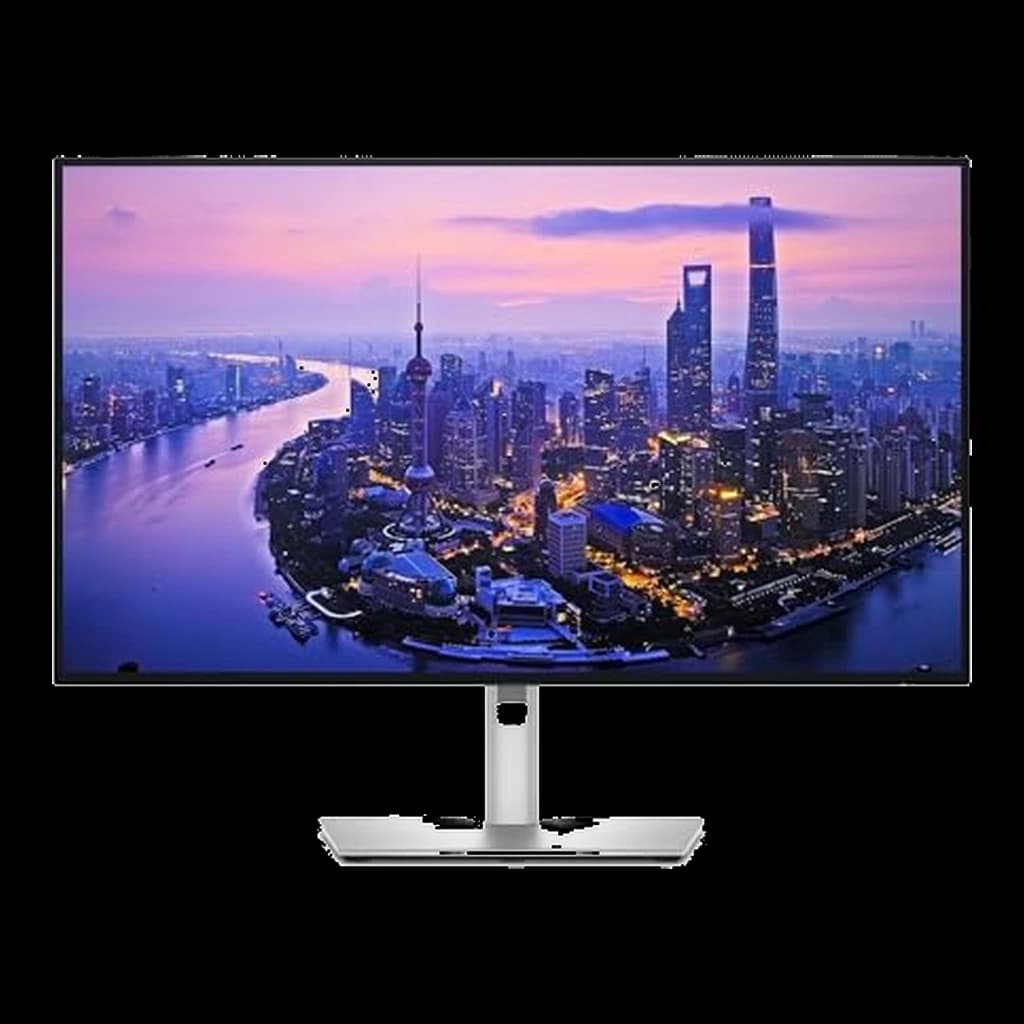 #2 Owner rating | 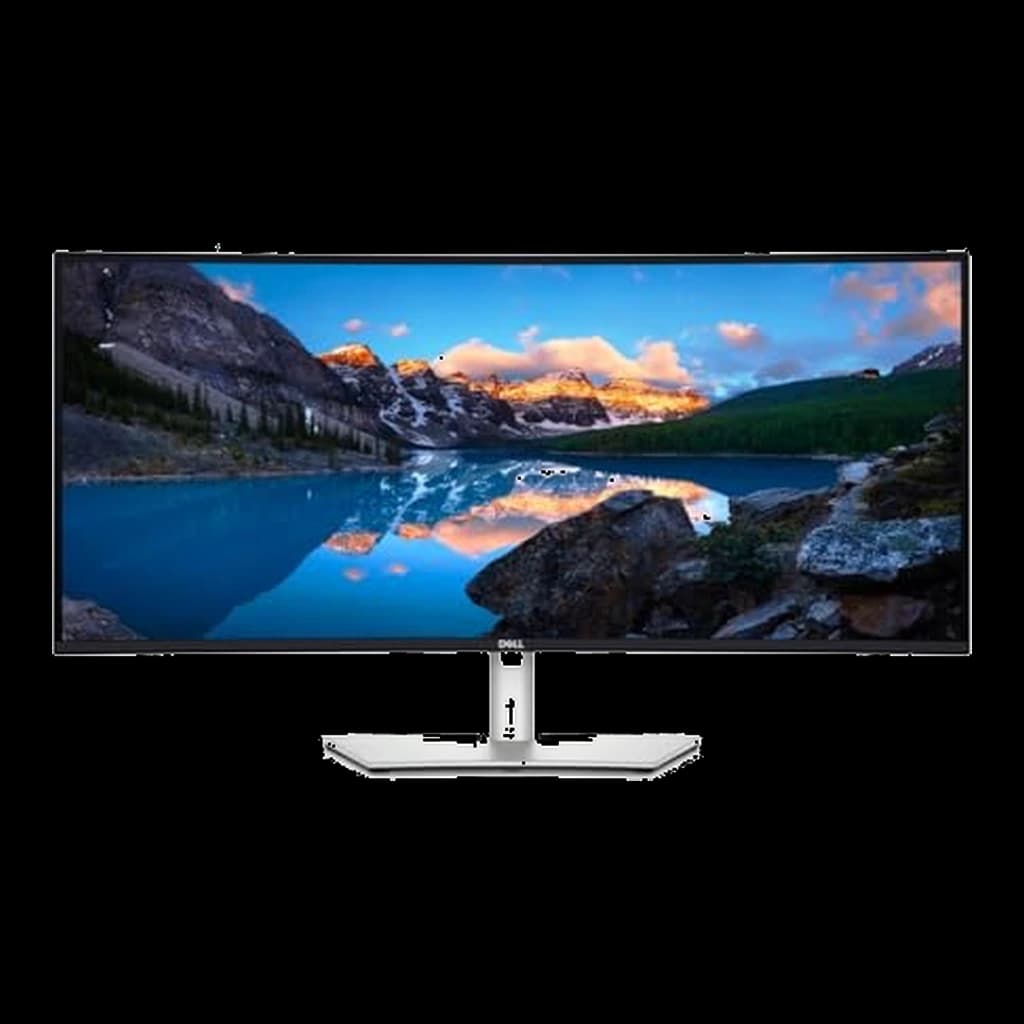 #3 Owner rating | 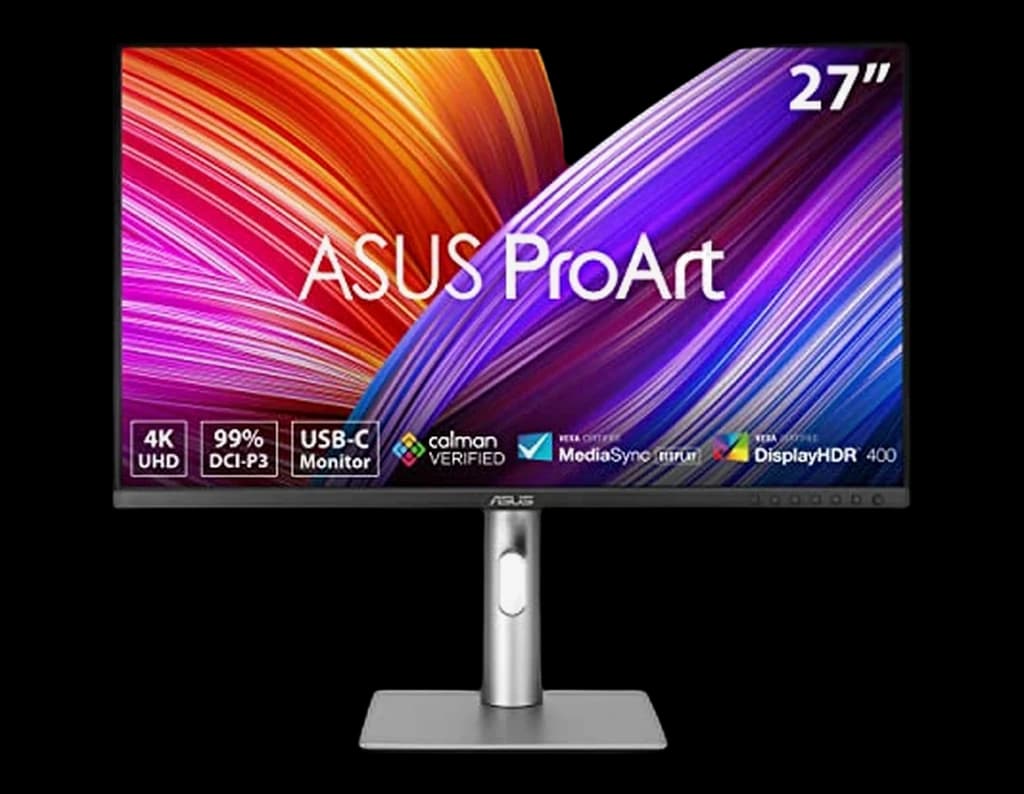 #4 Owner rating | 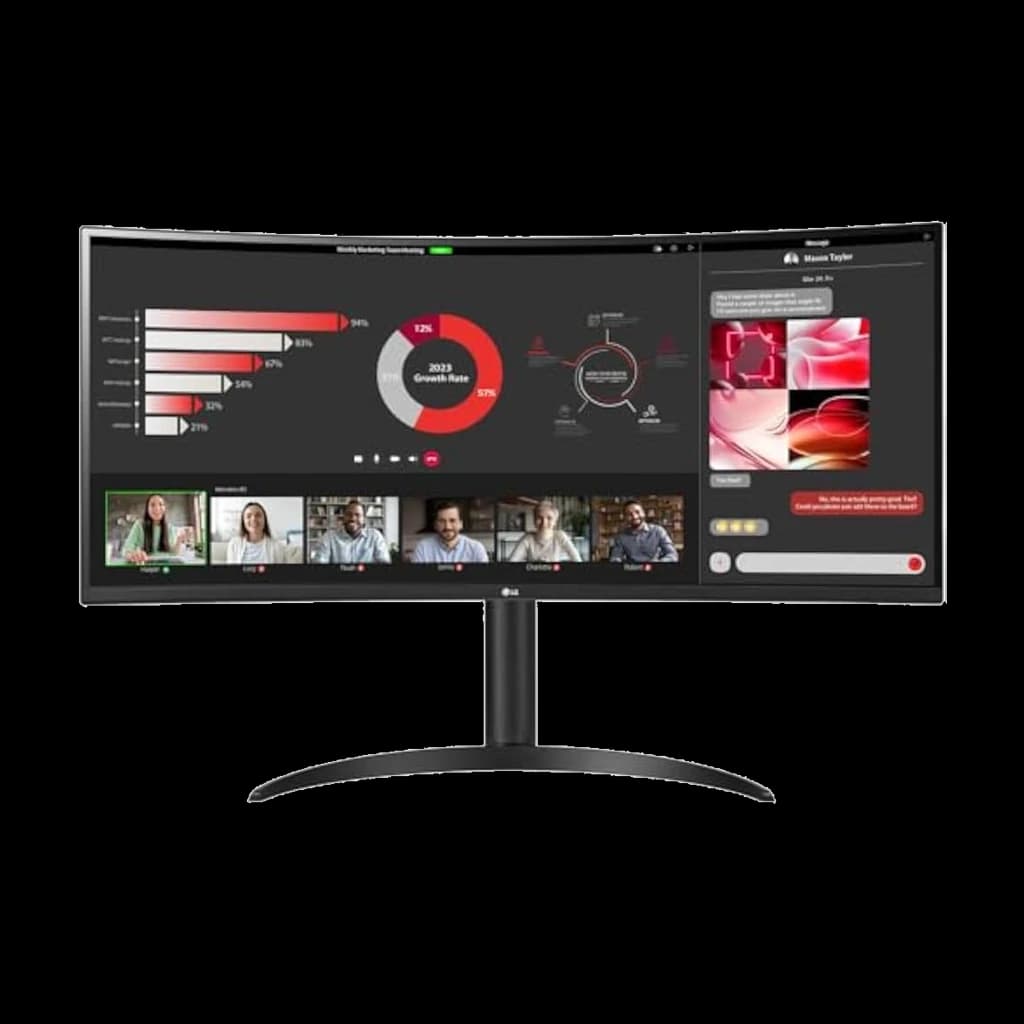 #5 Owner rating | 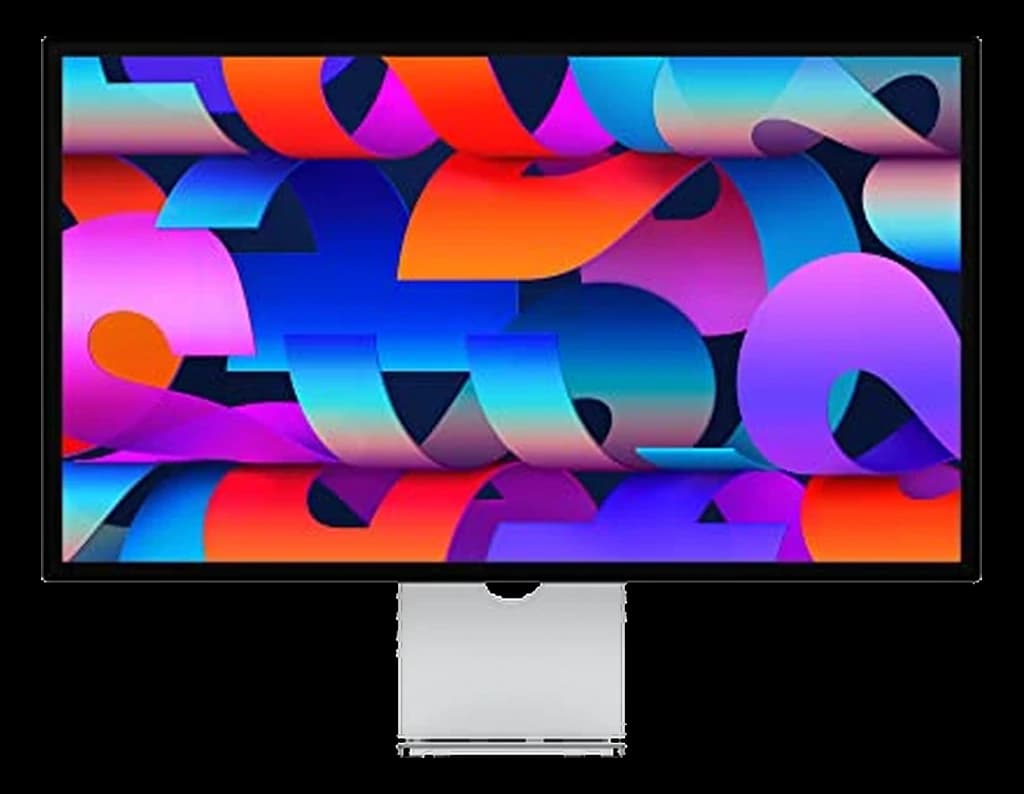 #6 Owner rating | |
|---|---|---|---|---|---|---|
| Price | $358.74Buy on Amazon | $628.88Buy on Amazon | $748.99Buy on Amazon | $399Buy on Amazon | $383Buy on Amazon | $1,599Buy on Amazon |
| Verdict | 4K, 120Hz, and 65W USB-C charging for about $330 — the value benchmark for 27-inch 4K. | The new productivity benchmark — 4K, 120Hz, Thunderbolt 4, 140W charging in one cable. | Ultrawide done right for desks — Thunderbolt dock, 120Hz, IPS Black contrast. | Color-accurate 4K at a price that undercuts every other ProArt-class display. | Same 34" 3440×1440 IPS form factor as the older 34WP88C-B but with 100Hz refresh and a sharper price — the budget ultrawide that doesn't feel dated. | Native 5K Retina that pairs cleanly with Mac mini and MacBook with one Thunderbolt cable. |
| Buyer sentiment | Display Quality Picture Quality Value for money Connectivity Buyers praise display quality, picture quality, value for money and connectivity. Mixed feedback on functionality. Based on 470 user mentions | Connectivity Image Quality Ergonomics Buyers praise connectivity, image quality, ergonomics. Based on 100 user mentions | Monitor Quality Productivity USB Connectivity Size Buyers praise monitor quality, productivity, usb connectivity and size. Mixed feedback on picture quality and performance. Based on 84 user mentions | Quality Color Accuracy Picture Quality Value for money Buyers praise quality, color accuracy, picture quality and value for money. Mixed feedback on functionality and brightness. Based on 368 user mentions | Quality Screen Size Value for money Reliability Buyers praise quality, screen size and value for money. Mixed feedback on picture quality. Some flag reliability. Based on 38 user mentions | Display Quality Image Quality Color Quality Appearance Buyers praise display quality, image quality, color quality and appearance. Mixed feedback on value for money. Based on 53 user mentions |
| Resolution | 3840x2160 (4K UHD) | 3840x2160 (4K UHD) | 3440x1440 (WQHD) | 3840x2160 (4K UHD) | 3440×1440 (WQHD) | 5120x2880 (5K) |
| Refresh Rate | 120Hz | 120Hz | 120Hz | 60Hz | 100Hz | 60Hz |
| Panel | 27" IPS | 27" IPS Black | 34" curved IPS Black | 27" IPS | 34" Curved IPS | 27" IPS Retina |
| Connectivity | USB-C 65W PD (DisplayPort 1.4 Alt Mode) + 2x HDMI 2.1 — no DisplayPort socket | Thunderbolt 4 (140W PD), HDMI 2.1, DisplayPort 1.4, USB-C, 2.5GbE | Thunderbolt 4 (90W PD), HDMI, DisplayPort, USB hub, Ethernet | USB-C (96W PD), 2x HDMI 2.0, 2x DisplayPort 1.4 | USB-C (65W PD), HDMI ×2, DisplayPort | Thunderbolt 3 (96W PD), 3x USB-C |
| Stand | Tilt / swivel / pivot / height | Tilt / swivel / pivot / height (full ergonomic) | Tilt / swivel / height | Tilt / swivel / pivot / height | Tilt / height adjustable | Tilt only (height-adjust upgrade available) |
| Pros |
|
|
|
|
|
|
| Cons |
|
|
|
|
|
|
* Prices checked Oct 2, 2026 and may vary. Check the latest price on Amazon.
We research — never hands-on. How we research →
Pick your monitor class
Three configurations that cover almost every home-office desk — match the class to your work.
The safe 27″ 4K
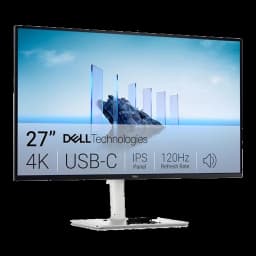
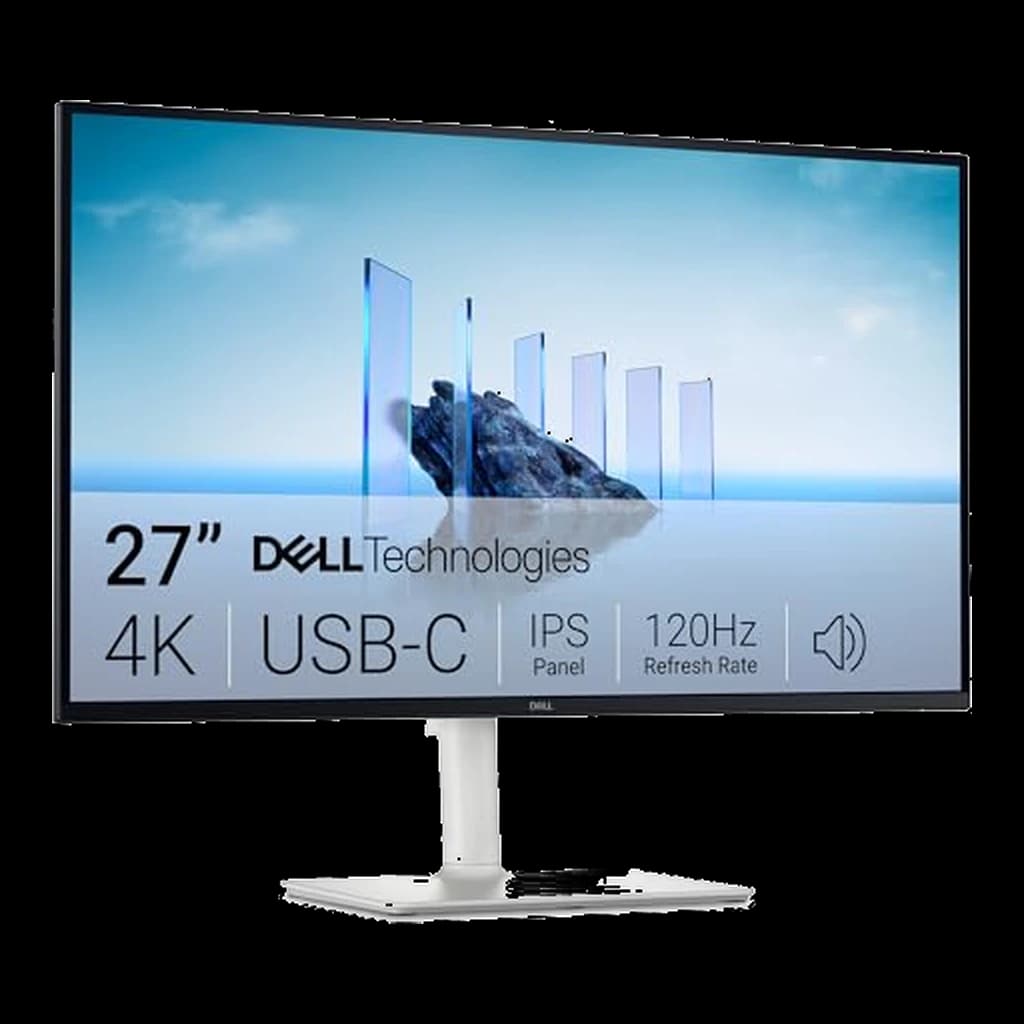
A 27″ 4K IPS with USB-C charging and 120Hz — sharp text, one-cable laptop charging, and it suits the widest range of work. The default answer for most desks.

Dell S2725QC 27″ 4K USB-C 120Hz
$358.74
The multitasker's ultrawide
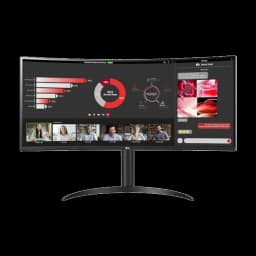
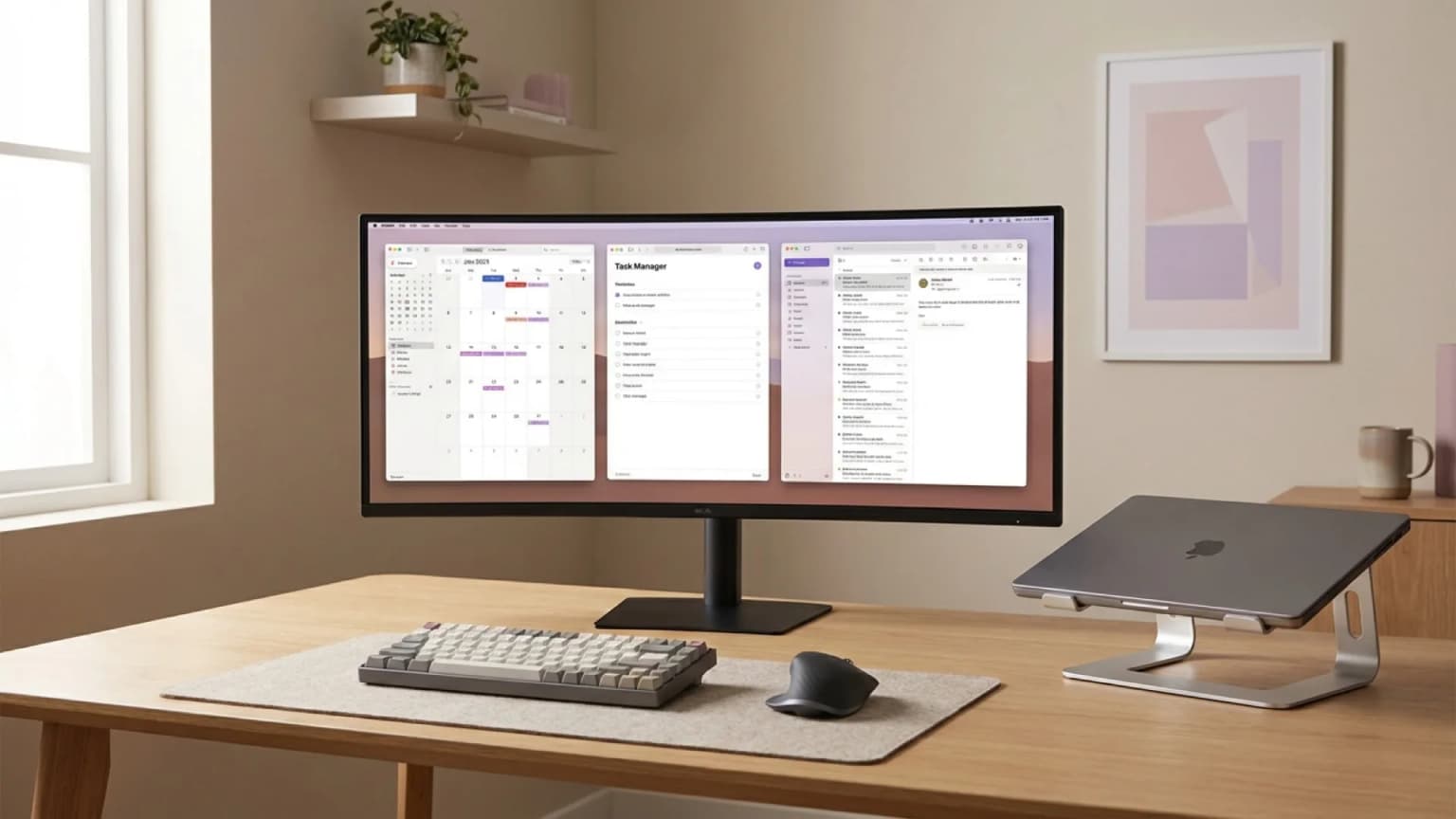
A curved 34″ 1440p ultrawide replaces a dual-monitor setup with no center bezel — better for window-juggling and video calls, easier on cables.

LG 34WR55QC-B 34″ Curved UltraWide
$383
The premium one-cable dock
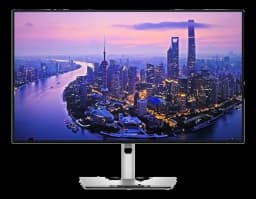
IPS Black contrast, a Thunderbolt 4 hub, and KVM — docks a laptop (or two) with a single cable. Buy-once territory for a permanent desk.

Dell UltraSharp U2725QE 27″ 4K Thunderbolt Hub
$628.88
Key Takeaways
27" vs 32" vs ultrawide. 1440p vs 4K. IPS vs OLED. The 5 specs that actually move WFH productivity, plus the one spec most buyers overpay for.
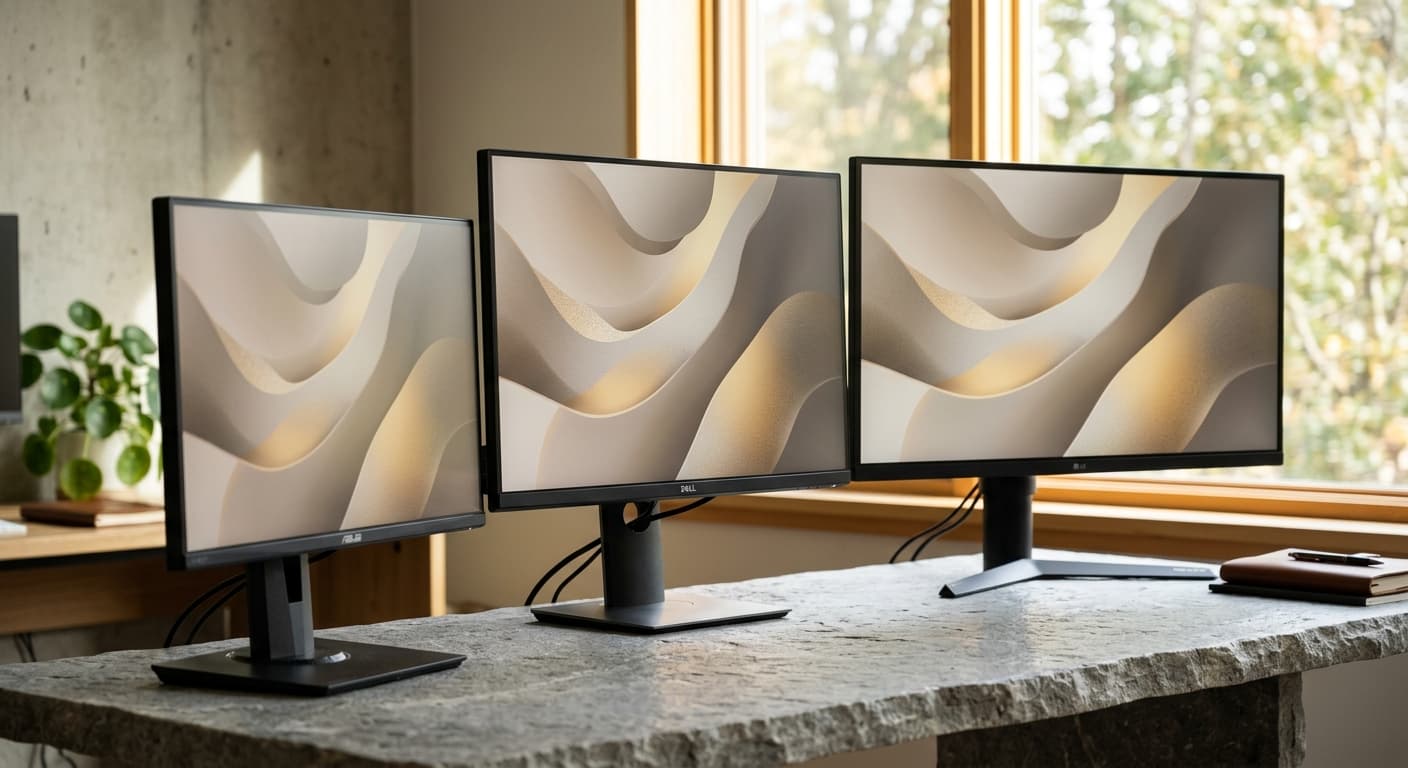
As an Amazon Associate I earn from qualifying purchases. Product prices and availability are subject to change.
Monitor shopping in 2026 is harder than it should be. The marketing mixes gaming specs (refresh rate, response time) with professional specs (color accuracy, HDR) with WFH-relevant specs (USB-C power, adjustable stand), and most reviewers emphasize the wrong ones for remote work.
This guide is the decision framework for picking a WFH monitor. We'll cover every major spec, what it actually means for office work, and which ones you can safely ignore. For commercial picks with specific product recommendations, pair this with our best monitors for home offices product guide.
Decision 1: Size
24" (don't)
24" 1080p monitors are everywhere and cheap. They're also inadequate for any serious WFH role. At 24 inches and 1080p, you can't fit two browser windows side by side comfortably. You'll want to upgrade within 3 months.
27" (the sweet spot)
The size most WFH workers should buy. Big enough for side-by-side windows at 1440p, small enough to fit on any desk from 42 inches wide. Almost all the best monitors for general WFH work are 27-inchers.
32" (for code and spreadsheets)
32" gives you more vertical space — useful for long code files, financial models, and document work. At 4K resolution, text is sharp enough that the extra size doesn't look pixelated. Usually $100–$200 more than 27".
34" ultrawide (for juggling windows)
Ultrawides are wider than standard monitors (21:9 or 32:9 aspect ratio instead of 16:9). They let you run three "columns" of content — typically code + browser + Slack. Better than 27" for multi-window work but worse for video content (black bars).
38"+ ultrawide or 42" (professional specialty)
Only worth it for specific roles: trading desks, video editing, serious design work. For most WFH, anything bigger than 34" is overkill and starts dominating your desk.
Quick decision:
- Single monitor, tight budget: 27" 1440p
- Single monitor, moderate budget: 32" 4K
- Juggle 3+ windows at once: 34" ultrawide
- Code heavy / spreadsheet heavy: 32" 4K
- Design or color work: 27" 4K with verified color accuracy
Decision 2: Resolution
1080p (1920 × 1080) — skip for anything 24"+
Fine on 21–24 inch screens. Looks pixelated and blurry at 27 inches or larger. Don't buy a 27" 1080p monitor in 2026.
1440p / QHD (2560 × 1440) — the WFH default
The sweet spot for 27-inch monitors. Sharp enough for 8 hours of text-heavy work. Easy on the GPU. Affordable ($200–$400 range for good ones).
4K / UHD (3840 × 2160) — for 32" and above
Necessary for sharp text on 32-inch screens. Starts to matter when your monitor is large enough that 1440p starts looking soft. The downside: 4K at 60Hz is fine, but 4K at 120Hz or for gaming is expensive and demands a strong GPU.
5K / 6K — professional specialty
Used in color-critical work (high-end Apple Studio Display, LG UltraFine 5K). Beautiful but expensive ($1000+) and mostly unnecessary for non-creative WFH.
Ultrawide resolutions (3440 × 1440 or 5120 × 1440)
Treat ultrawide resolutions like "1440p but wider." 3440 × 1440 is the standard ultrawide resolution and looks great on 34-inch screens.
Quick decision:
- 27" screen: 1440p. 4K is overkill and wastes GPU.
- 32" screen: 4K. 1440p looks soft at this size.
- 34" ultrawide: 3440 × 1440.
- 38"+ ultrawide: 3840 × 1600 or 5120 × 2160.
Decision 3: Panel type
IPS (In-Plane Switching)
Best colors and viewing angles, slightly worse contrast. The default choice for professional monitors. All our top picks in the best monitors for WFH guide are IPS.
VA (Vertical Alignment)
Better contrast (darker blacks, more punchy images), slightly worse color accuracy and viewing angles. Good for movie watching and gaming, less good for color work.
OLED (coming to WFH)
Perfect blacks, incredible contrast, but expensive and susceptible to burn-in with static UI elements. In 2026, OLED monitors are finally affordable enough to consider ($800–$1200 for 27"), but for WFH use with static taskbars and dock icons visible for 8+ hours a day, burn-in is still a real concern. Not recommended as the primary WFH monitor yet.
TN (Twisted Nematic)
Cheap and fast but terrible viewing angles and colors. Skip. Only found on very cheap gaming monitors.
Quick decision: Buy an IPS panel unless you have a specific reason not to.
Decision 4: Refresh rate
60Hz
The standard. Everything that isn't marketed for gaming is 60Hz. For WFH, 60Hz is perfectly adequate. Spreadsheets, email, and code don't benefit from higher refresh rates.
75Hz
Negligible benefit over 60Hz. Not worth paying for.
120/144Hz
Gaming territory. If you play games in your off hours and don't want a separate gaming monitor, this is worth considering. For pure WFH, don't pay a premium for it.
240Hz+
Esports territory. Irrelevant for WFH.
Quick decision: Buy a 60Hz monitor unless you play competitive games.
Decision 5: Connectivity — the sleeper "most important" spec
This is the spec most WFH buyers overlook and later regret.
HDMI only (the budget default)
Works. Can't do USB-C power delivery (your laptop still needs its separate charger). Needs a separate dock/hub for peripherals.
DisplayPort + HDMI
Slightly more flexible, still needs external dock for USB-C power.
USB-C with Power Delivery (60W+) — THE MVP
A single cable to your laptop delivers video, power, and upstream USB. Close your laptop, plug it in, it charges AND drives the monitor AND connects your USB peripherals (if there are USB-A ports on the monitor). This is game-changing for MacBook and Framework laptop users.
The picks worth extra money for USB-C PD:
- Dell UltraSharp U-series (e.g., U2725QE): up to 140W over Thunderbolt 4 + USB hub + 2.5GbE Ethernet — the complete docking solution
- BenQ PD series: 65W PD + KVM switch
- LG UltraFine: 96W PD but weaker hub
Quick decision: If you can afford it, get a USB-C PD monitor. The single-cable workflow is worth the extra $150–$300.
Decision 6: Stand and ergonomics
Many monitors come with terrible stands (tilt only, fixed height). For WFH use where monitor height determines neck strain, this matters.
VESA mount compatibility
Any monitor that supports VESA mounting (100 × 100 standard) can be attached to a monitor arm. A good monitor arm (Humanscale M8, Ergotron LX) replaces the terrible stock stand with full articulation. $100–$150.
Built-in height adjustment
Premium monitors come with a full-motion stand out of the box. Dell U-series, LG UltraGear, BenQ PD, Eizo FlexScan all ship with stands you can actually use. Cheap monitors don't.
Quick decision: Either buy a monitor with a proper height-adjustable stand OR plan to spend $100 extra on a monitor arm.
Decision 7: Color accuracy (only if you do visual work)
If you're a designer, photographer, or video editor, color accuracy matters a lot. If you're not, you can skip this entire section.
sRGB coverage
Basic color space. Most monitors cover 99%+ sRGB.
DCI-P3 coverage
Wider gamut, used in video and modern design work. Look for 95%+.
Delta-E color accuracy
Measurement of how accurate the colors are to reference. Under 2 is professional-grade. Under 1 is premium.
Factory calibration
Premium monitors come with a calibration report in the box. BenQ PD, Dell UltraSharp, Eizo all ship calibrated.
Quick decision: If you do color-critical work, buy a monitor with 95%+ DCI-P3 and factory calibration. Otherwise, any IPS monitor is fine.
The budget-to-feature map
| Budget | Resolution | Size | Key features |
|---|---|---|---|
| <$250 | 1440p | 27" | IPS, basic stand, HDMI |
| $300–$400 | 1440p | 27" | IPS, height-adjustable, USB-C PD |
| $400–$600 | 4K | 27" or 32" | IPS, height-adjustable, USB-C PD, hub |
| $600–$1000 | 4K or ultrawide | 32" or 34" | Factory calibration, wide gamut |
| $1000+ | 4K or 5K | 27"+ | Reference-grade, Thunderbolt, design pro |
The 3 biggest monitor-buying mistakes
-
Buying a 27" 1080p. Looks soft and grainy. Always go 1440p or higher at 27 inches.
-
Ignoring the stand. A great panel on a terrible stand is a $400 mistake. Either buy a monitor with a good stand or budget a monitor arm.
-
Over-spending on 4K at 27". 4K text on 27 inches is sharper than 1440p, but the difference is marginal — and 4K is noticeably more expensive. Most people should buy 1440p at 27" and 4K at 32"+.
Frequently asked questions
Is a curved monitor better for office work? For ultrawides (34"+), yes — curves help with the extreme horizontal angle. For 27" monitors, no — flat is fine and cheaper.
Do I need HDR for office work? No. HDR matters for video and gaming content. For spreadsheets and email, it's wasted.
Should I get a second monitor or a bigger single monitor? Dual monitors give you more independent workspace (one for your main task, one for Slack/docs). A single bigger monitor is cleaner aesthetically and easier for certain workflows. Most knowledge workers benefit more from dual than from going from 27" to 32". See best dual monitor setups for WFH.
What about gaming monitors for work? Most gaming monitors work fine for office work — IPS panels, 1440p resolution, and 144Hz refresh don't hurt WFH performance. But the design is often gamer-ish (RGB, aggressive angles) and the stands are usually poor.
Is the Apple Studio Display worth it? Only if you're deep in the Apple ecosystem and value the build quality. It's a 27" 5K IPS with decent specs, but overpriced at $1600 for what it is. The LG UltraFine 5K is a cheaper alternative if you want Apple-compatible 5K.
What's the smallest monitor that's still worth buying in 2026? 27" 1440p. Anything smaller is false economy — you'll upgrade within a year.
Can I use a TV as a monitor? Technically yes, but: text is usually blurry, input lag is higher, and the color processing is wrong. Skip unless it's a temporary setup.
Products referenced in this guide
For quick reference, the products tied to this guide are the Dell UltraSharp U2725QE 27" 4K Thunderbolt Hub ($629), the Dell UltraSharp U3425WE 34" Curved Thunderbolt Hub ($795), the ASUS ProArt PA279CRV 27" 4K HDR ($399), and the Apple Studio Display 27" 5K ($1,383.75).
Other products referenced here include the LG 34WR55QC-B 34" Curved UltraWide WQHD ($349.99) and the Dell S2725QC 27" 4K USB-C 120Hz ($329.99).
Bottom line
For most WFH buyers in 2026, the right monitor is a 27" 1440p IPS with USB-C power delivery. Budget: $350–$450. That's the sweet spot where every additional dollar has sharply diminishing returns for office work.
If you do visual work, step up to a color-calibrated BenQ PD or Dell UltraSharp. If you juggle many windows, go ultrawide. Otherwise, stick with the sweet spot.
For specific product recommendations by budget tier, see our best monitors for home offices guide. For the 27" sweet spot specifically, see our best 27-inch monitors for WFH picks. For dual-monitor setups, see best dual monitor setups for WFH. For Mac users wanting single-cable workflows, see best monitor arm for Mac mini.
Your next step
Skip to the picks.
Hilly Shore Labs
Editorial TeamWFH Lounge is published by Hilly Shore Labs. Every recommendation is built by synthesizing ergonomic research, manufacturer specs, expert reviews from outlets like Wirecutter, RTINGS, and The Verge, and aggregated long-term owner sentiment from thousands of verified buyers.
All product reviews are independently researched. Our recommendations are based on ergonomic guidelines, manufacturer specifications, and verified buyer sentiment. See our methodology.