Webcam Not Working? A 90-Second Test, Then the Fix
A black preview is almost never a broken camera. It is one of four layers — a closed privacy shutter, another app holding the camera, an operating-system permission, or a browser site permission. Open the OS camera app first and you will know which layer you are in before you change a single setting.
Quick Answer
Open your operating system's own camera app first — Camera on Windows, Photo Booth on a Mac. If your face appears there, the hardware and driver are fine and the problem is a permission or another app holding the camera. If it does not, the fault sits below the meeting app, and nothing you change inside Zoom will fix it.
Key Takeaways
Windows names the cause in its own error code and a Mac tells you with a green light. The 90-second test that beats restarting your laptop again.
As an Amazon Associate I earn from qualifying purchases. Product prices and availability are subject to change.
Ninety seconds before a call the preview is black. The instinct is to start flipping switches inside Zoom, then restart the laptop, then join late anyway with an apology.
There is a faster route, and it starts by not touching the meeting app. Nearly every webcam failure sits in one of four layers — the lens, another app, an operating-system permission, or the browser — and one short test tells you which, before you change a setting.
Run the test before you change anything
Work down this list and stop at the first step that fails. That step is your answer.
- Watch the indicator light. On a Mac, a green light beside the camera glows whenever the camera is on, and it goes dark only once every app that can use the camera has quit. Most Windows laptops wire an LED to the sensor the same way.
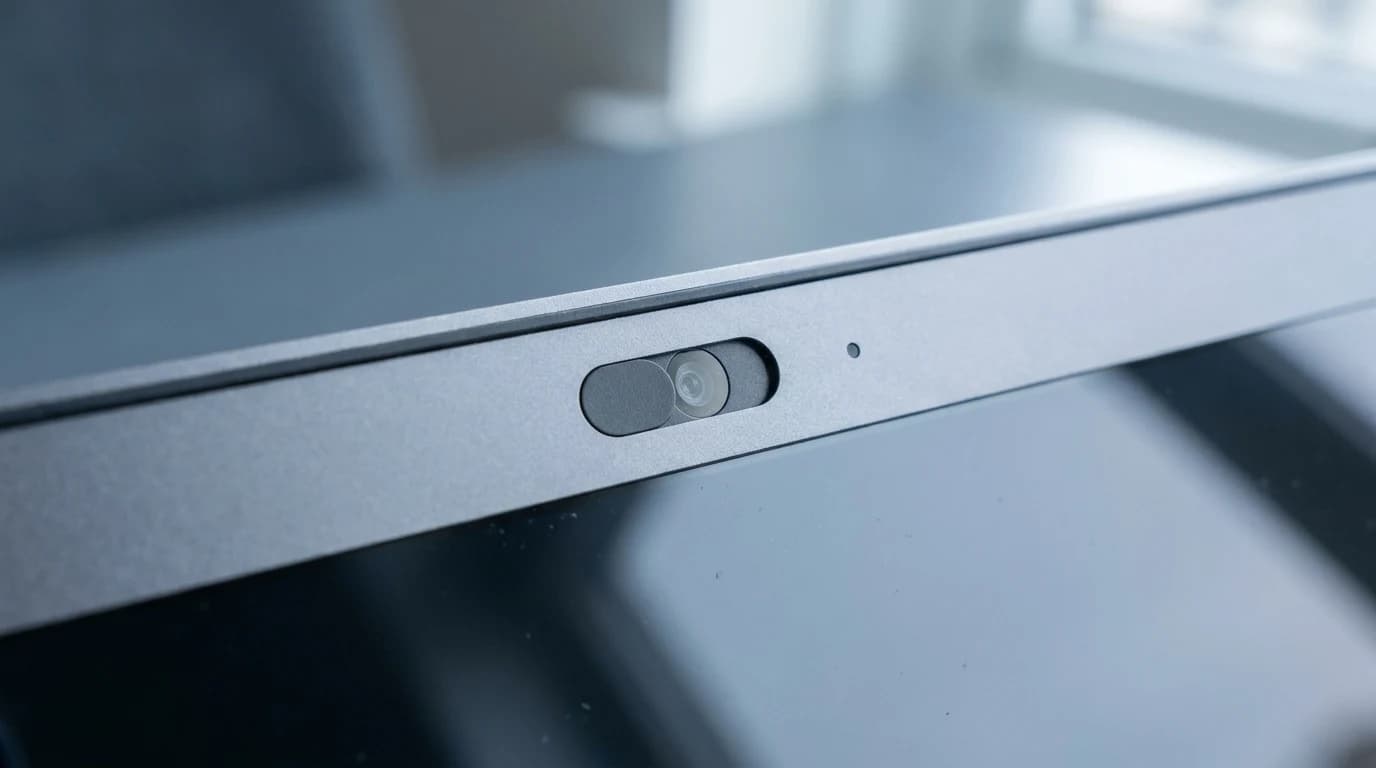
- Check the lens itself. Google's Meet troubleshooting starts here: many laptops ship a physical shutter or privacy switch, and some show an orange, red or amber dot when it is closed.
- Open the operating system's own camera app — Camera on Windows, Photo Booth on a Mac. Not the meeting app. Not a browser tab.
- If your face appears there, the hardware and driver are fine, and the fault is a permission or a competing app.
- If it does not, quit the meeting app completely and repeat step 3. Still nothing means the problem sits below the app layer.
Read the light first: lit indicator plus black preview means the camera works and something else has it. Dark indicator means your app never got the camera at all.
What each symptom is actually telling you
| What you see | Most likely cause | Where the fix lives |
|---|---|---|
| Black preview, indicator light on | Another app already holds the camera | Task Manager, or quit the other app |
| Black preview, indicator light off | The app never got camera permission | OS privacy settings |
| Camera missing from the app's device list | The OS or driver cannot see it | Cable, port, Device Manager |
| Fine in one app, dead in another | Per-app permission | OS privacy settings |
| Fine everywhere except one website | Site-level browser permission | Browser site settings |
Cause 1: something else is already holding the camera
Windows says this outright if you let it. Microsoft's camera error table lists 0xA00F4243 — with 0xA00F4288 and 0xA00F4289 alongside it — as another app or process is using the camera, and the prescribed fix is to open Task Manager, right-click the app using the camera, and choose End Task.
The culprits are rarely exotic:
- Teams minimised to the system tray
- A browser tab from the last call still holding the stream
- The webcam maker's own tuning utility, running invisibly
macOS reports the same condition without an error code: the green light stays lit for as long as anything has the camera open, so a lit light over a black preview means the camera is alive and pointed at some other app.
Cause 2: the Windows switch nearly every guide misses
Windows keeps camera permission in two places, and only one is obvious. Under Settings > Privacy & security > Camera there is a per-app list, and people scroll it hunting for Zoom or Chrome and never find them.
That is not a bug. Microsoft's guidance is explicit that only Microsoft Store apps appear in that list, that "camera privacy settings for desktop apps can't be changed at an individual desktop app level", and that browsers like Edge and conferencing apps like Teams are desktop apps. They are governed instead by one switch further down the same page: Let desktop apps access your camera.
The trap: not finding Zoom or Chrome in the per-app list means nothing. They are desktop apps, and the switch that controls them sits below the list you were reading.
Two more codes from that table are worth recognising, because neither is fixable by clicking harder: 0xA00F4292 means camera access is restricted by policy, and 0xA00F4246 means the camera is locked by security software. Chrome makes the parallel point for browser calls — on a managed work or school browser, an administrator can set camera permissions you may not be able to modify. On a company laptop those are a ticket, not a settings problem.
Cause 3: macOS grants access, the app does not notice
On a Mac the list lives at System Settings > Privacy & Security > Camera, and the toggle itself usually works. What catches people is Apple's own footnote: "You might be prompted to quit and reopen an app before it can use your camera."
Granting permission mid-call changes nothing until the app restarts, and closing the window is not restarting it. Quit properly with Command-Q, then reopen.
Cause 4: the browser layer
Any call that runs in a tab adds a permission layer the OS settings cannot see. Google's help pages note that a Camera failed error usually means the browser cannot reach the camera at all, and Chrome grants permission per site, under Settings > Privacy and security > Site settings > Camera.
This layer produces the strangest symptom of the lot: the camera works in the desktop Zoom client and dies in the browser version of the same meeting.
When it really is the hardware
What actually fixes an external webcam:
- Plug it into a port on the machine itself, bypassing hubs and docking stations — a bus-powered chain is a common failure point
- Swap the cable before you swap the camera
- Test it on a second computer, which settles hardware-versus-software in one move
- Remove the vendor's companion app, which sometimes claims the camera exclusively
What rarely fixes anything:
- Reinstalling the meeting app
- Buying a replacement before the second-computer test
- Restarting repeatedly without opening a permission screen
If it fails on a second machine too, it is genuinely dead and replacing it is a real answer — our current webcam picks are ranked on what matters at desk distance, not on headline resolution. Apple also notes that a built-in Mac camera whose indicator light flashes green needs service, not more troubleshooting.
If the test says the camera itself is the problem, seven webcams under $100 are the cheapest replacement route.
FAQ
Why is my webcam black in Zoom but fine in the Camera app?
Another app is holding the camera, or Zoom was never granted it. On Windows the first case is error 0xA00F4243 — close the other app from Task Manager, then confirm Let desktop apps access your camera is on.
Where is the Windows camera permission for Zoom?
Not in the per-app list. Zoom is a desktop app, so it is covered by the single Let desktop apps access your camera switch further down Settings > Privacy & security > Camera.
Why does my Mac camera only work after I quit the app?
macOS may require an app to quit and reopen before newly granted permission takes effect. Closing the window is not enough — use Command-Q.
Can my employer block my webcam?
Yes. Windows reports a policy restriction as error 0xA00F4292, and a managed Chrome browser can carry camera permissions set by an administrator.
Does a webcam test page prove my camera works?
Only for that browser. It proves the browser has permission and the camera is free at that moment, and says nothing about a desktop app's own permission state.
Sources
- Camera doesn't work in Windows — Microsoft Support
- Manage app permissions for a camera in Windows — Microsoft Support
- If the built-in camera isn't working on your Mac — Apple Support
- Use the camera on Mac — Apple Support
- Troubleshoot camera issues in a meeting — Google Meet Help
- Use your camera and microphone in Chrome — Google Chrome Help
Hilly Shore Labs
Editorial TeamWFH Lounge is published by Hilly Shore Labs. Every recommendation is built by synthesizing ergonomic research, manufacturer specs, expert reviews from outlets like Wirecutter, RTINGS, and The Verge, and aggregated long-term owner sentiment from thousands of verified buyers.
All product reviews are independently researched. Our recommendations are based on ergonomic guidelines, manufacturer specifications, and verified buyer sentiment. See our methodology.