Best Monitors for Eye Strain: Flicker, Glare and Pixel Size
Buy the certification and the coating, not the eye-care mode. A named flicker-free or TÜV Eye Comfort rating, a matte anti-glare surface and enough pixel density for the distance you actually sit at do more for comfort than any blue-light setting — and the spec that decides whether a screen is bearable at night, its dimming floor, is published by nobody.
Our #1 Pick
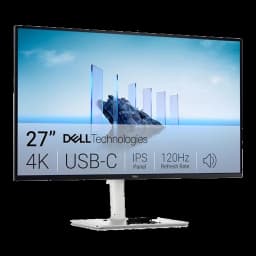
Dell S2725QC 27" 4K USB-C 120Hz
The specs with a mechanism behind them line up here: an anti-glare surface, 163 PPI so a pixel sits under the one-arcminute detail a 20/20 eye resolves at arm's length, 120Hz, and Dell's own TÜV Rheinland 4-star eye comfort certification. The UltraSharp U2725QE is the upgrade if you want the 5-star rating and an ambient light sensor.
Fits: laptops that charge on 65W USB-C (an Air or 14" Pro); no DisplayPort socket — USB-C or HDMI 2.1- Genuine 4K UHD at 120Hz for buttery scrolling
- 65W USB-C delivers single-cable laptop charging
- 99% sRGB and AMD FreeSync Premium for sharp text and smooth motion
Price checked Oct 17, 2026 — verify the live price on Amazon.
Also Great
Highest certification: Dell UltraSharp U2725QE ($634.99) — TÜV 5-star eye comfort and an ambient light sensor that sets brightness from the room.
Buy on AmazonBest budget: LG 27U631A-B ($169.55) — Flicker Safe and an anti-glare IPS panel for the price of a monitor arm.
Buy on Amazon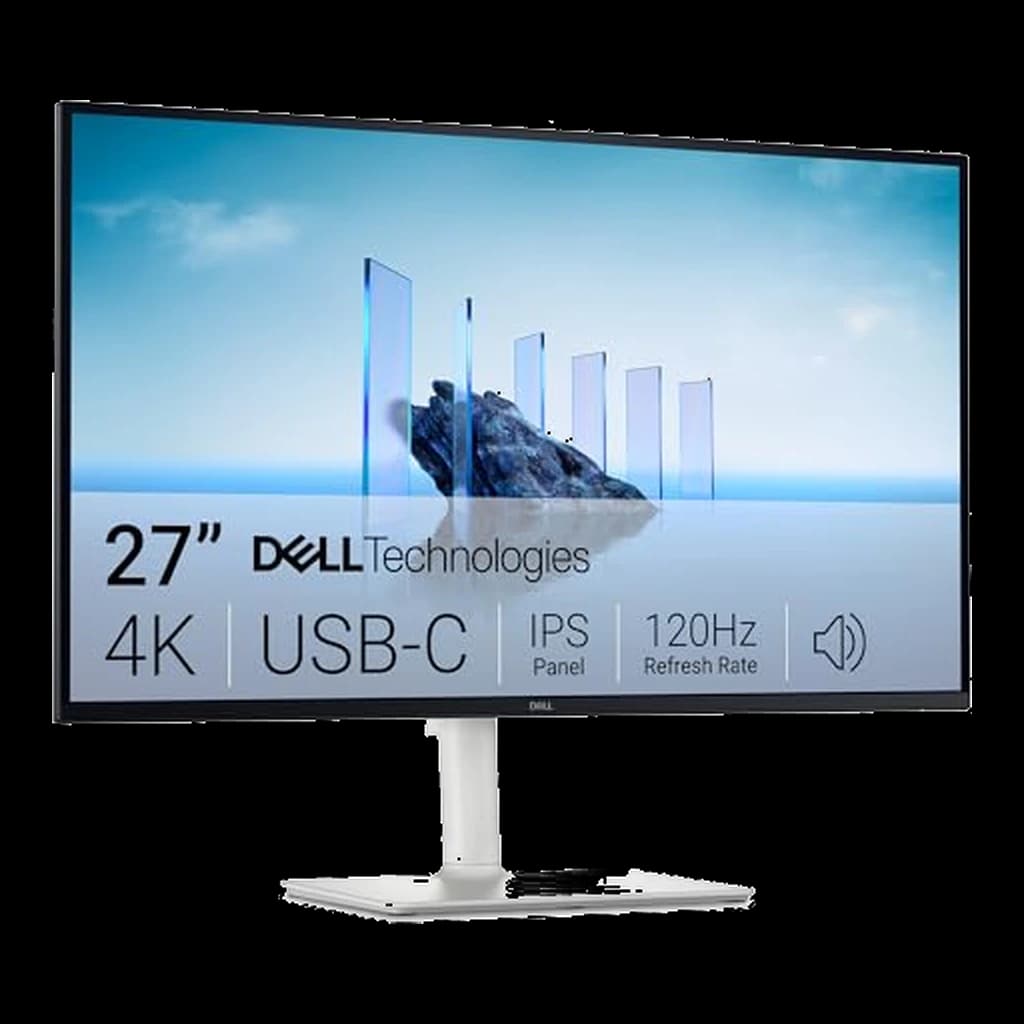 #1 Owner rating | 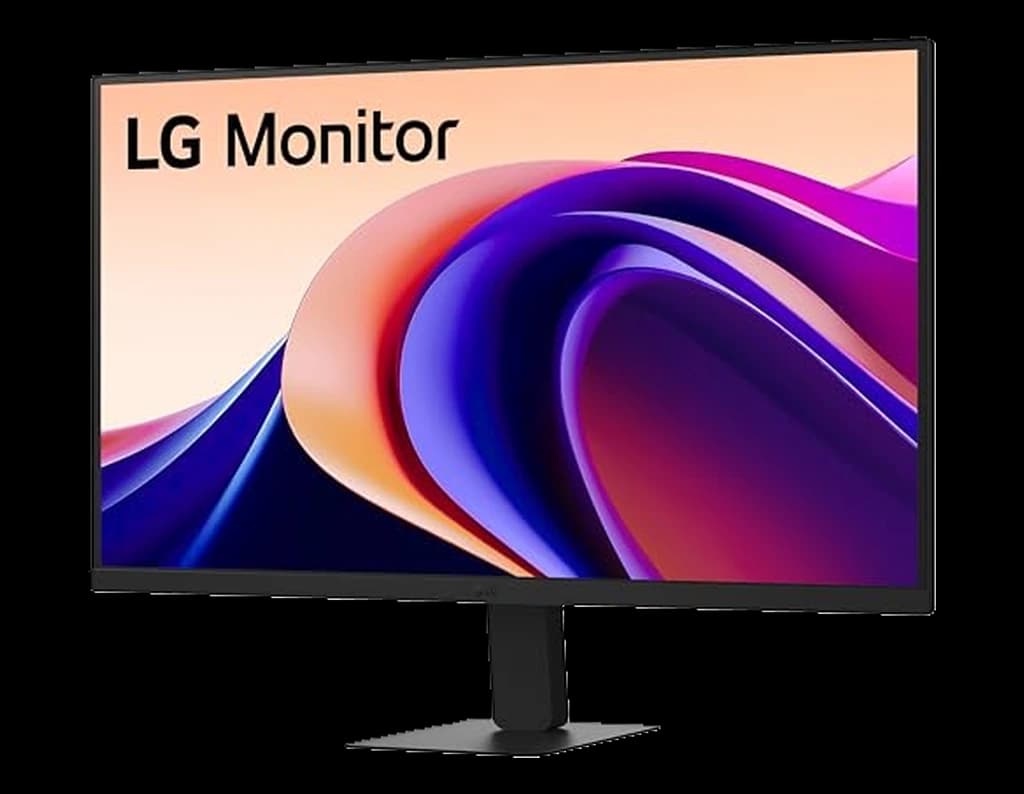 #2 Owner rating | 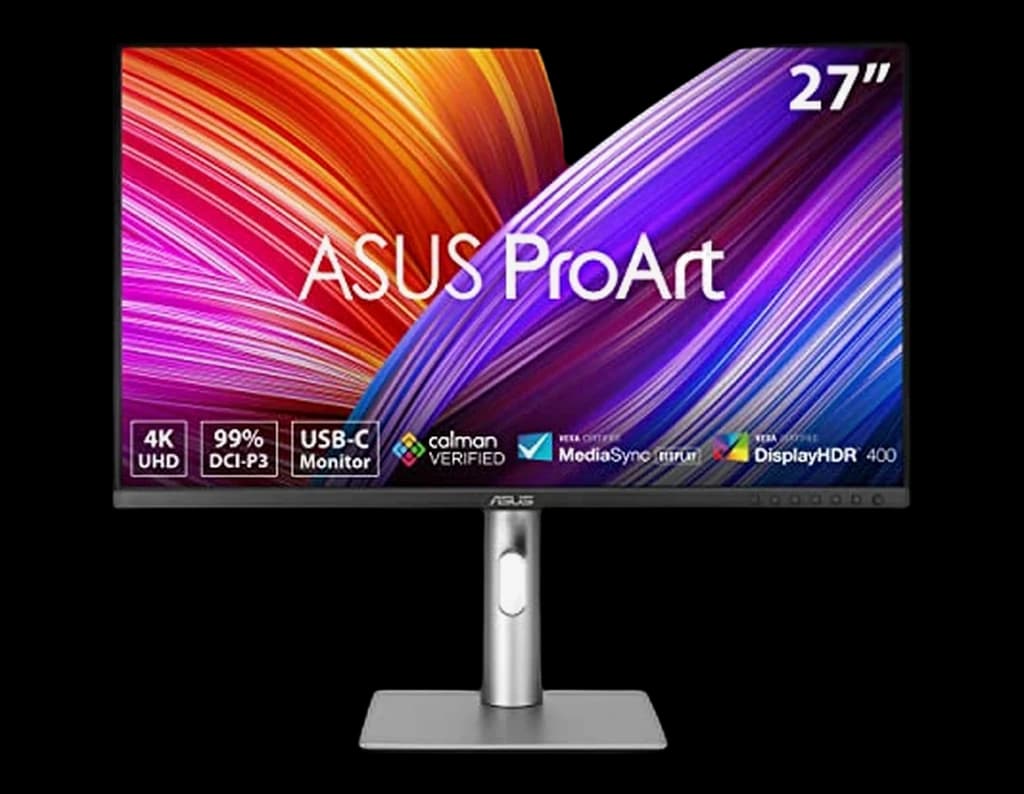 #3 Owner rating | 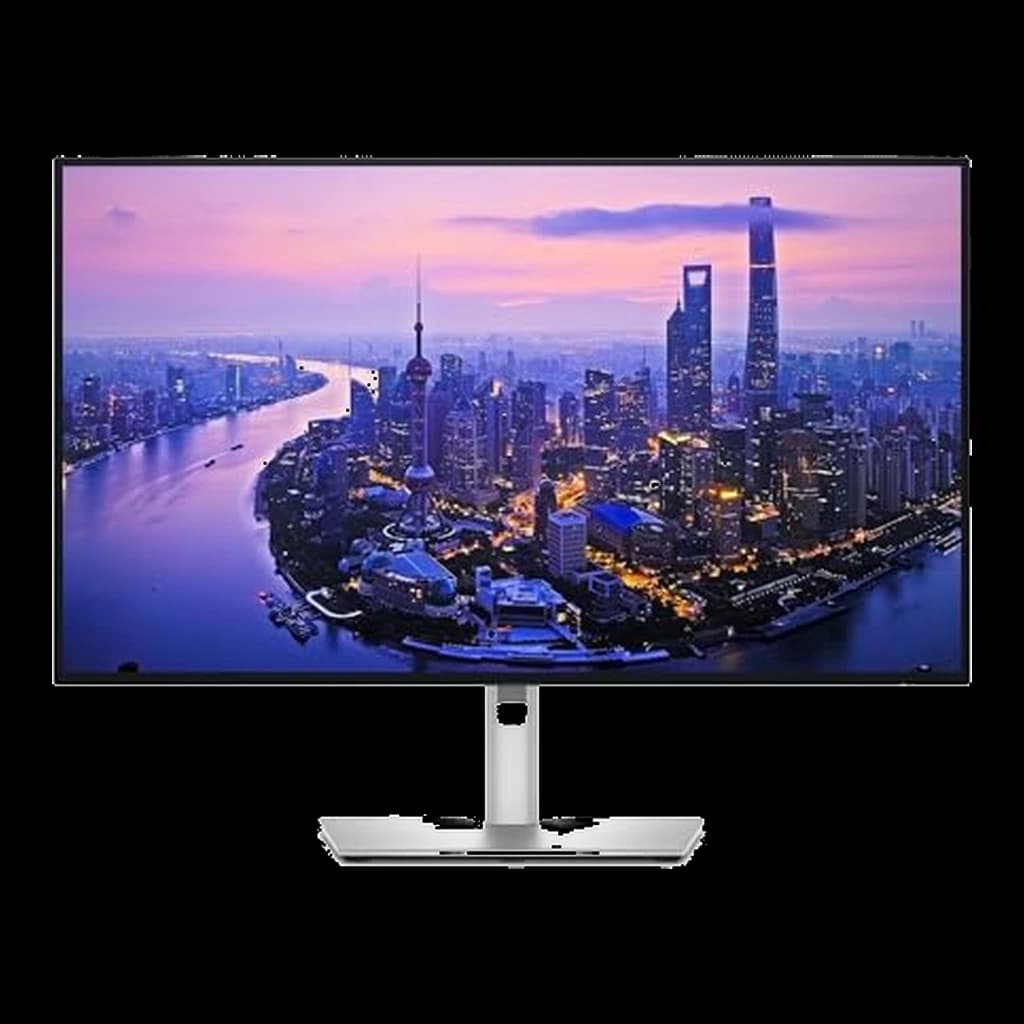 #4 Owner rating | 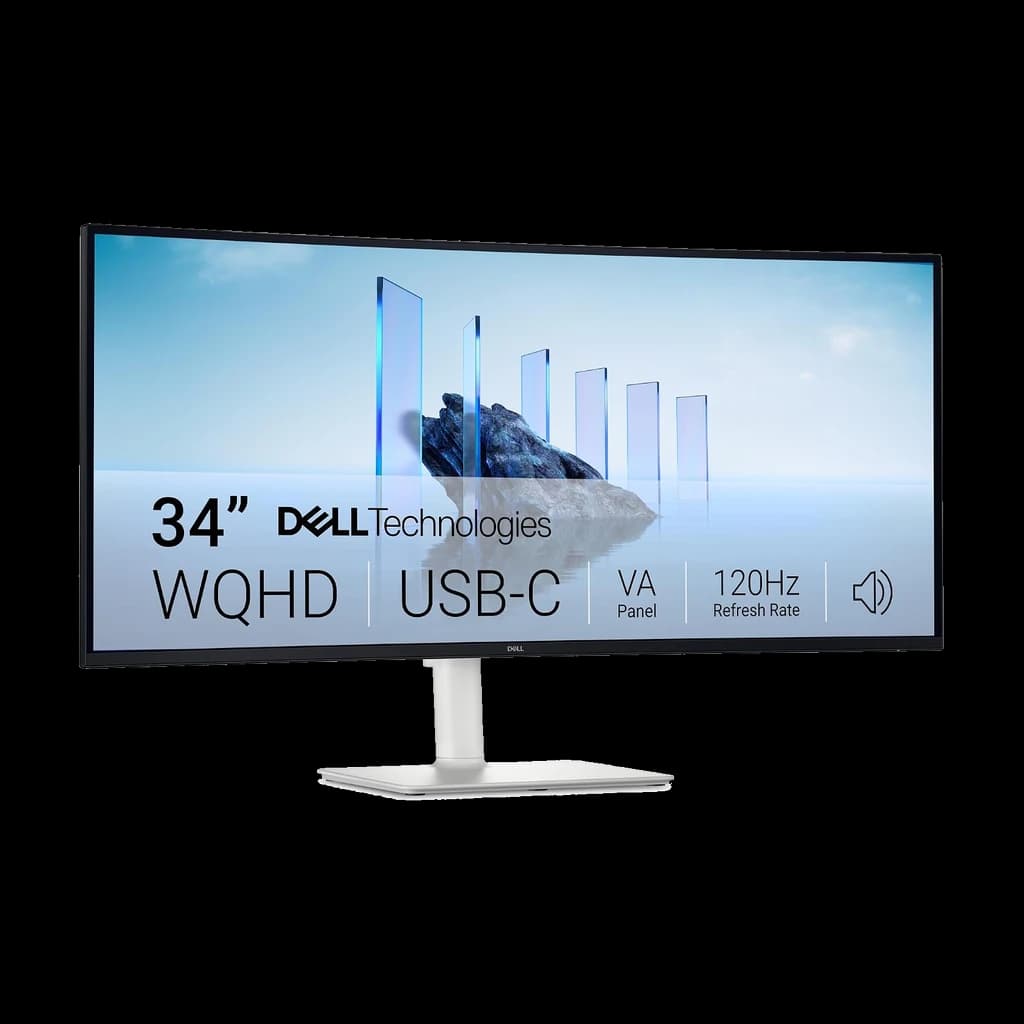 #5 Owner rating | |
|---|---|---|---|---|---|
| Price | $345.22Buy on Amazon | $169.55Buy on Amazon | $399Buy on Amazon | $634.99Buy on Amazon | $379.99Buy on Amazon |
| Verdict | The default: 27-inch 4K sits under the arcminute line, anti-glare, 120Hz, and Dell's TÜV Rheinland 4-star eye comfort certification. | The budget route to flicker-free and matte — QHD IPS at 100Hz with LG's Flicker Safe and a Reader Mode. | The most explicit certification stack — ASUS publishes both TÜV Flicker-free and hardware TÜV Low Blue Light for this panel. | TÜV 5-star eye comfort plus an ambient light sensor — the only pick here that sets its own brightness for the room. | The eye-comfort-certified ultrawide — 3440x1440 VA at 120Hz behind a gentle 1800R curve, TÜV 4-star. |
| Buyer sentiment | Display Quality Picture Quality Value for money Connectivity Buyers praise display quality, picture quality, value for money and connectivity. Mixed feedback on functionality. Based on 470 user mentions | Image Quality Value for money Functionality Buyers praise image quality, value for money and functionality. Mixed feedback on quality and reliability. Based on 47 user mentions | Quality Color Accuracy Picture Quality Value for money Buyers praise quality, color accuracy, picture quality and value for money. Mixed feedback on functionality and brightness. Based on 368 user mentions | Connectivity Image Quality Ergonomics Buyers praise connectivity, image quality, ergonomics. Based on 100 user mentions | Display Quality Value for money Picture Quality Easy To Set Up Buyers praise display quality, value for money, picture quality and easy to set up. Mixed feedback on connectivity and screen size. Based on 372 user mentions |
| Resolution | 3840x2160 (4K UHD) | 2560x1440 (QHD) | 3840x2160 (4K UHD) | 3840x2160 (4K UHD) | 3440x1440 (WQHD UW) |
| Refresh Rate | 120Hz | 100Hz | 60Hz | 120Hz | 120Hz |
| Panel | 27" IPS, 163 PPI | 27" IPS, 109 PPI | 27" IPS, 163 PPI | 27" IPS Black, 3000:1 | VA, curved 1800R, 3000:1 |
| Surface | Anti-glare | Anti-glare | Anti-glare | Anti-glare, 3H hard coating | Anti-glare |
| Eye comfort | TÜV Rheinland 4-star | Flicker Safe, Reader Mode | TÜV Flicker-free + TÜV Low Blue Light (hardware) | TÜV 5-star + ambient light sensor | TÜV Rheinland 4-star |
| Stand | Tilt / swivel / pivot / height | — | — | — | — |
| Connectivity | — | HDMI, USB-C (15W PD) | — | Thunderbolt 4 hub | — |
| Color | — | — | 99% DCI-P3, Calman Verified | — | — |
| Size | — | — | — | — | 34" 21:9 |
| Pros |
|
|
|
|
|
| Cons |
|
|
|
|
|
* Prices checked Oct 17, 2026 and may vary. Check the latest price on Amazon.
We research — never hands-on. How we research →
Key Takeaways
Flicker, coating and pixel density are the monitor specs with a real mechanism behind them. What TÜV eye-comfort stars certify, plus a 60-second test.
As an Amazon Associate I earn from qualifying purchases. Product prices and availability are subject to change.
Every monitor brand sells an "eye care" mode, and almost none separate the parts of that claim with a real mechanism from the parts that are a colour filter with a marketing name. Three of the specs that matter are on the spec sheet. The fourth is printed nowhere.
Screen in this order: a named flicker-free or eye-comfort certification, a matte anti-glare surface, enough pixel density for the distance you sit at, and a screen you can dim far enough for your room. Blue-light modes belong at the bottom of that list.
What an "eye-care monitor" is claiming
The American Academy of Ophthalmology is blunt: there is no scientific evidence that blue light from digital devices damages the eye, and the discomfort is digital eye strain — largely a blinking and focusing problem. The AAO puts normal blinking at about 15 times a minute, falling to roughly 5 to 7 at a screen. Pay for hardware that changes what your eyes have to do, not the colour of the light.
| Spec on the box | What it changes | Evidence |
|---|---|---|
| Flicker-free / DC dimming | Backlight stops strobing as you dim | Clear mechanism, lab-tested |
| Matte (anti-glare) coating | Scatters window and lamp reflections | AAO advises cutting glare |
| Pixel density at your distance | Whether you resolve pixels inside text | Physics, calculable |
| Dimming range | Whether the screen matches a dim room | AAO: match screen to room |
| Low blue light mode | Shifts the white point warmer | Weak for eye strain |
Flicker is the spec nobody prints
LCD backlights dim two ways. DC dimming lowers the current and the light stays constant. PWM dimming switches the backlight on and off very fast and shortens the "on" slice, so the average is dimmer but the light pulses. TÜV Rheinland, which runs the Eye Comfort certification, describes DC modulation as what eliminates flicker across the full brightness range and tests for it under ISO 9241-307, alongside reflections and adjustable blue light.
The trap: pulsing is usually worst at low brightness, exactly where a strain-prone person sets the screen. A monitor can look fine in a shop and strobe on your desk at 25%. The word is overloaded too — Dell's page for the U2725QE says 120 Hz delivers "less flicker" than 60 Hz, which is motion smoothness, not backlight modulation.
Two different flickers: refresh rate is how smoothly motion redraws; backlight modulation is whether the light itself strobes. A monitor's Hz number tells you nothing about the second one.
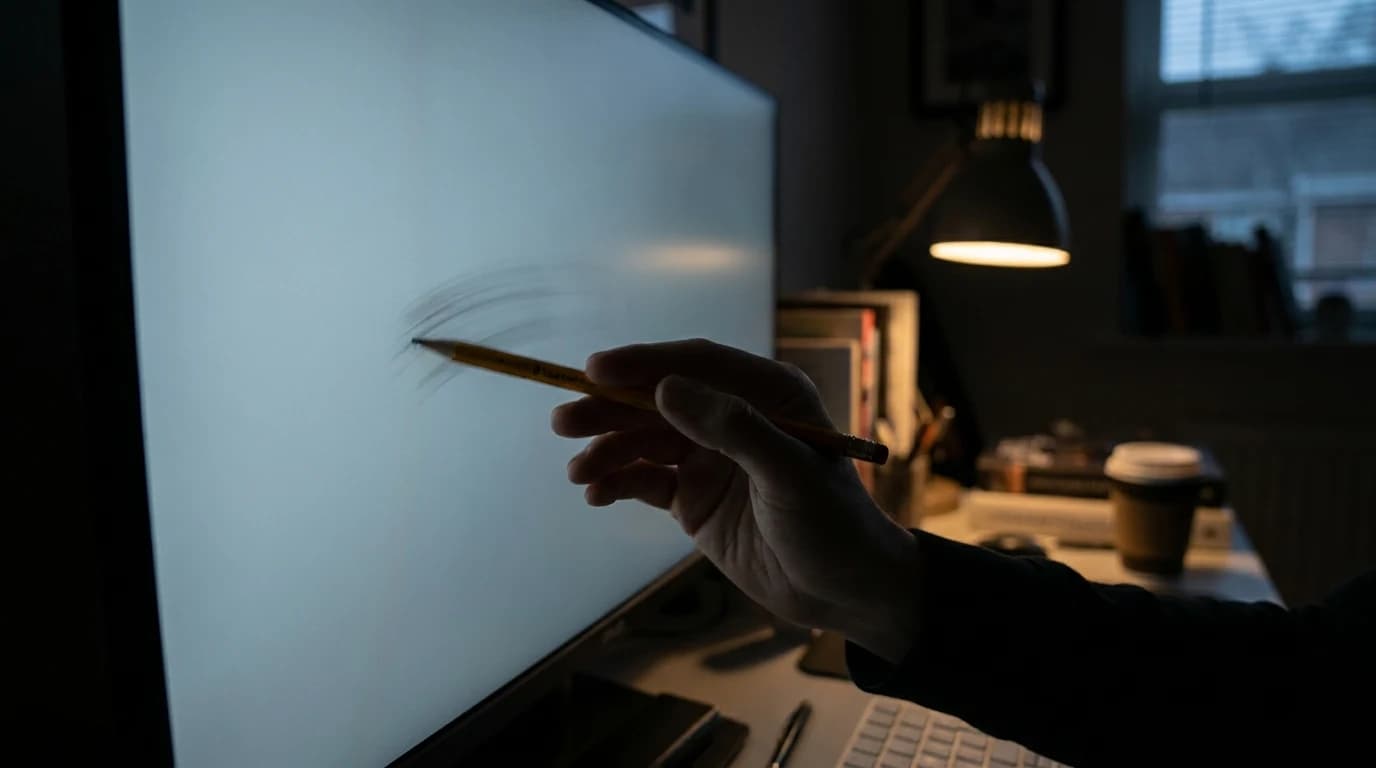
The 60-second flicker test
- Set the brightness you would use at night, usually 20–30%.
- Wave a pencil fast across a white window on screen. A steady backlight smears it; a pulsing one freezes it into several pencils.
- Or sweep a phone camera across the panel — rolling dark bands mean the backlight is cycling.
- Repeat at 100%. Banding only when dim means PWM at low brightness.
Sharpness is a distance problem
A person with 20/20 sight separates two objects about one arcminute apart, and the AAO suggests sitting about 25 inches from the screen. Together those turn a pixel from a number into an angle.
| Screen | Density | Pixel at 25 in | At 30 in |
|---|---|---|---|
| 24-inch 1080p | 92 PPI | 1.50 arcmin | 1.25 |
| 27-inch 1440p | 109 PPI | 1.26 arcmin | 1.05 |
| 34-inch ultrawide 1440p | 110 PPI | 1.25 arcmin | 1.04 |
| 32-inch 4K | 138 PPI | 1.00 arcmin | 0.83 |
| 27-inch 4K | 163 PPI | 0.84 arcmin | 0.70 |
Only 27-inch 4K clears the one-arcminute line at arm's length. But read the last column: pushing a 27-inch 1440p from 25 to 30 inches does nearly as much as buying a 32-inch 4K and leaving it put.
Distance is free: the common own-goal is buying a bigger screen and then pulling it closer to read it, two changes that cancel. Move the screen back and scale the text up first, then see if you still want the upgrade.
Coating, dimming range and the dark room
- Coating — published. The AAO's advice for glare is a matte filter, so buy the coating rather than bolt one on. Every monitor below has it.
- Dimming floor — not published. Brands list typical brightness (350 cd/m² is common), never the dimmest step. The only way to know is to dim the screen in a dark room yourself.
- The workaround. An ambient light sensor matches the screen to the room for you. Only the Dell UltraSharp U2725QE here has one.
What a certificate actually buys
TÜV Rheinland's Eye Comfort 3.0 scheme replaced a scatter of single-issue marks with one rating out of five stars — useful because it is the only number here a third party assigns. In each maker's own words:
| Monitor | Eye-comfort claim | Surface, refresh |
|---|---|---|
| Dell UltraSharp U2725QE | TÜV 5-star; ComfortView Plus to ≤35% blue light; ambient light sensor | Anti-glare 3H, 120 Hz |
| Dell S2725QC | TÜV Rheinland 4-star eye comfort | Anti-glare, 120 Hz |
| Dell S3425DW | TÜV Rheinland 4-star eye comfort | Anti-glare, 120 Hz |
| ASUS ProArt PA279CRV | TÜV Flicker-free and TÜV Low Blue Light (hardware) | Anti-glare, 60 Hz |
| LG 27U631A-B | Flicker Safe; Reader Mode | Anti-glare, 100 Hz |
Note what is absent: none states a minimum brightness or quantifies flicker at a given dimming level. The certificate says a lab looked, not how far down the screen goes.
The five, and what each solves
Dell S2725QC
Buy on Amazon · $345.22The default answer: 4K at 27 inches sits under the arcminute line, anti-glare surface, 120 Hz, four TÜV stars, and a stand with tilt, swivel, pivot and height.
LG 27U631A-B
Buy on Amazon · $169.55The cheap way to fix flicker and glare: QHD IPS, anti-glare, 100 Hz, Flicker Safe, and a Reader Mode that warms the white point. At 109 PPI, sharpness is the compromise.
ASUS ProArt PA279CRV
Buy on Amazon · $399The most explicit certification stack: ASUS publishes both TÜV Flicker-free and hardware TÜV Low Blue Light, on an anti-glare 4K IPS panel with 99% DCI-P3 and a fully adjustable stand. The trade is 60 Hz.
Dell UltraSharp U2725QE
Buy on Amazon · $634.99The one that solves the unpublished problem: TÜV 5-star, plus an ambient light sensor that sets brightness and colour temperature from the room. IPS Black, 3000:1, 120 Hz.
Dell S3425DW
Buy on Amazon · $379.99The eye-comfort-certified ultrawide: 3440x1440 VA at 120 Hz, 1800R curve, anti-glare, four TÜV stars. The 21:9 shape does more for workflow than the curve does for eyes.
Do these three things first
- →Monitor settings that cut eye strainbrightness, contrast and colour, in priority order
- →Where to put the monitorheight, distance and window angle
- →Does the 20-20-20 rule work?what the research found
Sizing next? The 27-inch roundup and the monitor category rank on productivity instead.
Is a 4K monitor better for eye strain?
At 27 inches, yes, narrowly: 163 PPI drops a pixel below the one-arcminute detail a 20/20 eye resolves at arm's length. It does nothing for flicker or glare.
Does a 120 Hz monitor help your eyes?
It makes scrolling and cursor motion smoother, which many people find more comfortable. It is not a backlight-flicker fix — the two specs just share a word.
Do low blue light modes reduce eye strain?
The evidence is weak. The AAO does not recommend blue-light-blocking eyewear for computer use and finds no evidence that screen blue light harms the eye. Warmer evening settings are a sleep tool.
Is a bigger monitor easier on the eyes?
Only if it stays the same distance away or moves back. A 32-inch 4K at 25 inches is sharper than a 27-inch 1440p, but pulling it closer gives that gain straight back.
Hilly Shore Labs
Editorial TeamWFH Lounge is published by Hilly Shore Labs. Every recommendation is built by synthesizing ergonomic research, manufacturer specs, expert reviews from outlets like Wirecutter, RTINGS, and The Verge, and aggregated long-term owner sentiment from thousands of verified buyers.
All product reviews are independently researched. Our recommendations are based on ergonomic guidelines, manufacturer specifications, and verified buyer sentiment. See our methodology.