KVM Switch vs Docking Station: Which One Your Desk Needs
Count the computers first. One computer means a dock, and nothing else earns its place. Two computers means a KVM, and the right kind depends on what the laptop needs: a plain KVM if it runs on its own charger, a KVM dock if it should charge over one cable, and a KVM monitor if you are buying a monitor anyway. Before you pay, check the spec sheet for EDID emulation and make sure each computer has enough video outputs for the monitors you want.
Quick Answer
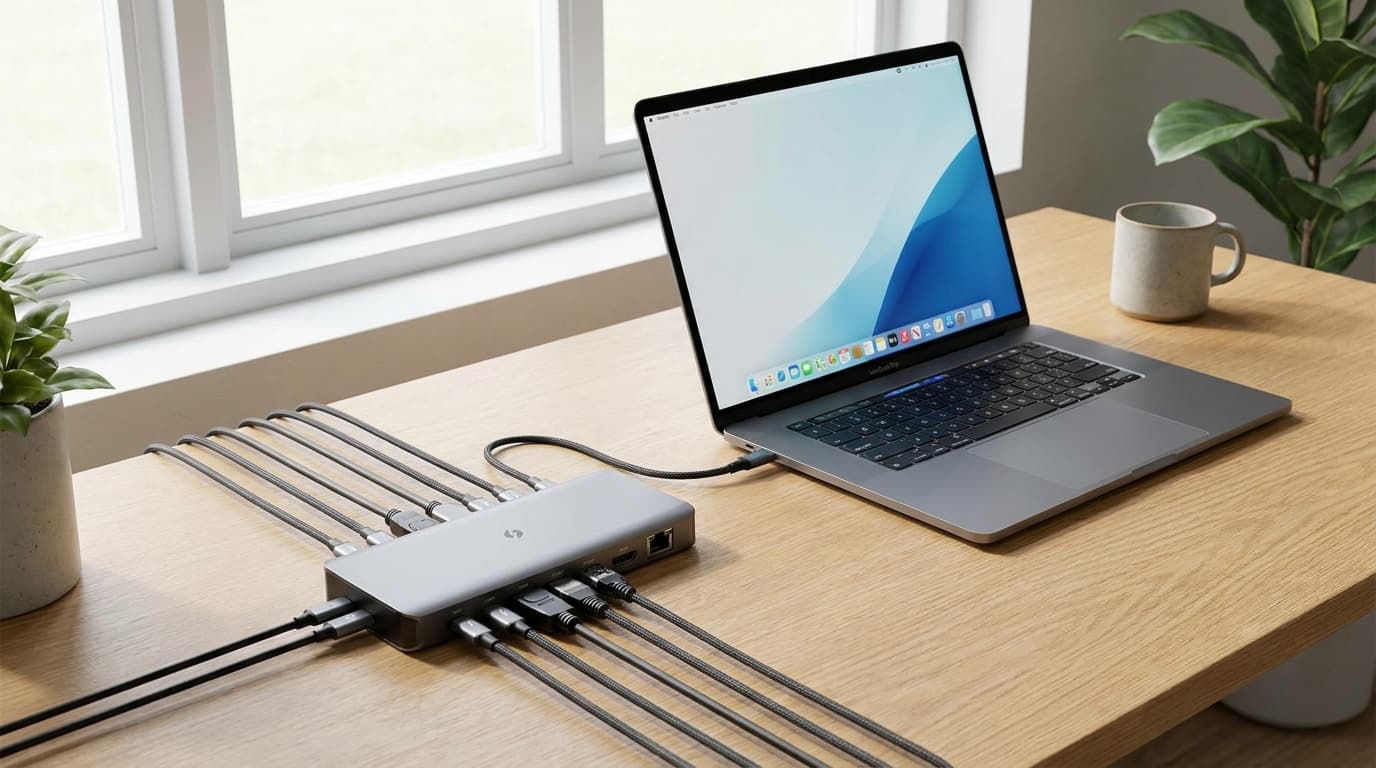
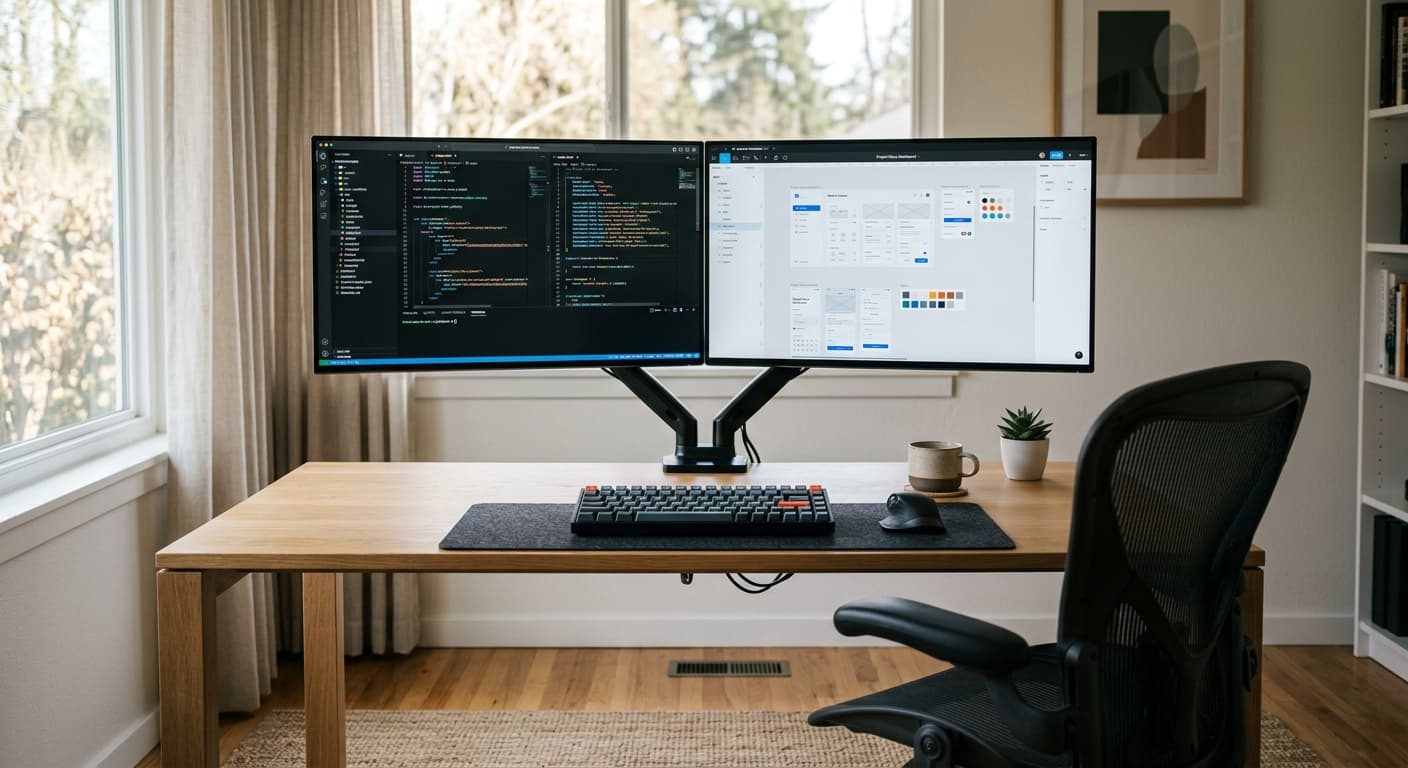
A docking station connects one computer to many things: monitors, keyboard, Ethernet and charging over a single cable. A KVM switch lets two or more computers share one set of monitors, keyboard and mouse, and you flip between them. If you only ever use one laptop at the desk, buy a dock. If a work laptop and a personal computer share the desk, you need a KVM, a KVM dock, or a monitor with a KVM built in.
 #1 Owner rating | 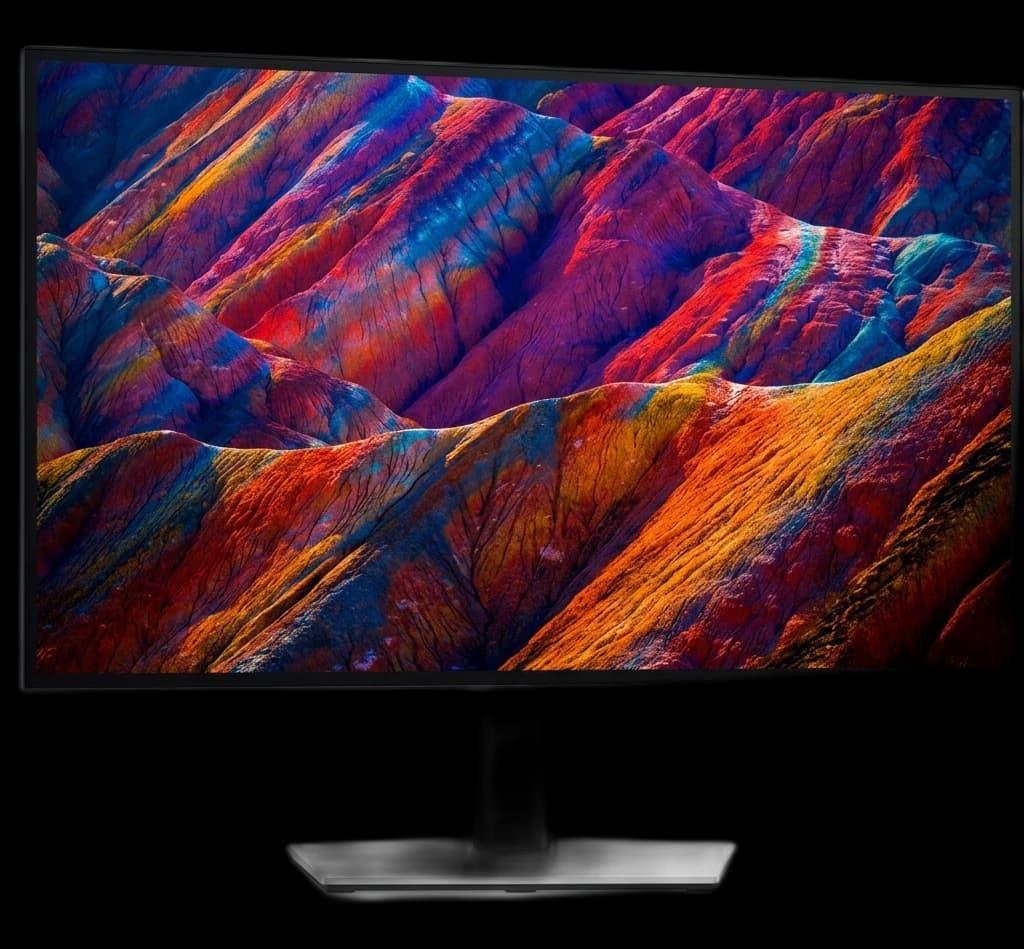 #2 Owner rating | 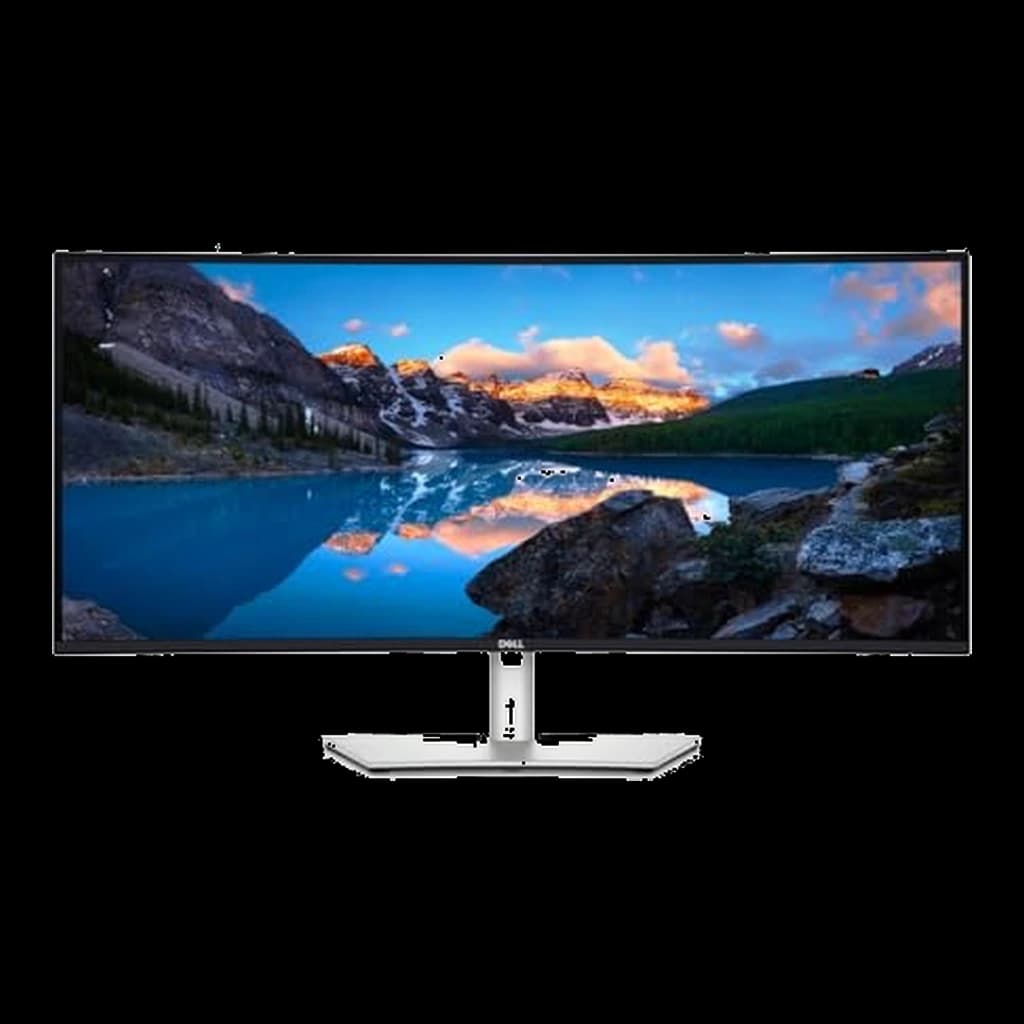 #3 Owner rating | 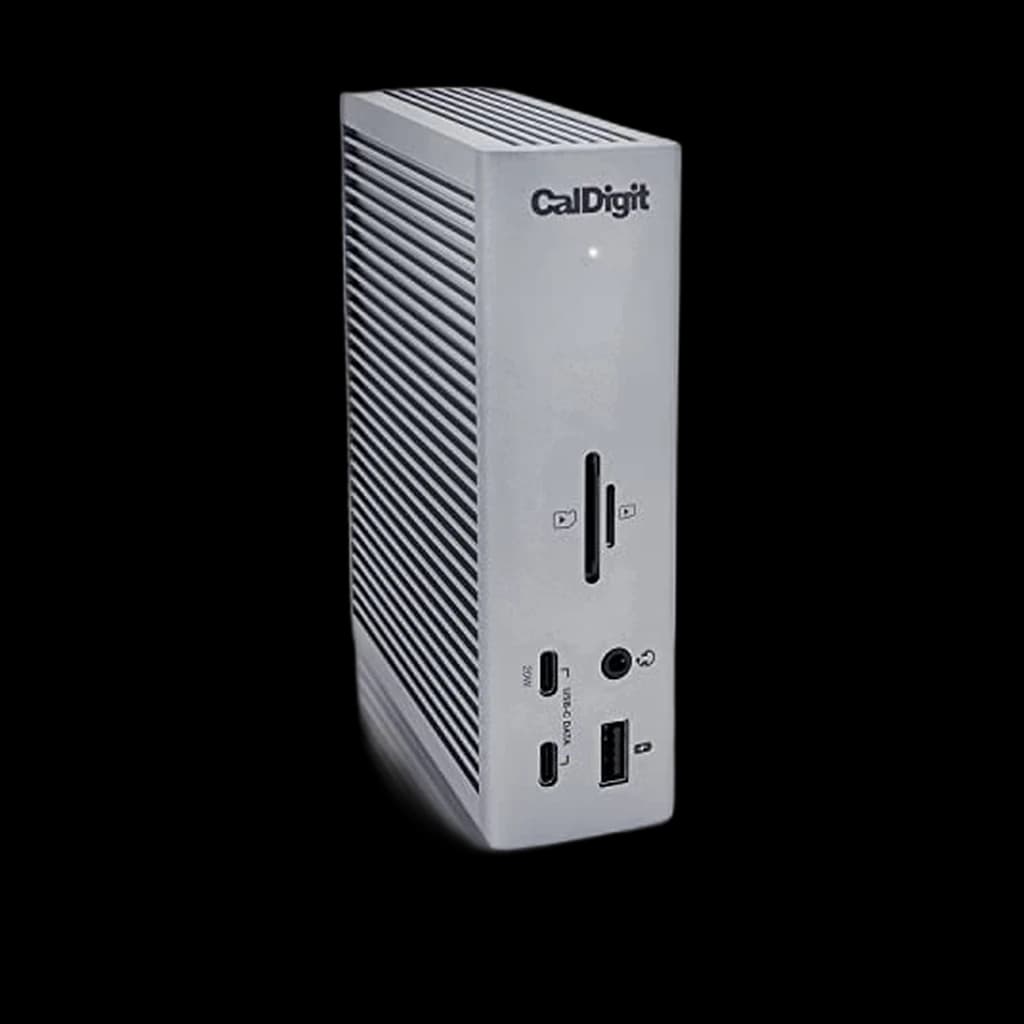 #4 Owner rating | 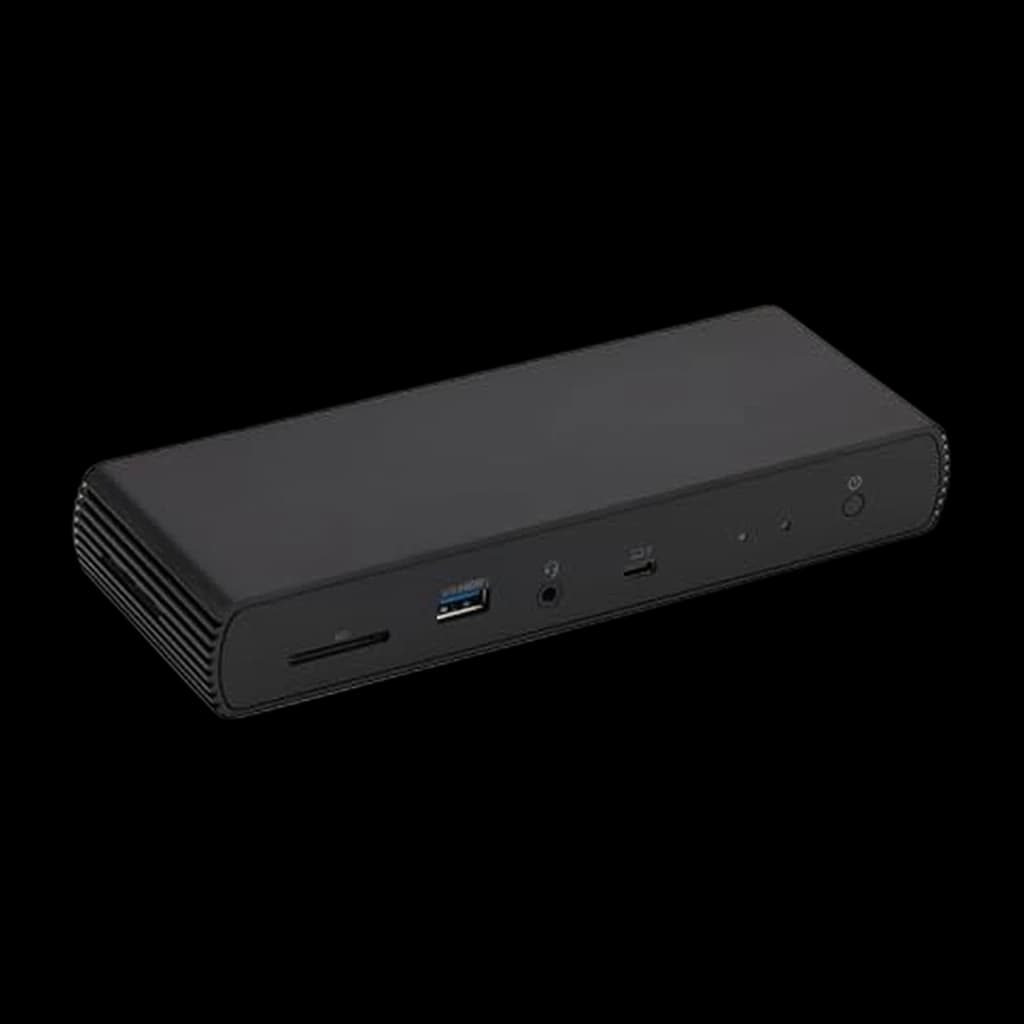 #5 Owner rating | 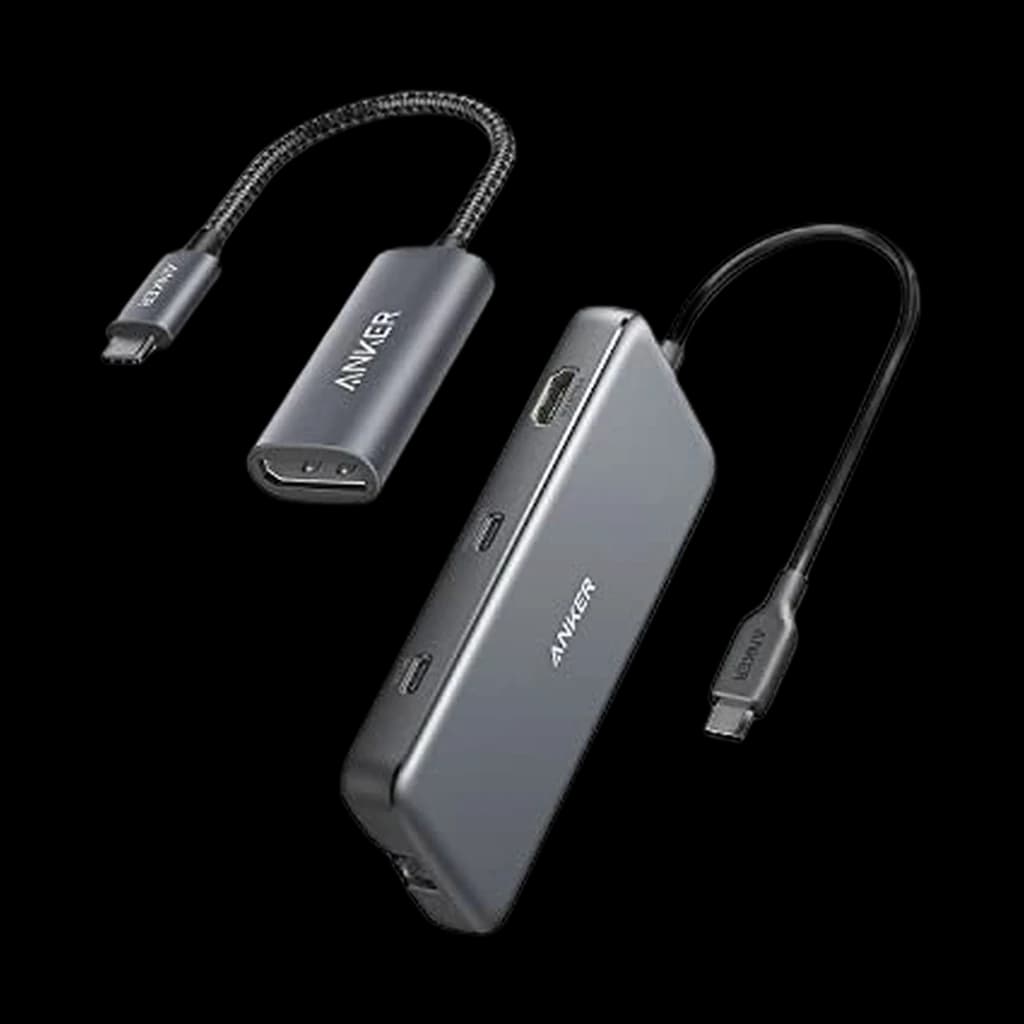 #6 Owner rating | |
|---|---|---|---|---|---|---|
| Price | $640Buy on Amazon | $475.99Buy on Amazon | $748.99Buy on Amazon | $379.99Buy on Amazon | Not sold on Amazon right now | $48.16Buy on Amazon |
| Verdict | The new productivity benchmark — 4K, 120Hz, Thunderbolt 4, 140W charging in one cable. | The pick for 120Hz smoothness at 1440p — the U2723QE's little sibling with a built-in KVM, USB-C 90W charging, and IPS Black contrast. | Premium pick — 120Hz, 90W Thunderbolt dock + KVM | The benchmark TB4 dock - 18 ports, 98W charging, 2.5GbE, rock-solid sleep/wake on Mac and Windows. | A genuine Thunderbolt 4 / USB4 dock with 2.5Gbps Ethernet | Portable USB-C hub for travel and second desks - 85W passthrough, 4K@30 HDMI, $36 street price. |
| Buyer sentiment | Connectivity Image Quality Ergonomics Buyers praise connectivity, image quality, ergonomics. Based on 100 user mentions | Display Quality Ports Buyers praise display quality and ports. Mixed feedback on connectivity. Based on 25 user mentions | Monitor Quality Productivity USB Connectivity Size Buyers praise monitor quality, productivity, usb connectivity and size. Mixed feedback on picture quality and performance. Based on 84 user mentions | Functionality Build Quality Value for money Ethernet Connectivity Buyers praise functionality and build quality. Mixed feedback on reliability and ports. Some flag value for money and ethernet connectivity. Based on 1,148 user mentions | Value for money Port Selection Ease Of Use Ethernet Connectivity Buyers praise value for money, port selection and ease of use. Mixed feedback on functionality and compatibility. Some flag ethernet connectivity. Based on 387 user mentions | Connectivity Value Compatibility Buyers praise connectivity, value. Some flag compatibility. Based on 100 user mentions |
| Specs |
|
|
|
|
|
|
| Pros |
|
|
|
|
|
|
| Cons |
|
|
|
|
|
|
* Prices checked Sep 25, 2026 and may vary. Check the latest price on Amazon.
We research — never hands-on. How we research →
Key Takeaways
A dock connects one computer to many things; a KVM lets two computers share one desk. Match your setup to the right box and dodge four common traps.
As an Amazon Associate I earn from qualifying purchases. Product prices and availability are subject to change.
Count the computers on your desk. A docking station connects one computer to many things: monitors, keyboard, Ethernet and charging over one cable. A KVM switch lets two or more computers share one set of monitors, keyboard and mouse. One laptop means a dock. A work laptop plus a personal machine means a KVM, and the kind you need depends on what that laptop needs.
The one-line rule: a dock multiplies ports for one computer. A KVM multiplies computers for one set of peripherals. ATEN, a long-time KVM maker, defines KVM as "Keyboard, Video (monitor), Mouse", a way to control multiple PCs from one console.
Two boxes, two different jobs
They look alike on a desk and share a lot of the same ports, which is why people mix them up. The job each one does is completely different.
A dock solves:
- Too few ports: one laptop cable fans out to monitors, USB, Ethernet and audio.
- Charging: the same cable powers the laptop. CalDigit's TS4 spec sheet lists up to 98W on the host port.
- Daily plugging: arrive, plug in one cable, and the whole desk wakes up.
A KVM solves:
- Two computers, one desk: both machines share the same monitor, keyboard and mouse.
- Desk space: no second keyboard, no second mouse, no second screen.
- Switching speed: a button, a hotkey or a mouse click moves you across, and ATEN lists pushbuttons, hotkeys, mouse wheel and on-screen menus as the usual methods.
A dock can't switch between computers: CalDigit's TS4 connects to its host through one Thunderbolt port and uses the rest for devices. A basic KVM isn't a dock either. It passes video and USB through, nothing more.
Find your desk in this table
Match the row to your setup. The last column is the question to settle before you pay.
| Your setup | Buy | Why | Check before buying |
|---|---|---|---|
| One laptop, one or two monitors | Docking station | One cable carries display, data and charging | Wattage covers your laptop's charger |
| Laptop + desktop, one monitor | Single-monitor KVM switch | Both machines share the screen, keyboard and mouse | Video port type matches both computers |
| Two computers, two monitors | Dual-monitor KVM switch | Each monitor switches with the keyboard | Each computer has two video outputs |
| USB-C work laptop + desktop | KVM dock (hybrid) | The laptop charges and connects over one cable | Power delivery is listed on the spec sheet |
| Mac laptop + PC, two monitors over USB-C | KVM dock, only with Mac dual-display support confirmed | macOS doesn't support USB-C MST, so two screens can mirror | Mac extended-display support is stated |
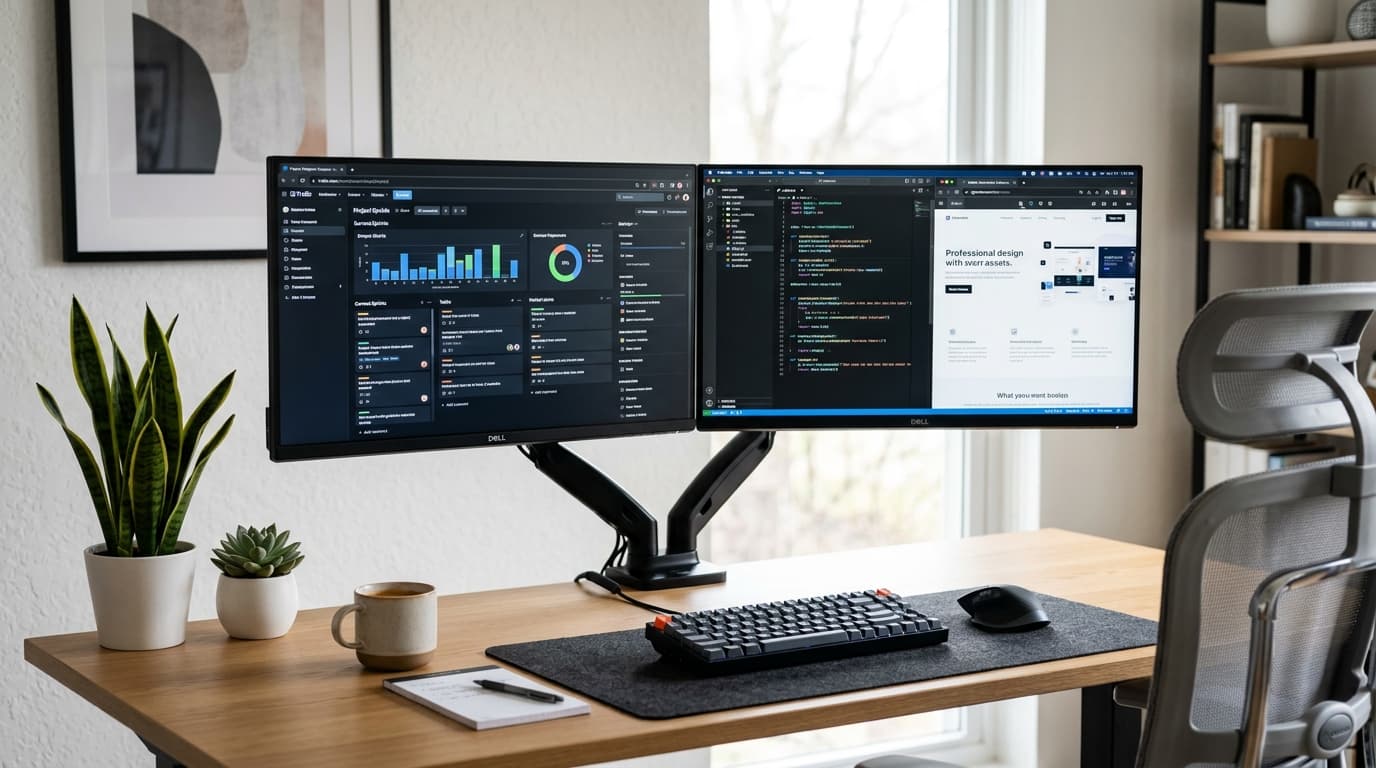
| Buying a new monitor anyway | Monitor with a built-in KVM | The KVM and the dock are inside the screen | How many computers it takes |
The hybrid rows exist because the two-machine desk usually includes a laptop that needs power. AV Access's KVM dock spec page lists USB-C power delivery alongside two-computer switching, which a plain KVM leaves out.
What fits each row from our catalog:
- One laptop, full desk: the CalDigit TS4, or the Amazon Basics Thunderbolt 4 Pro Docking Station on a tighter budget (currently unavailable on Amazon).
- One laptop, light desk: the Anker 555 USB-C Hub (8-in-1), a hub rather than a full dock.
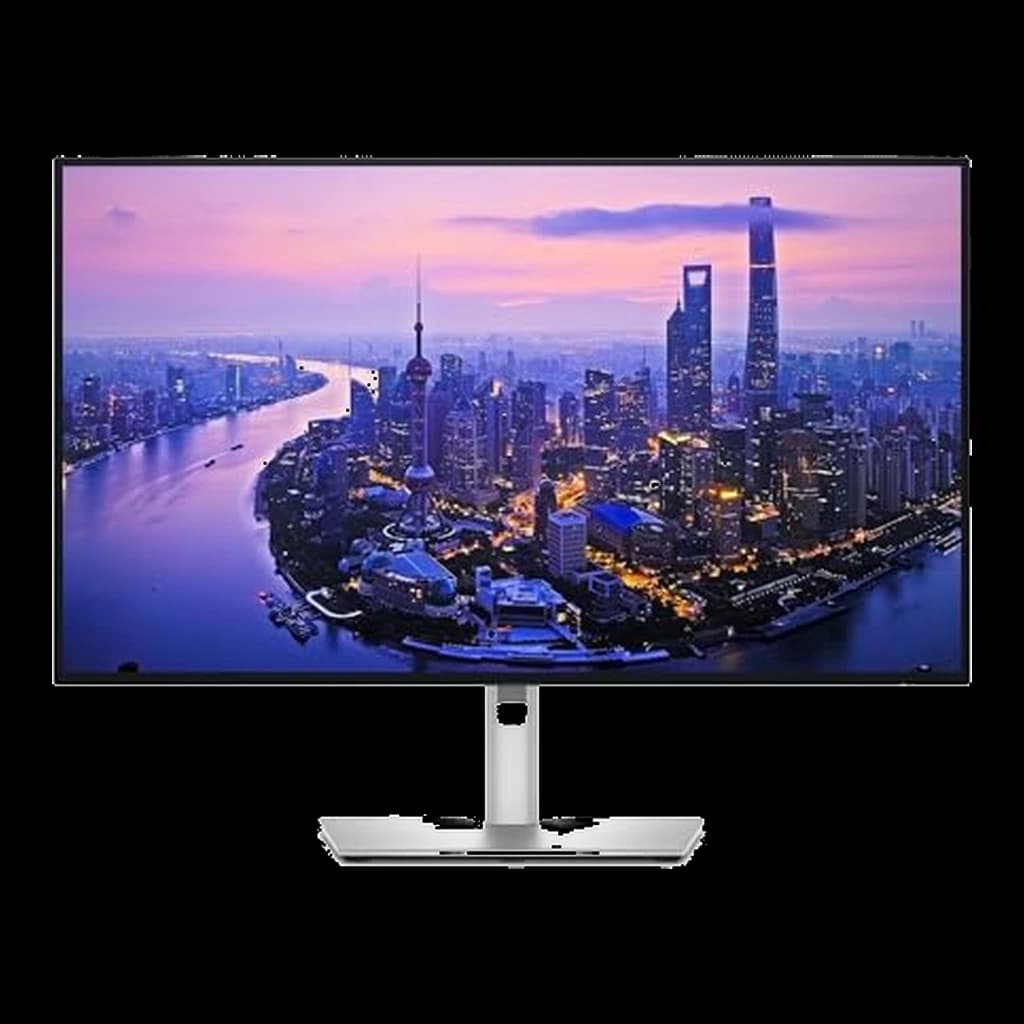
- Two computers, new monitor: the Dell UltraSharp U2725QE, the Dell U2724DE UltraSharp or the Dell UltraSharp U3425WE ultrawide. Dell lists a built-in KVM switch on all three.
- Plain KVM switch or KVM dock: none in our catalog yet, so use the last column above as your checklist.
Four traps the product page won't flag
1. Your windows jump around every time you switch
Every monitor sends the computer a small identity file called EDID. TESmart, a KVM maker, explains that when a basic KVM cuts that signal, the inactive computer decides the monitor was unplugged and reshuffles the desktop. EDID emulation keeps presenting the monitor's identity so the inactive computer still sees a connected display.
Look for: "EDID emulation" by name on the spec sheet. AV Access lists it on its KVM dock specifically to prevent flicker and icon rearrangement when switching.
2. Your laptop has one video output
A dual-monitor KVM doesn't create a second display. It passes through two that each computer already sends. UGREEN's two-monitor HDMI KVM page says each computer must connect two HDMI cables plus one USB-A cable, and that both monitors show one computer at a time. Count your laptop's display outputs before you buy, not after. If you're short, our dual monitor setup guide covers the options.
3. The KVM doesn't charge your laptop
A standard HDMI or DisplayPort KVM connects each computer by video cables and a USB-A cable, and that cabling carries video and data, not laptop charging. If the spec sheet doesn't state a power delivery wattage, plan on keeping the laptop's own charger plugged in, or buy a KVM dock that lists one. Our USB-C cable guide explains why the cable matters as much as the port.
4. Your webcam and headset switch too
Whatever plugs into the KVM's USB ports follows the switch. Dell's KVM setup guide describes the USB upstream cables as what lets each computer see the keyboard and mouse on the monitor. Anything else on those ports moves the same way.
Do this:
- Plug the webcam and USB headset into the KVM if you take calls on both machines.
- Test a call on each computer after the first switch.
Not that:
- Don't switch mid-meeting: the camera and mic drop off the call with the keyboard.
- Don't route a work-only webcam through the KVM. Plug it straight into the work laptop.
Company laptop? Your employer's IT policy may limit which USB devices a managed machine accepts. Check with IT before you buy, not after the first failed login.
The third option: a monitor that does both
If you need a new monitor anyway, a KVM monitor removes a box. The U2725QE is the clearest example. Dell's spec page lists a Thunderbolt 4 input with up to 140W of laptop charging, a separate USB-C KVM upstream port, HDMI and DisplayPort inputs, and 2.5GbE. In practice the work laptop docks over one Thunderbolt cable while the desktop connects by HDMI or DisplayPort plus its own USB cable.
Dell's guide sets it up in four steps:
- Connect both computers for video: one by USB-C, the other by HDMI or DisplayPort.
- Connect a USB upstream cable from each computer to the monitor.
- Plug the keyboard and mouse into the monitor's USB-A ports.
- Open Dell Display and Peripheral Manager, go to Input Manager and run the KVM Wizard, then assign a switching shortcut.
Dell notes most of its KVM monitors take two computers, and a few, such as the U4323QE, take four. The U2724DE's spec page adds Auto KVM, which hands control to the most recently connected PC. With one computer, skip the KVM and start with our docking station picks.
Common questions
Can a docking station connect two computers?
Not at the same time. A standard dock serves one host. CalDigit's TS4 reserves one Thunderbolt port for the host computer. To share a desk between two machines, you need KVM switching somewhere: in a switch, a KVM dock or the monitor.
Do I really need EDID emulation?
If you use one monitor and don't mind windows moving, you can live without it. With two monitors, or apps you keep in fixed positions, it's the feature that makes switching feel instant instead of messy.
Does a KVM switch work with a MacBook?
Usually, for switching itself. UGREEN lists Windows, Linux and macOS support for its dual-monitor HDMI KVM. The catch is dual monitors over one USB-C cable: AV Access notes macOS doesn't support USB-C MST, so both screens show the same content.
Hilly Shore Labs
Editorial TeamWFH Lounge is published by Hilly Shore Labs. Every recommendation is built by synthesizing ergonomic research, manufacturer specs, expert reviews from outlets like Wirecutter, RTINGS, and The Verge, and aggregated long-term owner sentiment from thousands of verified buyers.
All product reviews are independently researched. Our recommendations are based on ergonomic guidelines, manufacturer specifications, and verified buyer sentiment. See our methodology.