Why Is My Monitor Pink? Cable, Settings, or a Dying Panel
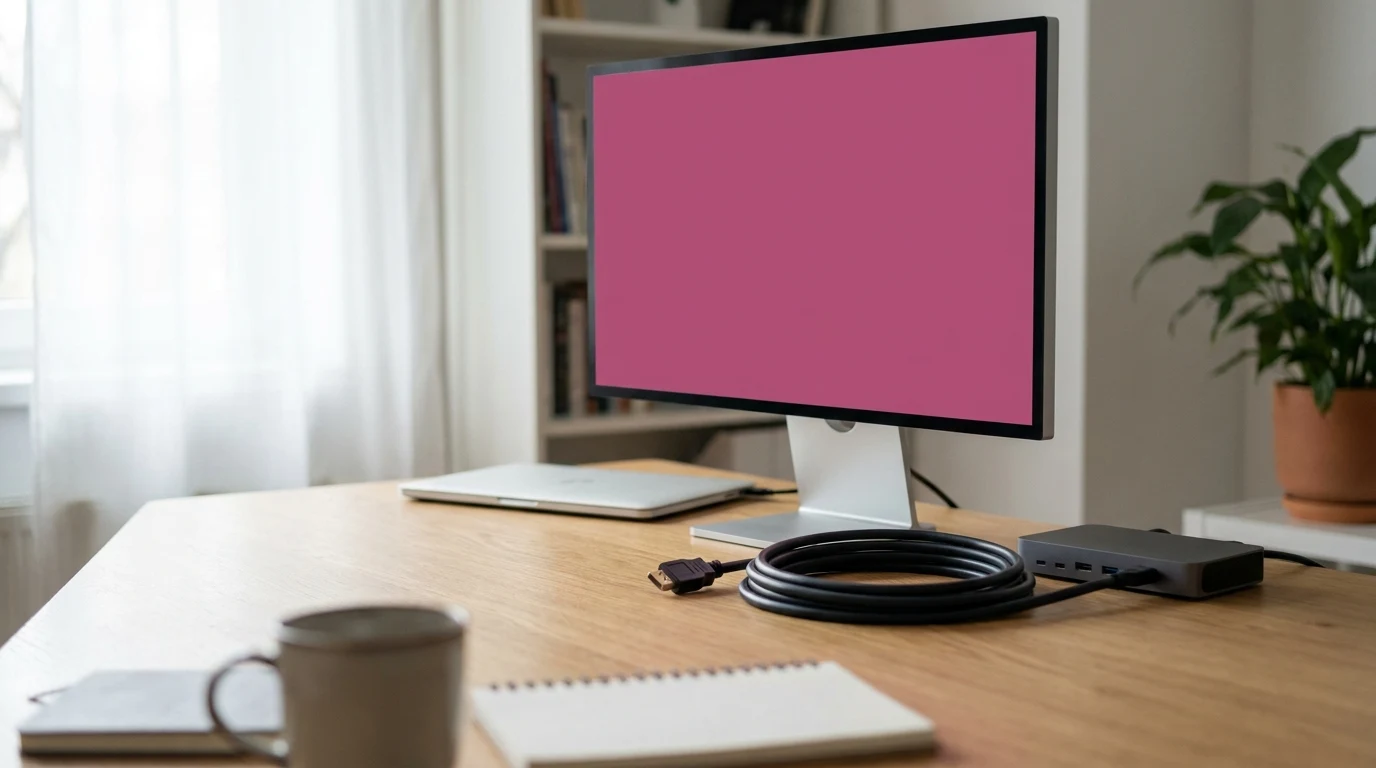
Most pink screens are worth an hour of elimination before a new monitor. Swap the cable and remove the dock, reset the color settings a desk setup changes quietly, then let the monitor's built-in self-test decide. If the tint shows up with the cable unplugged, stop troubleshooting and contact the manufacturer.
Quick Answer
Start with the cable: power off, reseat both ends, then try a known-good cable connected straight to the computer with no dock or adapter. If it is still pink, switch off Windows color filters, Night light and HDR, and reset your graphics driver's color format and the monitor's color preset. Then open the monitor's own menu or run its built-in self-test with the video cable unplugged. A clean self-test means the problem is upstream. A pink one means the fault is inside the monitor.
Key Takeaways
A pink monitor is usually a cable, a dock or a color setting, not a dead panel. Test in this order, then run the self-test that tells you which it is.
As an Amazon Associate I earn from qualifying purchases. Product prices and availability are subject to change.
A pink screen feels like a dead monitor. Usually it isn't — at least not yet. Dell's own troubleshooting lists poor-quality cables, loose connections and outdated drivers as causes of strange or washed-out color, and every one of those is cheaper than a new screen.
Work in order: the cable, then the settings a desk setup changes behind your back, then a test that asks the monitor itself. Change one thing at a time so you know what fixed it.
Before you touch anything: photograph the screen with your phone and note what changed recently — a moved desk, a new dock, a driver update, HDR switched on. Those details point to the first test.
Step 1: Reseat and swap the cable
Dell's video walkthrough for resolving display issues runs the physical check in this order:
- Turn off the computer and the monitor.
- Unplug the video cable at both ends.
- Look for damage on the ports of both devices and along the cable itself.
- If nothing looks wrong, reconnect firmly. If you have a second video cable, use that instead.
- Power back on and check the color.
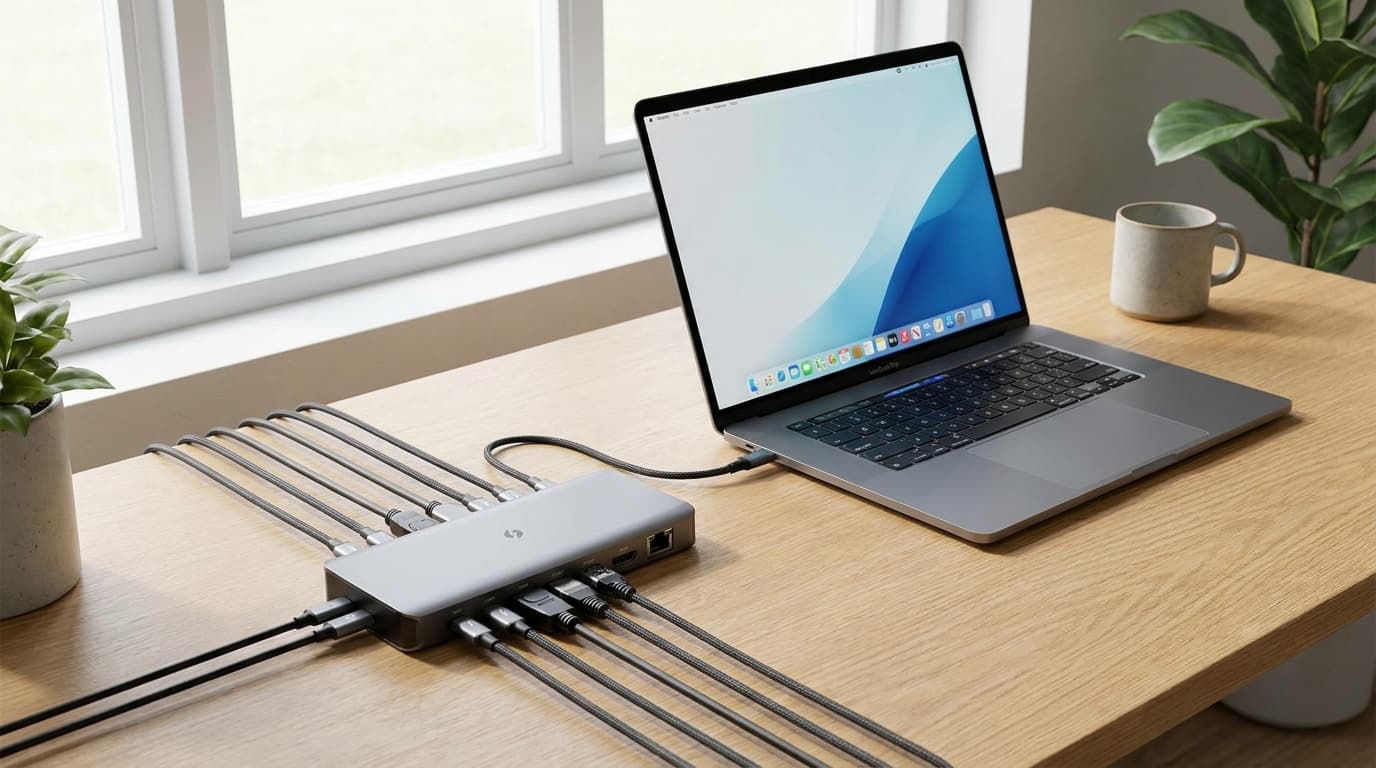
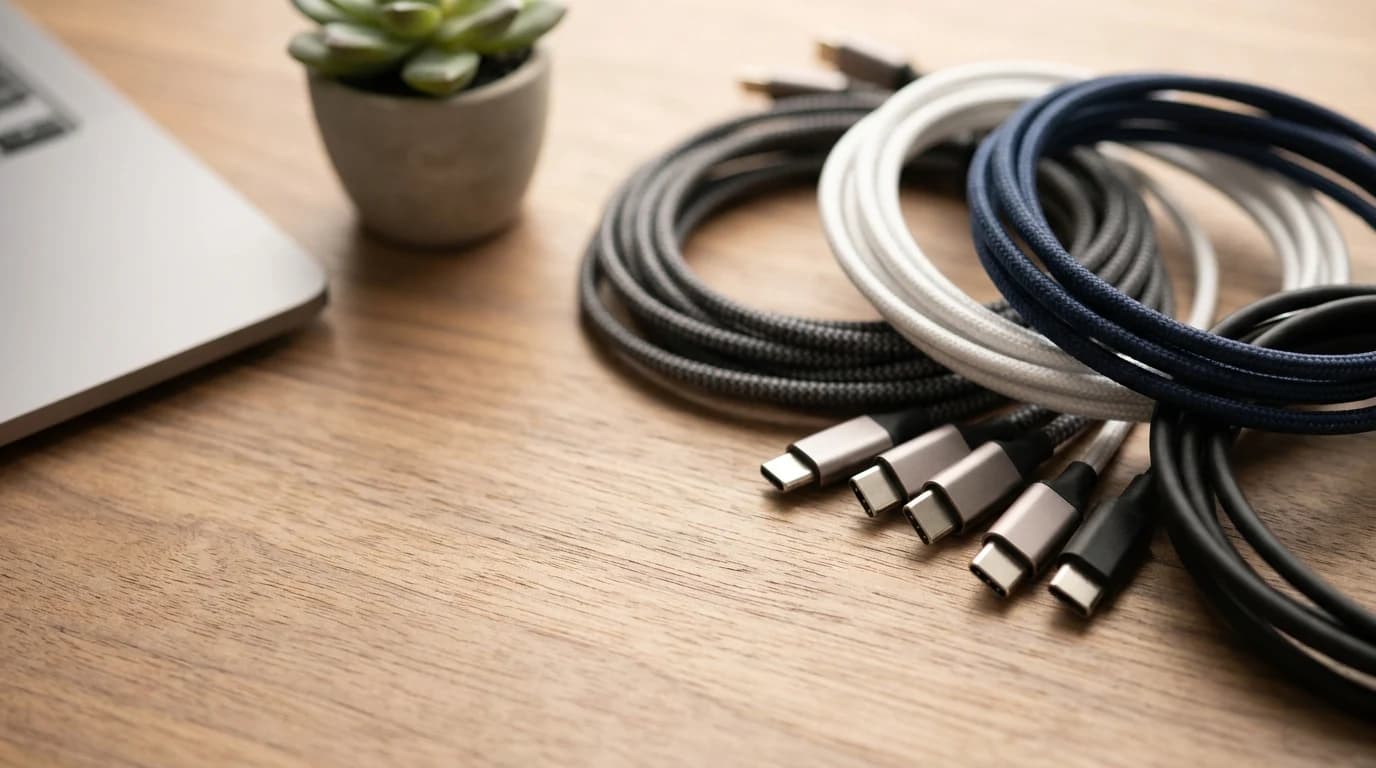
Then trace the whole route. A laptop feeding a dock, then an adapter, then a cable has three suspects, and swapping only the cable leaves two untested. For a diagnostic run, connect the computer directly to the monitor. This matters for settings too: AMD's pixel-format control only supports direct DisplayPort or HDMI connections, with adapters and converters excluded. If USB-C video is involved, a cable that charges fine can still be the wrong spec. Our USB-C cable spec guide shows how to read the markings.
Step 2: Check the settings a desk setup changes quietly
If a known-good direct cable doesn't fix it, look at color settings before reinstalling anything. Write down each current value first, so you are resetting rather than compensating.
| Setting | Where to find it | Why it can tint the screen | Test with |
|---|---|---|---|
| Color filters | Windows: Settings > Accessibility > Color filters | Microsoft says filters change the color palette on the screen | Switch off |
| Night light | Settings > System > Display > Night light | Shows warmer colors, often on a sunset schedule | Turn off now |
| HDR | Settings > System > Display > HDR | Some HDR displays don't reproduce desktop sRGB colors correctly | Turn HDR off |
| NVIDIA color format and range | NVIDIA Control Panel > Display > Change Resolution | RGB or YCbCr, and full range on a monitor that can't show it can make colors wrong | Revert to default |
| AMD Pixel Format | AMD Software > Display | RGB and YCbCr options; some content may look washed out depending on the monitor's picture mode | Try an RGB 4:4:4 option |
| Intel Quantization Range | Intel Graphics Software > Display | Limited (16–235) vs Full (0–255); Intel recommends Full | Set to Full |
| Monitor presets | The monitor's own menu | Custom color modes change red, green and blue gain | Reset color settings |
If the pink only arrives in the evening, check the Night light schedule first. On HDR displays, Microsoft notes Night light can add a red tint that scales with its Strength slider.
On the monitor side, Dell's pink or green tint article for one of its models works through preset modes, custom color gain, and finally a factory reset. Menus differ, so follow your model's manual.
Don't calibrate around a fault: turning red down until white looks white hides the symptom. If the cause is a cable or a failing board, the tint comes back, and your photos look wrong in the meantime.
Step 3: Ask the monitor, not the computer
Open the monitor's on-screen menu. The menu comes from the monitor, not your computer, so a pink menu over a pink desktop is a strong hint that the problem is inside the display. A clean menu over a tinted desktop points back at the signal or settings.
A built-in self-test settles it. Dell's version of the quick self-test goes:
- Turn off the monitor.
- Disconnect the video cable from the monitor.
- Turn the monitor on and look at the self-test screen.
For color faults, Dell points to the fuller built-in diagnostics in each model's user guide: if the fault appears during the test, contact support; if not, go back to cables, drivers and settings. Other brands use different button sequences, so check your manual.
What each result tells you, and what it doesn't prove
| What you see | Next test | What it suggests | What it doesn't prove |
|---|---|---|---|
| Whole desktop pink, monitor menu looks normal | Direct connection with a known-good cable | Signal path or a setting | That the old cable is bad, since a setting can do the same |
| Pink only in one app or video | Turn HDR off; play it in another app | Color handling for that content | A hardware fault |
| Pink only through the dock | Same cable, straight to the laptop | The dock path: hardware, firmware or an unsupported mode | That the dock itself is broken |
| Menu or self-test pattern is pink with the cable unplugged | Contact the manufacturer | A fault inside the monitor | Which part failed |
| One computer is pink on every screen, others look fine here | That computer's color settings, driver and port | The computer side | That its graphics hardware is failing |
| Tint disappears, then returns after sleep | Repeat the sleep cycle after each change | A condition-dependent fault | A fix, until it survives the trigger |
When to replace the cable, dock or monitor
Stop when the evidence is enough to act:
- A new cable fixes it every time. Replace the cable, and match it to the resolution and refresh rate you run.
- Only the dock path is pink. Install the dock maker's own firmware and drivers first. If a direct connection stays clean and the dock still tints, compare replacements in our docking station guide. The CalDigit TS4 is the dock we rank first.
- The self-test fails. Check the warranty and contact the manufacturer with your photos and the list of tests you ran. Don't open the monitor.
If an out-of-warranty monitor needs replacing, start with our best monitors for working from home. The Dell S2725QC is our pick for most desks, and the LG 27U631A-B is the budget option.
FAQ
Can a bad HDMI or DisplayPort cable make a monitor pink?
It can contribute. Dell lists poor-quality cables and loose connections among the causes of color distortion, and swapping to a known-good cable is the cheapest test.
Why does my screen turn pink only in the evening?
Check Night light. Windows can schedule it to switch on from sunset to sunrise, warming the whole screen.
My monitor turned pink after I switched on HDR. Is it broken?
Not necessarily. Microsoft notes that some HDR displays don't reproduce desktop sRGB colors correctly. Turn HDR off. If the color returns to normal, the monitor isn't broken.
Sources
- Dell — Computer Turns On But No Display: Troubleshoot Display Problems
- Dell — How to Resolve Display Issues (video)
- Dell — How to Run a Diagnostic Test on a Dell Monitor
- Dell — Dell U2410 Monitor Has a Pink or Green Tint
- Microsoft Support — Use color filters in Windows
- Microsoft Support — Change display brightness and color in Windows
- Microsoft Support — HDR settings in Windows
- NVIDIA Control Panel Help — To change the RGB dynamic range
- AMD — Adjust Pixel Format Settings with AMD Software: Adrenalin Edition
- Intel — Quantization Range Option in Intel Graphics Software
Hilly Shore Labs
Editorial TeamWFH Lounge is published by Hilly Shore Labs. Every recommendation is built by synthesizing ergonomic research, manufacturer specs, expert reviews from outlets like Wirecutter, RTINGS, and The Verge, and aggregated long-term owner sentiment from thousands of verified buyers.
All product reviews are independently researched. Our recommendations are based on ergonomic guidelines, manufacturer specifications, and verified buyer sentiment. See our methodology.