Second Monitor Not Detected? Find the Failing Layer First
Don't work through a random list of fixes. Find the failing layer first. If the monitor's self-test shows a picture, the panel is fine. If it works direct but not through the dock, suspect the dock or its DisplayLink software. If it is listed but stays black, check your computer's display limit before buying another cable.
Quick Answer
Check three things first: whether the monitor's own menu opens, whether Windows or macOS lists the display, and whether it works plugged straight into the laptop without a dock. Those answers point to the monitor, the cable or input, the dock, or the computer. Then force a re-scan: Detect in Windows display settings, or Option-click Detect Displays on a Mac. Also check that your computer supports that many screens, because base M1 and M2 MacBook Airs drive only one external display.
Key Takeaways
A second monitor that isn't detected fails at one of four layers. Three quick checks show which, plus the Mac display limits and DisplayLink traps.
As an Amazon Associate I earn from qualifying purchases. Product prices and availability are subject to change.
A monitor that isn't detected has failed at one of four layers: the monitor itself, the cable and dock between you, the computer's own limits, or the operating system. Three quick observations usually name the layer, and then only one section below applies to you.
The three observations
- Does the monitor's own menu open? Press its buttons. If its settings menu or self-test appears, the panel and its power are fine.
- Does your computer list it? Windows: Settings > System > Display. Mac: System Settings > Displays. Listed-but-black and not-listed-at-all are different faults.
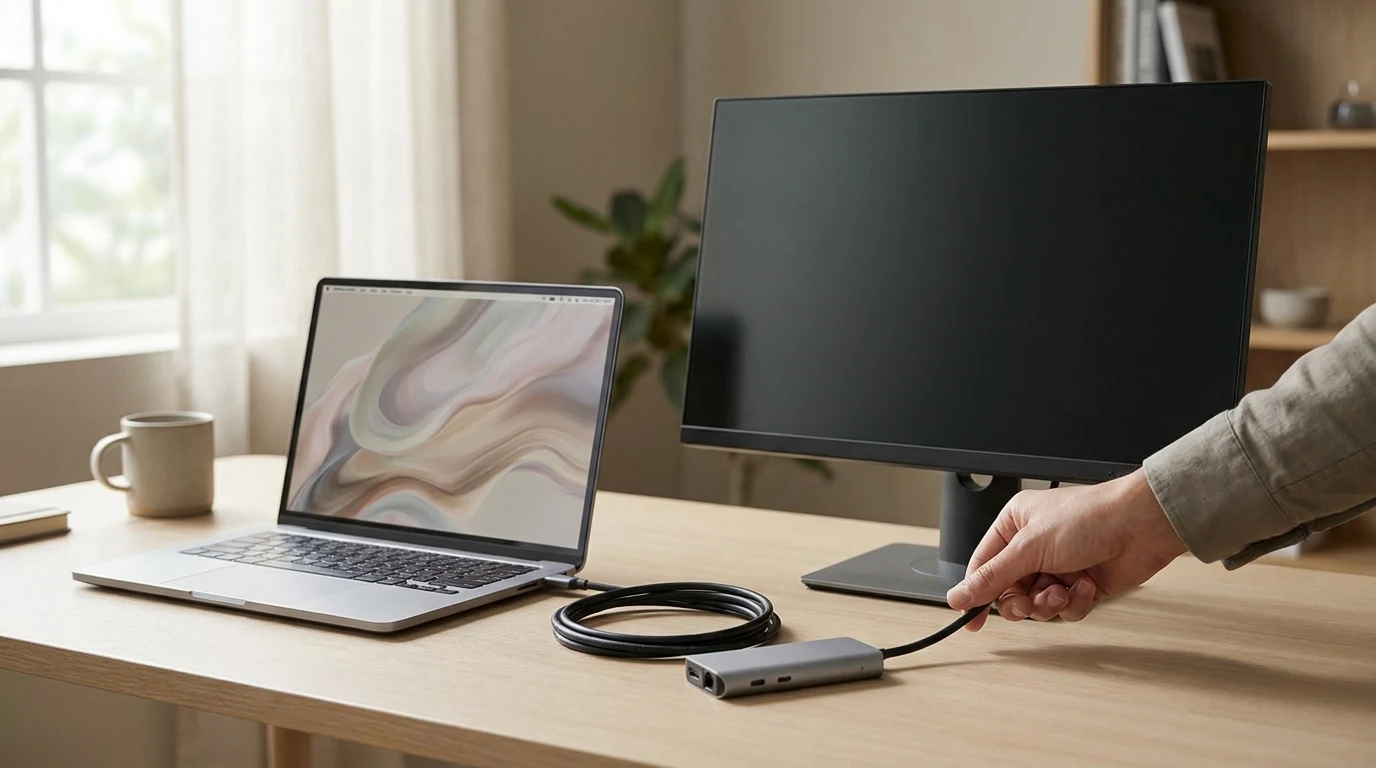
- Does it work plugged straight in? Unplug the dock or adapter and connect the monitor directly to the laptop with a cable you know carries video.
Read your answers off this table
| Menu opens? | Listed by the OS? | Works direct? | The failing layer | Jump to |
|---|---|---|---|---|
| No | No | No | The monitor or its power | The monitor itself |
| Yes | No | No | Input setting, cable or port | The connection |
| Yes | No | Yes | The dock or adapter | Docks and DisplayLink |
| Yes | Yes, but black | Either | Display mode, permission or count limit | Your computer's limit, or the OS |
| Yes | Worked yesterday, not today | Either | Driver, update or sleep state | Make the OS look again |
Rule of thumb: "not listed" points down the chain toward the monitor; "listed but black" points up it, toward the computer.
Layer 1: the monitor itself
If the menu won't open, check the power brick and strip, then run the monitor's built-in self-test. Dell's multi-monitor troubleshooter notes that its BIST self-test runs only with the video cable unplugged, which is what makes it useful: a self-test that shows a picture clears the panel completely.
- Self-test shows a picture: the monitor is fine.
- Self-test stays dark: contact the manufacturer.
- Menu works, says "No signal": go to Layer 2.
Layer 2: the connection
Dell lists a wrong input source among the common causes, and it is the quickest to rule out.
Isolate the connection in this order
- Select the correct input (HDMI 1, HDMI 2, DisplayPort, USB-C) in the monitor's menu.
- Reseat the cable at both ends. Dell's first check is that it is firmly seated at both ends.
- Swap in a cable you know carries video. A USB-C cable that charges your phone may have no video lanes at all; our USB-C cable spec guide explains how to tell.
- Try another port. Not every USB-C port carries video; look for a DisplayPort or Thunderbolt mark.
- Try the monitor on a second computer, or a second monitor on yours. Whichever fails twice is your answer.
Docks and DisplayLink: software you might not have
If the monitor works direct but not through the dock, check the dock's video technology. Some docks and adapters use DisplayLink, which sends video over USB through a driver rather than the computer's own display output.
Plugable's DisplayLink adapter page states the requirements plainly. DisplayLink must be installed manually on macOS (typically automatic on Windows), and macOS users must also allow Screen Recording permission for it to work. Its setup notes add two traps that look exactly like "not detected":
- At the login screen: the DisplayLink Manager app is not running yet, so DisplayLink screens stay dark until you log in, unless you install its optional login screen extension.
- After a macOS update: Plugable's fix for displays that stopped working is to reinstall the latest DisplayLink Manager.
Watch for this: a DisplayLink screen that is black at boot and fine after you log in is behaving as designed, not failing.
Not DisplayLink? Check the dock's compatibility table for your laptop and OS; our docking station guide covers what each type can drive.
Layer 3: your computer's limit
Apple's external-display troubleshooter says an external display will be dark if it exceeds the maximum number of external displays your Mac can use at the same time, and that this limit varies by Mac model. On the base MacBook Air, Apple's own spec pages show how much it varies:
| MacBook Air | External displays, lid open | With the lid closed |
|---|---|---|
| M1, 2020 | One | Not stated |
| M2, 2022 | One | Not stated |
| M3 13-inch, 2024 | One | A second, up to 5K at 60Hz |
| M4 13-inch, 2025 | Two, up to 6K at 60Hz | Not stated |
So on an M1 or M2 Air, a second external monitor stays dark however good the cable is. The native options are a Mac that supports more screens or, on an M3 Air, closing the lid. Plugable markets its DisplayLink adapters as a way past this limit, with the software trade-offs above.
Windows PCs have limits too: Dell says to confirm in your manual that it supports that many simultaneous displays.
Layer 4: make the operating system look again
If everything above checks out, make the computer re-scan.
Windows 11
- Press Windows key + P and confirm you're not on "PC screen only". Microsoft's multi-monitor guide lists Extend, Duplicate and Second screen only as the other choices.
- Go to Settings > System > Display > Multiple displays and select Detect.
- Press Windows logo key + Ctrl + Shift + B. Microsoft's display troubleshooter says this resets the graphics driver; the screen will blink.
- Install pending Windows updates and restart. Dell adds graphics, chipset and BIOS updates for a monitor that used to work.
Mac
- Unplug the display from the Mac and from power, then reconnect it.
- Sleep and wake the Mac. On a laptop, close the lid for a few seconds and open it again.
- Open System Settings > Displays, hold the Option key, and click Detect Displays.
- Watch for a prompt to allow the accessory to connect. Apple says Apple silicon laptops can ask this, and if you don't allow it, the display stays dark.
Once it appears, our dual-monitor setup guide covers arrangement; if it looks soft, see why an external monitor looks blurry.
Quick questions
Why does my second monitor say "No signal"?
The monitor works but gets nothing on the input it is watching. Pick the right input, then work through the connection steps.
Can an HDMI splitter run a second monitor?
It will mirror, not extend. Read why an HDMI splitter won't extend two monitors for the options that do.
My monitor worked yesterday. What changed?
Usually a driver, update or sleep state. Run the Layer 4 steps; on a DisplayLink dock, reinstall its software after a macOS update.
Hilly Shore Labs
Editorial TeamWFH Lounge is published by Hilly Shore Labs. Every recommendation is built by synthesizing ergonomic research, manufacturer specs, expert reviews from outlets like Wirecutter, RTINGS, and The Verge, and aggregated long-term owner sentiment from thousands of verified buyers.
All product reviews are independently researched. Our recommendations are based on ergonomic guidelines, manufacturer specifications, and verified buyer sentiment. See our methodology.