Why Is My Monitor Flickering? Find the Cause in 5 Minutes
Most flicker is fixable in minutes once you name the pattern. Run the Task Manager test first, then rule out the cable chain by going direct. Switch off VRR for game-only flicker and power saving for battery-only flicker. If the monitor's own self-test flickers, stop and contact the manufacturer. If it is PWM, no setting fixes it, and a flicker-free monitor does.
Quick Answer
Sort the flicker by what it looks like. If the whole screen blinks black, test the cable, adapter and dock by connecting directly with a different cable. If only some apps flicker, open Task Manager: Microsoft says a steady Task Manager points to an app and a flickering one points to the display driver. Flicker only in games or dark scenes points to G-Sync or FreeSync, a laptop that flickers only on battery points to Panel Self Refresh, and a shimmer that worsens as you dim the screen is PWM backlight dimming.
Key Takeaways
Monitor flicker is four different faults: a weak signal chain, PWM dimming, variable refresh rate or a driver. Match what you see to one fast test.
As an Amazon Associate I earn from qualifying purchases. Product prices and availability are subject to change.
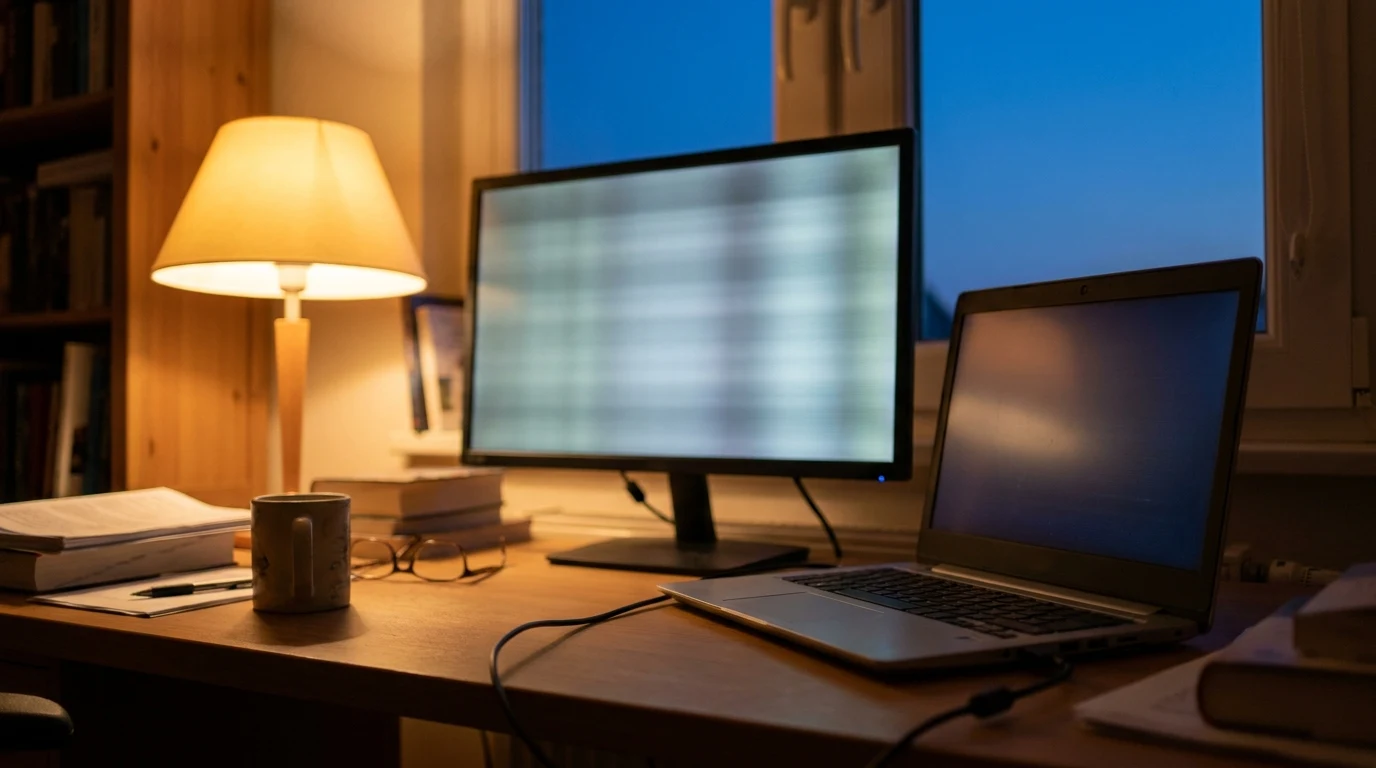
"Flicker" is really four different faults that happen to look alike, and each one leaves a different tell. If the whole screen blinks black, suspect the signal chain. A shimmer that gets worse as you dim the screen is usually the backlight design. Flicker only in games or dark scenes points to variable refresh rate. If just one app or window misbehaves, it's software. Name the pattern first, then run the one test that matches it.
Before you touch anything: watch for a minute and write down three things. Is it the whole screen or part of it? Does it happen everywhere, or only in one app, one game or on battery? Did anything change recently: a new cable, dock, driver or Windows update?
What does your flicker look like?
Find your row, run the test, and skip the sections that don't apply.
| What you see | Likely cause | 60-second test | Fix |
|---|---|---|---|
| Only some apps or windows flicker, not Task Manager | An incompatible app | Open Task Manager and watch it | Update or uninstall the app |
| Everything flickers, Task Manager included | Display driver | Press Windows + Ctrl + Shift + B | Roll back, update or reinstall the driver |
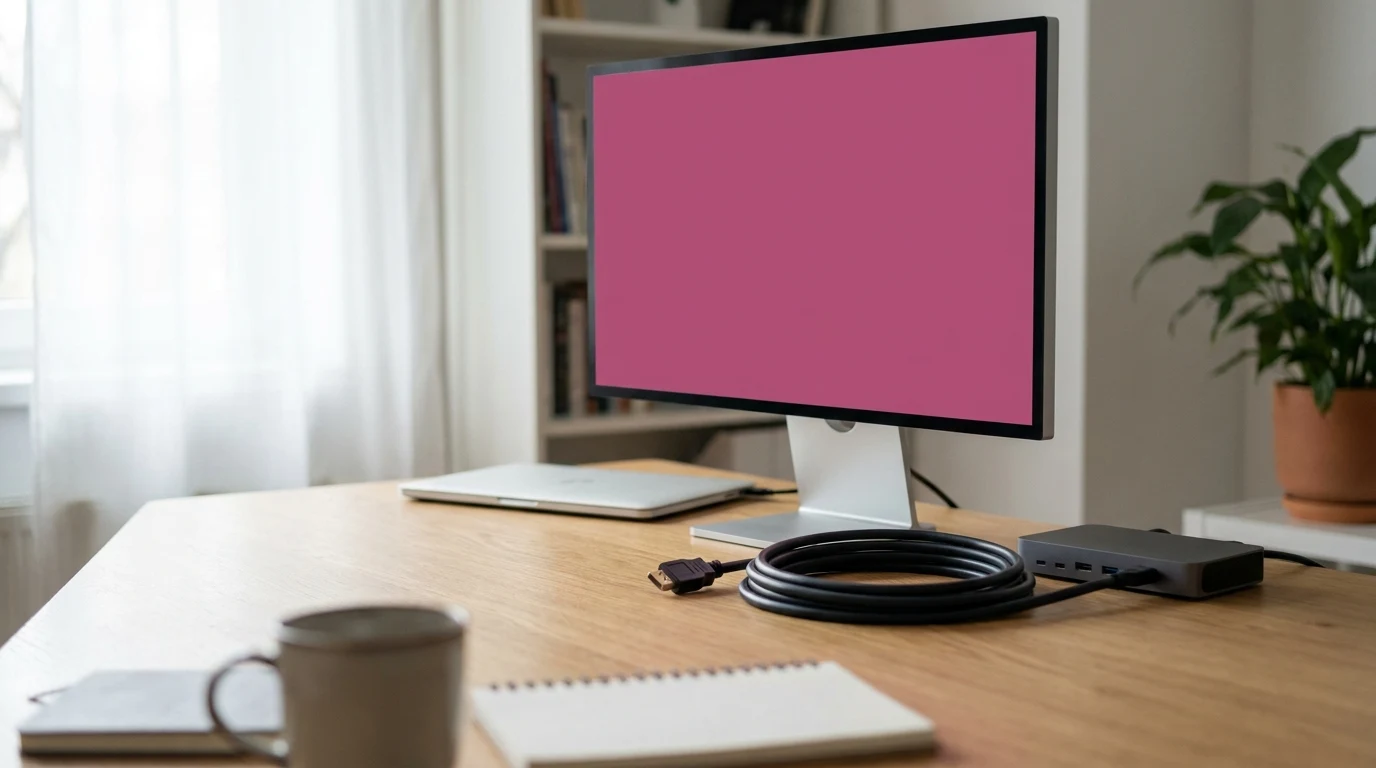
| Whole screen blinks black or drops out | Cable, adapter, dock or a refresh rate the chain can't carry | Connect directly with a different cable, no adapter | Replace the weak link, or lower the refresh rate |
| Flicker only in games, video or dark scenes | Variable refresh rate (G-Sync or FreeSync) | Switch VRR off and replay the same scene | Keep VRR off, or use a certified pairing |
| Laptop screen flickers only on battery | Power-saving display features | Plug in and set full power | Turn off Panel Self Refresh |
| Constant shimmer, worse at low brightness | PWM backlight dimming | Raise brightness and see if it eases | A flicker-free monitor |
Some of the screen flickers, some doesn't
This splits software from everything else. Microsoft's flicker troubleshooter says flicker in Windows is usually a display driver or an incompatible app, and its test is simple:
- Press Ctrl + Alt + Delete and open Task Manager (or press Ctrl + Shift + Esc).
- Watch Task Manager itself.
- If Task Manager flickers along with everything else, Microsoft says the display driver is the likely cause.
- If Task Manager stays steady while the rest flickers, an incompatible app is the likely cause.
For a driver problem, Microsoft's first move is resetting the graphics driver with Windows + Ctrl + Shift + B, then a restart if that doesn't help. Dell's display troubleshooting page warns that the screen will flash briefly when you do it, and that's normal.
If a Windows update landed recently: Microsoft says roll the display driver back in Device Manager rather than updating it. Otherwise, update or uninstall it.
The whole screen blinks black for a second
A full-screen dropout is the signal failing between the computer and the panel. Dell's flicker guide puts it plainly: a defective cable can break the signal in transit. It also flags running a panel above its rated refresh rate, which happens when a monitor's Overclock feature is switched on.
Every link in the chain is a suspect, not just the cable:
- The cable: worn, loose, or not rated for the resolution and refresh rate you're asking of it.
- Adapters and dongles: Intel's flicker checklist says to try different cables and monitors without adapters.
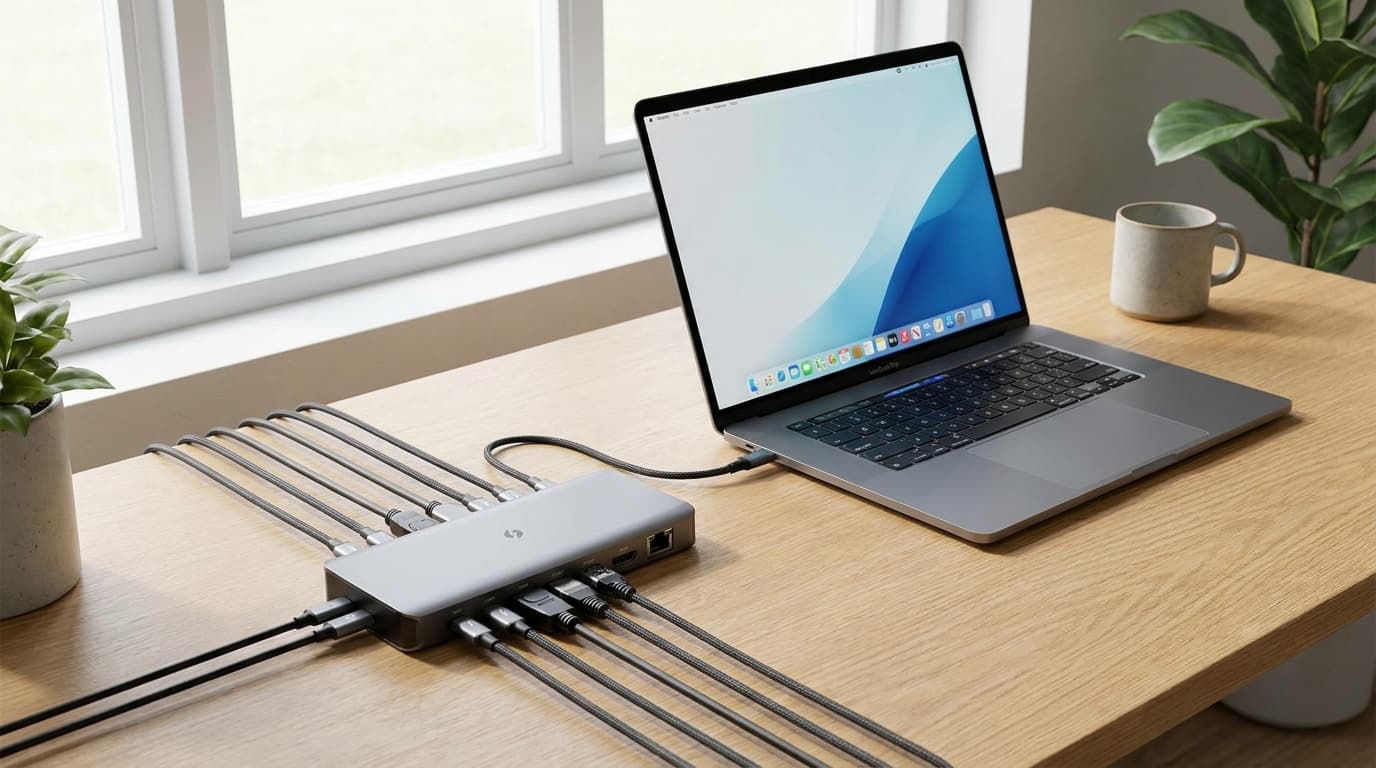
- The dock: a dock sharing its bandwidth across two screens can fall over at high refresh rates. Compare yours against the ones in our docking station guide.
- USB-C video: a cable that charges fine can still be the wrong spec for video. Our USB-C cable spec guide shows how to read the markings.
- The refresh rate: Intel's checklist also suggests lowering the refresh rate one step, and lowering the resolution one step.
The fast test: connect the monitor straight to the computer with a different cable. If the blinking stops, rebuild the chain one piece at a time until it returns.
Don't forget the power strip: Dell notes that electromagnetic fields can cause flicker. If something else shares the monitor's power strip, unplug it and watch.
It shimmers, and it's worse when you dim it
If nothing blinks but the screen feels tiring, especially at low brightness, the panel may be working as designed. BenQ explains that monitors without flicker-free technology dim with pulse width modulation (PWM), which switches the backlight on and off rapidly to set brightness. Flicker-free models use DC dimming instead.
No cable or driver changes that, so the fix is a buying decision. Our guide to monitors for eye strain covers what to look for in a spec sheet. Until then, the WFH eye-strain settings can make it easier to live with.
It flickers only in games, video or dark scenes
This usually points to variable refresh rate (VRR): G-Sync on NVIDIA, FreeSync on AMD. Dell says flicker can occur when G-Sync is on but the monitor isn't G-Sync Compatible. For several of its VA-panel gaming monitors, Dell calls flicker expected with G-Sync enabled.
NVIDIA is equally frank. For an Adaptive-Sync monitor that isn't on its compatible list, the company says enabling VRR manually may work partly or not at all. What to try, in order:
- Turn G-Sync or FreeSync off and replay the same scene. If the flicker stops, you've found it.
- Dell's fix is to leave G-Sync off, or run FreeSync with an AMD graphics card.
- Turn off the monitor's Overclock, and its motion-blur reduction mode (Dell names MPRT and ULMB) if it has one.
- Make sure the monitor's DisplayPort mode is 1.2 or higher. NVIDIA says Adaptive-Sync needs it, and some monitors ship set to 1.1.
A laptop that flickers only on battery
If the built-in screen is steady on the charger and flickers when you unplug, suspect power saving. Intel's checklist says to put the system on full power and, on laptops, to disable Panel Self Refresh. Intel describes that feature as letting the panel refresh independently to save power, and gives these steps:
- Open Intel Graphics Command Center from the Start menu.
- Select System, then the Power tab.
- Find Panel Self Refresh and switch it off.
The option only appears on some laptops, so if it's missing, full power is your test.
When it's the monitor itself
If nothing above explains it, ask the monitor. Dell's guide says to run the monitor's built-in self-test, and if it passes, the problem isn't the monitor. Look at the computer instead: BIOS, graphics card, drivers. Intel suggests the same kind of check, watching whether the flicker also shows up in the BIOS, before Windows loads.
- Self-test flickers too: the fault is in the monitor. Contact the manufacturer.
- Self-test is clean, BIOS flickers: hardware between the panel and the graphics output.
- Self-test and BIOS are clean, Windows flickers: go back to the Task Manager fork.
If your flicker comes with a color cast, our pink monitor guide covers that fault. For soft text instead, see external monitor blurry fixes.
Quick questions
Why does my second monitor flicker but not my laptop screen?
The external monitor depends on a cable, a port and often a dock or adapter; the laptop panel doesn't. Test that chain first. If you use an HDMI splitter to run two screens, read why a splitter won't extend two monitors.
Can a Windows update cause screen flickering?
Yes. Microsoft's guidance is to roll back the display driver if Windows Update recently changed it, and to update or reinstall it otherwise.
Is monitor flicker bad for my eyes?
BenQ links PWM flicker to eye fatigue, headaches and blurred vision. A flicker-free backlight is the long-term fix.
Hilly Shore Labs
Editorial TeamWFH Lounge is published by Hilly Shore Labs. Every recommendation is built by synthesizing ergonomic research, manufacturer specs, expert reviews from outlets like Wirecutter, RTINGS, and The Verge, and aggregated long-term owner sentiment from thousands of verified buyers.
All product reviews are independently researched. Our recommendations are based on ergonomic guidelines, manufacturer specifications, and verified buyer sentiment. See our methodology.